¶ Create Forms With the Template Library
Create Forms With the Template Library
Welcome to our guide on how to create forms using the Template Library. This feature allows you to save time by using pre-designed and customizable templates, making form creation a breeze. In this guide, we will walk you through the step-by-step process of creating forms using the Template Library.
¶ Why Use the Template Library in Surveys
- Ease of Adoption: Quickly get started with ready-to-use templates instead of creating surveys from scratch.
- Time Efficiency: Utilize pre-designed, reusable elements and components to save time and streamline the integration process.
- Personalization and Customization: Although templates offer a standardized foundation, they can be tailored with personalized details such as names, specific choices, or custom messages to meet individual customer needs.
- Consistent Branding: Maintain uniform branding across all customer interactions with templates that fit various business categories and include relevant tags.
Accessing the Template Library:
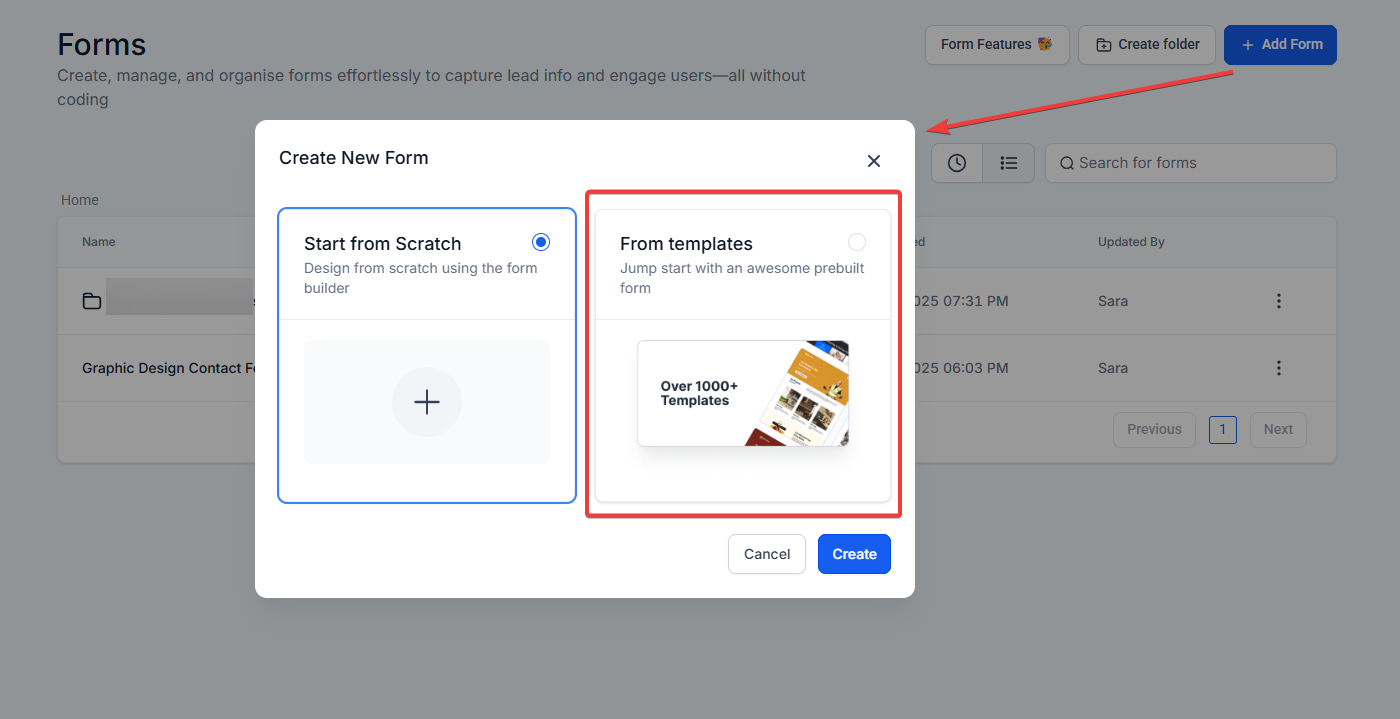
- To get started, navigate to Sites > Forms > Builder.
- Click on the “+ Add form” button and select “From Template”.
¶ Selecting a Template:
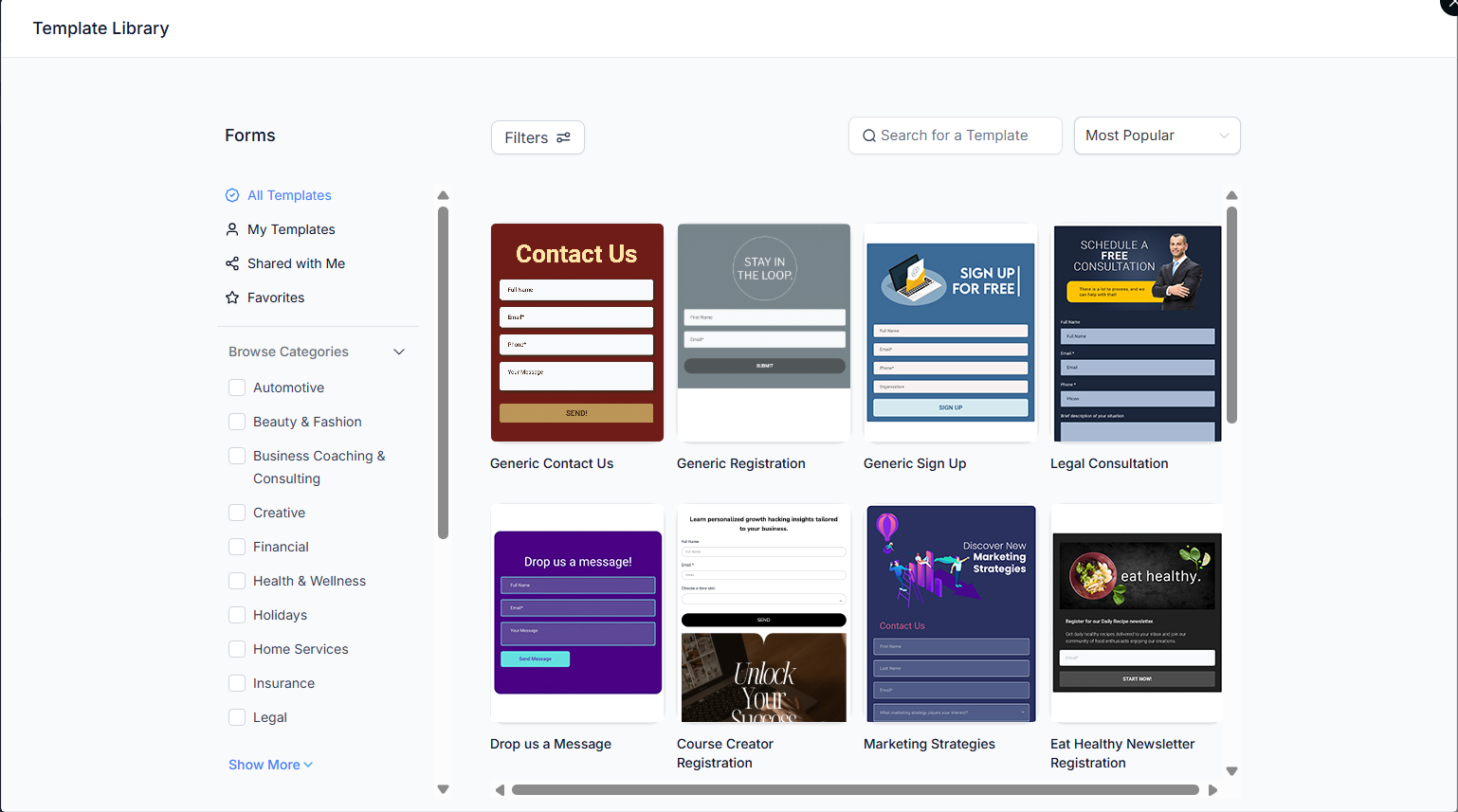
- Choose a form template by filtering for a specific category or tag by hovering over the template and clicking the “Select” Button.
¶ Viewing and Editing the Template:
- Click on the “Continue” button to view and edit the selected template.
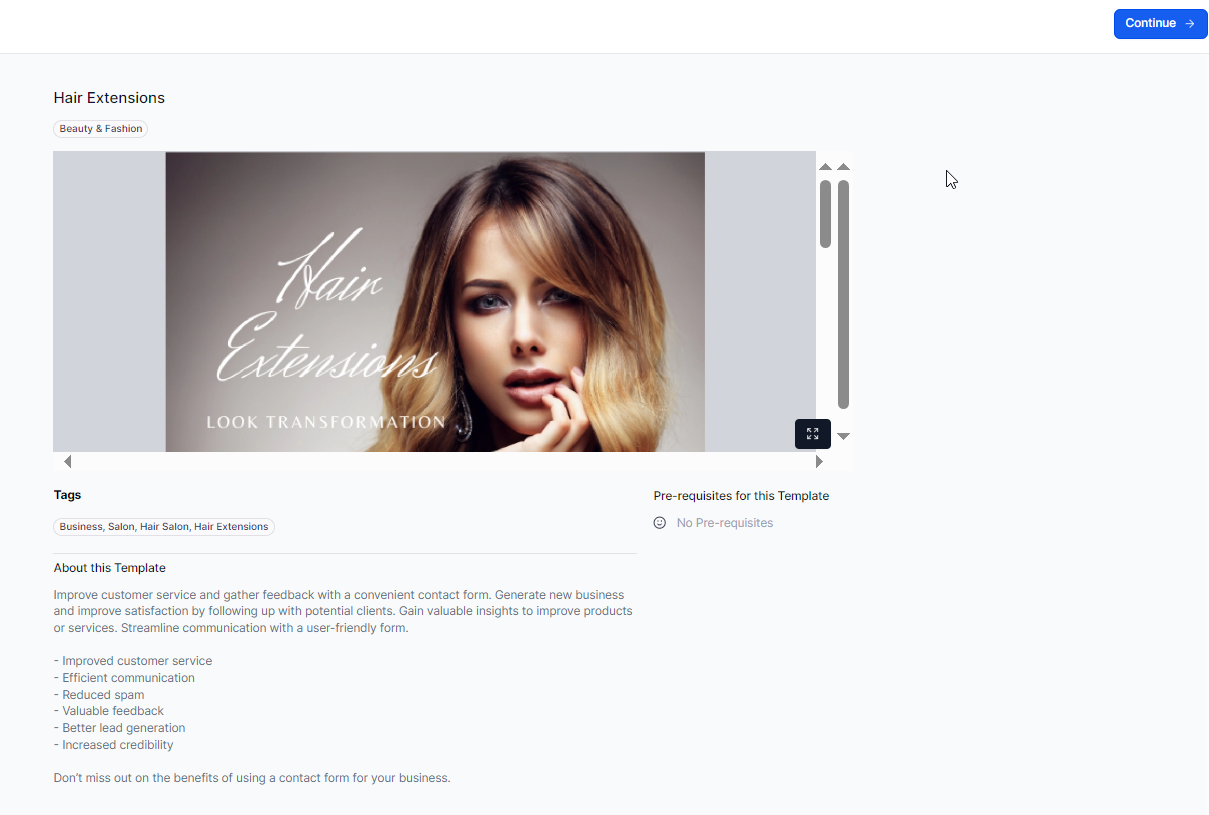
- Once ready, save your template.
¶ FAQs
Question: How do I access the Template Library?**
**Answer: Navigate to Sites > Forms > Builder and click on “+ Add form”. Then select “From Template”.
Question: Can I customize the templates?**
**Answer: Yes, templates can be customized with personalized details, including names, choices, and custom messages to suit your specific needs.
Question: How do I select a template?**
**Answer: Browse or filter templates by category or tag, then hover over the one you want and click the “Select” button.
Question: What happens after I select a template?**
**Answer: Click “Continue” to view and edit the selected template. Make your customizations and then save your changes.
Question: Can I use templates for different business categories?**
**Answer: Yes, templates are available for various business categories, ensuring you can maintain consistent branding and functionality across different use cases.
Question: Can I use templates to maintain consistent branding across different forms?**
**Answer: Yes, templates are designed to fit various business categories and include relevant tags, ensuring that you can maintain consistent branding across all customer interactions.
Question: Are templates suitable for all types of forms?**
**Answer: Templates cover a wide range of use cases and business categories, but you can always customize them further to meet specific form requirements.
Question: Does using the Template Library require me to build surveys from scratch?
Answer: No. One of the primary benefits is the ease of adoption, allowing you to quickly get started with ready-to-use templates instead of creating surveys from the ground up.
Question: Can I add my own logo to a template I’ve selected?
Answer: Yes. You can drag an Image element into the top of the form and upload your logo from the media library. Most templates are designed with a clean header area specifically for this purpose.