¶ How to Use Conditional Logic in Forms
Conditional logic in forms is a powerful feature that transforms how you interact with your forms. It enables you to automate actions within your forms based on specific conditions being met. These actions could include displaying custom messages, redirecting users to specific URLs, or disqualifying leads based on their responses.
You can easily manage and edit your conditions to build your form experience.
¶ Step 1: Create or edit your form
- Go to Sites > Forms
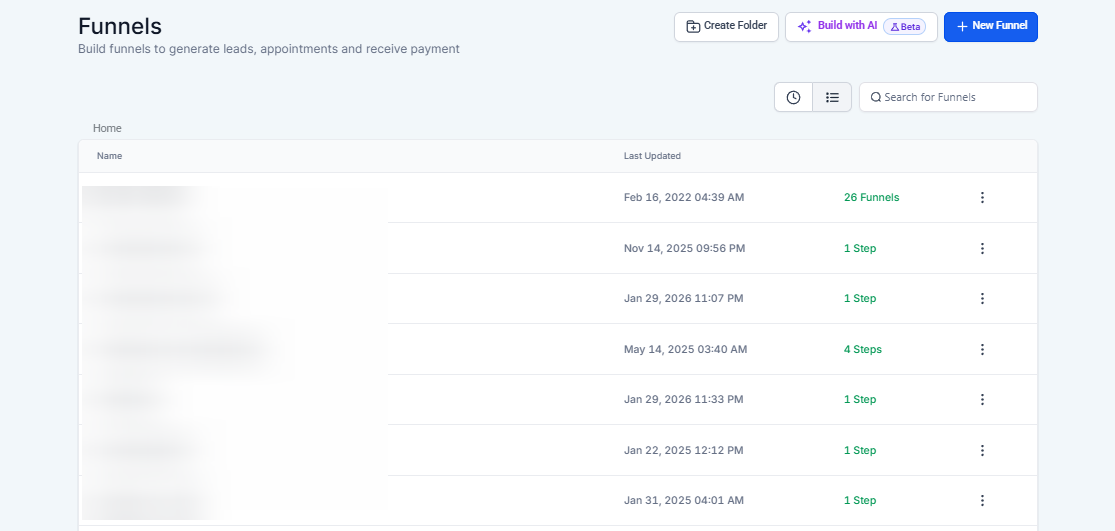
- Create a new form or edit one you already have.
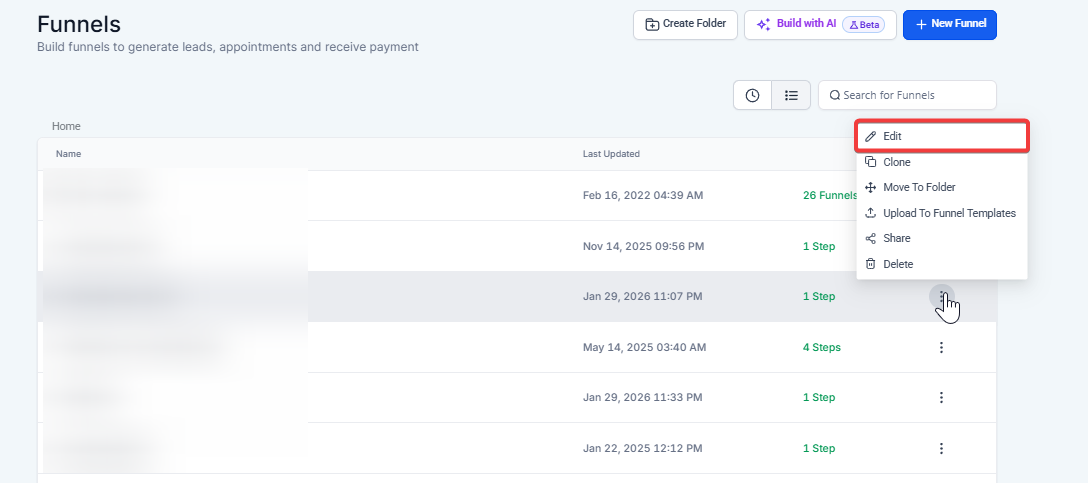
¶ Step 2: Create your Conditional Logic
- Navigate to the Conditional Logic section, located under the Secondary Header bar in Form Builder.
- Select the type of logic you wish to configure:
.jpg)
- Redirect URL: You can add a URL you want to send them to if they meet that logic. For example, you can filter by phone number and add a specific country code.
.png)
- Display a Custom Message : Filter as needed, and once submitted, if the lead matches the filters, it will show the message you added.
.png)
- Disqualify leads: If the leads meet the criteria, they will be disqualified.
.png)
- Show/Hide fields: This option allows you to show or hide fields based on your lead’s answer.
.png)
- With this option, your lead will not see the “hidden” field until they have met the criteria. In this example, if they write in the City “New York,” then the Organization field will show up.
.png) .png)
Note: All the fields you have added to the form are the ones that will show up in the filter options.
.png)
- Save your conditions and form, and witness the magic unfold.
Notes:
- Switching between ‘AND’ and ‘OR’ automatically updates all operations accordingly.
- Only relevant fields appear in your drop-downs, ensuring a clutter-free experience.
- Conditional logic takes precedence over on-submit messages or redirects, ensuring your rules are followed.
- Currently, we do not support checkboxes and multi-select in conditional logic
¶ Using Conditional Payment Elements
You can show or hide the payment element in forms based on conditional logic, providing greater flexibility and customization options.
How to Use Conditional Payment Elements:
¶ 1- Access the Form Builder
- Navigate to the form or survey you wish to edit within the Form Builder.
¶ 2- Add Conditional Logic
- Select the field you want to base the condition on (e.g., a question about subscription preferences, etc).
.jpg) .png) .png)
- Define the condition that will trigger the visibility of the payment element (e.g., if the user selects “No” to a subscription question).
.png)
¶ 3- Show or Hide Payment Element
- Drag the payment element into your form where needed.
- Set the visibility of the payment element based on the defined condition. For example, show the payment field if the user selects “Yes” and hide it if they select “No”.
.png)
¶ 4- Save and Test
- Save your form and test it to ensure the conditional logic works as intended. Make sure the payment element appears or disappears based on the user’s responses.
¶ FAQs
Question: What is conditional logic in forms, and why is it useful?**
**Answer: Conditional logic in forms allows you to create dynamic forms that change or adapt based on the user’s input. This feature enhances the user experience by showing or hiding fields, redirecting to specific URLs, displaying custom messages, or disqualifying leads based on predefined conditions.
Question: Can I use conditional logic with any type of form field?**
**Answer: Conditional logic supports most form fields, but currently does not support checkbox and multi-select fields. All other relevant fields added to your form will appear in the filter options for configuring conditions.
Question: How do I set up conditional payment elements in my form?**
**Answer: To set up conditional payment elements, navigate to the Form Builder, select the form you wish to edit, and add conditional logic based on a specific field. Drag the payment element into your form and configure it to show or hide based on the user’s responses to the selected condition.
Question: What happens if my form has both conditional logic and on-submit actions?**
**Answer: Conditional logic takes precedence over on-submit actions such as redirecting to a URL or displaying a message. This ensures that the conditional rules you set are prioritized and followed.
Question: Can I switch between ‘AND’ and ‘OR’ conditions in my logic settings?**
**Answer: Yes, you can switch between ‘AND’ and ‘OR’ conditions in your logic settings, which automatically updates all operations accordingly, allowing for more precise control over how conditions are evaluated within your form.
Question: Does conditional logic work with multi-select and checkbox fields?**
**Answer: No, currently, conditional logic does not support checkbox and multi-select fields. Only relevant fields that are compatible with conditional logic will appear in the filter options.
Question: What happens if I want to show a field only after a user provides a specific answer?
Answer: You can use the “Show/Hide fields” logic. This allows you to keep certain fields hidden until the user meets your specific criteria. For example, you can set a rule so that an “Organization” field only appears if a user types “New York” into the City field.