¶ Adding and Using Products in Forms
Adding and Using Products in Forms
You can add products to your forms, offering improved customization and layout options for a better user experience.
¶ Key Features
- Payment Type: Now, you can either sell the product or collect the custom amount from the forms.
- Ability to select products, include descriptions and images and choose layouts.
- Users will also be able to select different variants which are available for the specific product.
- The quantity of products will be respected as per inventory management.
- Inclusion of tax calculation when someone purchases the product.
¶ Getting Started
Before you begin, ensure you have a product created in the products section under the payments tab. If not, navigate to Payments > Products > Create a Product.
¶ How to Add Products to a Form
Navigate to Forms:
- Go to the Sites tab and select Forms.
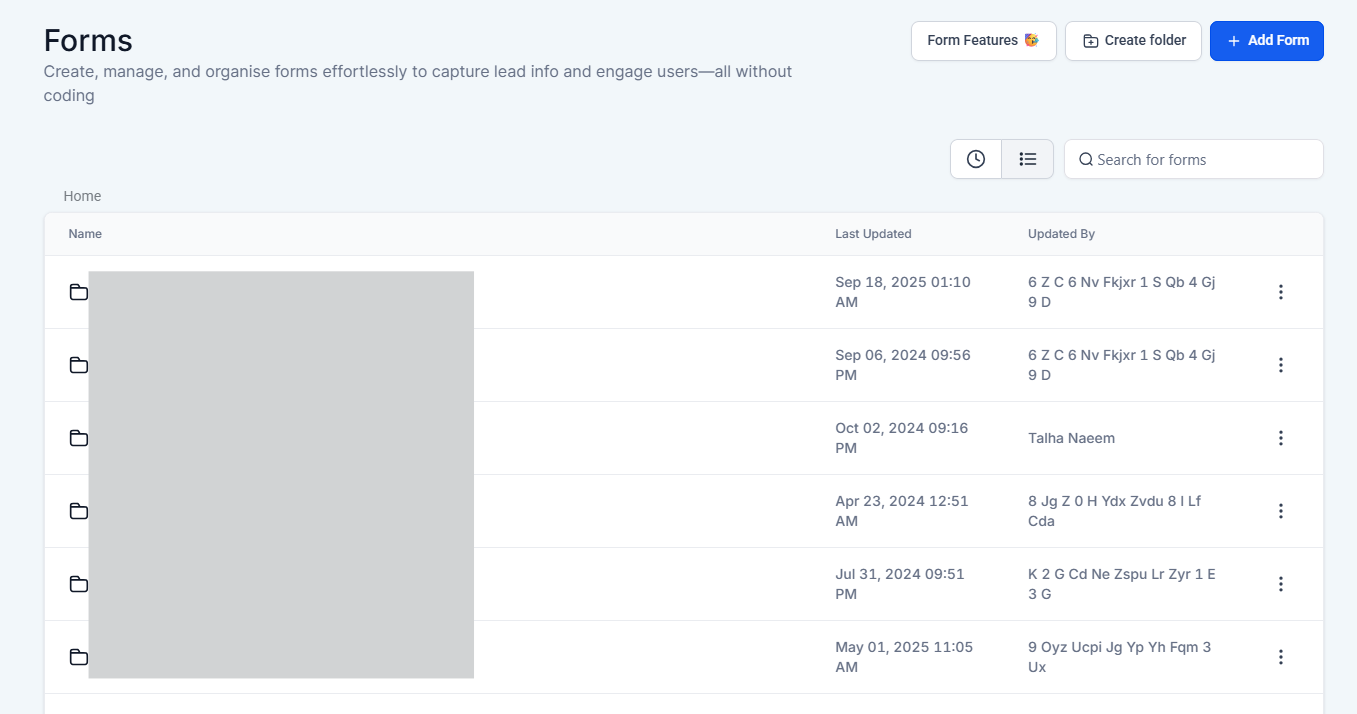
Create or Edit a Form:
- Create a new form or edit an existing one.
- Add Product Element:
- Click on the elements icon at the top right.
- Drag and drop the Sell Product element onto your form canvas.
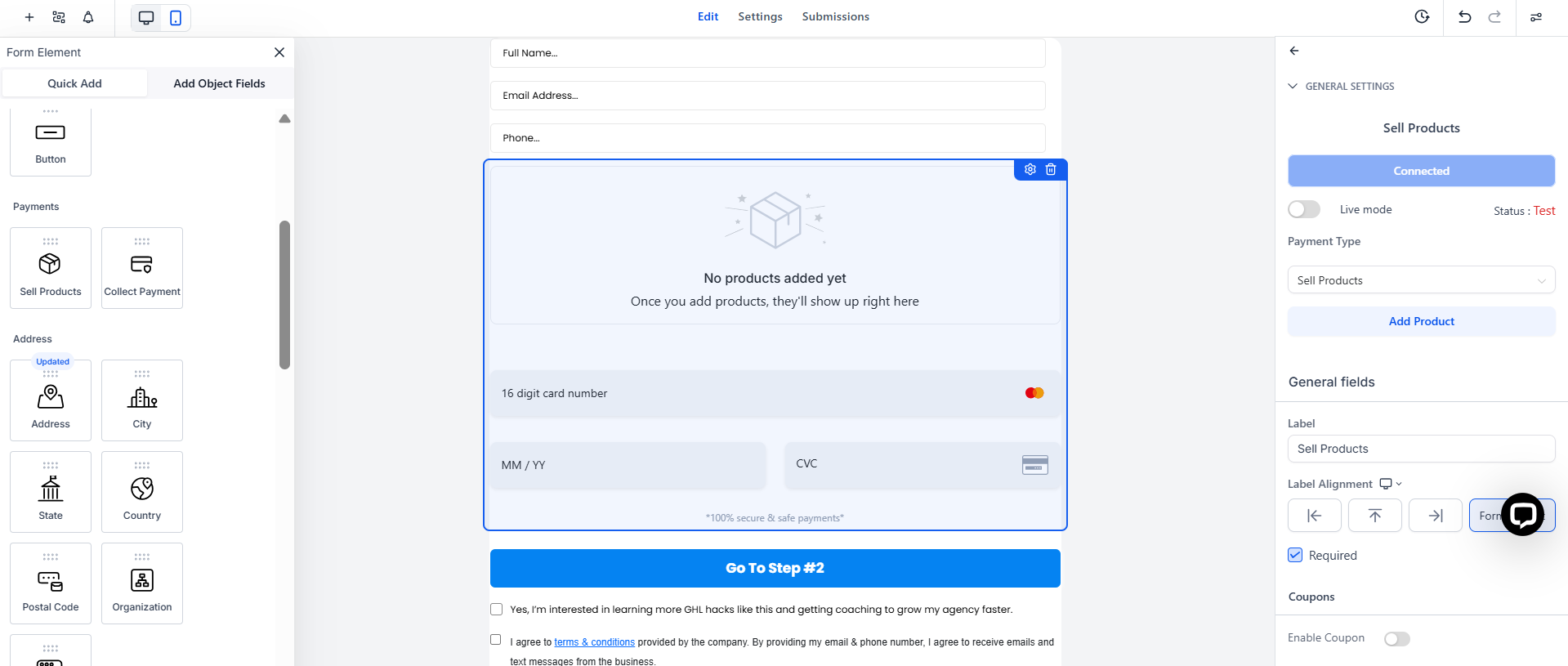
- Connect Payment Gateway:
- Toggle between live and test modes as needed.
- Click “Add Product” to select from the available options.

-
Add and Customize Product:
- Click “Add Product” to select from the available options.
-
Option to Add Recurring Products: You can create a recurring product from the payments tab, then navigate to forms or surveys and add the payments element. Select your recurring product from the Add Product section.
-
Add Bump Product (Optional) : Choose your product type as Bump Product in the settings panel.
-
Enable Bump Products and select your preferred style—Classic or Modern.
-
Pick a template, configure your styling and text, and preview it live.
-
Save your form or survey and start collecting boosted payments.
-


- Customize product details, including descriptions, images, and layout options.

- Enable Coupon Code:
Pre-requisites:
- A coupon code must be created in the Payments tab under Coupons.
If the coupon code feature is enabled, customers can apply the coupon to the product, and the discount will be applied to the product added to the form.

- Customize Form Appearance:
- Choose themes and styling options to customize the look of your form.

Save and Preview:
- Save your changes and preview the form to see the products in action.
¶ Key Highlights
Customizations:
- Add up to 20 products to a form.
- Choose from three different layout options.
- Forms can be integrated into funnels and used as one-step order forms with unlimited customization.
Tracking Payments:
- Submission details will include payment amount, order ID, and payment status.
- Click on the Order ID to view detailed order information.
- Export submission details using the export options.
Email Notifications:
- Email notifications will reflect the status and amount of the payment.
Workflow Triggers:
- Use the payment received trigger with “Forms” as the source to automate workflows.
¶ Important Notes
- NMI and Authorize.net require the First Name field when using the payment element in forms.
- Refund amounts are not captured at this time.
- The old API-based Stripe connect method is no longer supported.
- The payment element will not display in calendars with custom-form payment elements.
- Multi-payment support with multi-native forms in a funnel is not yet available.
- Undo/Redo functionality is not supported with the payment element.
By following these steps and leveraging the new features, you can create highly customized and functional forms that streamline the product selection and payment process for your users.
FAQ
Question: How do I add products to a form?
Answer: Navigate to the Sites tab, select Forms, create or edit a form, and then drag and drop the Sell Product element onto your form canvas. Connect the payment gateway and select the product you want to include.
Question: Can I add recurring products to my form?
Answer: Yes, create a recurring product from the payments tab, then add it to your form by selecting it from the add product section.
Question: Can I customize the appearance of my form?
Answer: Use the themes and styling options available to choose your form’s look. You can also select from different layout options and add up to 20 products.
Question: What details are included in payment tracking?
Answer: Payment submissions include the payment amount, order ID, and payment status. You can view detailed order information by clicking on the Order ID and export submission details using the available export options.
Question: Are there any limitations I should be aware of?
Answer: Note that NMI and Authorize.net require the First Name field, refunds are not captured, the old API-based Stripe connect method is no longer supported, and multi-payment support with multi-native forms in a funnel is not available. Undo/Redo functionality is also not supported with the payment element
Question: Can I apply a coupon code to a product in my form?
Answer: Yes, if the coupon code feature is enabled, customers can apply the coupon to the product added to the form. A coupon code must first be created in the Payments tab under Coupons.
Question: What happens if inventory runs out?
Answer: If inventory limits are reached, the product will no longer be available for selection on the form, preventing overselling.
Question: What is a “Bump Product” and how do I add one to my form?
Answer: A Bump Product is a small add-on offer displayed right before checkout. To add one, drag the payment element onto your form, choose Bump Product in the settings panel, and select between a “Classic” or “Modern” style template to customize your offer.