¶ Where to Check Statistics for Emails
Where to Check Statistics for Emails
In your business, you may need to send emails to follow up with your clients. You may also want to know how your leads engage with these emails. This tutorial will show you where and how to check email stats for sent and scheduled emails.
¶ Definition of each email status

¶ Delivered:
- The number of emails SMTP confirmed were delivered to a recipient.
¶ Opened
- The total number of times recipients opened your emails.
¶ Clicked
- They are the number of unique clicks which are the first time the recipient opens your email.
¶ Bounced:**
**
Soft Bounces: The email was not delivered as the recipient’s server is unavailable or their inbox is full.
Hard Bounces: The email was not delivered as the email address was not existent or the email address was blocked.
¶ Unsubscribed
- The number of recipients who have unsubscribed from your emails. Unsubscribe events are triggered when the end recipient clicks the unsubscribe appended in the email footer.
Note: Once the contact has unsubscribed, sending the email to them will not be possible. It would require a special request with acceptable reasons, as the contact will have diligently chosen to unsubscribe.
¶ Failed
- This happens when the API keys are not valid. The user needs to configure the valid API keys or the number of recipients to whom you sent emails, who have malformed email addresses, or whose mail provider reported the address as invalid.
Note: Only the email service provider can show the full stats they are capable of.
¶ Where to check stats?
¶ Email Settings LeadMagicX
- Navigate to Settings > Email Services > Email Analytics
- Choose the date range
- Choose between Last Hour, Last 24 Hours, Last 7 Days, Last 30, Days Custom

- You can see the stats in Metrics Type (Percentage and count):
- Sent
- Delivered
- Opened
- Clicked
- Complained
- Bounced
¶ Individual Email Stats in Campaigns
- Navigate to the Marketing tab on the left.
- Hover over Emails at the top > Choose Campaigns.
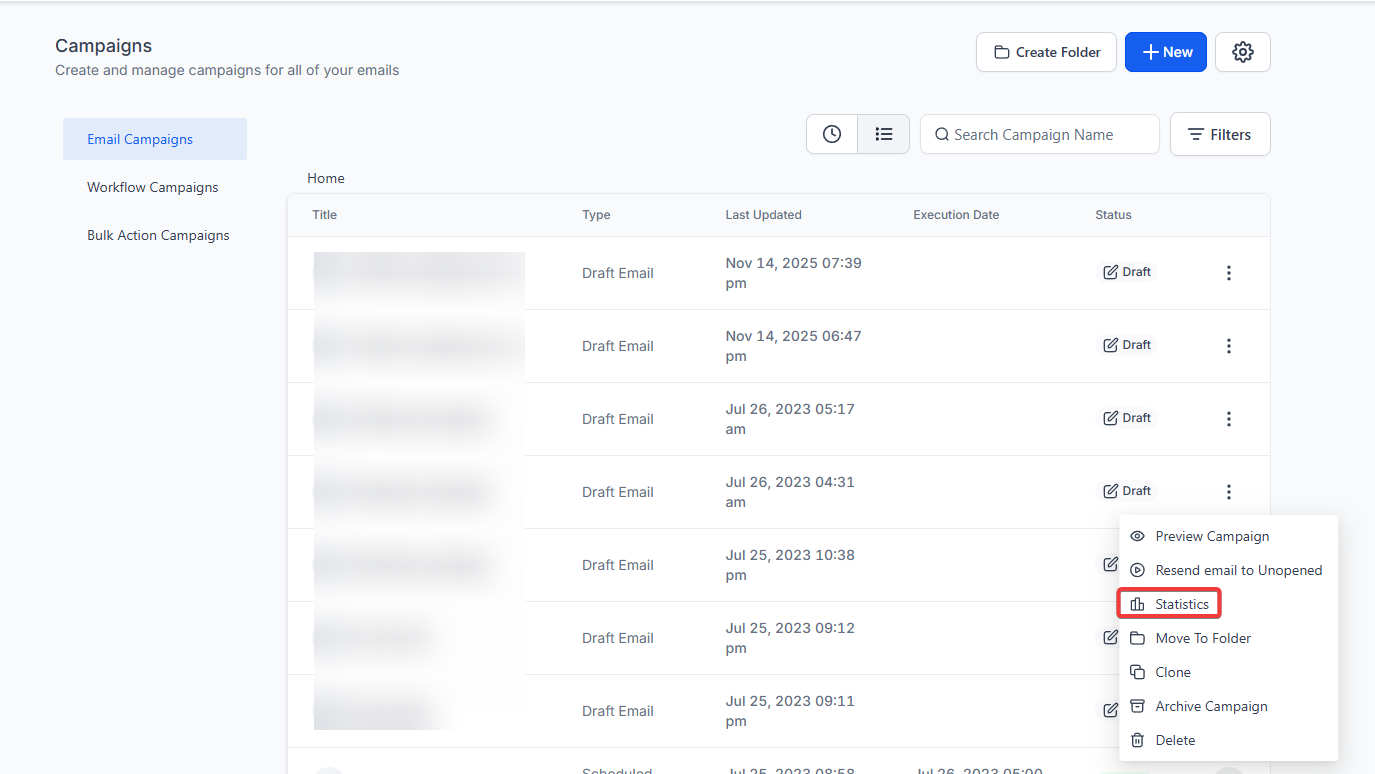
- Click the three dots next to the campaign you want to check
- Click on Statistics
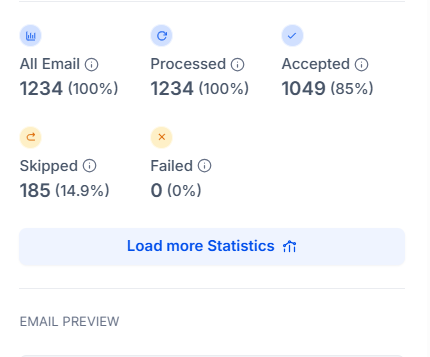
- In the popup window on the right-hand side, you can view all the Statistics for that email.
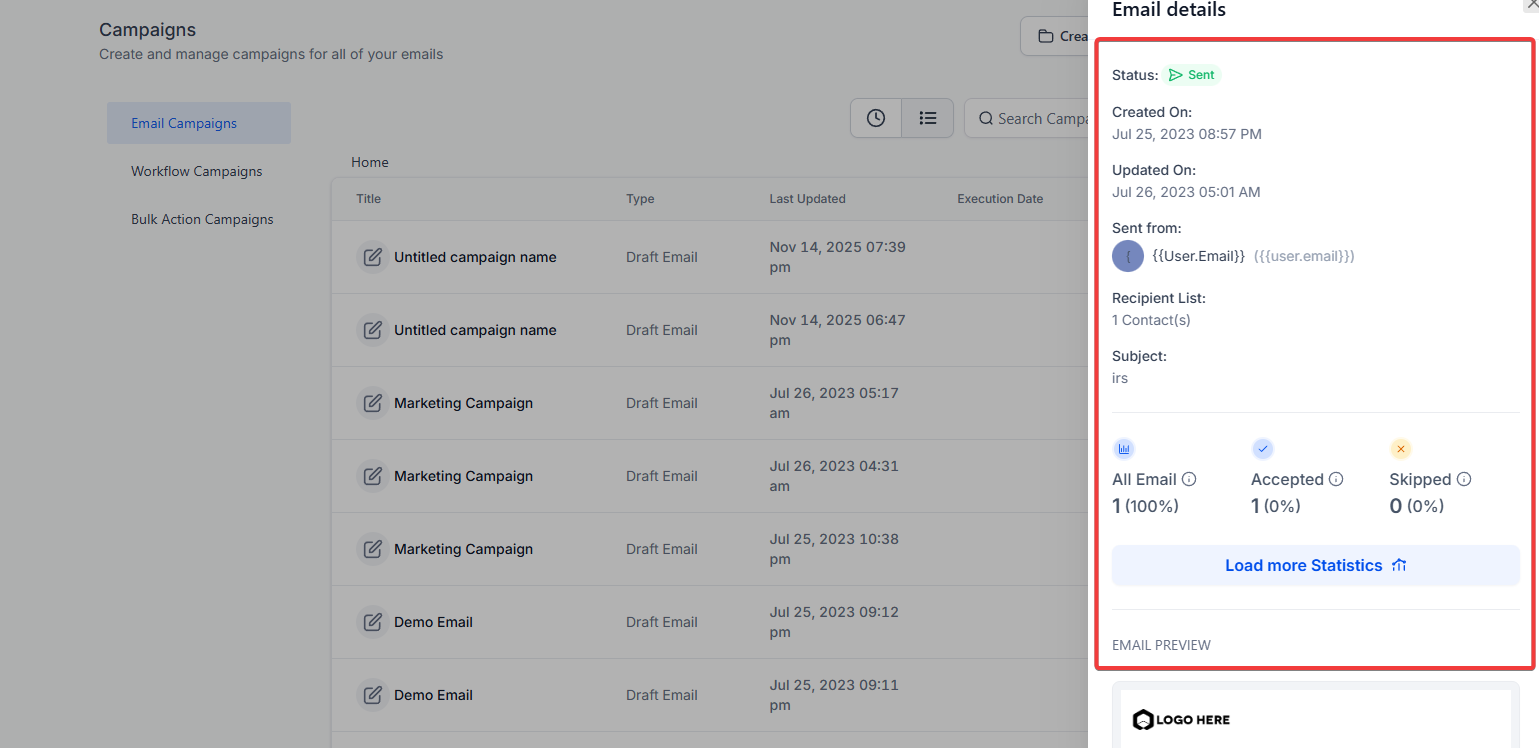
- If you click on Load More Statistics, you will see more details on the email status.
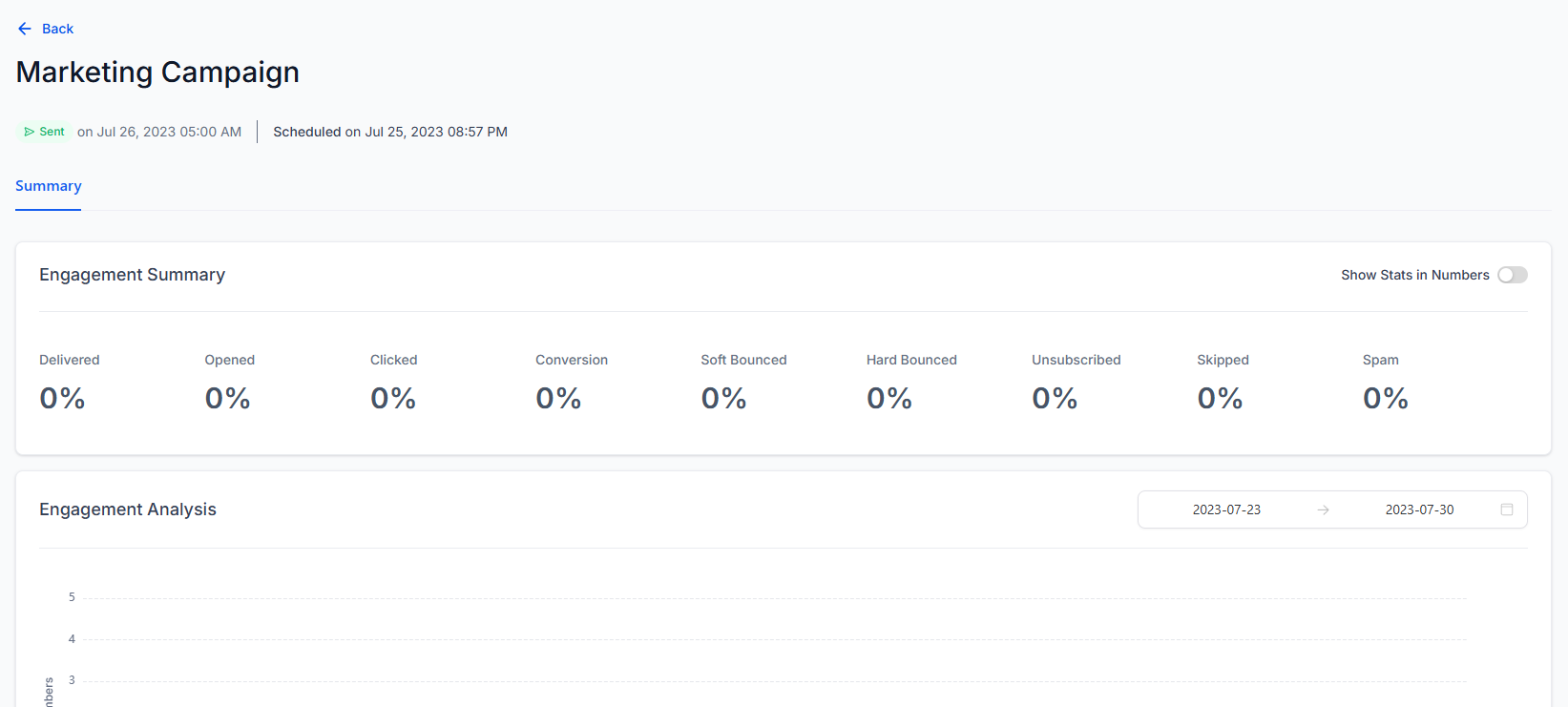
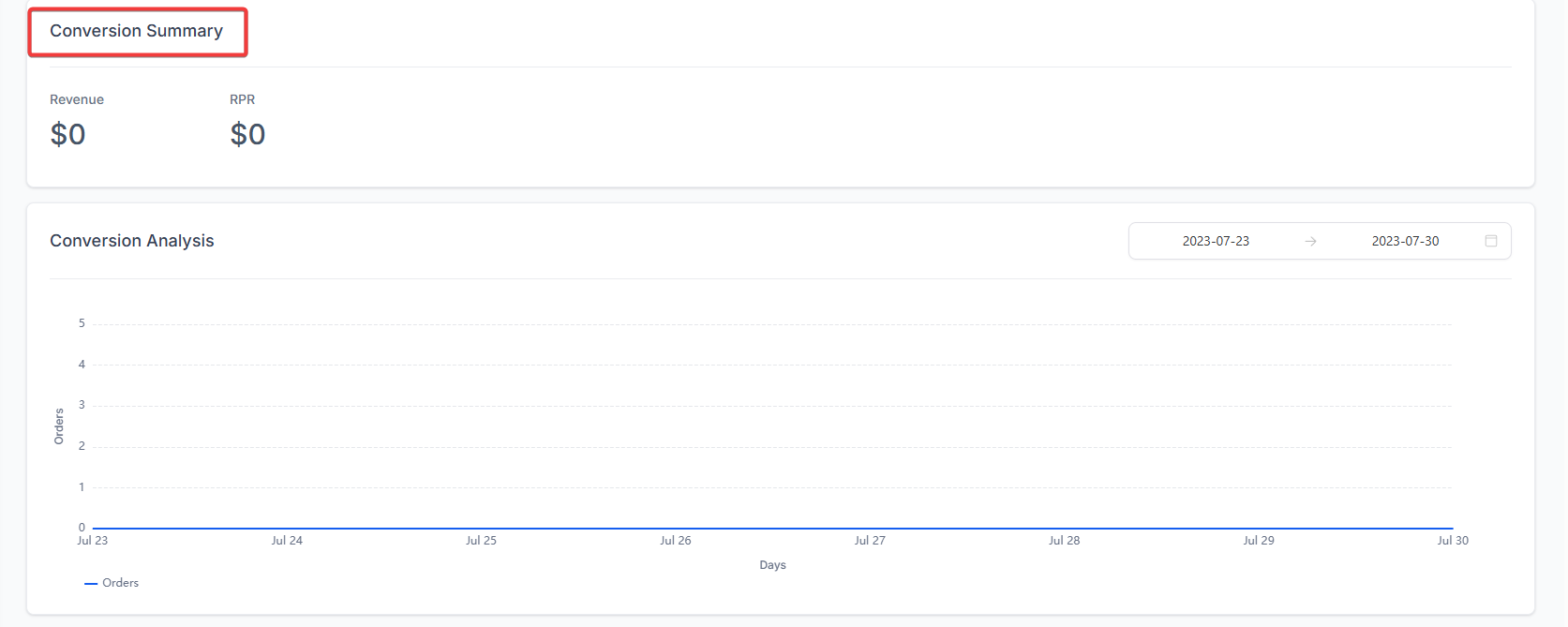
- You can filter the dates to see the stats and show the statistics in numbers.
Note: You can also click on the number of the Processed, Accepted, Skipped, and Failed to see more details on the status of the emails.
¶ Overall Stats for Email Campaigns (Analytics)
Email Campaign Analytics provides comprehensive reports that detail campaign performance over the past 7 and 30 days.
- Navigate to the Email Marketing section of LeadMagicX.
- Click on ‘Campaigns’ and select the ‘Statistics’ option.

- Choose your desired date range to view the analytics.

- For detailed trend analysis, select the specific metrics from the dropdown menu in the Performance Analysis section.

- View the top 5 email campaigns by click rate, open rate, and generated revenue.

- Gain a clear snapshot of how your audience is interacting with your emails through the Engagement Summary. Track the total emails sent, unique opens, link clicks, and purchases made. It’s like a funnel that highlights where recipients lose interest and where they engage. Unique opens and clicks are counted regardless of how often a recipient interacts with the campaign.

- Review detailed insights into your recent email campaigns. Analyze the performance of the 10 most recent emails to evaluate their effectiveness and make improvements where needed. These tools provide actionable insights to optimize your email marketing strategy and enhance results.
- Explore theConversion Metrics section to view detailed revenue attribution statistics related to your e-commerce orders.

¶ Email Stats in Bulk Actions
- Navigate to Contacts > Bulk Actions and click on Show Stats next to the campaign to check the stats


¶ Stats in Workflows
- Navigate to Automation > Workflows and click on the applicable workflow.
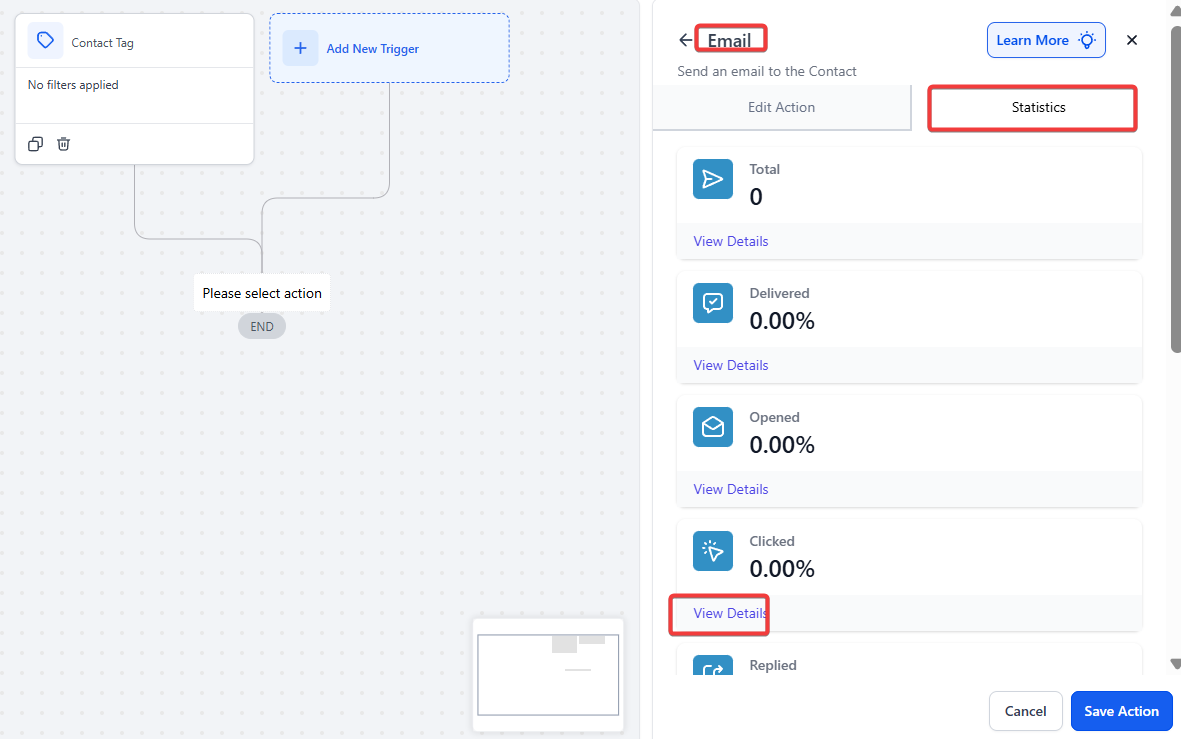
- Select the Email Action, and click on the Statistics tab. Click on View All Statistics to see more details on the status of the emails sent.

¶ ****
¶ FAQ’s
Question: What do the email status categories like “Delivered” and “Opened” mean?
Answer: “Delivered” refers to the number of emails that were confirmed by SMTP as delivered to recipients. “Opened” tracks the total number of times recipients have opened your emails.
Question: What should I do if my email shows a “Bounced” status?
Answer: “Soft Bounces” occur when the recipient’s server is temporarily unavailable or their inbox is full. “Hard Bounces” happen when the email address is invalid or blocked. You may need to update the email list or contact the recipient to resolve the issue.
Question: How can I see detailed statistics for a specific email campaign?
Answer: Navigate to the Marketing tab > Campaigns, click the three dots next to the campaign, and then select “Statistics” to view the detailed stats, including opens, clicks, and bounces.
Question: What happens if a contact unsubscribes from my emails?
Answer: Once a contact unsubscribes, they will no longer receive emails from your campaigns. Re-sending emails to unsubscribed contacts requires a special request, as they have explicitly chosen to opt-out.
Question: Where can I track the performance of my email campaigns over time?
Answer: You can view the overall performance of your email campaigns in the Email Marketing section under “Campaigns” by selecting “Statistics” and adjusting the date range for detailed analytics.
Question: How can I track email stats for automated workflows?
Answer: Navigate to Automation > Workflows, click on the applicable workflow, and go to the “Statistics” tab to view detailed email performance statistics for emails sent through that workflow.
Question: What if a contact unsubscribes from my email list?
Answer: Once a contact unsubscribes , they will no longer receive any emails from your system. To re-send emails to them, a manual re-subscription request must be submitted and justified, as the unsubscribe action is legally binding.
Question: Can I reset the statistics for a campaign and start over?**
**Answer: No. Statistics are permanent records of that specific send. If you want a “clean slate” for a new test, it is best to duplicate the campaign and send the new copy to a fresh list.
Question: Why is my “Opened” count higher than the number of people I emailed?**
**Answer: The “Opened” metric tracks the total number of times an email was opened. If a single recipient opens your email five different times to reference information, it will count as five opens. For a more accurate look at reach, check the “Unique Opens” in the Engagement Summary.