Trigger links are a great way to pivot off a “click” within an Email and simultaneously direct the contact to a specific website. When a trigger link is clicked, the system will attribute the click to the contacts’ activity timeline and trigger a predetermined action within a workflow created for this purpose.
Navigate to Contacts and click on a specific contact.
Select the email tab.
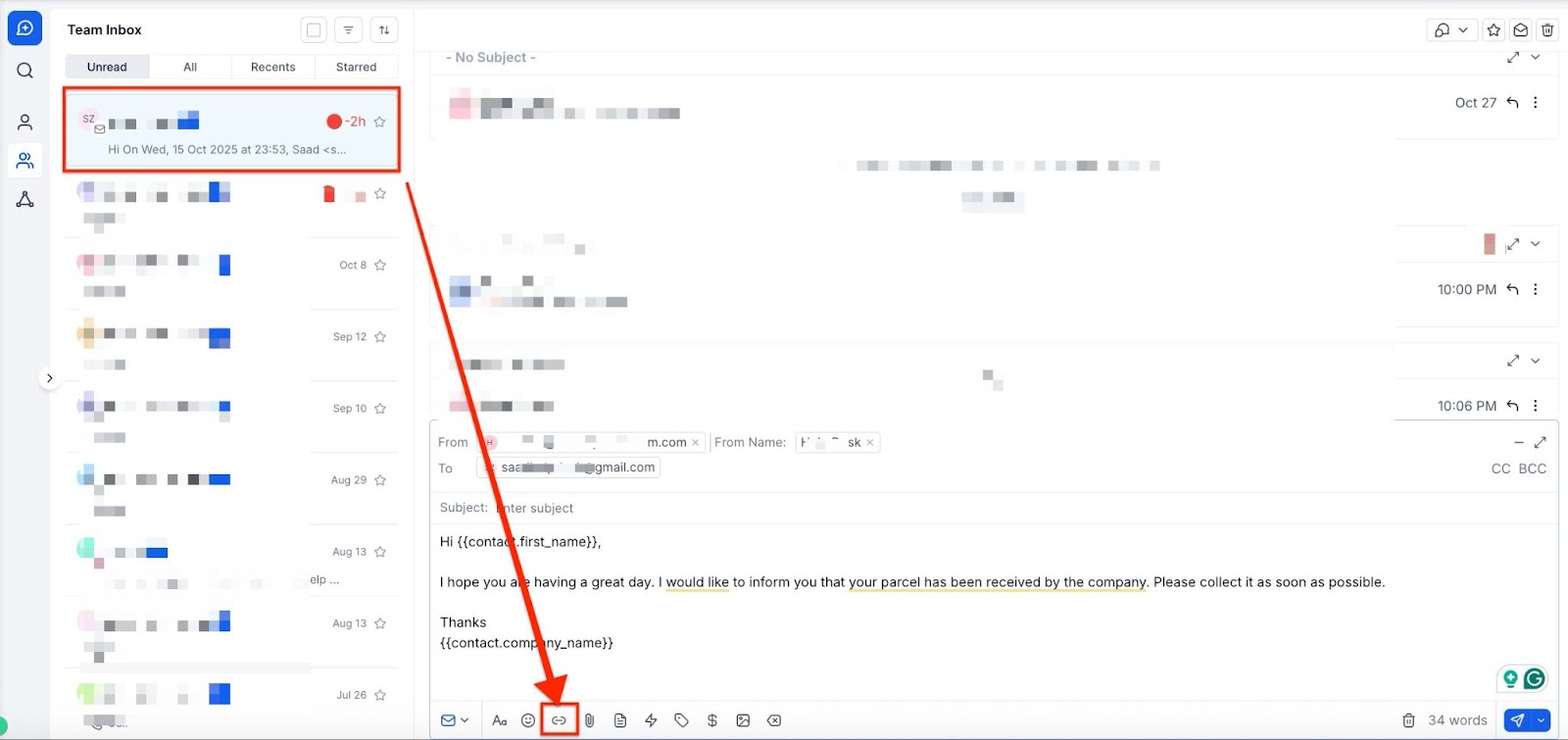
Alternatively, navigate to “Conversations ” to view a specific conversation, and select the email tab. Click on the icon at the bottom of the screen to add a Trigger Link.
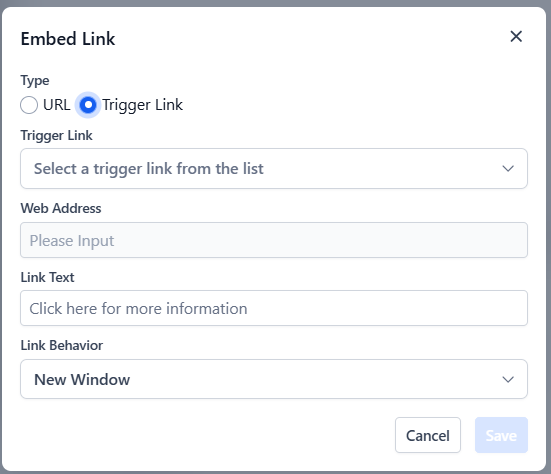
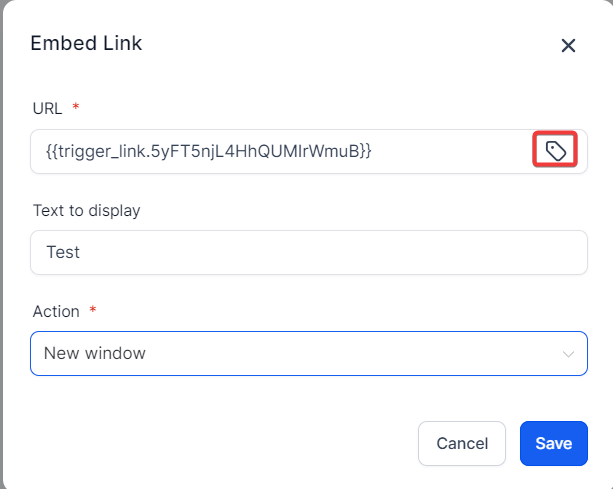
TheWeb Address will auto-populate when you select the trigger link.
The Link Text will give a hyperlink to the word or phrase for the trigger link.
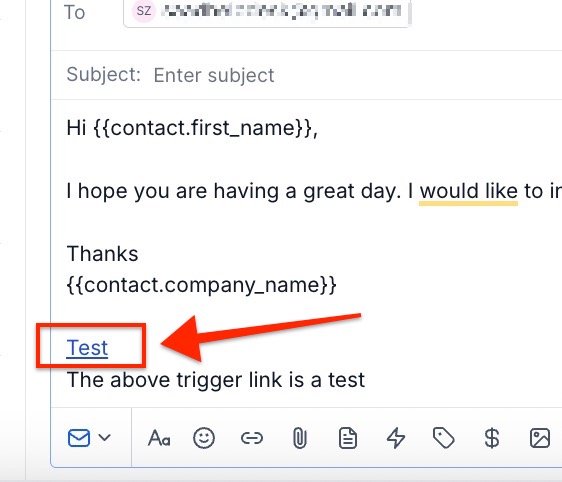
Note: If you need to create a trigger link, navigate to Marketing > Trigger Links > Links and add a link.
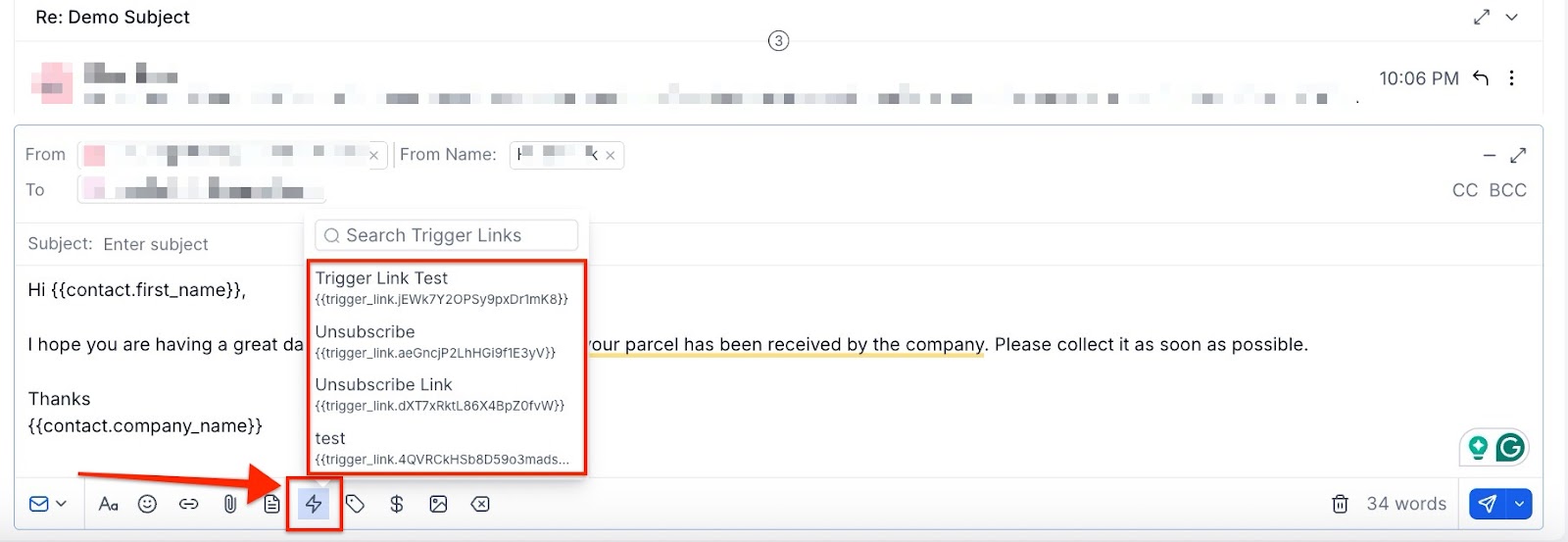
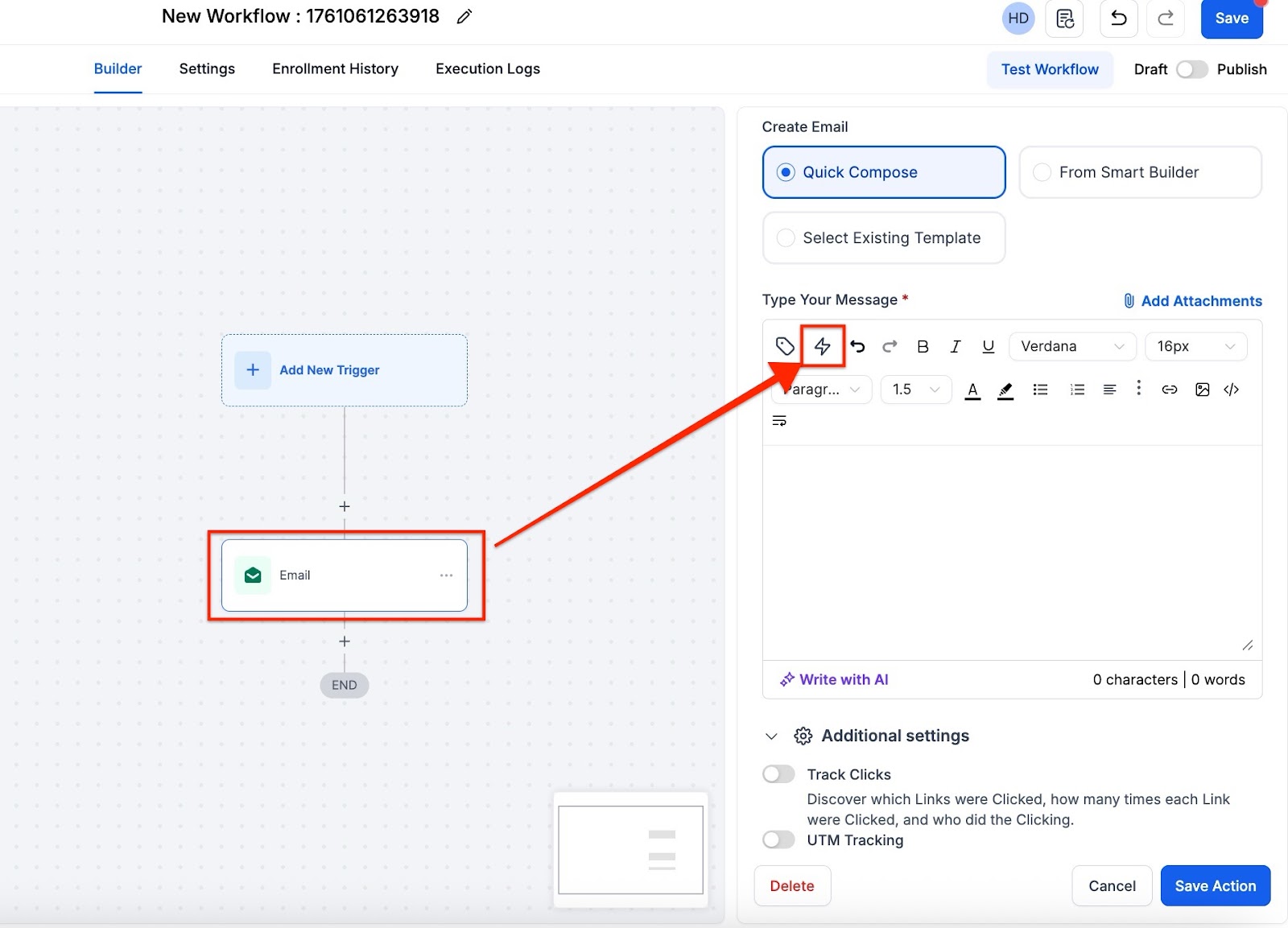
Alternatively, you can also select trigger links by clicking on the flash icon (shown in the screenshot below)
Please note: This method does not allow hyperlinking a trigger link at this time.
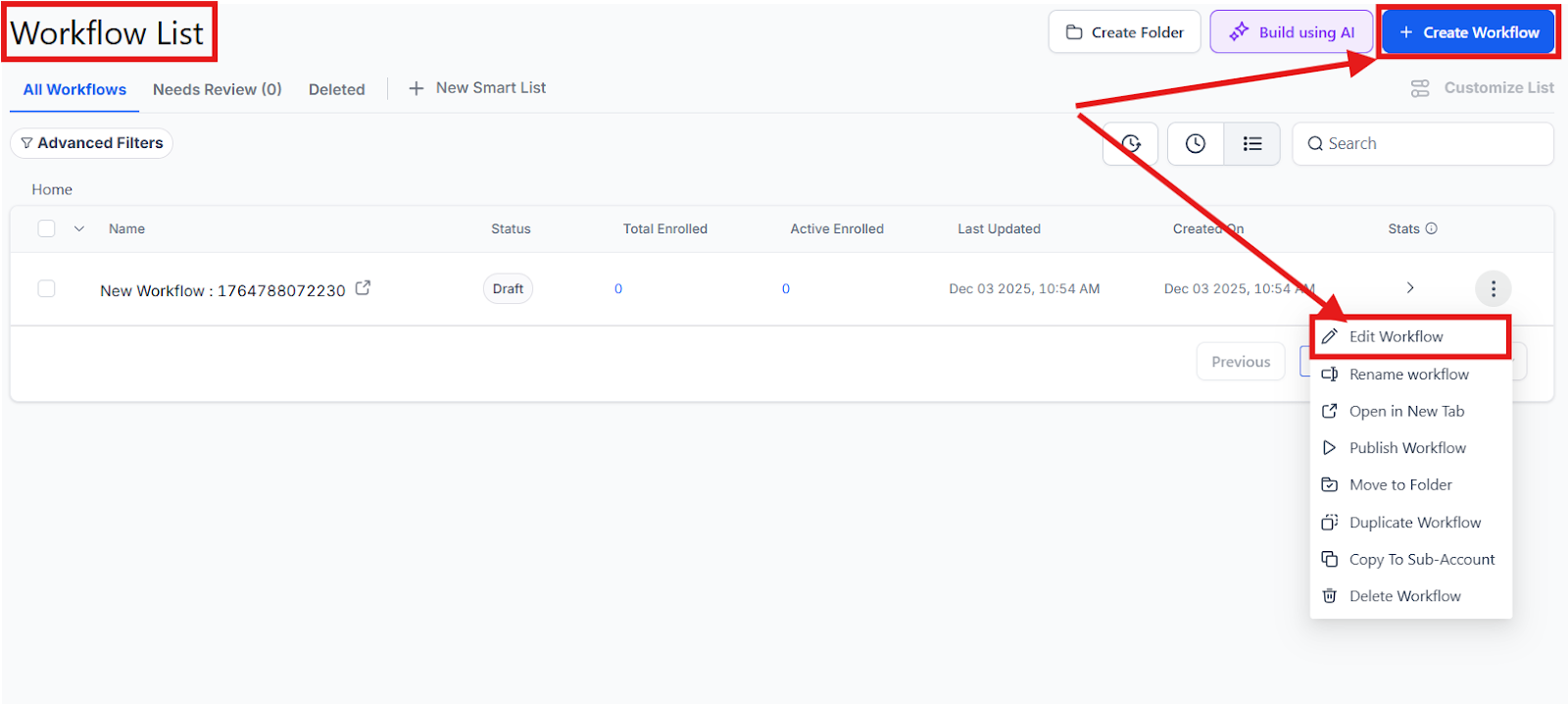
Add or edit the Send Email Action
You will see a Trigger Links Dropdown that you could use the same way as before
The email builder is an editor for email campaigns and email templates
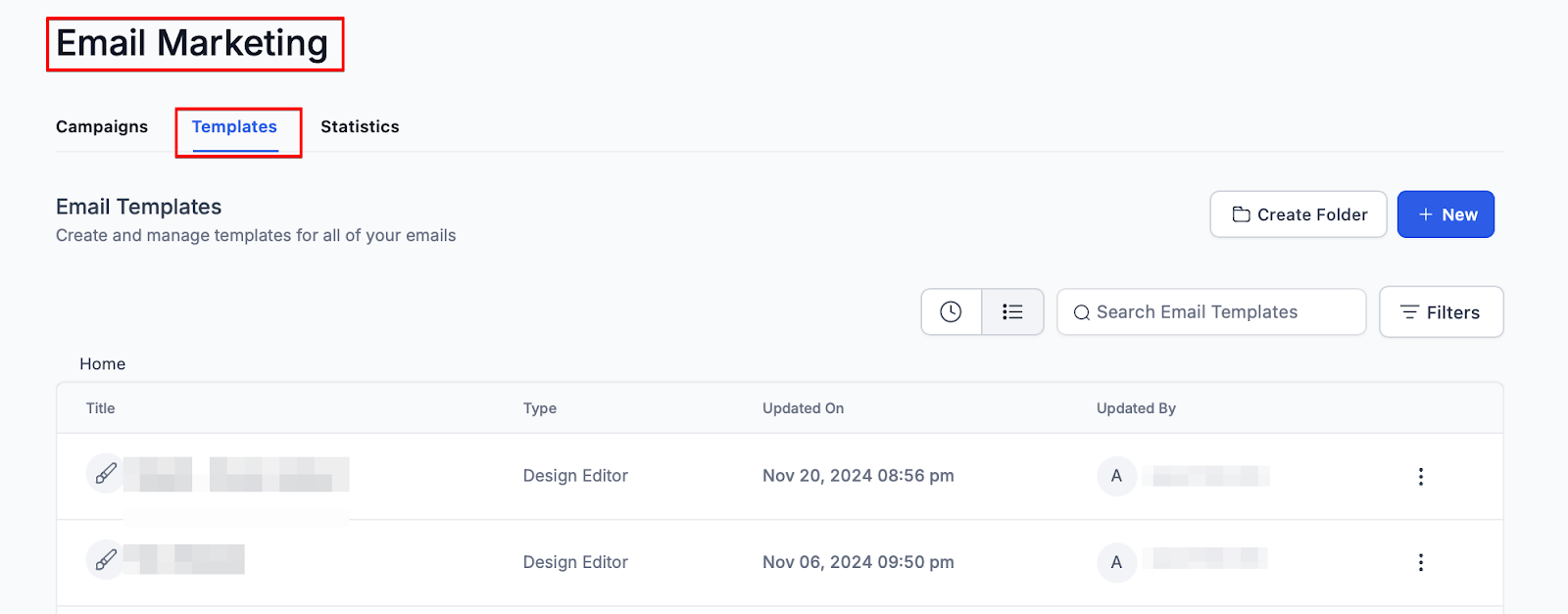
Add or edit an existing Text Element by clicking on it
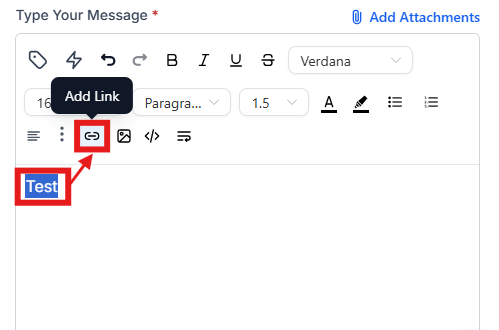
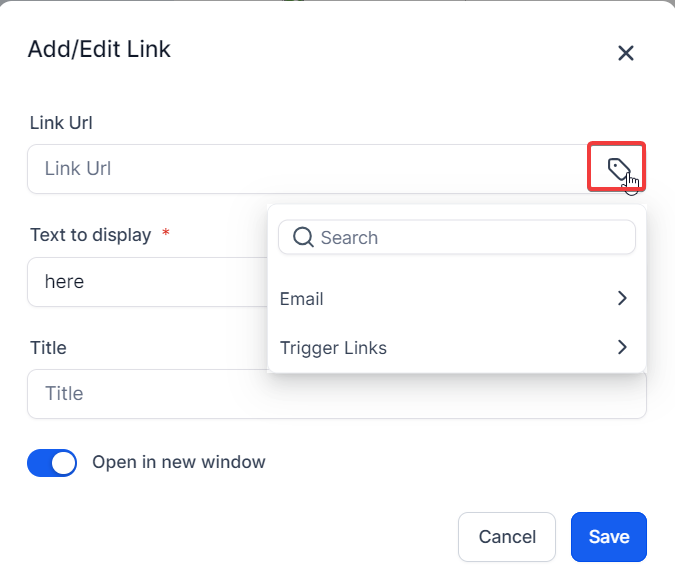
Similar to the use in Automation you can hyperlink or use the Trigger Link directly. Or hyperlink the link by typing a word, highlighting it, and selecting the hyperlink icon.
Pro Tips
FAQs
Question: What is a trigger link?**
**Answer: A trigger link is a hyperlink used in emails that, when clicked, attributes the click to a contact’s activity timeline and triggers a predetermined action within a workflow.
Question: How do I use trigger links in contacts or conversations?**
**Answer: Navigate to the Contacts or Conversations section, select a contact or conversation, and use the email tab to add a trigger link. Choose the desired trigger link from the dropdown menu, and the web address will auto-populate.
Question: How do I add trigger links to a workflow?**
**Answer: Go to Automation > Workflows, create or edit a workflow, and add or edit the Send Email action. Use the Trigger Links dropdown to select and auto-populate the URL value. Save the changes to the link, action, and workflow.
Question: How can I add trigger links in the email builder?**
**Answer: In the email builder, navigate to Marketing > Emails > Campaigns or Templates. Edit or create a text element, and hyperlink it with the trigger link by selecting the hyperlink icon and choosing the desired trigger link from the dropdown.
Question: Where do I go if I haven’t created any trigger links yet?
Answer: If you need to set up a new link from scratch, navigate to Marketing > Trigger Links > Links. Once you add a link there, it will become available in the dropdown menus across Contacts, Workflows, and Email Campaigns.
Question: Why can’t I hyperlink my trigger link when using the “Flash Icon” in Conversations?
Answer: The “Flash Icon” (Quick Actions) is designed for speed. Currently, this specific method inserts the trigger link directly and does not support hyperlinking it to a custom word or phrase at this time.