¶ Google Postmaster Tools Integration
Google Postmaster Tools Integration
Google Postmaster Tools integration is a powerful feature that offers in-depth insights to help improve your email performance and ensure higher deliverability, especially for Gmail users. With it, you can monitor key metrics such as domain and IP reputation, spam feedback, and email authentication protocols like SPF, DKIM, and DMARC.
This guide will walk you through setting up and using the Google Postmaster Tools in your Email Services module, allowing you to proactively address any issues and optimize your email campaigns for better inbox placement.
¶ Key Features
- Domain & IP Reputation Tracking: Monitor how Gmail perceives your domain and IP, helping you maintain a good sender reputation.
- Spam Feedback Monitoring : Stay informed about any spam complaints and take action to improve your reputation.
- Authentication Checks : Ensure your emails meet SPF, DKIM, and DMARC standards.
- Delivery Insights : Quickly identify and resolve any delivery issues to improve overall deliverability.
¶ Why Use Google Postmaster Tools?
By integrating Google Postmaster Tools, you gain transparency into how Gmail handles your emails. This helps improve the sender’s reputation, reduce spam rates, and ensure successful delivery. For email marketers and bulk senders, this is essential for improving inbox placement and maintaining a strong domain reputation.
¶ How to Set Up Google Postmaster Tools
Step 1: Sign in to Google Postmaster Tools
- Go to Google Postmaster Tools and log in using your Google account.
Step 2: Add Your Domain
- Once logged in, add your email sending domain. Ensure your domain is properly authenticated with SPF, DKIM, and DMARC records.
Step 3: Verify Domain Ownership
- Google will provide a TXT record, which you need to add to your domain’s DNS settings to verify ownership.
Step 4: Start Monitoring Data
- Once your domain is verified, data will begin to appear after a few days. You can monitor metrics like spam rates, domain/IP reputation, and more.
¶ How to Use Google Postmaster Tools in Your Email Services
Step 1: Navigate to Settings
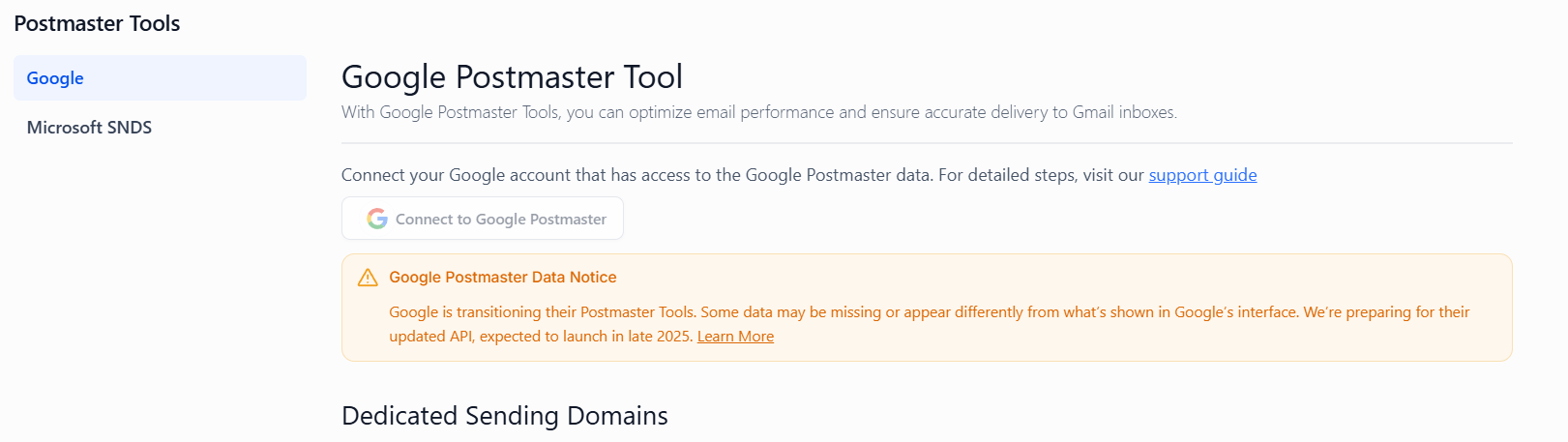
- From the Email Services module, navigate to the “Postmaster Tools” section.
Step 2: Authenticate Your Google Account
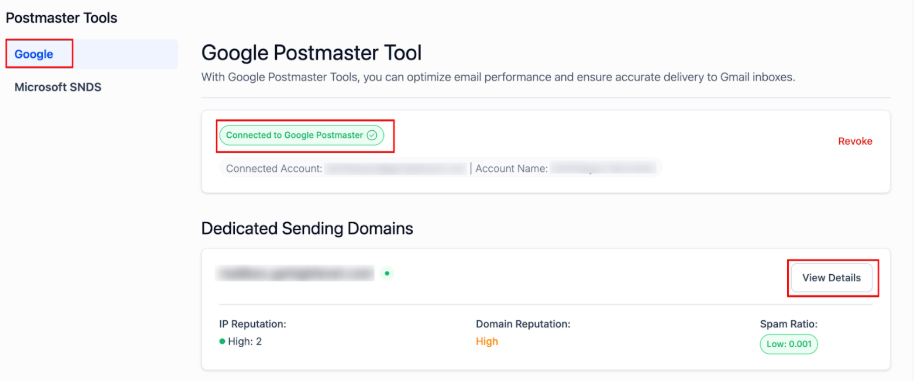
- Click on “Connect to Google Postmaster.” This will link your account and allow you to pull all the available metrics into your dashboard.
Step 3: Monitor Metrics
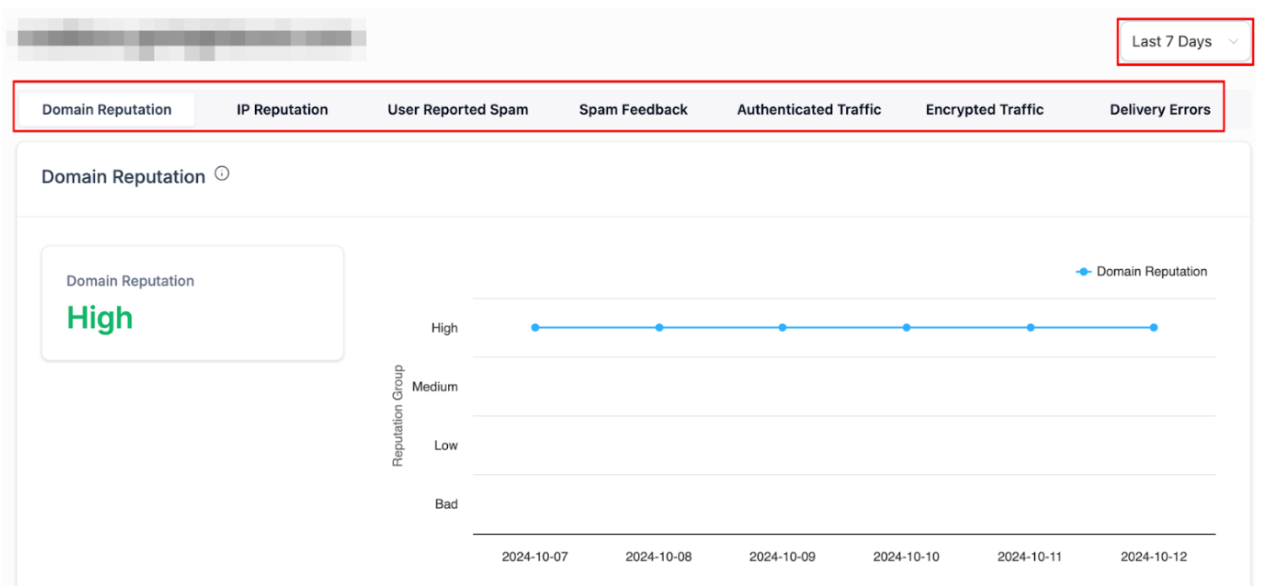
- After linking your account, Google Postmaster Tools data will be displayed in your Email Services dashboard. Use this data to monitor and address any issues related to email deliverability, spam complaints, and authentication.

¶ Key Metrics Provided by Google Postmaster Tools
- Spam Rate : The percentage of your emails marked as spam by Gmail users.
- Domain Reputation : How Google perceives your sending practices based on your domain.
- IP Reputation : The trustworthiness of the IP addresses you use for sending emails.
- Authentication Success : Tracks your success rate with email authentication protocols like SPF, DKIM, and DMARC.
- Delivery Errors : Shows any issues preventing email delivery.
¶ FAQ:
Question: How do I know if my domain’s reputation is good?**
**Answer: You can monitor your domain’s reputation in the Google Postmaster Tools dashboard. A high domain reputation indicates better inbox placement and deliverability.
Question: What if my emails are marked as spam?**
**Answer: If you see a high spam rate, review your email content and engagement practices to address potential issues and avoid further spam complaints.
Question: How long does it take for data to appear after setup?**
**Answer: It typically takes a few days for Google Postmaster Tools to start showing data after you verify your domain.
Question: Can I use Google Postmaster Tools for multiple domains?**
**Answer: Yes, you can add and monitor multiple domains in Google Postmaster Tools, but each must be verified individually.
Question: What should I do if my IP reputation is low?**
**Answer: If your IP reputation is low, consider reviewing your sending practices, list hygiene, and ensuring that your emails comply with Gmail’s best practices.
Question: How can I use Postmaster Tools data to improve email performance?**
**Answer: Use insights on spam rate, reputation, and delivery errors to optimize email content, list management, and sending practices, which can enhance deliverability and inbox placement.
Question: If I have a high “Delivery Error” rate, what is the most likely cause?
Answer: Delivery errors often indicate technical blocks. Common causes include your sending IP being on a blacklist, your DMARC policy being too strict/misconfigured, or Gmail’s servers being temporarily overwhelmed by your sending volume (rate-limiting).
Question: How long does Microsoft keep my historical data?
Answer: SNDS typically retains and displays approximately 90 days of historical data, allowing you to track your IP’s reputation trends over the last three months.