¶ Custom Reply Address
Adding a custom reply-to address allows you to specify an alternative email address where responses to your outgoing emails will be directed. This can be useful for managing replies or handling communications through a designated inbox.
Here’s how to set up a custom reply-to address:
¶ Steps to Add a Custom Reply-To Address
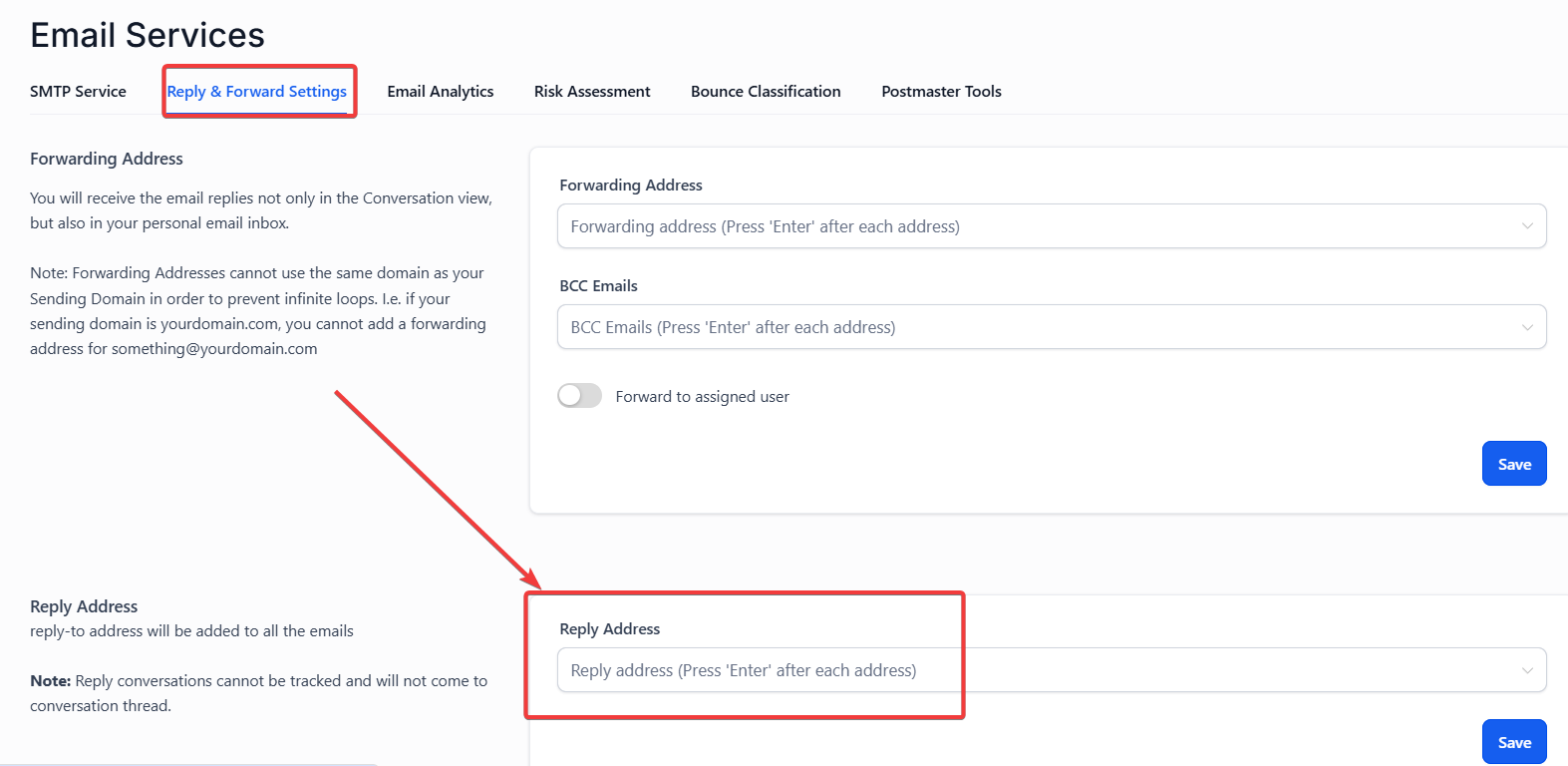
- Navigate to Email Services:
- Go to Settings and select Email Services from the menu.
- Access Reply and Forward Settings:
- Click on the Reply and Forward Settings tab within the Email Services section.
- Add a Custom Reply-To Address:
- Enter your desired custom reply-to email address in the provided field.
- Save Your Changes:
- Click Save to apply the changes.
¶ Important Note:
When you add a custom reply-to address, all incoming replies will be directed to that email address. This means that any responses to your outgoing emails will not appear in the Conversation tab within your system but will instead be sent to the specified reply-to address.
Here is how that will appear for a contact when they receive an email:

¶ FAQs
¶ ****
¶ FAQs
¶ Question: What happens when I set a custom reply-to address?
Answer: When you set a custom reply-to address, replies to your outgoing emails will be sent to that address rather than appearing in the Conversation tab of your system.
¶ Question: Can I use multiple reply-to addresses?
Answer: No, you can only set one custom reply-to address at a time. If you need different addresses for different types of communications, you will need to update the reply-to address as needed.
¶ Question: How do I change or remove the custom reply-to address?
Answer: To change or remove the custom reply-to address, follow the same steps to navigate to Settings > Email Services > Reply and Forward Settings, update or delete the address, and then click Save.
¶ Question: Will setting a custom reply-to address affect outgoing email delivery?
Answer: No, setting a custom reply-to address will not affect the delivery of your outgoing emails. It only changes where replies to those emails will be sent.
¶ Question: Why would I use a custom reply-to address?
Answer: A custom reply-to address is useful for directing responses to a specific email account, such as a support team, a dedicated reply address, or a different department within your organization.
¶ Question: How do I ensure replies are monitored if using a custom reply-to address?
Answer: Ensure that the custom reply-to address is actively monitored by the relevant team or individual to avoid missing important responses.
¶ Question: What should I do if I do not receive replies sent to the custom reply-to address?
Answer: If you are not receiving replies, check that the custom reply-to address is correctly configured and is not being filtered or blocked by spam filters. Also, ensure that the address is valid and active
Question: What if replies are not reaching the custom reply-to address?**
**Answer: Check that the address is correctly configured, active, and not filtered as spam. Ensure the inbox is functioning properly.
Question: Will I still see customer replies in the “Conversations” tab after setting this up?
Answer: No. This is a critical change. Once a custom reply-to address is active, responses will not appear in your system’s Conversations tab; they will only be sent to the external inbox you specified.
Question: Where exactly in the settings can I find the option to change the reply-to email?
Answer: You can find this by navigating to Settings , selecting Email Services from the menu, and then clicking on the Reply and Forward Settings tab. From there, you can enter and save your desired custom address.