¶ Timezone Switcher on Dashboards
The Timezone Switcher is a vital tool for any organization operating in multiple time zones. It allows users to personalize their dashboard view by aligning data with their local time, ensuring accuracy and relevance in data reporting. This feature resolves the common problem of data mismatch, where dashboard widgets display different times compared to other modules like contacts or opportunities due to time zone differences.
¶ Problems Addressed:
- Data Mismatch: Users frequently encounter discrepancies in times displayed on dashboard widgets versus other platform modules. This misalignment can lead to confusion and errors in data interpretation.
- Lack of Flexibility: Before the introduction of the Timezone Switcher, users could not adjust dashboard times to match their local settings, which complicated global operations.
¶ Key Benefits of the Timezone Switcher
- Enhanced Data Accuracy : By syncing dashboard data with local time, the Timezone Switcher ensures that all information displayed is timely and accurate.
- Improved User Experience : Users can interact with their dashboards more intuitively, as the data presented corresponds with their real-time experience.
¶ How to Use the Timezone Switcher
¶ Step-by-Step Guide:
1. Access Your Dashboard : Open any dashboard, whether it’s private or shared.
2. Navigate to Timezone Settings : Click on the 3-dot menu on your dashboard interface to access additional settings.
3. Manage Dashboard Timezone : Select the “Manage Dashboard Timezone” option from the menu.
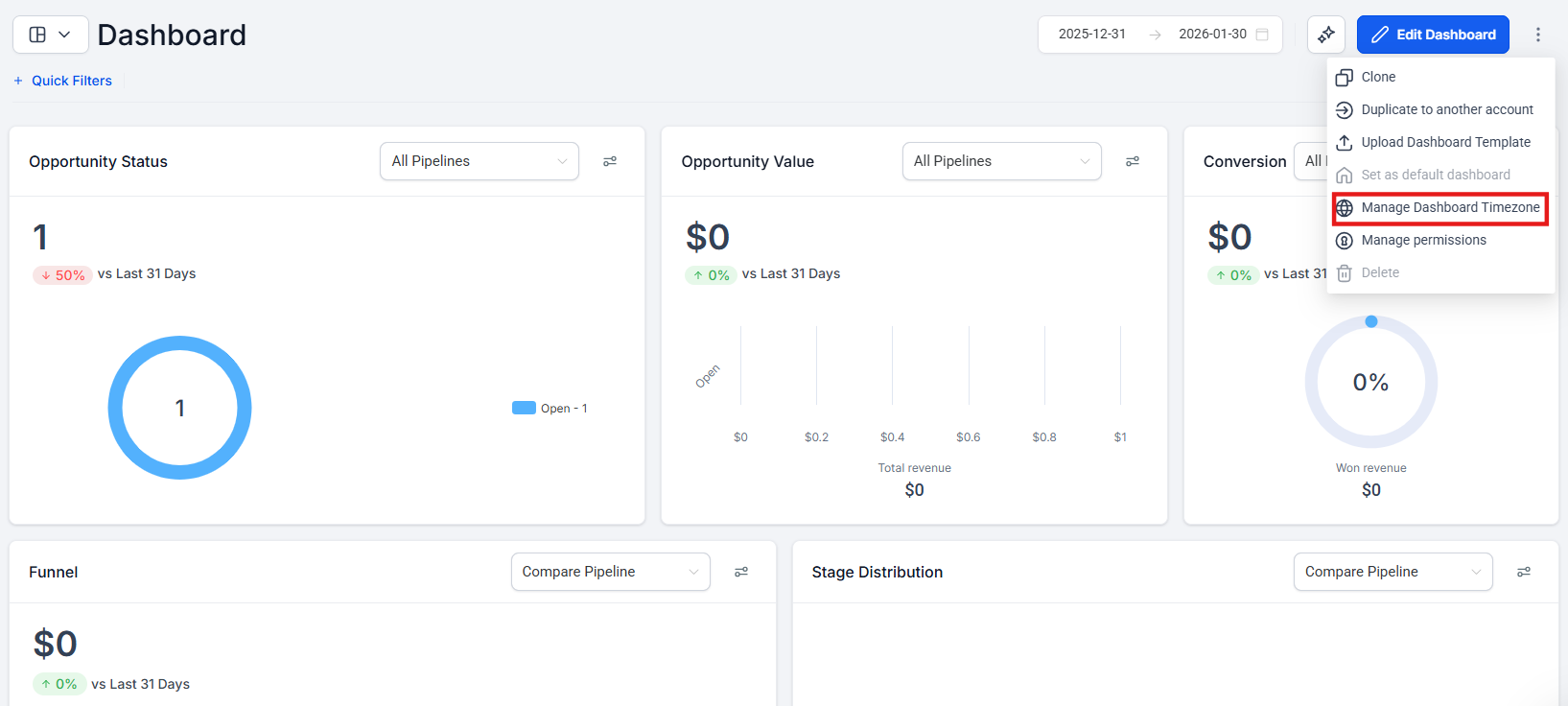
4. Choose and Save Your Timezone : Pick your desired time zone from the available list. Confirm your choice and save the settings to update your dashboard view.
.png)
¶ Practical Application
The Timezone Switcher is particularly useful for businesses that operate in multiple countries. For instance, a company headquartered in New York with teams in Tokyo and London can set each local team’s dashboard to reflect their respective time zones. This ensures that all team members view and interpret dashboard data relevant to their specific day and time, reducing the risk of miscommunication and scheduling errors.
¶ Note:
- The selected timezone setting will be applied to all dashboards viewed by the user, creating a consistent viewing experience.
- Timezone adjustments will only affect internal data metrics displayed on the dashboard and do not influence third-party dependent widgets.
- The task widget is currently not affected by timezone changes; however, a patch is in development to include this widget in the timezone functionality.
Use Cases for the Timezone Switcher
Global Sales & Marketing Teams Managing Campaign Performance
- A company with teams in New York, London, and Tokyo can ensure that each regional team sees campaign performance metrics in their local time zone.
- Example: A marketing manager in London won’t have to convert engagement data from EST to GMT manually, reducing errors and improving decision-making speed.
Customer Support Teams Operating in Different Time Zones
- A 24/7 global support center can track response times and customer interactions based on their local working hours, ensuring accurate performance evaluation.
- Example: A customer service supervisor in Australia can adjust the dashboard to see real-time response metrics for their shift, rather than defaulting to a U.S. time zone.
Multi-Location Businesses Coordinating Operations
- A retail or logistics company with warehouses in different countries can align their dashboard reports with local time zones for inventory, deliveries, and sales tracking.
- Example: A logistics team in Germany can track order fulfillment data in CET (Central European Time) without needing to adjust for the company’s headquarters in PST (Pacific Standard Time).
Remote Teams & Freelancers Collaborating Across Time Zones
- Remote employees working across different time zones can view their dashboard in their own local time, reducing confusion over deadlines and reporting schedules.
- Example: A content creator in India can schedule social media posts and performance reports in IST (Indian Standard Time) while collaborating with a U.S.-based marketing team.
Finance & Accounting Departments Tracking Transactions
- Companies operating in multiple financial markets can track revenue, expenses, and transaction data according to regional banking hours.
- Example: A finance manager in Singapore can ensure that end-of-day financial reports reflect the correct time zone, preventing misalignment with global transaction data.
Project Managers Overseeing International Teams
- Project managers working with teams across multiple countries can align task deadlines and milestones according to local time zones.
- Example: A project lead in Canada can set up reports to track task progress based on the local time zones of contributors in Europe and Asia.

¶ FAQs
Question: What is the Timezone Switcher?**
**Answer: The Timezone Switcher is a tool that allows users to adjust their dashboard view to match their local time zone. This ensures that all data displayed on the dashboard is accurate and relevant to the user’s current time, resolving issues of time discrepancies between different parts of the platform.
Question: Why was the Timezone Switcher introduced?**
**Answer: The Timezone Switcher was introduced to address problems such as:
- Data Mismatch: Discrepancies in times displayed on dashboard widgets compared to other modules, leading to confusion and errors.
- Lack of Flexibility: The previous system didn’t allow users to adjust dashboard times to their local settings, complicating global operations.
Question: What are the key benefits of using the Timezone Switcher?**
**Answer:
- Enhanced Data Accuracy: Syncs dashboard data with local time for accurate and timely information.
- Improved User Experience: Provides a more intuitive interaction with the dashboard, as the data aligns with the user’s local time.
Question: How do I use the Timezone Switcher?**
**Answer:
- Access Your Dashboard: Open any dashboard, whether it’s private or shared.
- Navigate to Timezone Settings: Click on the 3-dot menu on your dashboard interface.
- Manage Dashboard Timezone: Select “Manage Dashboard Timezone” from the menu.
- Choose and Save Your Timezone: Pick your desired time zone from the list, confirm your choice, and save the settings to update your dashboard view.
Question: How does the Timezone Switcher affect global businesses?**
**Answer: For businesses operating in multiple countries, the Timezone Switcher allows each team to view their dashboard in their local time zone. For example, a company with teams in New York, Tokyo, and London can set each team’s dashboard to their respective time zones, minimizing miscommunication and scheduling errors.
Question: Will the timezone setting apply to all dashboards?**
**Answer: Yes, the selected timezone setting will apply to all dashboards viewed by the user, ensuring a consistent viewing experience across the platform.
Question: Does the Timezone Switcher affect third-party widgets or external data?**
**Answer: No, the timezone adjustments only affect internal data metrics displayed on the dashboard. Third-party dependent widgets are not influenced by these settings.
Question: Are there any widgets not affected by the Timezone Switcher?**
**Answer: The task widget is currently not affected by timezone changes. However, a patch is in development to include this widget in the timezone functionality.
Question: Does changing the timezone affect historical data or reports?**
**Answer: The timezone adjustment only changes the display of time on dashboard widgets; it does not alter the underlying data.
Question: If I change the time zone on my dashboard, will it change it for my whole team?
Answer: No. The Timezone Switcher is a personal setting. If you change your dashboard to London time, your teammate in New York will still see their dashboard in New York time. This allows everyone to work in the way that makes the most sense for them.