¶ Customizing The Dashboard
Customizing The Dashboard
Customizable widgets enable opportunity filtering on dashboards, improving analysis and insights into opportunity statuses. This guide covers creating a dashboard with the Lost Reason filter and advanced customization options like titles, text boxes, images, and source filters. By the end, you’ll be ready to enhance your dashboard’s functionality and drive better decision-making.
How-to Steps:
- Accessing Widgets Settings:
- Navigate to the dashboard settings in your LeadMagicX account.
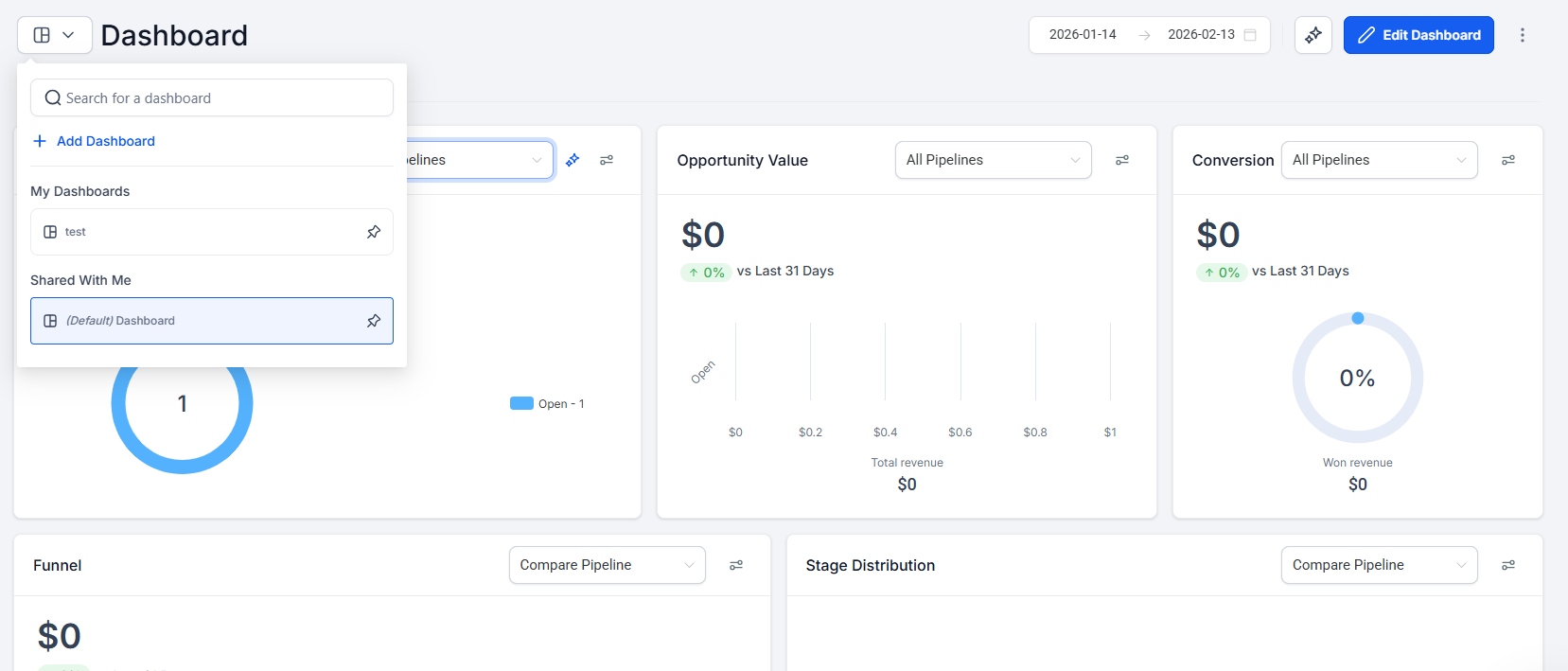
- Go to the ‘Widgets’ section.
** Adding a Lost Reason Filter:**
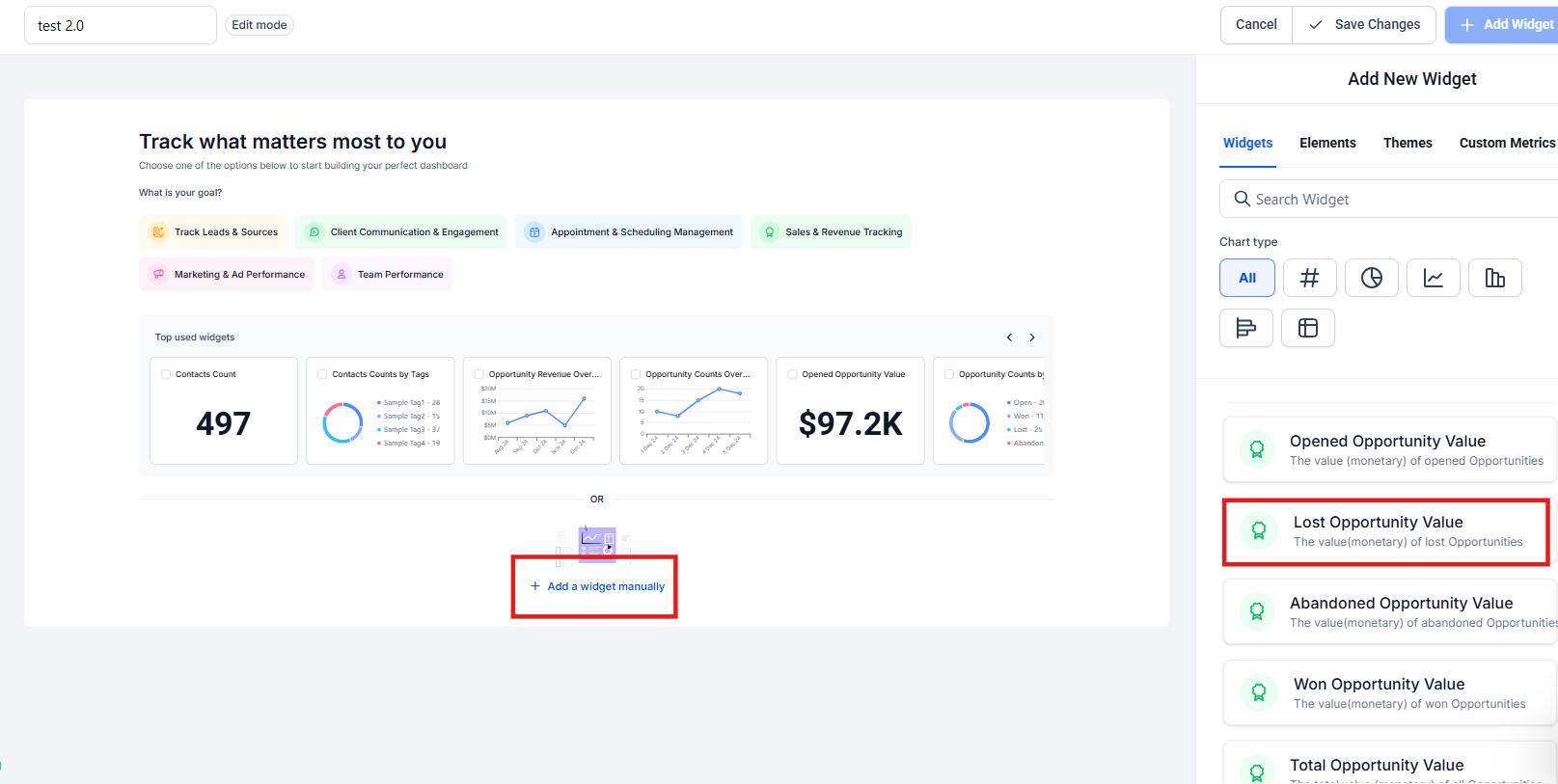
- Click on ‘Add Widget’ to create a new widget.
- Select ‘Opportunities’ as the data source.
- Choose the ‘Lost Reason’ filter from the available options.
- Customize the filter by selecting specific reasons for lost opportunities.
** Customizing the Widget Display:**
- Select the type of visualization for your widget (e.g., pie chart, table).
- Configure the widget settings to display the filtered data effectively.
- Save the widget to add it to your dashboard.
** Using Advanced Settings:**
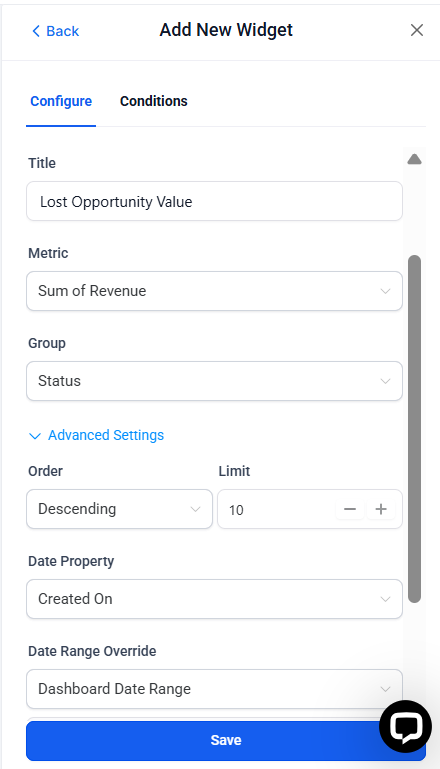
- Access advanced settings to further customize the widget.
- Set additional filters and parameters to refine the displayed data.
- Apply the settings and save the changes.
¶ Opportunity Widgets: Attribution and UTM Parameters
Opportunity widgets give users deeper insights and more control over their sales data. With Attribution and UTM parameters, you can filter and analyze opportunities based on the first or last attribution, providing a clearer picture of which channels and campaigns drive your sales efforts.
Benefits: These features allow you to create detailed widgets using various UTM properties like UTM Campaign, UTM Source, and more, enabling you to generate customized reports and visualizations.
Navigation: Enter Edit mode on your dashboard, add a widget under the Opportunity category, switch to the condition tab, and configure your attribution parameters.
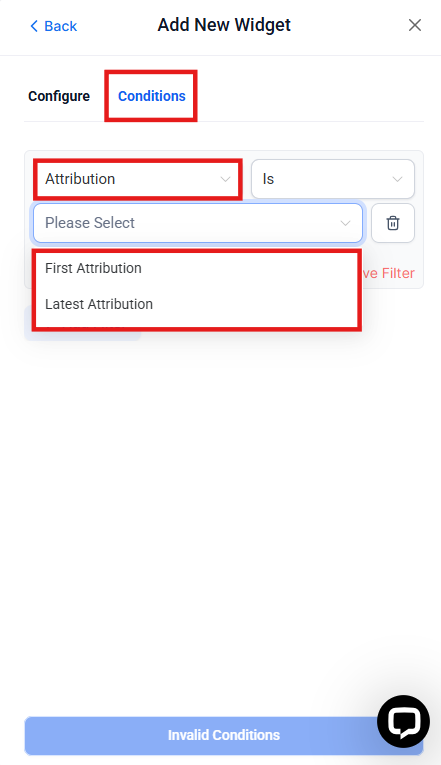
Note: While adding or editing an appointment widget, you can also navigate to the Conditions tab in the same way. It also has the option to apply the Rescheduled filter to****track rescheduled appointments in both your dashboards
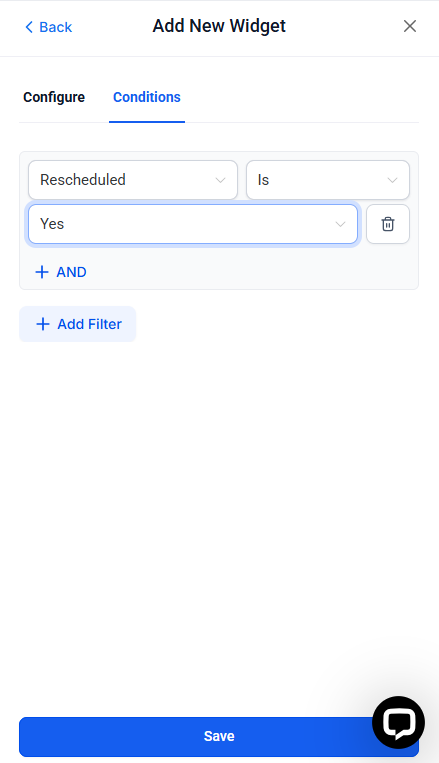

Note: UTM parameters and fields are visible only in Table and Granular insights views when an attribution type is added in widget conditions.
Enhancing Your Dashboard:
Titles:
- Incorporate titles or headers into your dashboard to establish organized sections and group widgets according to themes or categories.
Textboxes:
- Deliver crucial information or to-do lists to your team members directly on the dashboard. Textboxes can contain guidelines on interpreting widget data or reminders for essential tasks, facilitating efficient communication and organization. You can also add hyperlinks directly within text box elements on your dashboard, making it easier to provide quick access to key resources or external pages.

Images:
- Boost the visual appeal of your dashboard by embedding images. Whether it’s logos, charts, or infographics, images provide additional context and make your dashboard more engaging visually.

How It Works:
- Creating a Dashboard : Navigate to your dashboard settings and create a new test dashboard.

- Adding Elements : Click on the “Add Widget” button. Alongside your regular widgets, you’ll see options for new elements like titles, images, and textboxes.

- Switch to the Elements tab:

-
Choose from Titles, Textboxes, or Images.
-
Configure the element to suit your needs.
-
Save your changes.
¶ Widget Duplication
With the widget duplication feature, you can efficiently replicate existing dashboard widgets to save time and streamline customization. This functionality is ideal for quickly creating variations of similar widgets without starting from scratch. Simply duplicate the widget, make adjustments, and save your changes.
How to Use:
- Enter Edit Mode for your dashboard.
- Locate the widget you wish to duplicate.
- Open the three-dot menu on the widget card.
- Select Duplicate and make any necessary adjustments.

- Click Save to apply the changes.
Requirements and Limitations:
- Ensure you have editing permissions for the dashboard.
- The duplication feature only works within the same dashboard.
¶ Dashboards & Reporting: Instant Dashboard Insights
The Instant Dashboard Insights feature allows you to add relevant dashboard widgets directly from key pages like Opportunities, Appointment Reports, and Call Reports without leaving the page. This eliminates the need to navigate between different pages to view and analyze your data. With this, you can customize your dashboard on the spot, ensuring real-time tracking of your performance and better decision-making.
How to use it :
- While viewing a supported page (e.g., Opportunities or Appointment Reports), click the Dashboard Insights icon.

- Choose the dashboard where you want to add widgets.

- Confirm the widgets to add and click Confirm & Add.
- View the insights either on the current page or head over to the dashboard for a more detailed view.
¶ Themes for Dashboard and Widgets
The Themes feature allows you to customize the look of your dashboard and widgets, aligning them with your unique style and brand identity.
**How to apply a Theme: **
- Simply go to your dashboard.
- Click the edit icon.
- Switch to the Theme tab, and choose or customize your preferred theme.
¶ 
Custom Metrics for Dashboard
This feature allows users to create personalized Key Performance Indicators (KPIs) by combining data from multiple sources. With a smart formula editor, users can calculate and visualize important metrics such as contacts, opportunities, or other relevant data points. This feature simplifies reporting by eliminating the need for spreadsheets, helping teams align on metrics that drive business growth.
How to Use : Navigate to a Dashboard or Custom Report → Edit → Add Widget → Custom Metric tab → Create Custom Metric → Define your formula, select data sources, and configure the widget.

¶ Contact Source and Opportunity Source
- Contact Source : A “Source” filter added to contact widgets.
- Opportunity Source : A “Source” filter added to opportunity widgets.
- Table widget : Both properties are added as columns for table widgets for granular insights.
¶ How It Works
- Enter Edit mode on your Dashboard.
- Click on “Add Widget.”

- Choose any widget from the Contacts or Opportunity category.
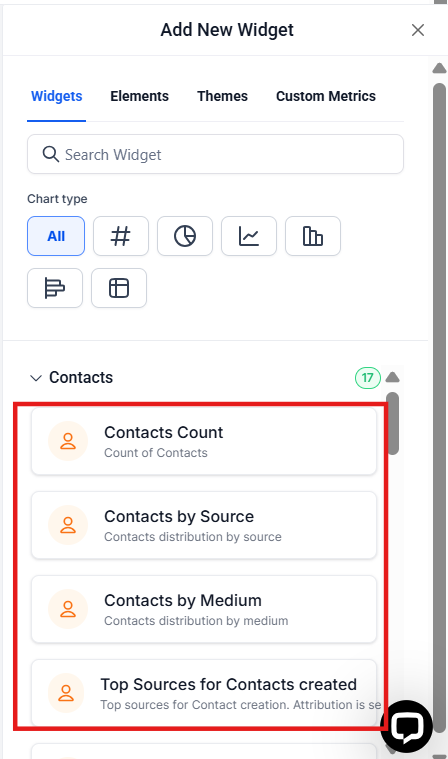
4. Switch to the Conditions tab.
5. Add a condition and select “Source.”

- Configure the widget settings as per your requirements.
- Save your changes.

Why it Matters
These filters give you greater control over the widgets and insights on your dashboard. Create custom widgets for different contact or opportunity sources to gain a deeper understanding and actionable insights.
Benefits:
- Improved Analysis: Understand the reasons behind lost opportunities by visualizing data with customized widgets.
- Enhanced Decision-Making: Make informed decisions by identifying patterns and common reasons for lost deals.
- User-Friendly Interface: Easily add and customize widgets to suit your business needs.
Pro Tips:
- Combine Filters: Use multiple filters to gain deeper insights into lost opportunities.
- Regular Updates: Regularly update your widgets to reflect the most recent data for accurate analysis.
- Dashboard Layout: Arrange widgets on your dashboard to provide a comprehensive view of your sales performance.
FAQ/Use Cases:
Question: Can I apply multiple filters to a single widget?
Answer: Yes, you can apply multiple filters to a single widget to narrow down the data and gain specific insights.
Question: What types of visualizations are available for widgets?
Answer: You can choose from various visualization types, such as pie charts, bar graphs, and tables, to best represent your data.
Question: How do I edit an existing widget?**
**Answer: To edit an existing widget, go to the dashboard settings, select the widget you want to modify, and update the settings as needed.
Question: Can I create Custom Metrics using only one data source?**
**Answer: Yes, you can create metrics from a single source if preferred.
Question: Can I modify a custom metric after it’s created?**
**Answer: Yes, you can edit the custom metric and update the formula as needed.
Question: Do I need any special permissions to edit widgets?**
**Answer: Yes. You must have editing permissions for the dashboard to add, edit, or duplicate widgets.
Question: How does widget duplication work?
Answer: You can duplicate a widget within the same dashboard to save time. Open the widget’s three-dot menu, select Duplicate , make adjustments, and save.
Question: Can I add a hyperlink to my dashboard?**
**
Answer: Yes. Within a Textbox element, you can highlight text and add a hyperlink. This is perfect for linking to external training documents, shared spreadsheets, or your company’s main website.