¶ How to Change and Customize your Dashboard Themes
We know that your workspace is a reflection of your brand, so we have added more ways to make it your own. You can now customize your dashboard themes to better align with your style. Whether you prefer a streamlined, minimal look or something more vibrant, these updates let you create a personalized environment that works for you.
¶ Key Features and Benefits
- Predefined and Customizable Themes: Choose from a variety of ready-made themes or design your own to suit your unique needs.
- Brand Alignment: Match the dashboard’s look and feel to your business branding, creating a cohesive visual identity.
- Widget-Specific Themes: Customize individual widgets for added flair and functionality.
- Enhanced Usability: Personalized dashboards improve focus and productivity by providing a visually engaging environment.
¶ How to Customize Your Dashboard with Themes
Step 1: Open Your Dashboard
- Access the dashboard you’d like to personalize.
Step 2: Enter Edit Mode
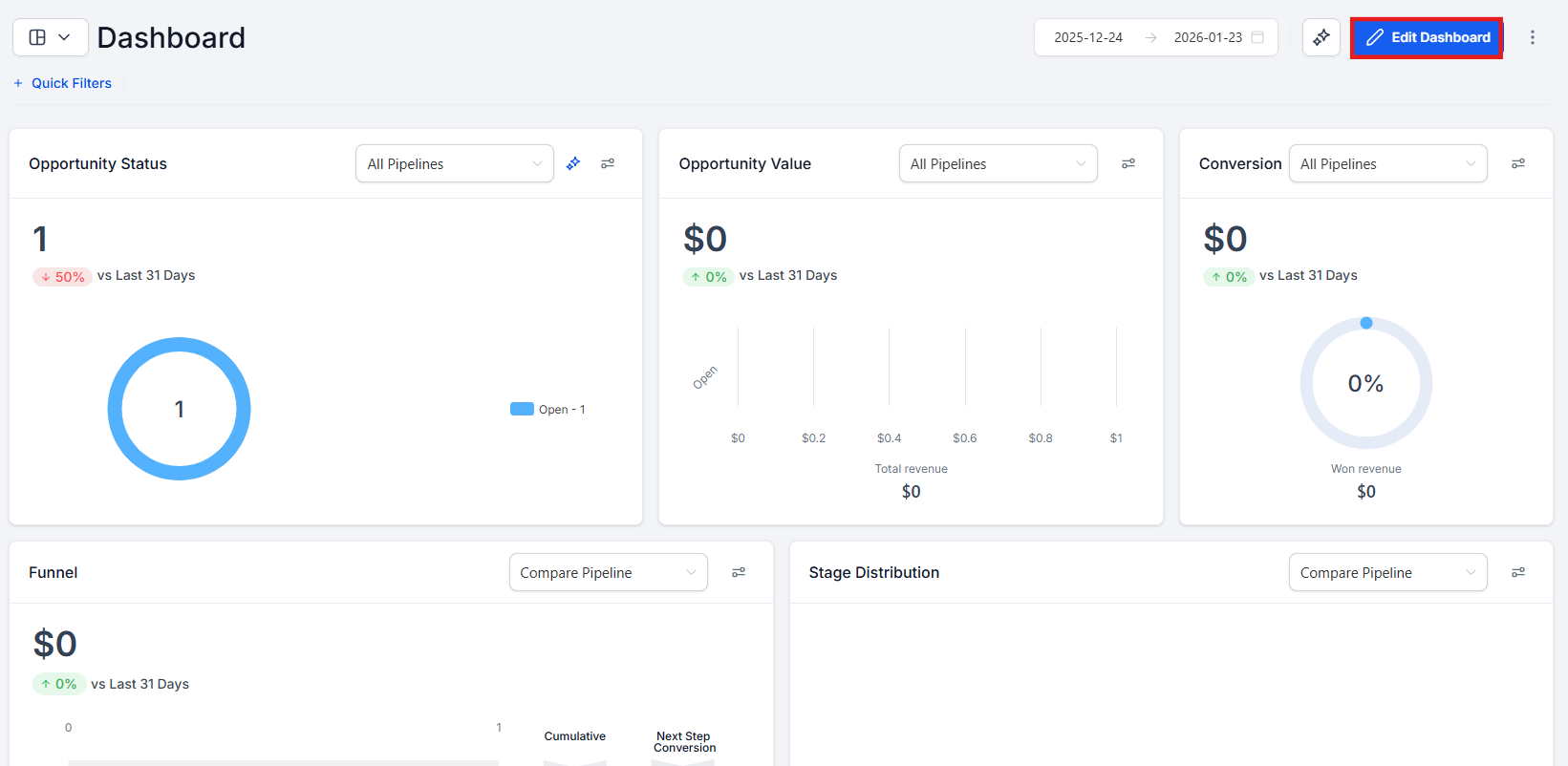
- Click the Pencil icon located in the top-right corner to enable edit mode.
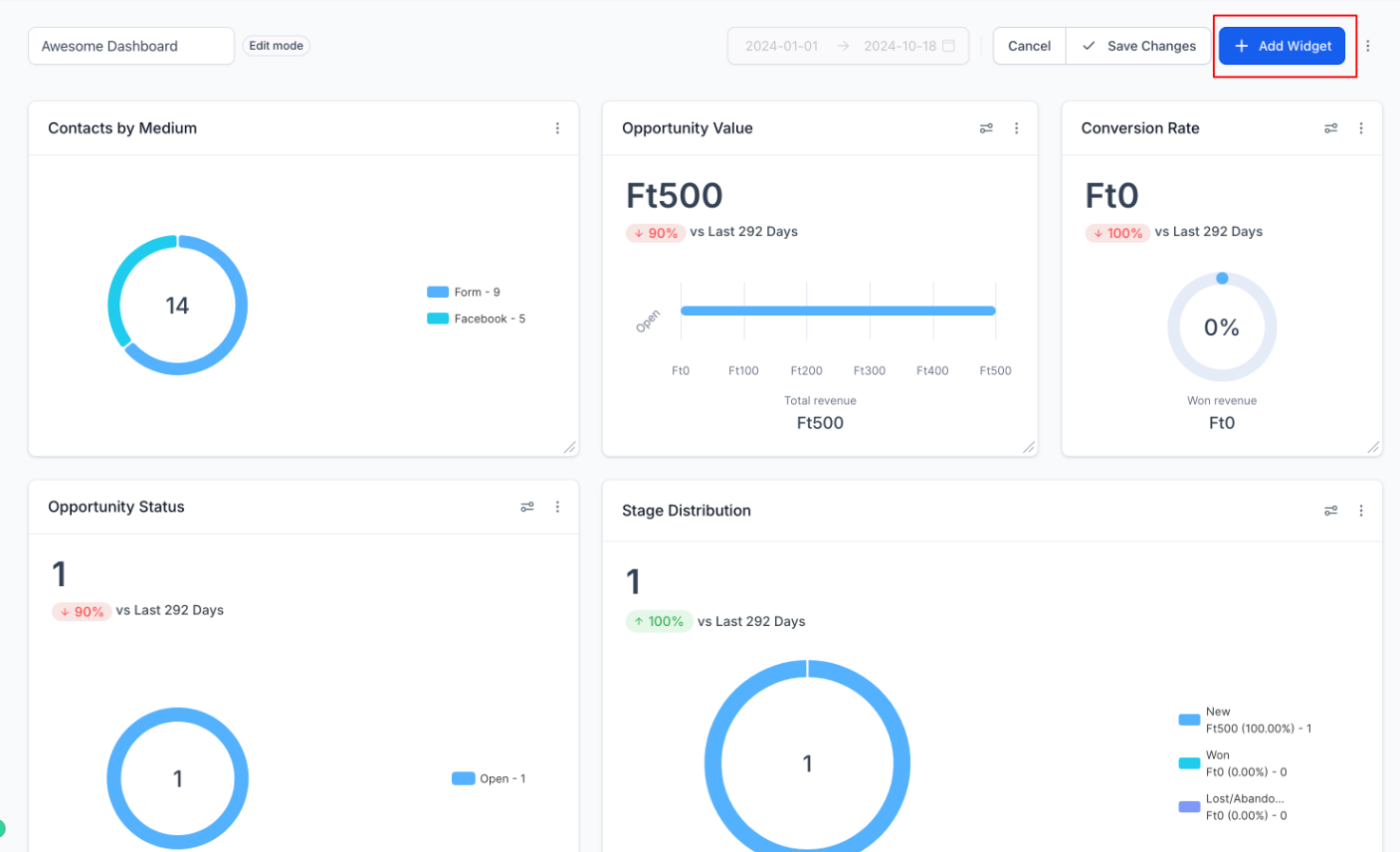
- Once in edit mode, you can also add widgets by selecting “Add Widget.”
Step 3: Access the Themes Section
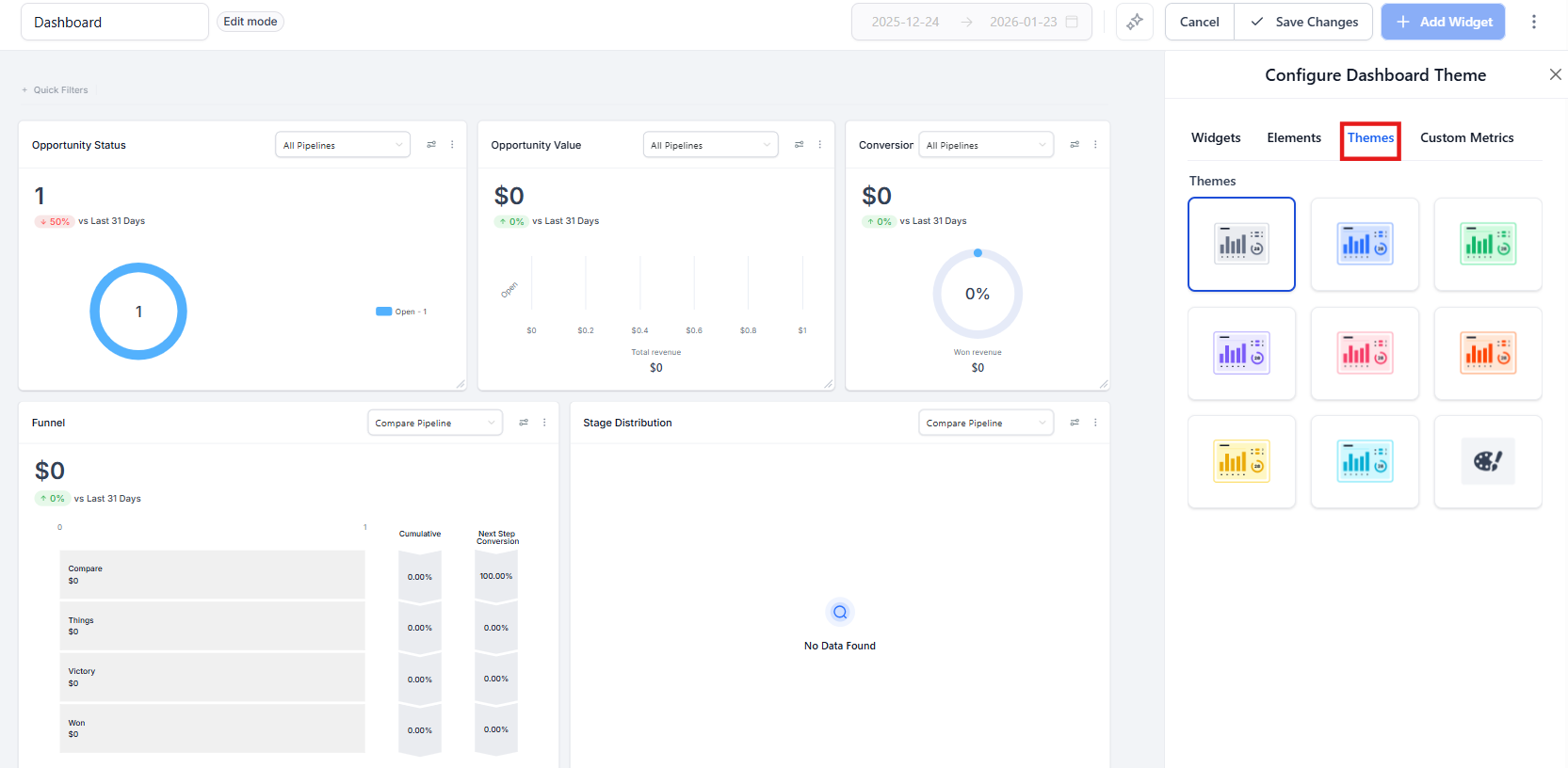
- On the sidebar that appears, click on the “Themes” tab to access available customization options.
Step 4: Choose or Create a Theme
- Select a Predefined Theme: Browse through the list of predefined themes and select one that matches your preferences.
- Create a Custom Theme:
- Adjust background colors, text colors, and widget styles.
- Preview changes in real time to ensure the theme meets your expectations.

Step 5: Save Your Changes
- After finalizing your selection or customizations, click “Save” to apply the theme to your dashboard.
Step 6: Customize Widget Themes (Optional)
- You can personalize individual widgets by entering edit mode for the specific widget. In the sidebar, navigate to the theme section and adjust the settings to align with your dashboard’s design.
¶ Pro Tips for Better Customization
- Consistency is Key: Use consistent colors and styles across the dashboard to maintain a professional appearance.
- Brand Colors: Incorporate your brand colors for better alignment with your business identity.
- Test Visibility: Ensure that text and widget details are clearly visible against your chosen background color.
- Preview Changes: Always preview your dashboard before saving changes to confirm everything looks cohesive.
- Experiment with Widgets: Don’t hesitate to explore widget-specific themes to highlight important data or features.
¶ FAQ’s
Question: Can I switch back to the default theme after applying a custom one?****
Answer: Yes, you can always revert to the default theme by selecting it from the predefined themes list.
Question: Are there limits to how many custom themes I can create?****
Answer: There is no limit. You can create as many custom themes as needed to suit different dashboards or preferences.
Question: Can I customize themes for specific users?****
Answer: Currently, themes apply to the dashboard overall, but individual user preferences may vary depending on their access levels.
Question: How do I ensure widget themes match the overall dashboard design?****
Answer: When editing widget themes, use the same color scheme and font styles as the main dashboard theme to maintain consistency.
Question: Will these customizations affect the performance of my dashboard?
Answer: No, visual customizations do not impact dashboard performance. They are designed to enhance appearance without compromising functionality.
Question: Can I add widgets while customizing my theme?****
Answer: Yes, you can add widgets by selecting “Add Widget” when in edit mode.
Question: How can I preview changes before saving a new theme?**
Answer:** Use the real-time preview feature in the Themes section to see how your dashboard and widgets will appear before saving your customizations.
Question: Can I change the look of a single widget without changing the entire dashboard theme?
Answer: Yes. You can personalize individual widgets by entering edit mode for that specific widget. In the widget sidebar, you can navigate to the theme section to adjust its settings specifically to highlight important data or add extra flair.