¶ Simplify Task and Notes in the Conversations Module
Simplify Task and Notes in the Conversations Module
Managing tasks and notes in the Conversations module has become more efficient. This update introduces the ability to add, edit, and delete tasks and notes directly within the Conversations page, making your workflow smoother and more integrated.
How-to Steps:
1- Accessing the Tasks and Notes Panel:
- Navigate to the Conversations module.
- Locate the tasks and notes icons on the right-hand side panel.
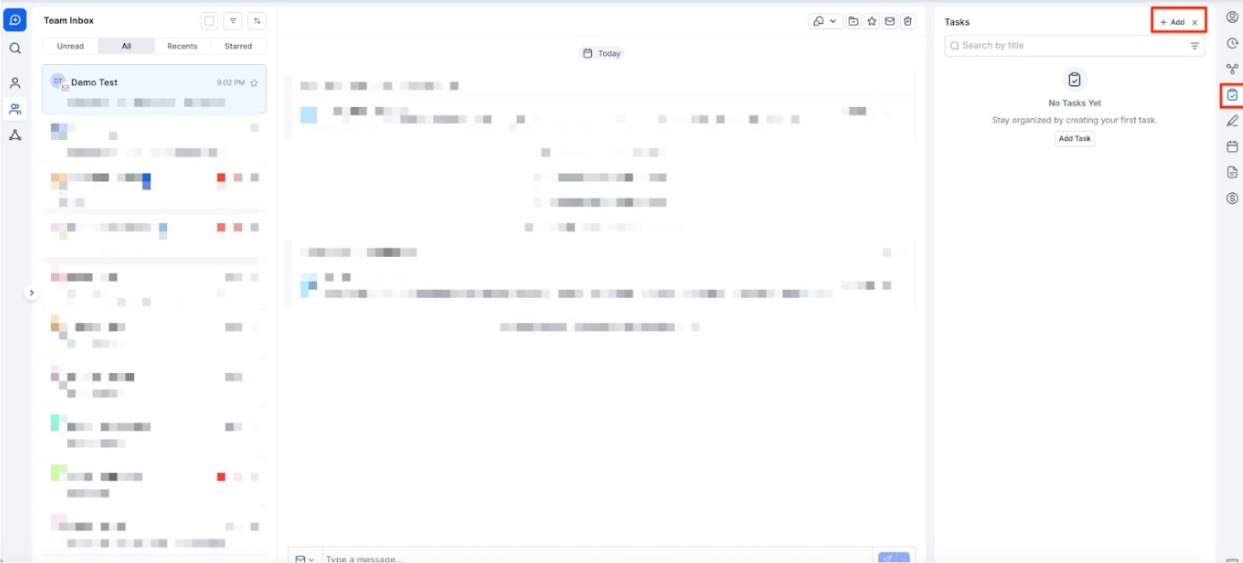
2- Adding a Task:
- Click on the tasks icon.
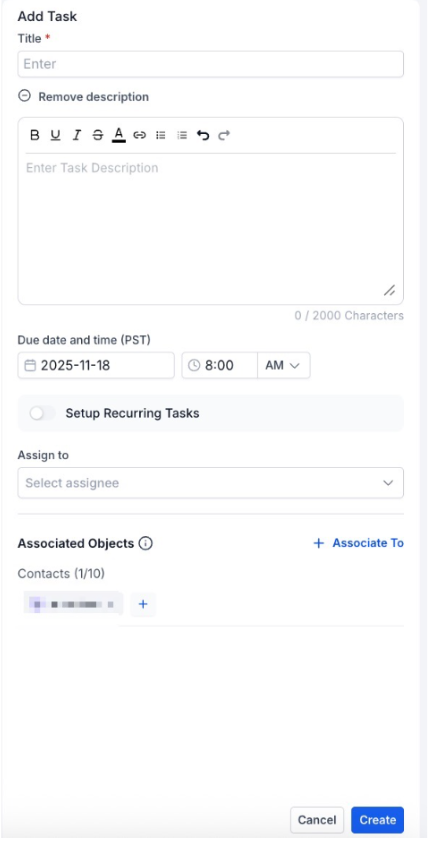
- Select “Add Task” from the panel.
- Enter the task details and save.
3- Editing an Existing Task:
- Click on the task you want to edit.
- Modify the details as necessary.
- Save the changes.
4- Marking a Task as Done:
- Click on the checkbox next to the task.
- The task will be marked as completed.
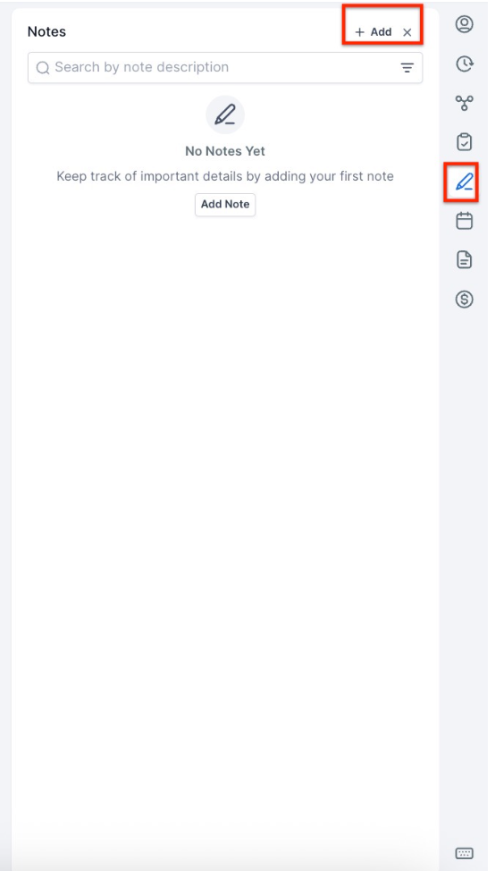
5- Adding a Note:
- Click on the notes icon.
- Select “Add Note.”
- Enter your note details and save.
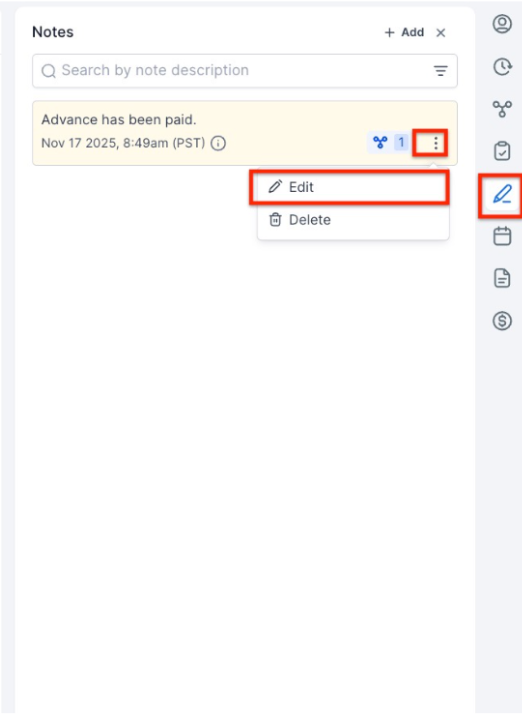
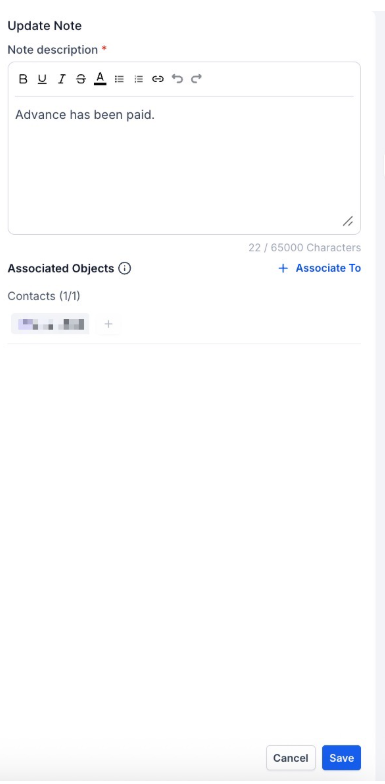
6- Editing a Note:
- Click on the note you want to edit.
- Modify the content as needed.
- Save your changes.
7- Deleting Tasks and Notes:
- Click on the task or note you wish to delete.
- Confirm the deletion.
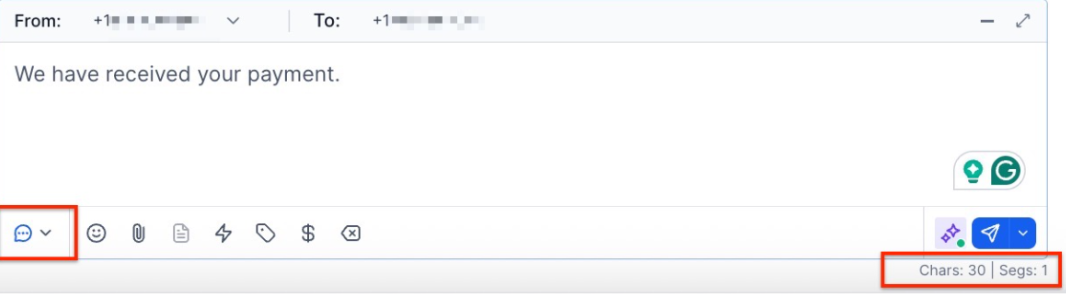
8- Viewing SMS Cost and Segment Information:
- When composing a message, users can view the approximate character count, number of segments, and potential costs for SMS messages directly within the conversation composer.
- This information helps customers better understand the potential costs of their SMS messages, ensuring budget awareness.
9- Undoing a Deletion:
- If you accidentally delete a task or note, use the “Undo” option that appears immediately after deletion.
¶ Internal Comments
The Internal Comments allows teams to collaborate more effectively within conversation threads by adding private comments visible only to team members. This ensures seamless communication without disrupting the contact-facing conversation, making it easier to manage feedback, share updates, and review responses.
Key Benefit: The ability to mention team members using @, enabling faster collaboration by notifying them directly.
**How to Use: **
- Simply type an internal comment and mention a teammate by typing @ followed by their name.
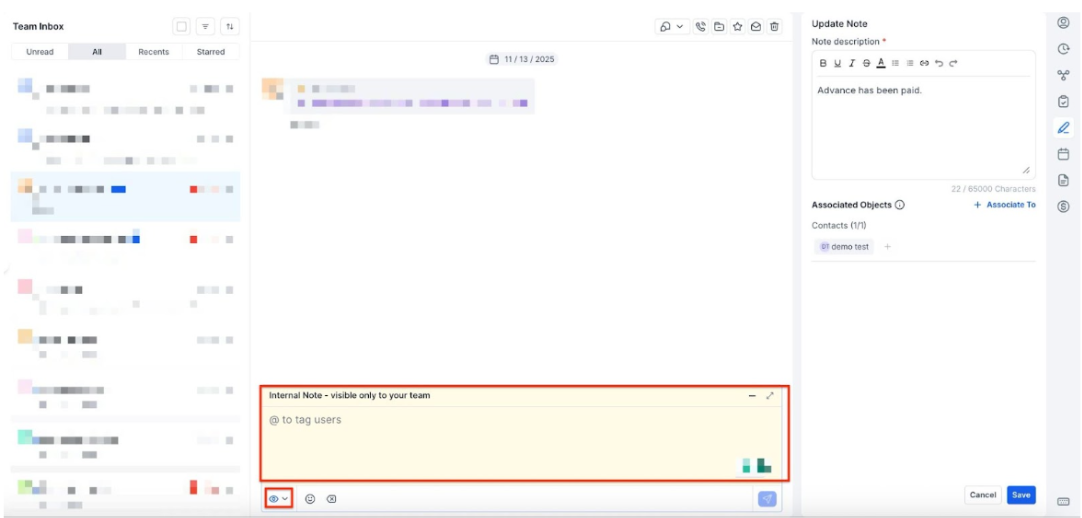
Comments remain private to users and won’t be visible to contacts.
Benefits:
- Streamlined Workflow: Manage tasks and notes directly within the Conversations module without navigating to other sections.
- Improved Efficiency: Quickly add, edit, and delete tasks and notes to keep track of important information and follow-ups.
- Error Mitigation: The undo delete option helps prevent accidental data loss.
Pro Tips:
- Consistent Updates: Regularly update your tasks and notes to maintain accurate and current information.
- Use Descriptive Titles: When adding tasks and notes, use clear and descriptive titles for easy reference.
- Organize Tasks by Priority: Prioritize your tasks to focus on the most important actions first.
FAQs
Question: Why can’t I see the tasks and notes icons?
Answer: Ensure that you have the latest version of the module and try reloading the page.
Question: Can I assign tasks to other users?
Answer: Currently, tasks are user-specific and cannot be assigned to others within this module.
Question: What happens if I accidentally delete a note or task?
Answer: You can use the “Undo” option immediately after deletion to restore the task or note.
Question: How do I view SMS costs and segment information?**
**Answer: When composing a message, the conversation composer shows the approximate character count, number of segments, and potential costs, helping you estimate SMS expenses.
Question: If I mark a task as “Done,” does it disappear?**
**Answer: Completed tasks are checked off to indicate they are finished. This helps you maintain a history of what has been accomplished for that specific contact.
Question: Can I edit or delete an internal comment after I’ve posted it**
**Answer: Yes. You can hover over your comment to see the edit and delete options. This allows you to correct a typo or remove a comment once the internal discussion is resolved.