¶ How to Schedule Email and SMS
This article walks you through the scheduling of an email & SMS feature on the conversation page. Schedule messages (Email & SMS) for different time zones, view them on your conversation thread, and cancel the schedule if needed. This is a seamless & effective way to send your messages later.
With this feature, you will be able to:
- Select the date, time & timezone based on preference and schedule messages.
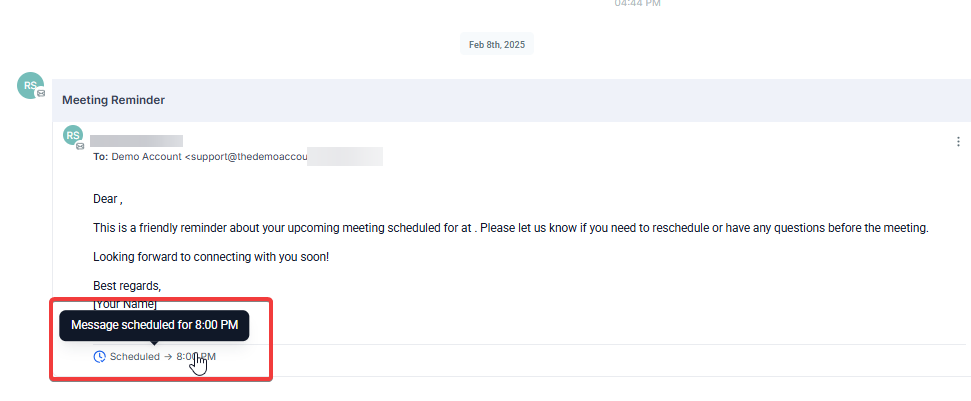
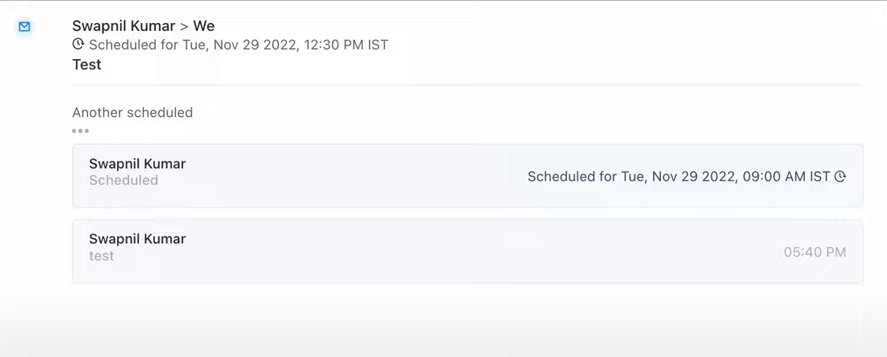
- View all scheduled messages on the conversation thread.
- Cancel scheduled messages from the message details tab.
Steps to follow to Schedule Email & SMS
1. Navigate to the conversations tab and click on the blue button beside the ‘send’ option:
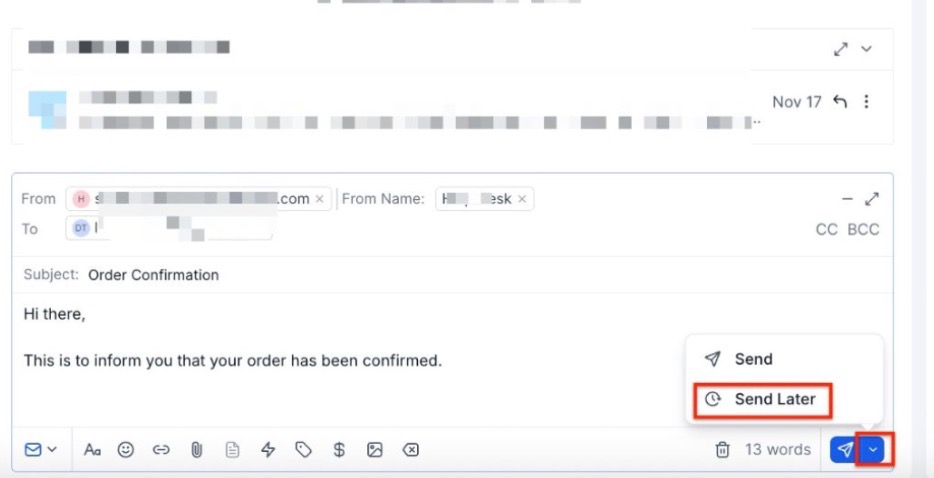
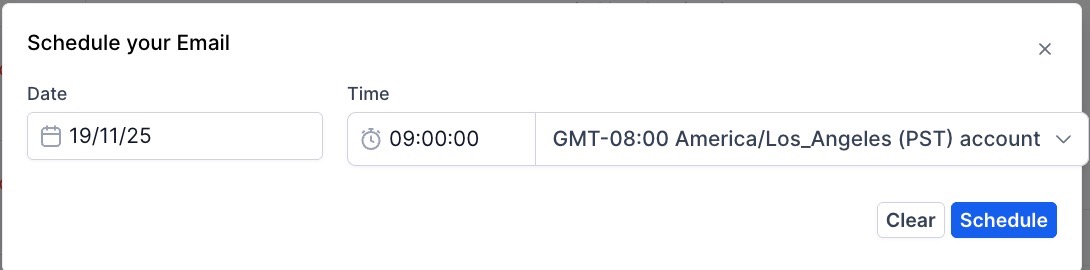
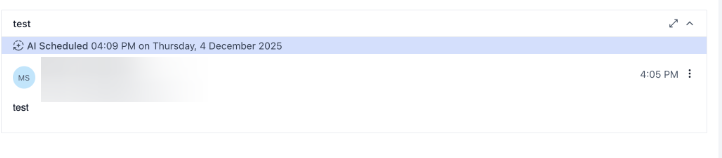
2. After you set your scheduled time; you can view your scheduled SMS or Emails in the chat window
Enhanced User Experience
All replies will be correctly threaded under the original message in the inbox, preventing the creation of new emails for each reply. This ensures a more organized and intuitive email experience, streamlining your conversation flow.
- You can schedule multiple messages for the same contact, allowing you to plan a series of communications in advance. Each scheduled message will appear in the conversation thread, making it easy to monitor all planned messages.
¶ Select a Phone Number to Send SMS Messages
Users have the ability, when sending SMS messages, to choose the phone number they want to use. This is particularly helpful for businesses operating across different regions or managing multiple numbers for specific purposes.
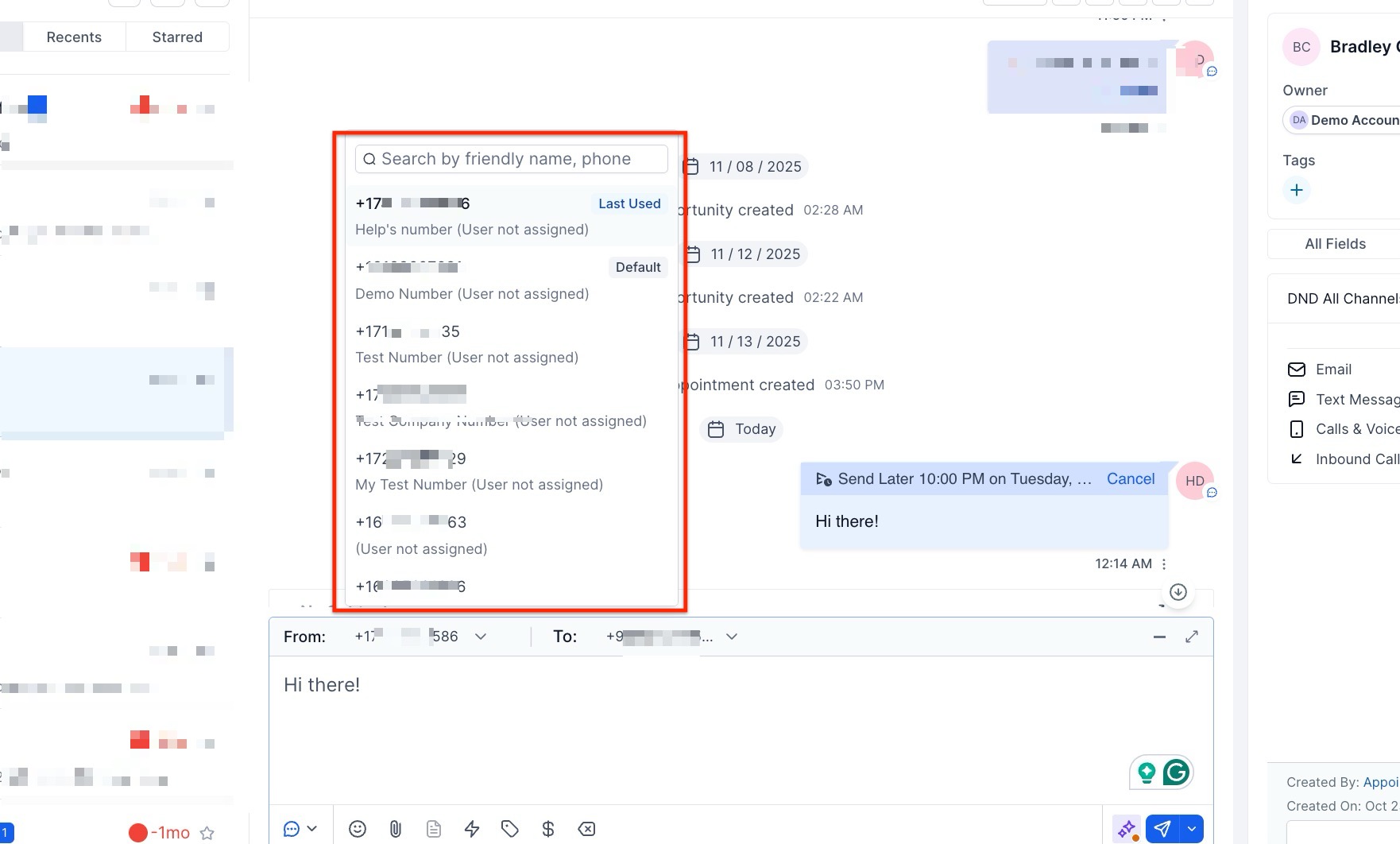
- Select the Sending Number: While scheduling an SMS, you can select the desired “From” number. The dropdown menu lists all available numbers, with tags indicating the default number and the last used number. Each entry also shows the friendly name and assigned user.
- By default, the system will use the last used number for that contact. If no previous messages exist, the default number will be selected.
- Select the Recipient’s Number: If your contact has multiple phone numbers, simply click the dropdown next to the “To” field to choose the correct recipient number. By default, the primary number is selected if there is no previous conversation.
This provides better control over SMS communication, ensuring messages are sent from the most appropriate number for each contact, and enhancing response rates and trust.
Access permissions apply based on user roles:
- Admins can access all numbers configured in the account.
- Users can choose from default numbers, numbers assigned to them, unassigned numbers, and the last used number for the contact.

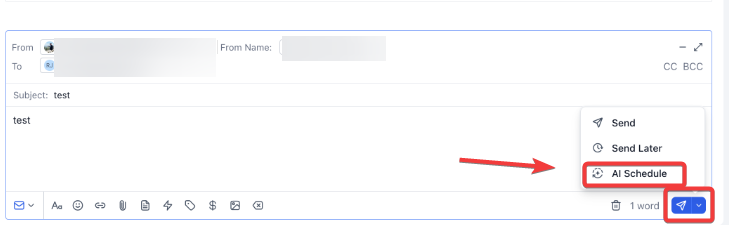
Schedule (Smart Send Time Optimization)
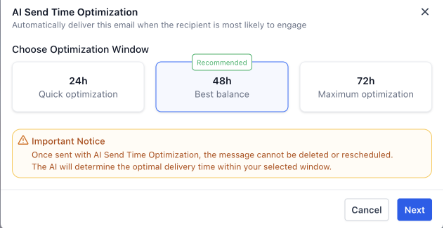
This introduces a smart send-time system that automatically schedules emails for the moments recipients are most likely to engage. By analyzing past interaction patterns, it selects the best time within your chosen window, improving open rates and reducing the guesswork of manual scheduling.
How to use:
Simply select a preferred send window.
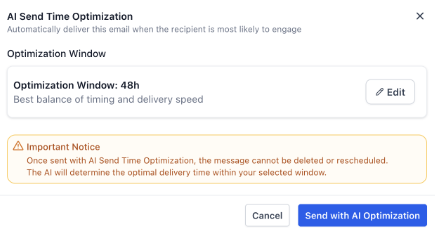
The system will determine the optimal moment; if insufficient data exists for a recipient, the message is sent immediately.

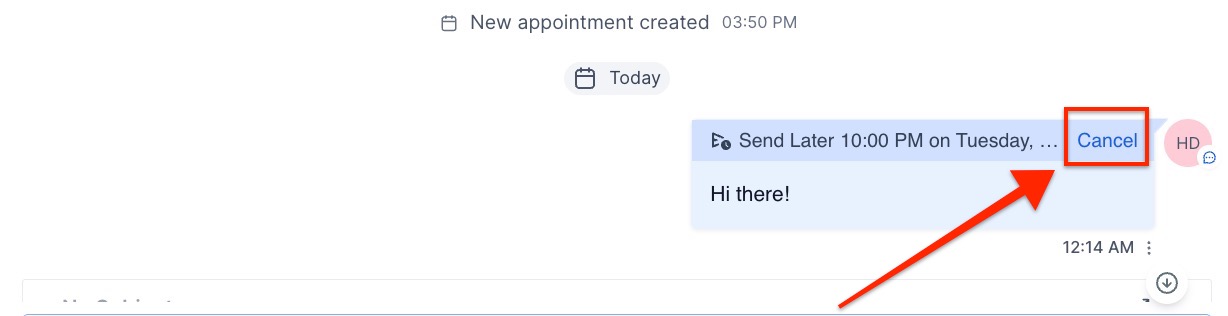
How to delete your scheduled SMS and/or Emails?
- Click the Cancel button in the conversation thread
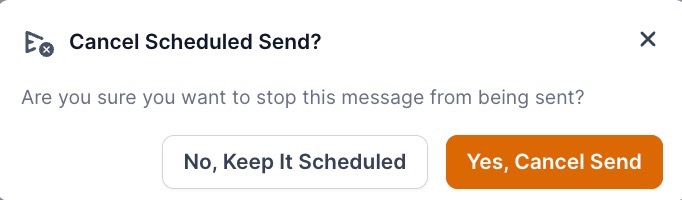
- Cancel the scheduled message and Confirm
¶ FAQs
Question: How do I schedule an email or SMS for a later time?**
**Answer: To schedule a message, go to the Conversations tab, select the message type (email or SMS), and choose your preferred date, time, and time zone. Your scheduled message will appear in the conversation thread for easy tracking.
Question: Can I send messages from different phone numbers?**
**Answer: Yes, when scheduling an SMS, you can select the sending number from a dropdown list of available numbers. This allows you to choose the most relevant number for each interaction.
Question: How do I select the recipient’s number if they have multiple phone numbers?**
**Answer: If a contact has more than one number, click the dropdown next to the “To” field to choose the appropriate recipient number. If there’s no previous conversation, the primary number is automatically selected.
Question: Can I schedule multiple messages for the same contact?**
**Answer: Yes, you can queue multiple scheduled messages for the same contact. Each scheduled message will appear in the conversation thread, making it easy to manage planned communications.
Question: What permissions do users have for selecting numbers?**
**Answer: Admins have access to all numbers configured in the account, while standard users can access the default number, numbers assigned to them, unassigned numbers, and the last used number for the contact.
Question: What happens if my contact replies to a scheduled message?**
**Answer: Replies are threaded under the original message, ensuring a single, organized conversation thread and reducing inbox clutter.
Question: How does selecting a local or familiar number help?**
**Answer: Choosing a familiar or local number for each contact can improve response rates and build trust, as contacts are more likely to recognize and respond to a relevant number.
Question: Can I edit the text of a scheduled message after I’ve already saved it?
Answer: Currently, you cannot “edit” a scheduled message. If you need to change the wording, simply Cancel the current scheduled message and create a new one with the updated text.
Question: What happens if I schedule a message and then the contact is deleted?
Answer: If a contact is deleted, all pending scheduled messages for that contact are automatically canceled and removed from the system queue.
Question: How does “Smart Send Time Optimization” decide when to send my email?
Answer: The system analyzes the recipient’s past interaction patterns to identify when they are most likely to engage. It then selects the optimal moment within your chosen send window to improve open rates.