The Document Management feature in LeadMagicX is designed to make your document-related tasks simpler and more organized. This feature promises to revolutionize the way you handle your contact’s documents. The following article will go into details of that.
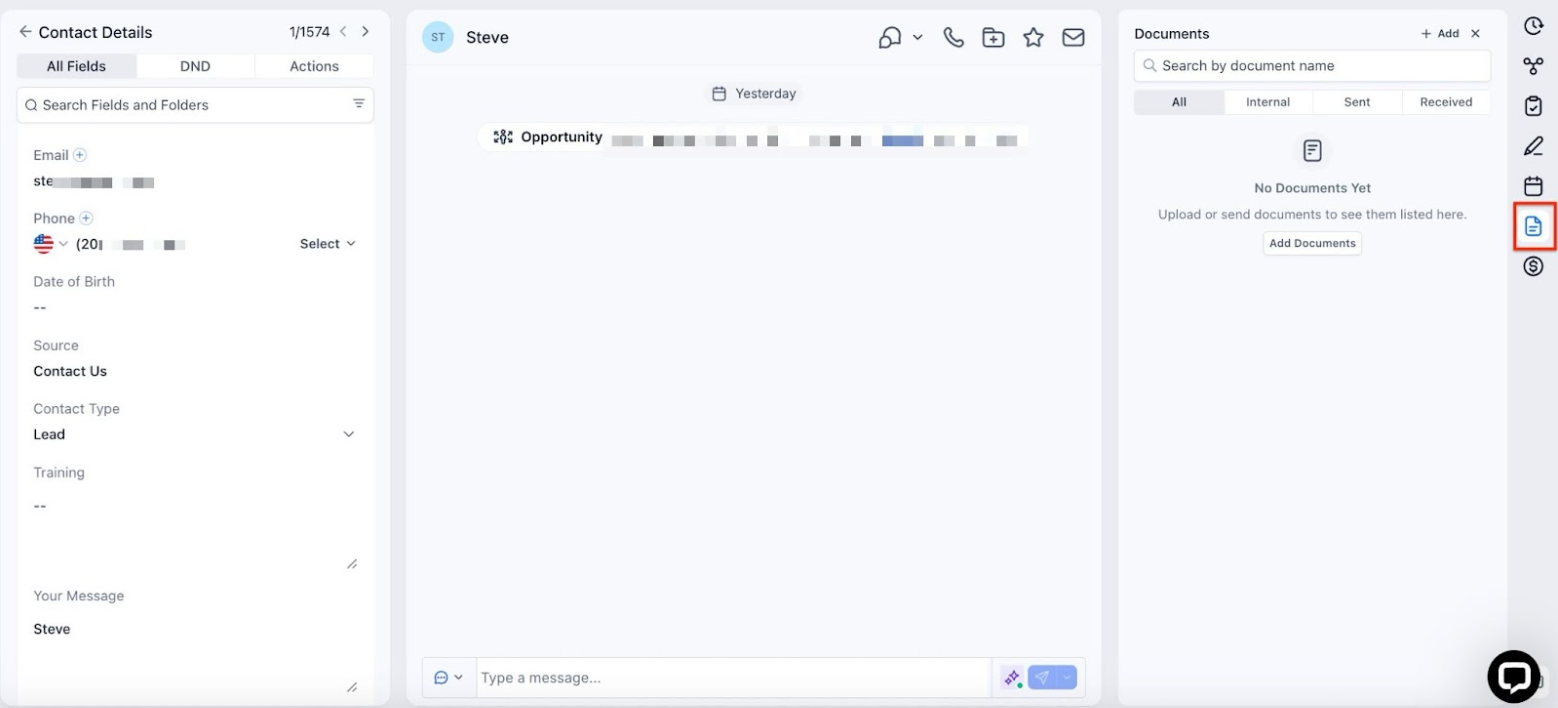
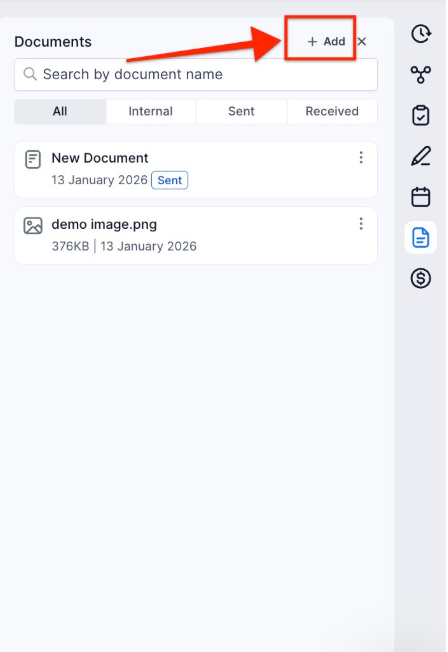
Found within the Contact Details page, the “Documents” tab is your one-stop hub for all document tasks. Whether you’re looking to access a file, store it internally, or even send it via the client portal, it has got you covered.
Additional Functionalities and Benefits
NOTE: Utilize access controls to ensure team members can only view documents relevant to their roles.
Question: How can I upload files to a contact’s internal document section?**
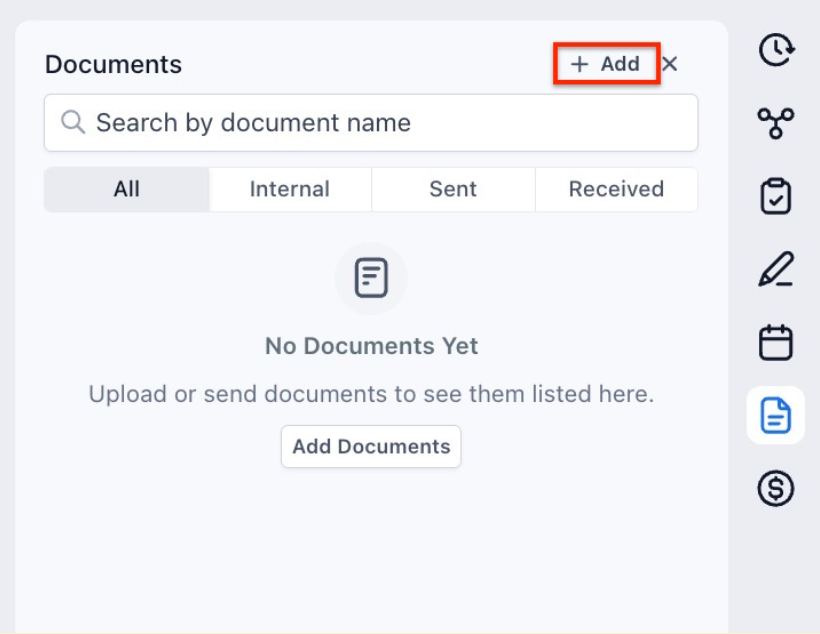
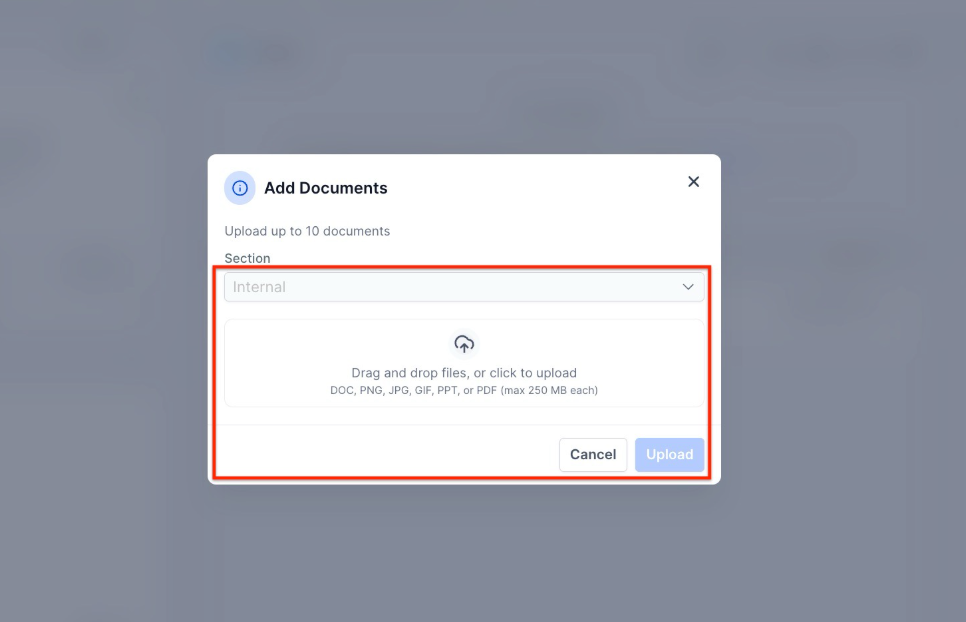
**Answer: To upload files, navigate to the “Documents” tab under the contact details, click the “Add” button, select “Add New File,” and then drag and drop or upload your files.
Question: What types of files can I upload to the Document Management System?**
**Answer: You can upload a variety of file types including PPT, Doc, PDF, images, and CSV files, as long as they are under 250 MB in size.
Question: How do I share a document with a contact?**
**Answer: To share a document with a contact, navigate to the “Sent” section under the “Documents” tab and send the file directly to the client via the client portal. You may also toggle on the share button when you’re adding a document within the Document Manager in Contacts.
Question: Can I restrict access to documents for specific team members?**
**Answer: Yes, you can utilize access controls to ensure that only authorized team members can view or download specific documents related to their roles.
Question: Can I download or preview documents directly from the platform?**
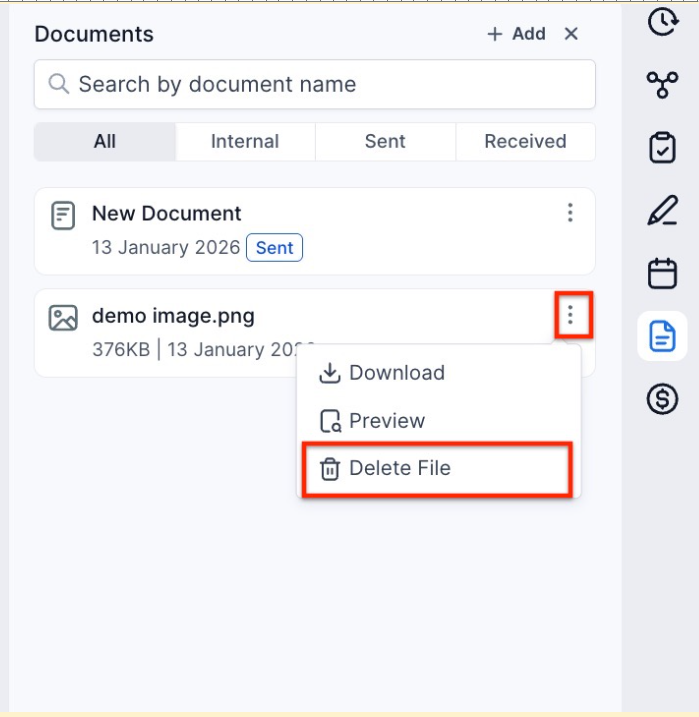
**Answer: Yes. Click the three dots (⋮) next to the document, and choose “Download” or “Preview” for quick access without leaving the platform.
Question: How can I search for documents in the Document Management System?**
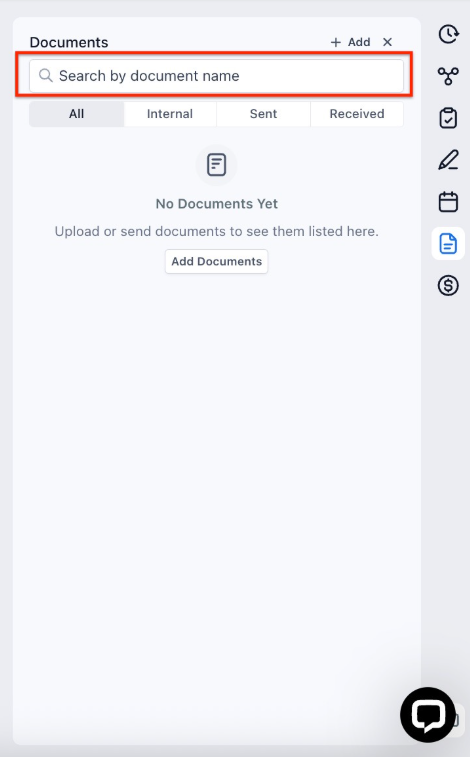
**Answer: You can easily search for documents by their file name using the optimized search functionality in the “All” section. This feature eliminates the need to scroll through folders and helps you find documents quickly.
Question: Where are files stored if they are uploaded via a custom field on a contact’s profile?
Answer: Files uploaded through a “File-upload” type custom field are automatically stored in the Internal section within a default folder named “Custom Fields.” This ensures that anyone with access to the contact can view these documents.
Question: Can I edit a document that has already been sent?
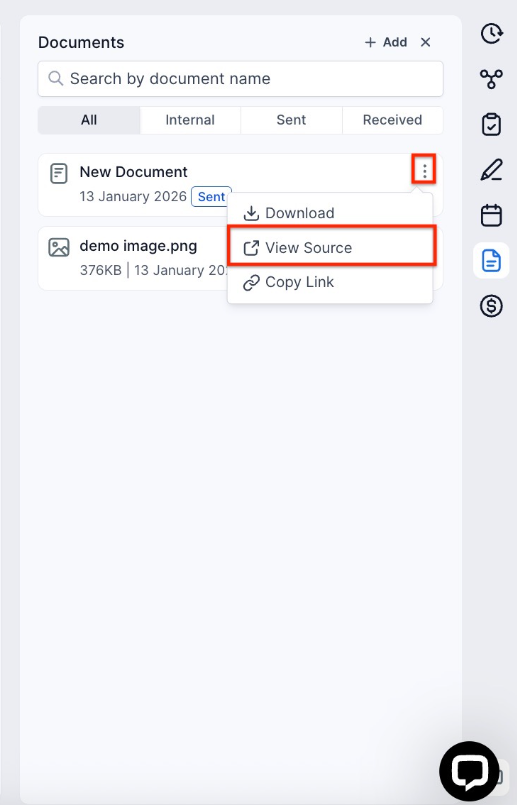
Answer: Yes. By selecting “View Source” from the document’s options menu, you can open the file directly in the document editor to make necessary adjustments.