¶ Conversations - Snippets
Conversations - Snippets
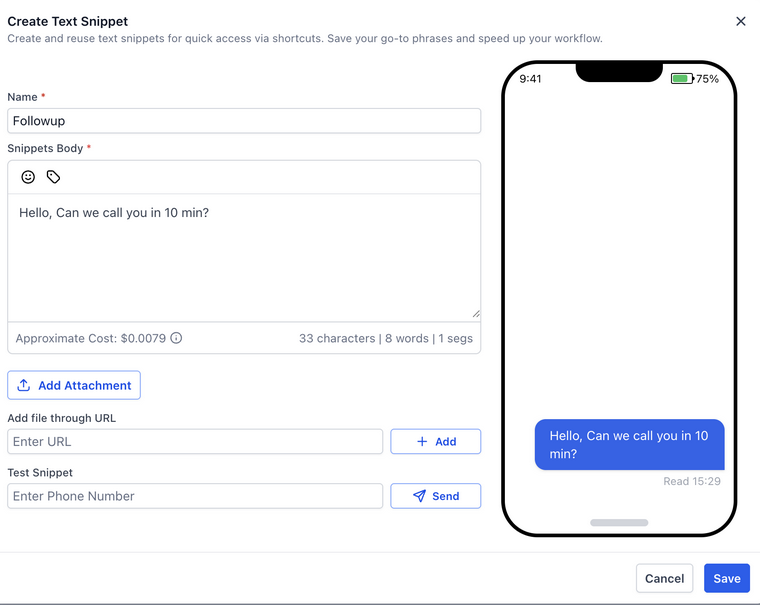
The Snippets feature offers a seamless way to organize your messages, access them quickly, and maintain consistency across communications. With features like folder organization , powerful search tools , and a robust snippet builder , managing your snippets has never been more efficient.
¶ Key Features
¶ **1. Organize Snippets into Folders **
- Effortless Organization : Arrange snippets into folders to keep them organized and easy to find.
- Quick Navigation : Access snippets in seconds through structured folders, reducing search time.
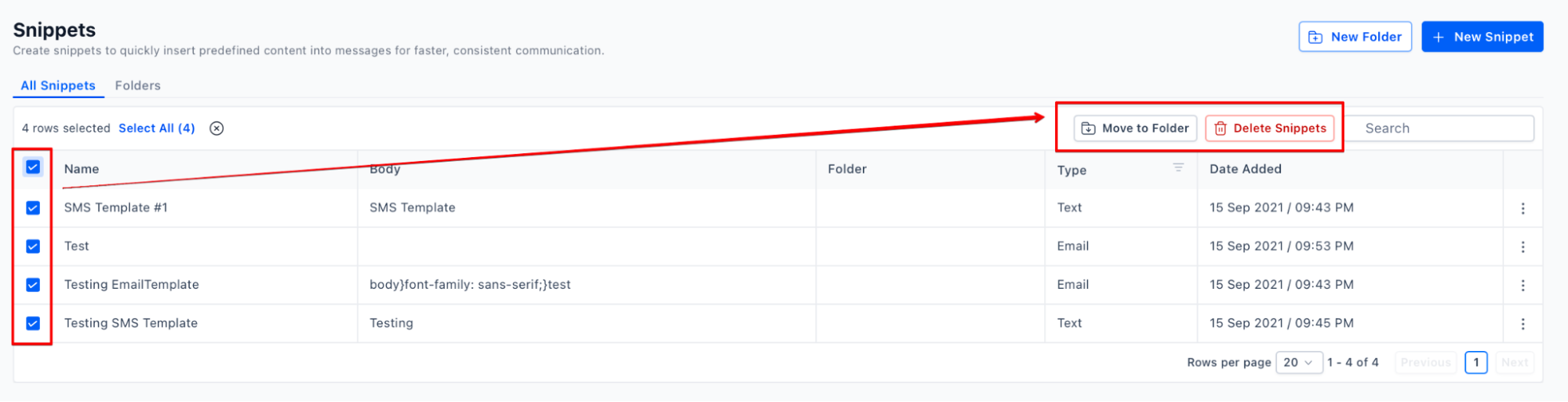
- Easy Migration : Move snippets into folders with just a few clicks. Select your snippets, then use “Move to Folder ” to organize them efficiently.
- Folder View in Conversations : Folded snippets are accessible directly in the Conversations composer for quick selection.
¶ How to access:
- Navigate to the Conversation tab in LeadMagicX platform
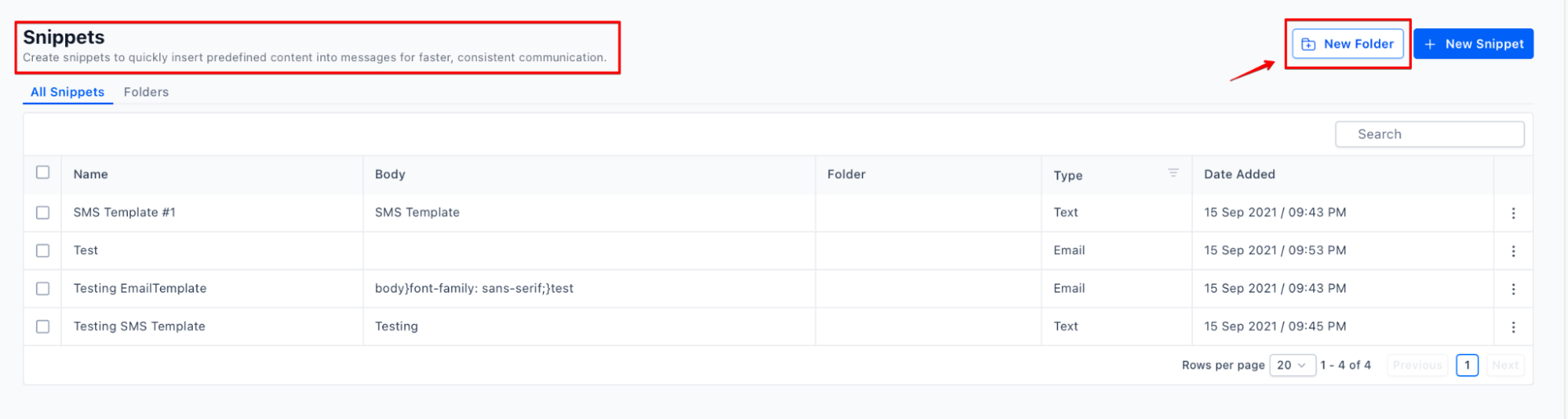
- Click on snippets and there you will find ‘New Folder’ option
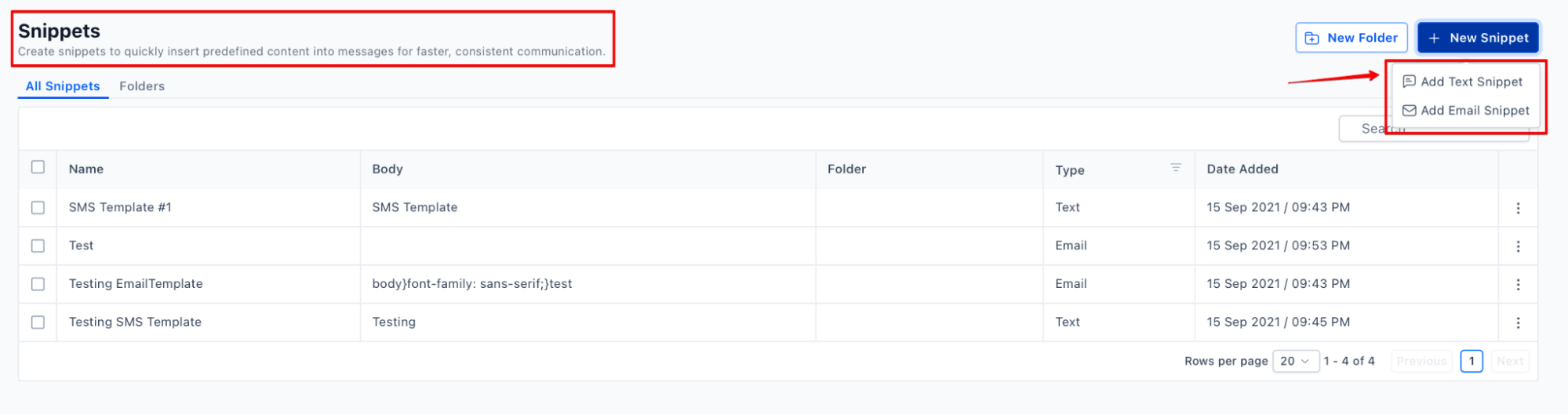
- Click on Add Snippet. Select the snippet type - Email or Text.
How to organize snippets:
You can also access snippets from Marketing > Snippets.
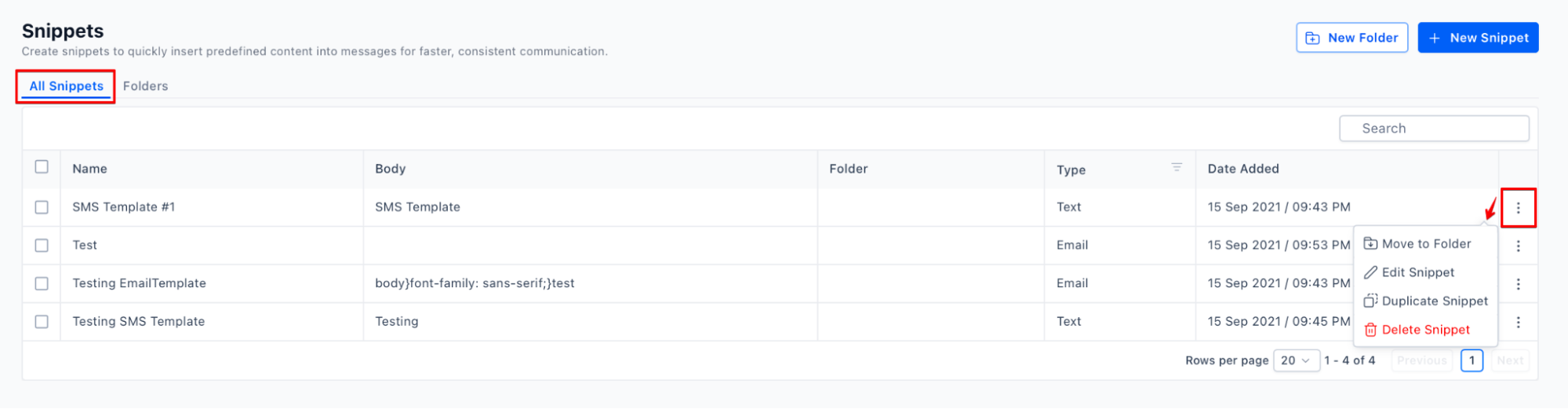
Once you create your snippets, you can organize them into folders. Select the snippets and click on Move to Folder.
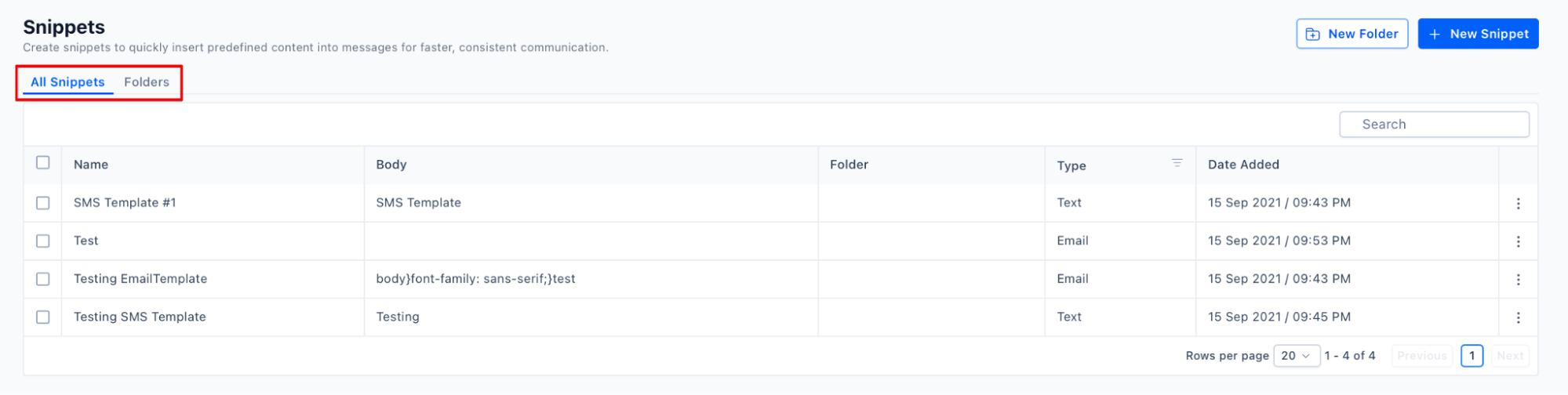
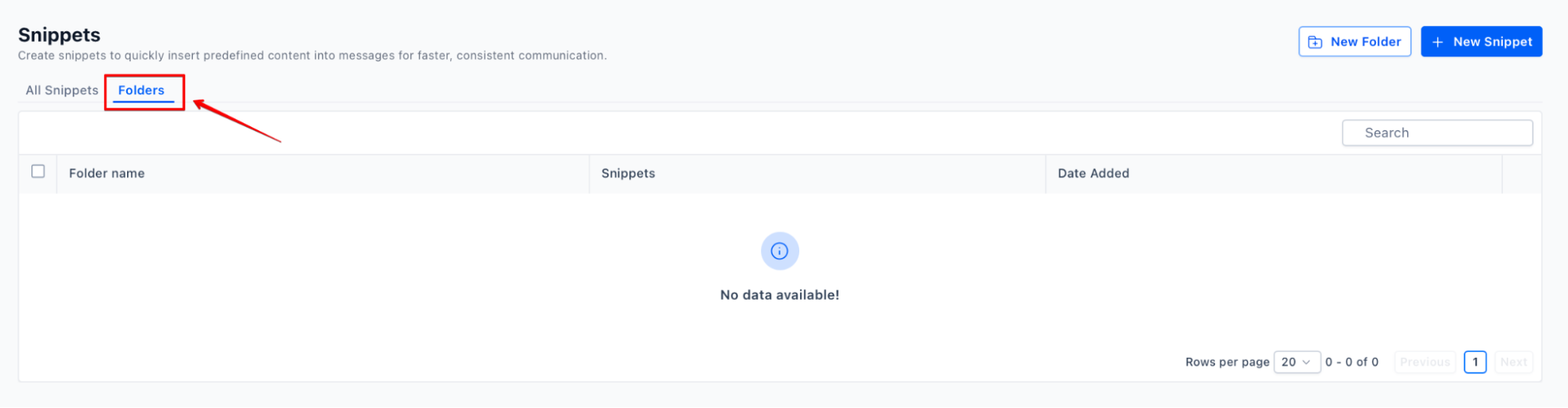
You can click on Folders tab, to view all the folders available.
Easily find snippets by searching with their name or folder, or filter them by type—Email or Text. Use the menu icon on the right to move the snippet to a folder, edit, duplicate, or delete it.
** **Note : Folders are optional; if none are created, snippets appear in a single list as before.
¶ **2. Search Snippets **
- Quick Search : Find snippets instantly by searching for specific snippets or folder names, helping you locate content quickly.
¶ **3. Efficient Conversations Composer **
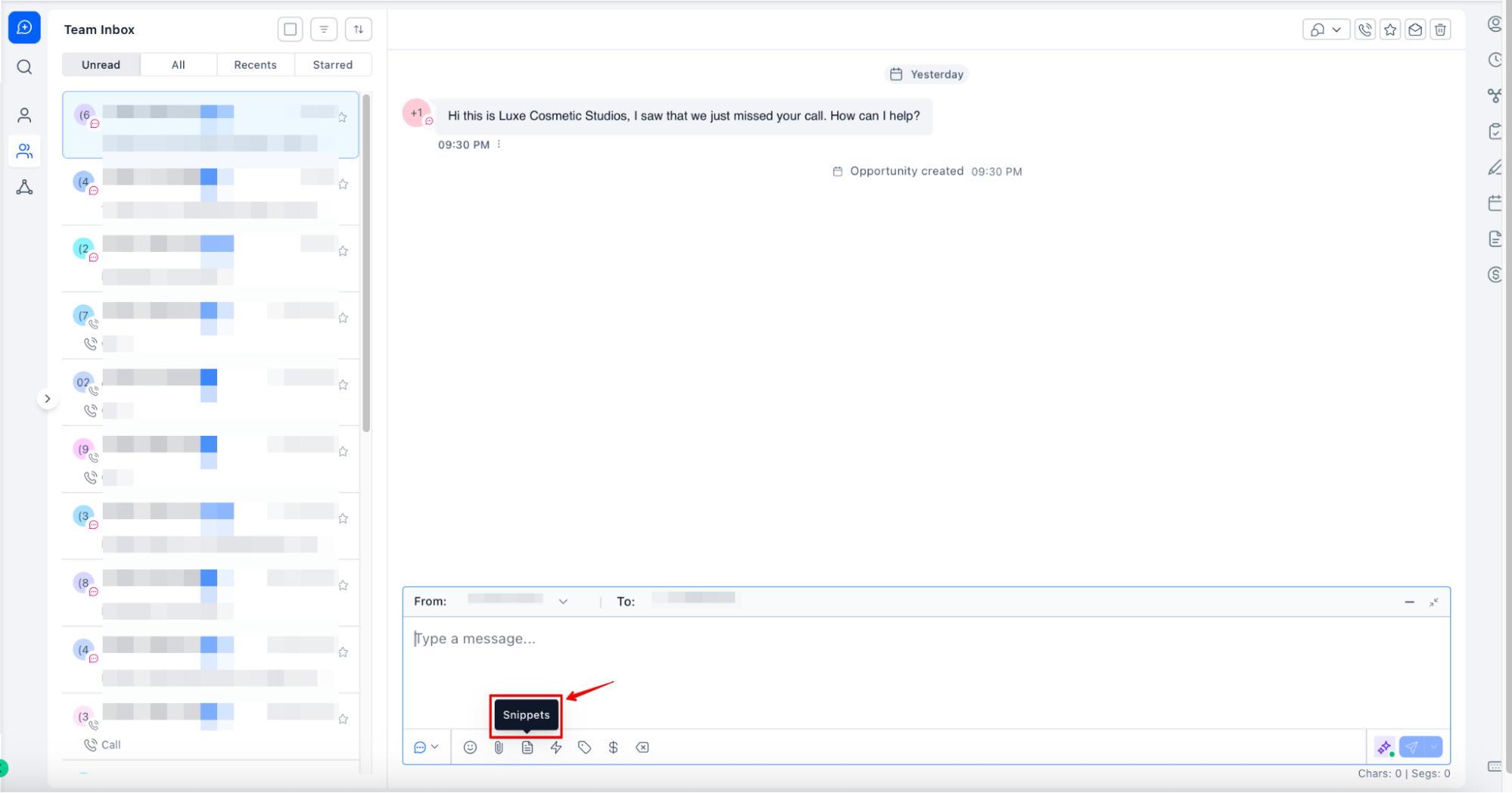
- Enhanced Layout : Snippets appear in a user-friendly layout in the Conversations Composer, making it simple to select and apply.
- Folder View Integration : Folded snippets in the Conversations Composer allow for fast, organized access.
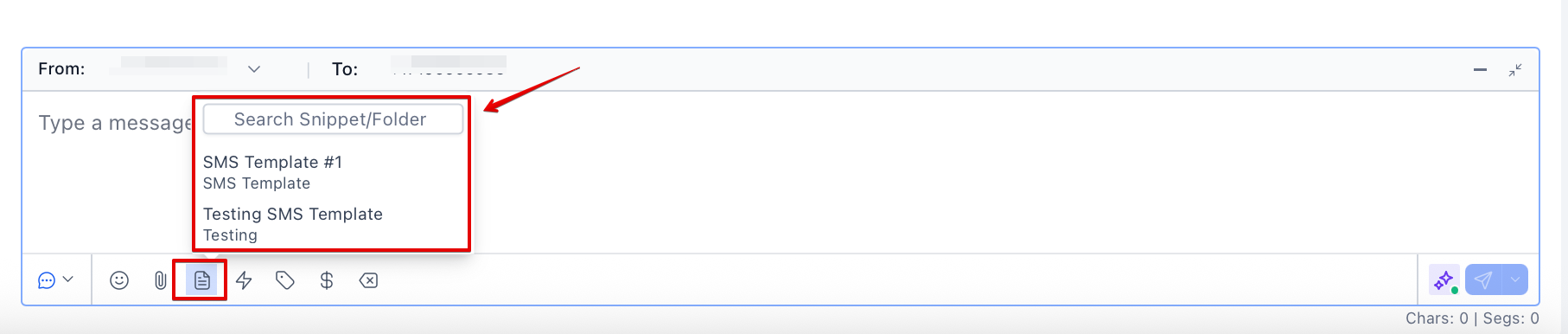
- Choose the snippet you wish to use, or search for one. Click on it to insert the snippet.
- The snippet you created will be automatically added. You can now either modify the message or send it immediately by clicking “Send.”
¶ **4. Unified Snippet Builder **
- Consistent Formatting : Both the Snippets Composer and Conversations Composer now use the same editor, making sure that your messages look the same across all communications.
- Smooth Experience : This keeps everything looking neat and avoids any mismatched formatting.
¶ **Benefits for You **
- Enhanced Usability : Manage and locate snippets with ease.
- Time-Saving : Spend less time searching and more time on essential tasks.
- Improved Organization : Keep your snippets neatly structured for easy access.
- Uniform Formatting : A unified editor helps maintain consistent styling across messages.
- Snippets Page Refresh with Smarter Sharing: This refreshes the Snippets page with a cleaner design and faster loading, making browsing, editing, and sharing snippets easier.
¶ FAQ’s
Question: How do I create a folder for organizing snippets?
Answer: To create a folder, navigate to the Conversations tab in your LeadMagicX account, click on “Snippet,” and select the “Add Folder” option. This will let you organize your snippets for faster access.
Question: Can I move existing snippets into folders?****
Answer: Yes! Select the snippet(s) you want to move, then use the “Move to Folder” option. You can efficiently organize existing snippets by placing them in relevant folders.
**Question: Do I have to use folders for snippets?
Answer: **No, folders are optional. If you prefer not to use them, your snippets will remain in a single list as they always have.
Question: How does the search feature work?****
Answer: Simply type a keyword in the search bar to find snippets by snippet or folder name. This feature is available in the Conversations tab for quick access.
Question: Can I filter snippets by type?****
Answer: Yes, you can filter snippets by type, such as Email or SMS. This feature makes it easier to find specific formats when you need them.
Question: Is it possible to duplicate snippets?****
Answer: Absolutely! You can quickly duplicate snippets to make minor edits or variations without altering the original.
Question: How do I access my snippets for quick use in Conversations?
Answer: You can access your snippets directly in the Conversations tab by clicking on “Snippets.” From there, you can either search for specific snippets or navigate through folders to quickly find and insert the snippet you need.
Question: What happens to my formatting if I move an Email snippet into an SMS folder?
Answer: Folders are simply organizational containers and do not change the “Type” of the snippet. However, it is a best practice to name your folders clearly (e.g., “Email Templates” vs “SMS Quick Replies”) to ensure you are selecting the correct format for your current conversation.