The Internal Chat feature, available within the Conversations module, aims to enhance team collaboration by enabling private, real-time discussions among team members without involving customers. Whether it’s coordinating responses, reviewing customer queries, or simply sharing internal updates, Internal Chat ensures that everything stays organized in one place.
Starting an Internal Chat:
1. Open the Conversations Module : Navigate to the Conversations section within LeadMagicX.
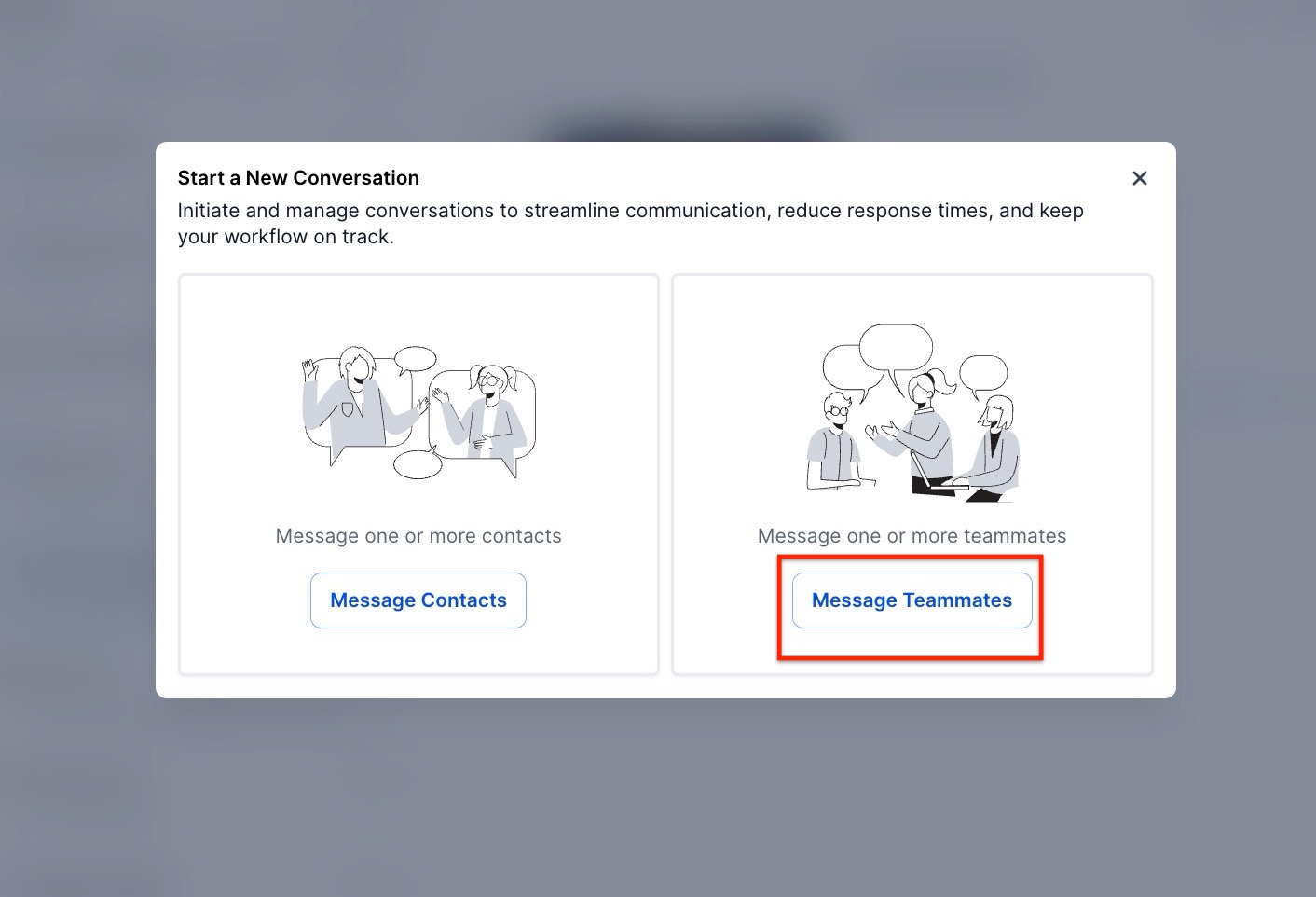
2. Select Internal Chat : Click on “New Conversation” and choose “Message Teammates" as the conversation type.
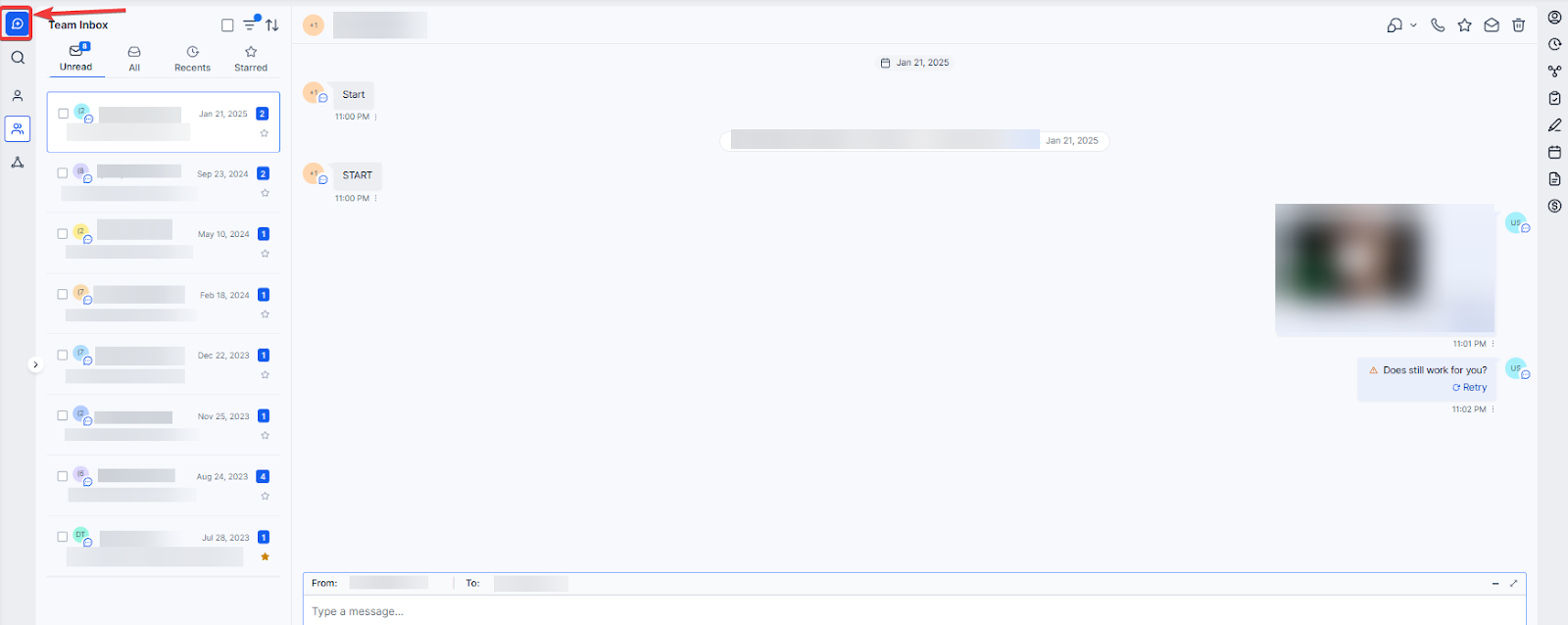 
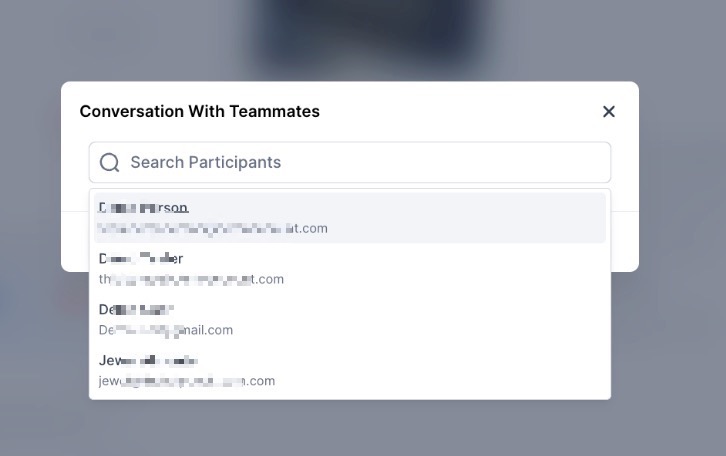
3. Add Participants : Select the team members you want to add to the chat.
4. Start the Chat : Once selected, click “Start Chat” to initiate the conversation.
5. Send Messages : You can send text, emojis, and attachments to make your discussions more engaging and informative.
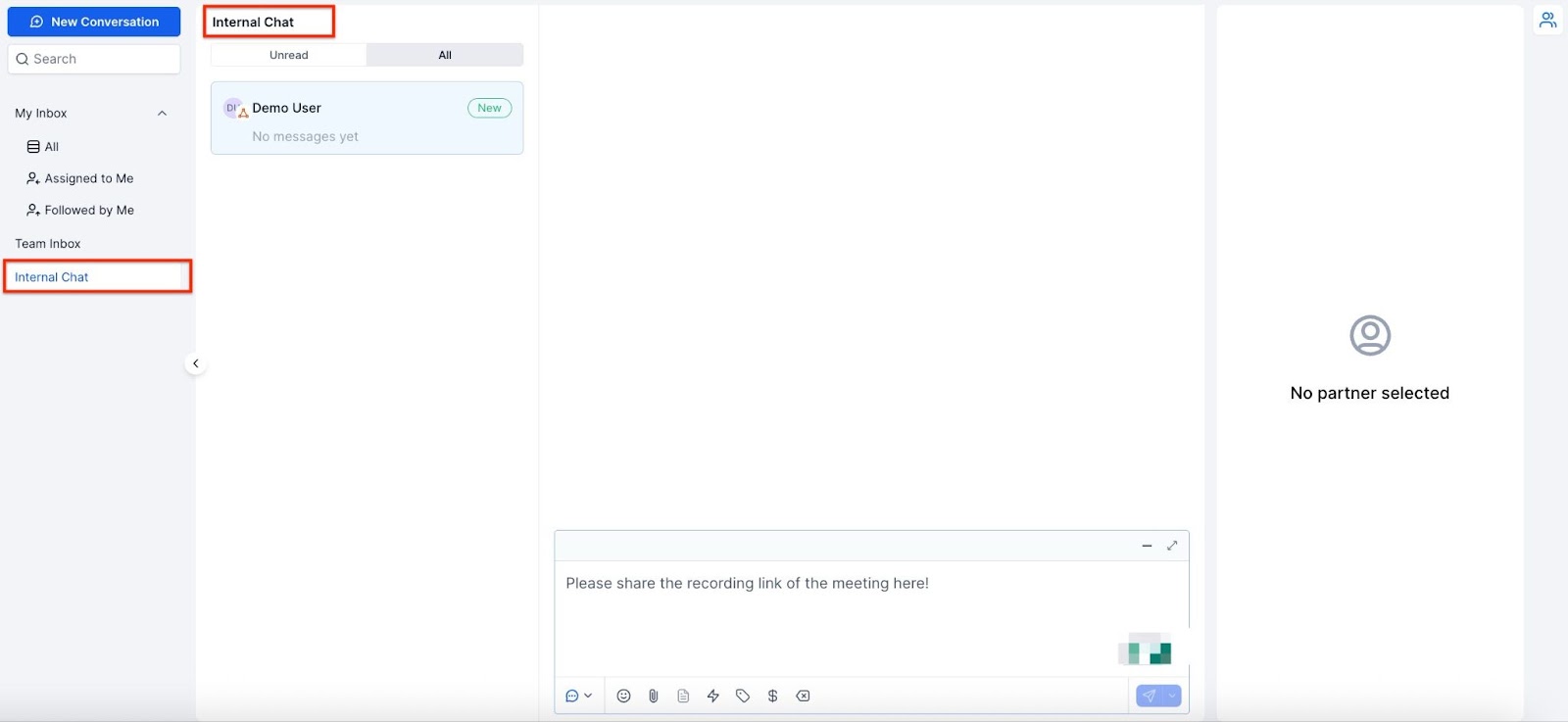
Managing the Chat:
1. Add a Subject : Click the pencil icon in the top-right panel to add a subject. This helps with searching and organizing chats.

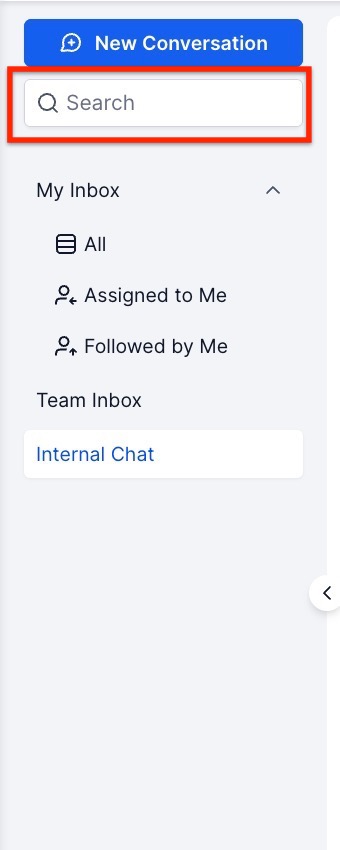
2. Search Internal Chats : Use the subject, participant names, or the last message text to find specific chats easily.
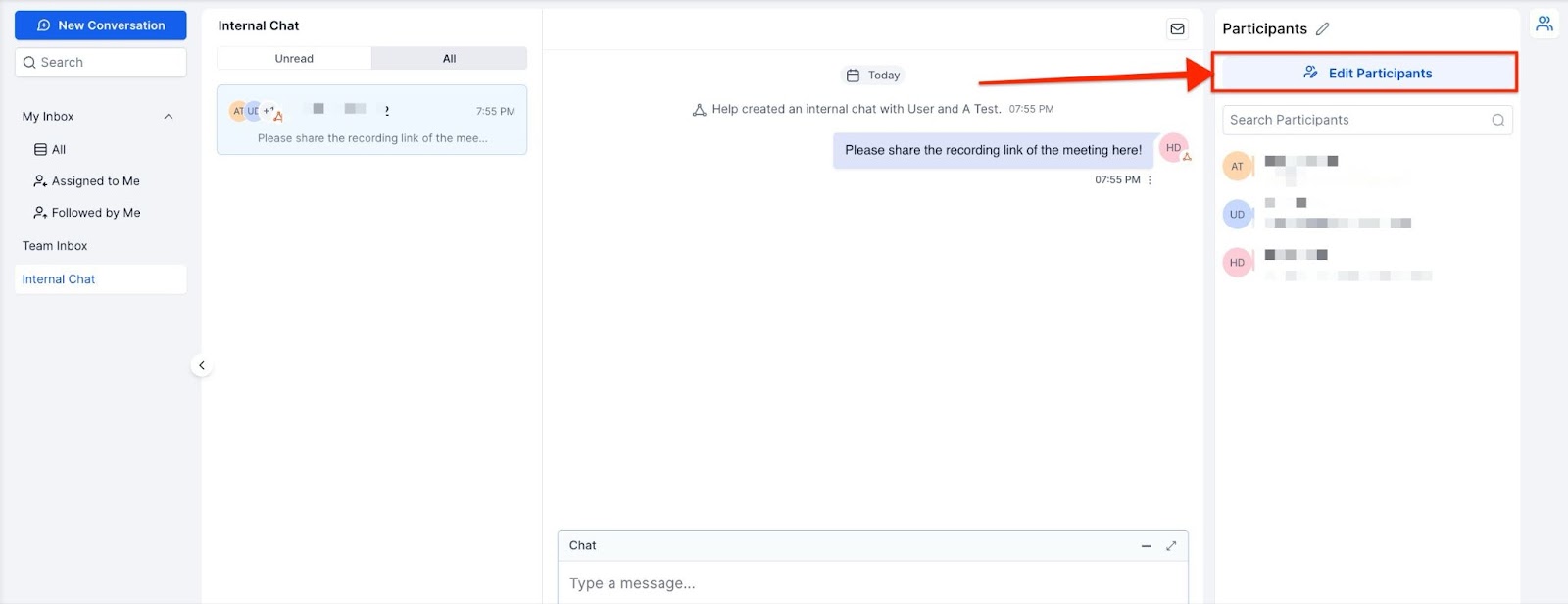
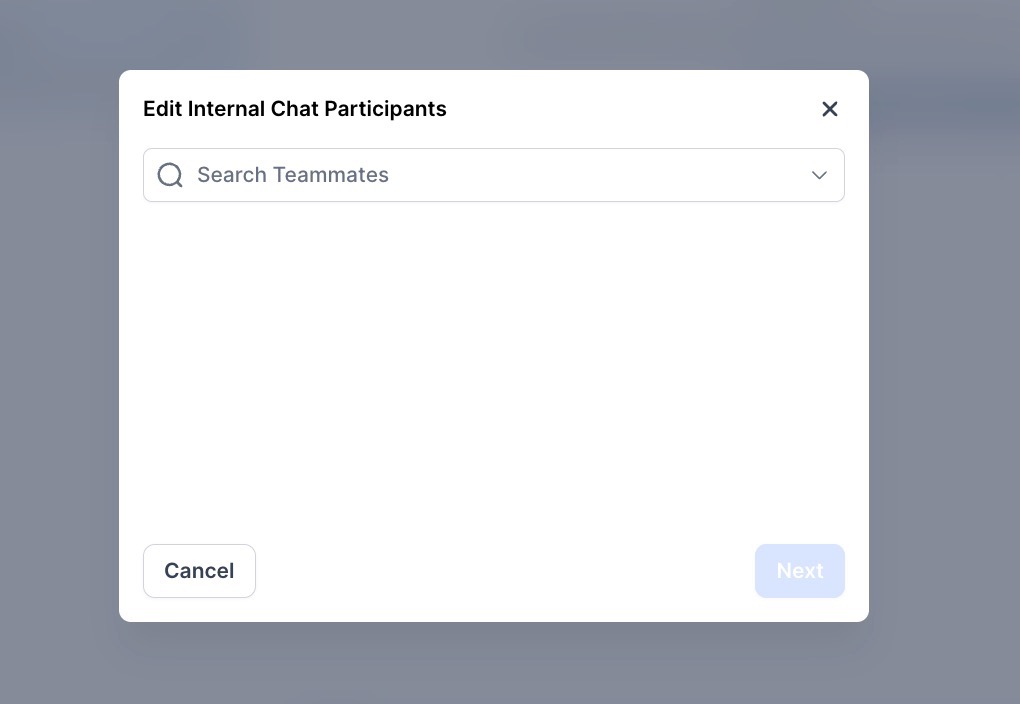
3. Add More Team Members : Click “Edit Participants” in the right panel to invite additional team members to the chat.
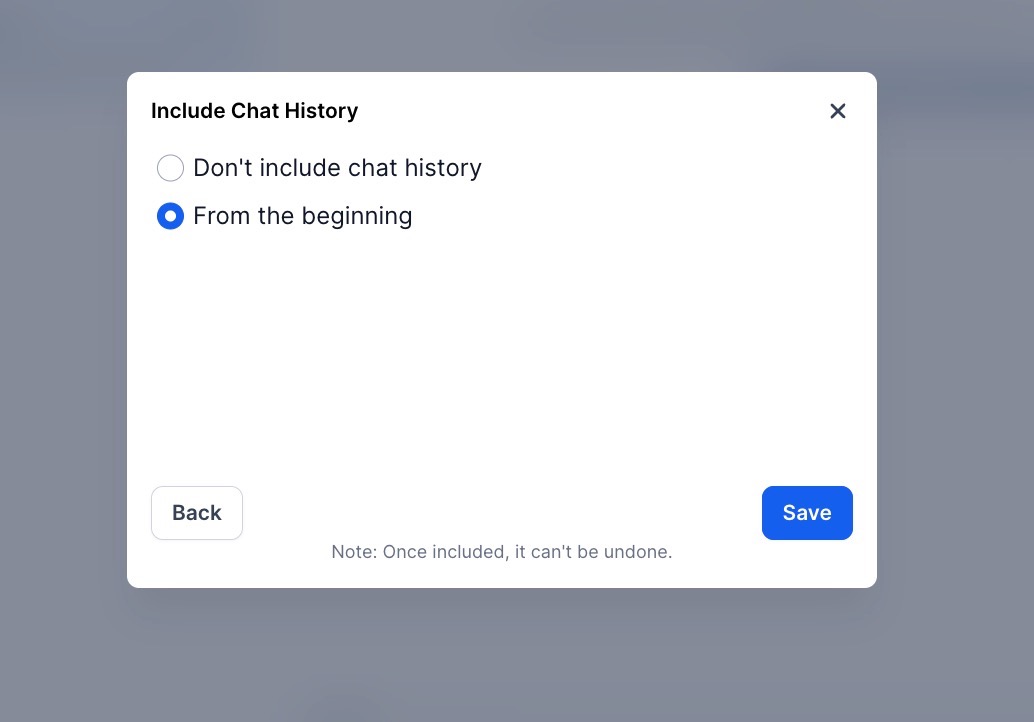
4. Access to History : Decide whether the new users should have access to the previous chat history. Once added, users cannot be removed from the chat.
Question: How do I start an internal chat with my team?**
**Answer: Simply navigate to the Conversations module, click on “New,” select “Internal Chat,” and add the team members you want to communicate with. Start chatting instantly.
Question: Can I add more people to an ongoing internal chat?**
**Answer: Yes, you can add more team members to an ongoing internal chat. However, once added, users cannot be removed from the chat.
Question: How do I search for an internal chat?**
**Answer: You can search for internal chats by subject, participant names, or the last message text, making it easy to find relevant conversations quickly.
Question: Will new participants be able to see previous chat history?**
**Answer: You have the option to grant new participants access to the previous chat history. Make sure to choose the appropriate setting when adding new members.
Question: Is Internal Chat secure for sensitive information?**
**Answer: Yes, Internal Chat is designed to keep your team communications private. However, ensure you manage access to past chat history appropriately when adding new participants to maintain privacy.
Question: Can I organize my chats effectively?**
**Answer: Using subjects and search filters helps keep chats organized, making it easier to locate conversations and collaborate efficiently.
Question: Can I use Internal Chat for coordinating customer responses?
Answer: Absolutely. One of the main benefits is being able to review customer queries and coordinate responses with your team in the same platform where the customer interaction is happening.
Question: Can a customer ever accidentally see our internal chat messages?
Answer: No. Internal chats are strictly separated from customer-facing threads. They are initiated as a separate “Message Teammates” conversation type. There is no risk of an internal message being sent to a client’s SMS or Email, as the interface is entirely distinct.