¶ Communities - GoLive from groups directly
Connecting with your community in real time has never been easier. The Go Live feature allows community admins to host live video, audio, and chat sessions directly within their group, creating a dynamic space for workshops, Q&A sessions, announcements, or interactive discussions. This enables deeper engagement, instant feedback, and a sense of togetherness without relying on external tools.
¶ Key Features and Benefits
1. Go Live Inside Your Community**
**Start live sessions directly within your community. Members can join, chat, and react instantly no external platforms required.
2. Two Powerful Live Modes
- Meeting Room Mode – Built for Collaboration**
Enjoy an interactive live experience designed for real-time collaboration and engagement.
Highlights include:
**
* Preview Mode: Test your video and microphone setup before joining.
* Role-Based Access: Separate permissions for hosts and attendees.
* Real-Time Chat & Reactions: Encourage participation through live chat and emoji responses.
* Screen Sharing: Present your ideas visually with ease.
* Raise Hand Feature: Give attendees a way to speak or present during sessions.
* Flexible Layouts: Switch between Grid and Speaker views for better visibility.
* Host Controls: Mute/unmute, grant access, or remove participants as needed.
* Recording & Replay: Record your sessions and share replays for those who missed them.
- Stream Software Mode – Built for Broadcasting**
Ideal for creators and broadcasters using external streaming software.
Highlights include:
**
* Stream Key & URL: Instantly generate details to connect external streams.
* Seamless Integration: Stream directly into the community.
* Live Chat & Reactions: Maintain viewer engagement during broadcasts.
* Reliable Performance: Powered by a stable streaming core for smooth playback.
3. Multi-Device Compatibility**
**Go Live works effortlessly across web and mobile devices, ensuring seamless participation anytime, anywhere.
4. Benefit**
**This feature strengthens community interaction by offering real-time communication and collaborative experiences, enhancing engagement and trust between admins and members.
¶ How to Use Go Live
- Navigate to your community’s group page.
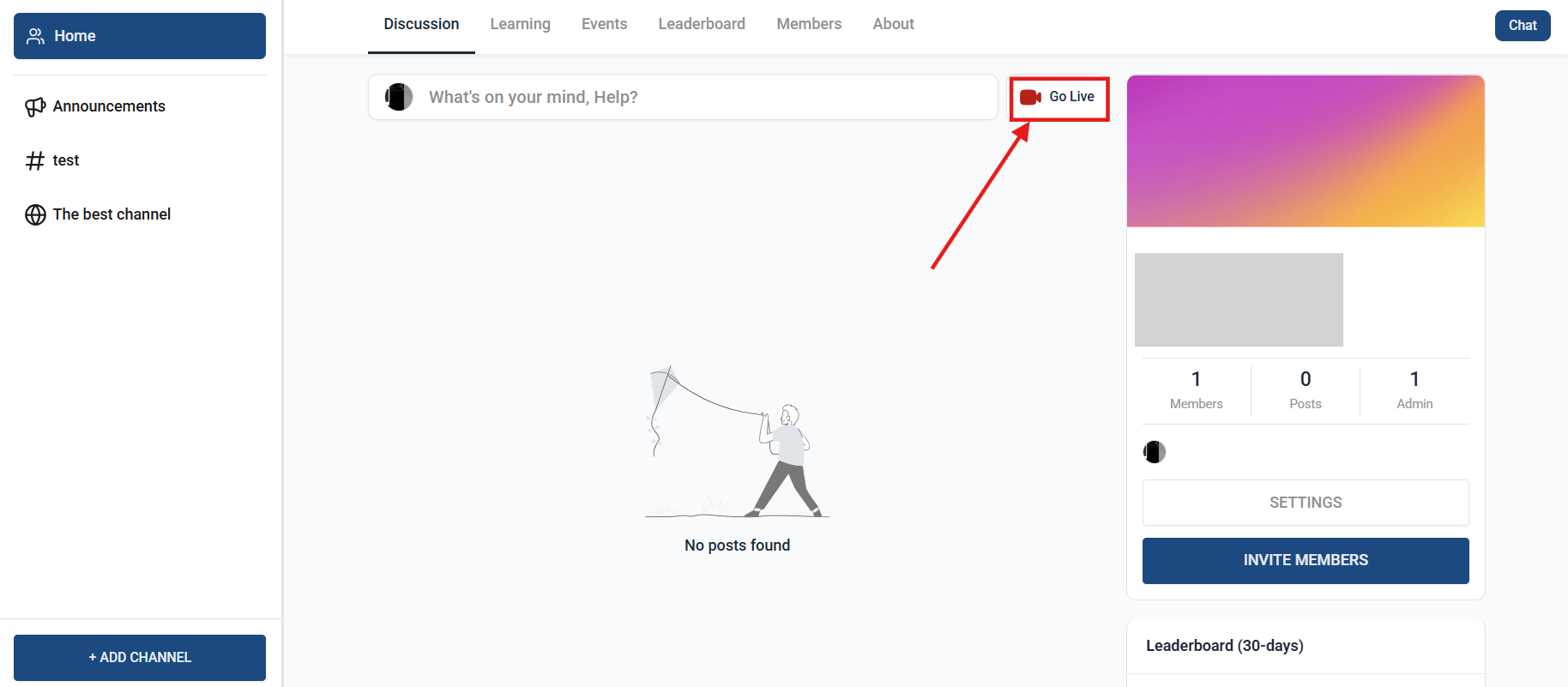
2.Click on the Go Live button to start a live session.
3.Choose your preferred mode: Meeting Room or Stream Software.**
**
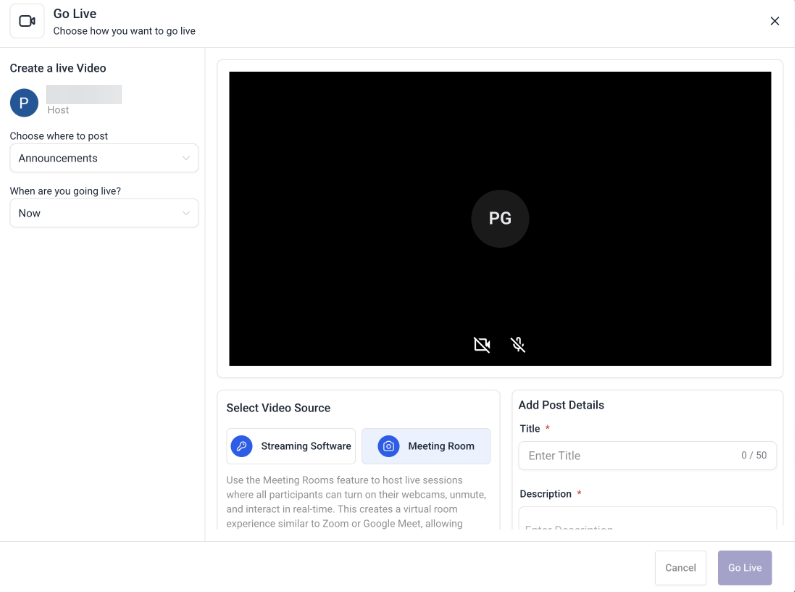
4. Configure settings like video, audio, or stream key as needed.
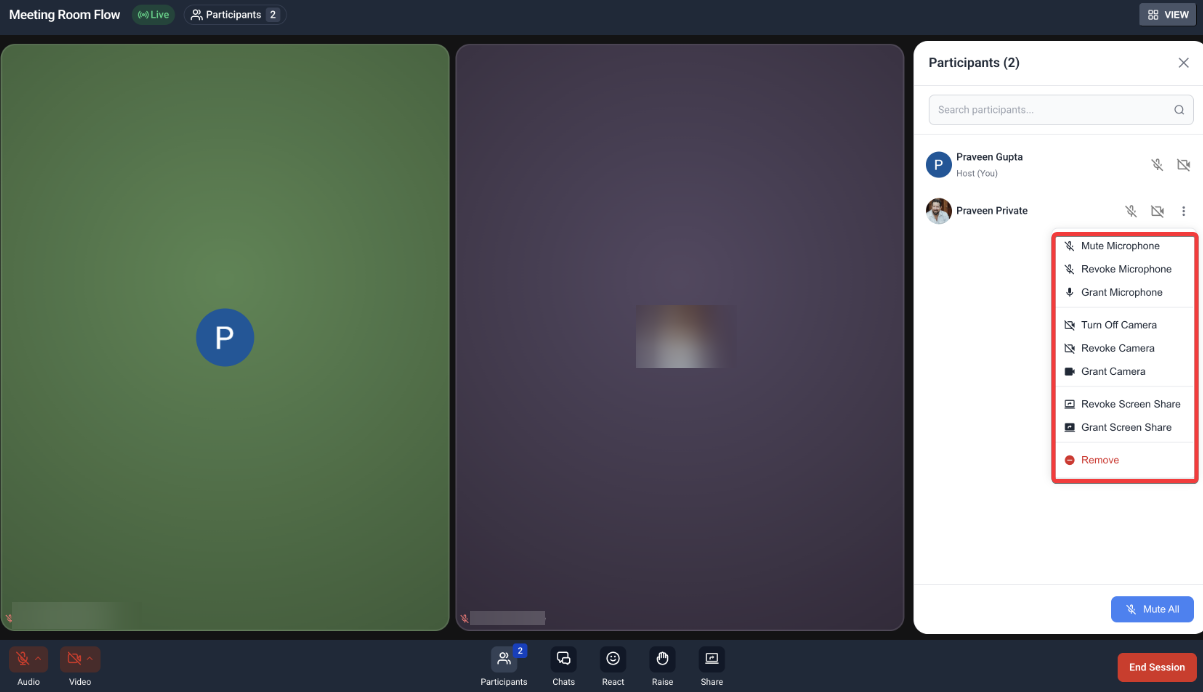
5. Invite members to join and interact in real time.
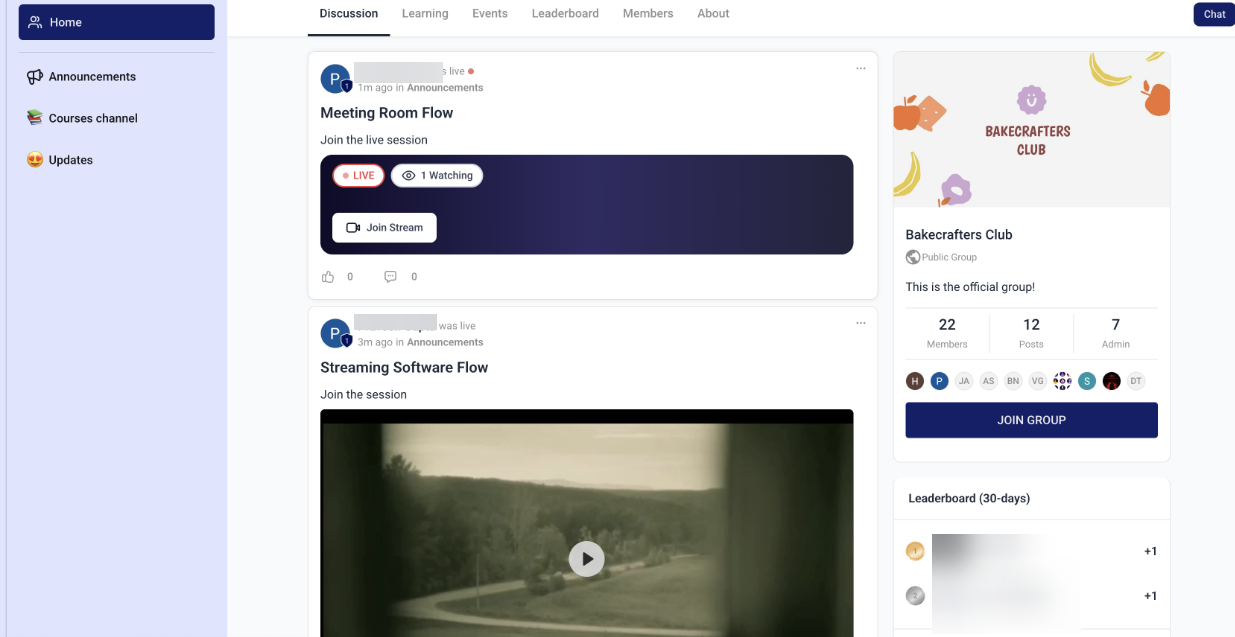
6. End the session when complete, and optionally share a replay for future viewing.
¶ Note:
- Only community admins or authorized roles can initiate a Go Live session.
- Recording options may depend on your community’s permission settings.
- Ensure stable internet connectivity for the best experience during live sessions.
¶ FAQs
Question: Can members start a live session, or is it limited to admins?****
Answer: Only community admins or users with the required permissions can start live sessions.
Question: Can I record and share live sessions?****
Answer: Yes, hosts can record sessions and make them available for replay later.
Question: What if my internet connection is unstable during a live session?****
Answer: A stable connection is recommended for optimal performance. If connection issues occur, the session may experience temporary lag.
Question: Can I use external streaming tools with this feature?****
Answer: Yes, Stream Software Mode allows integration with external tools using a Stream Key and URL.
Question: Do members need to install anything to join a session?****
Answer: No installation is required. Members can join directly from their browser or mobile device.
Question: Can I switch between the different live session modes during an active session?****
Answer: No, once you choose a live session mode (Meeting Room or Stream Software), you cannot switch between them during the session. You would need to end the current session and start a new one with the desired mode.
Question: What is “Meeting Room Mode” used for?
Answer: Meeting Room Mode is designed for high-level collaboration. It includes interactive tools like screen sharing, a “Raise Hand” feature for attendees, and flexible grid or speaker layouts, making it ideal for workshops and Q&A sessions.