¶ Whatsapp Bulk Action
Whatsapp Bulk Action
The WhatsApp bulk action feature allows you to send messages to multiple contacts simultaneously, making it ideal for promotions, urgent broadcasts, or updates. This guide will walk you through the steps to effectively use this feature.
¶ How-to Steps:
1. Accessing the Contacts Tab:
- Navigate to the contact tab on the left side of your screen.
2. Selecting Contacts:
- Bulk-select the contacts you want to message by clicking on the checkbox next to each contact. To select all contacts, use the S****elect All option.
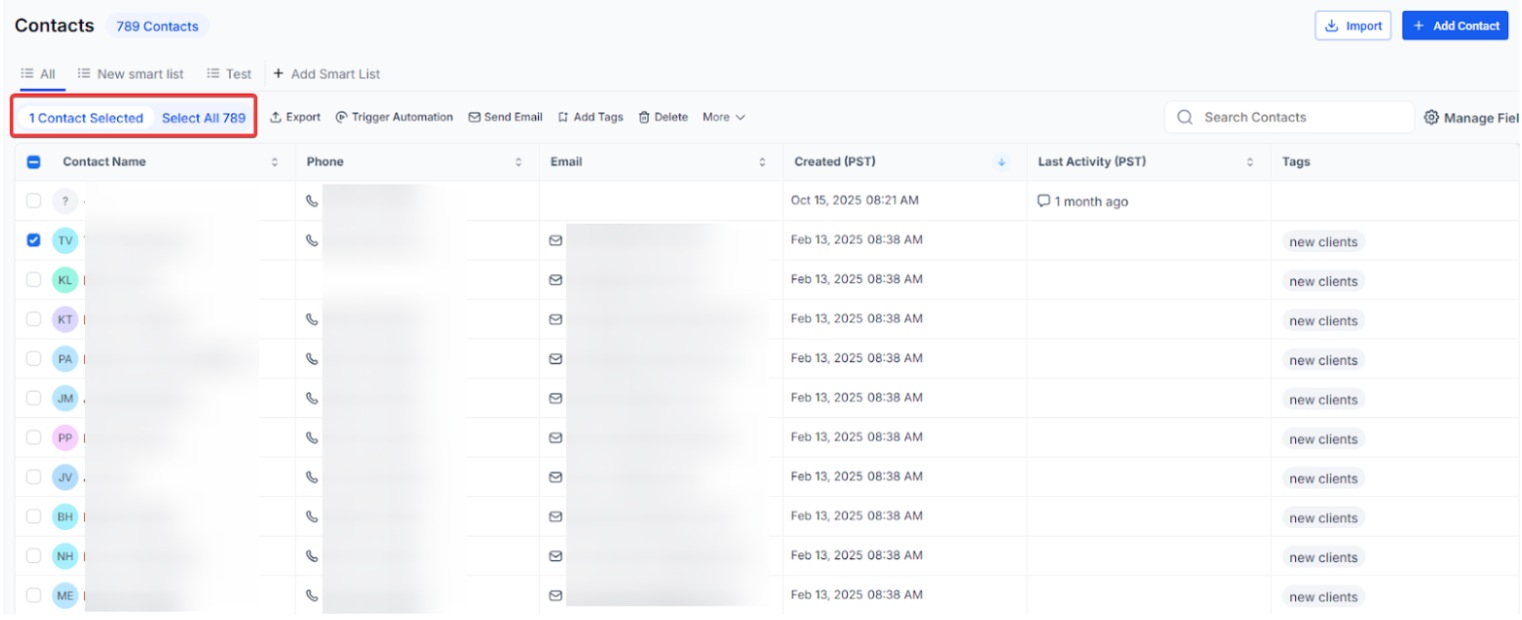
3. Using the Bulk WhatsApp Icon:
- Once contacts are selected, Click on**“** More” and then select “Send WhatsApp”.
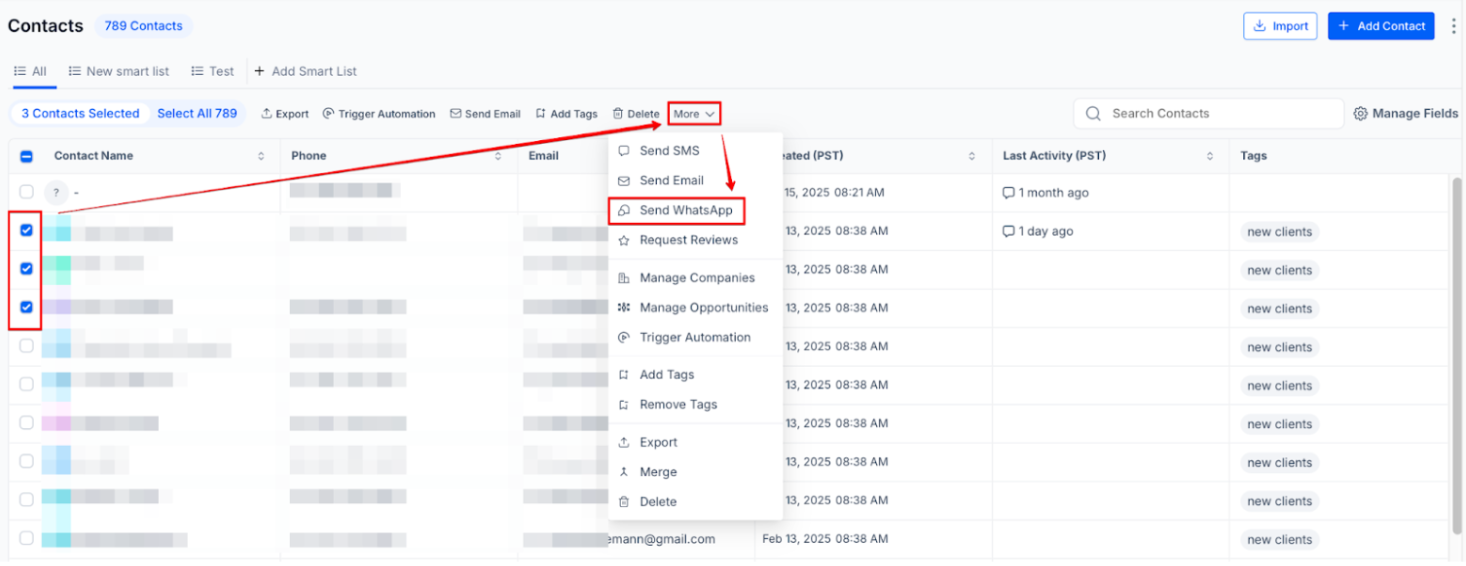
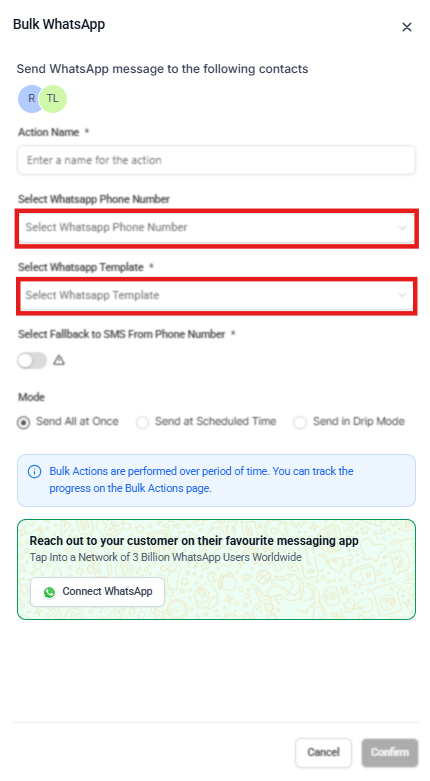
- Click on the icon to open a new window where you can choose a pre-approved template.
- Select a specific sending number for bulk WhatsApp messages to ensure consistency in customer interactions.
- Enableautomatic fallback to SMS when WhatsApp delivery fails, ensuring that no message is missed. This is particularly useful in scenarios where a user is not available on WhatsApp or when there are messaging restrictions due to Meta’s policies. When WhatsApp messaging fails, the system will automatically send the message via SMS, ensuring consistent communication with all contacts.
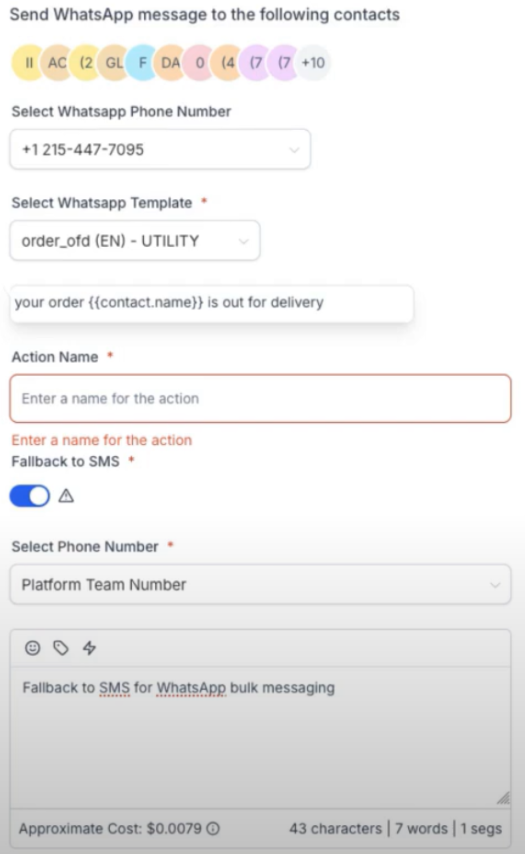
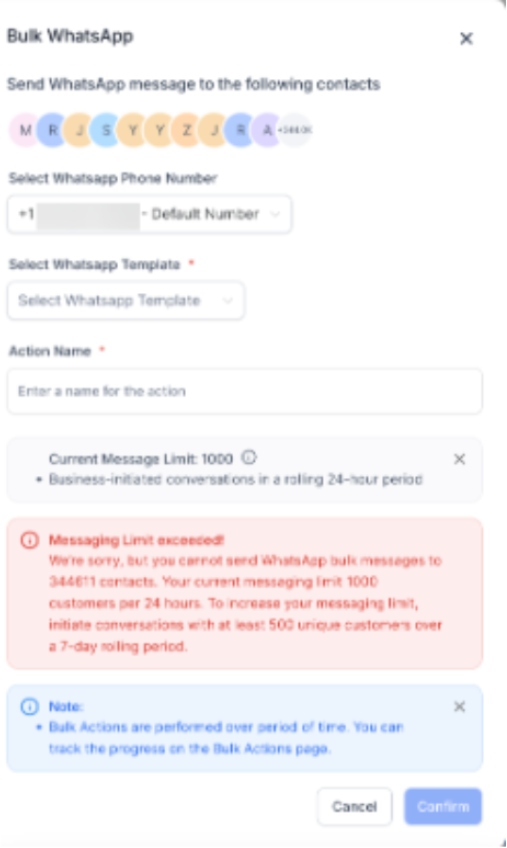
Note: A validation prompt automatically checks your messaging activity to prevent exceeding the set 24-hour limits for bulk messaging. This prompt helps maintain the health of your phone number by ensuring it stays within the allowed thresholds, minimizing the risk of account flags or bans.
4. Template Approval by Meta:
- Select a template that has been approved by Meta. If you don’t have one, go to settings, select WhatsApp, and submit a new template for approval.
- Once approved, the template can be used to send messages, bypassing the 24-hour messaging limit.
5. Monitoring Progress:
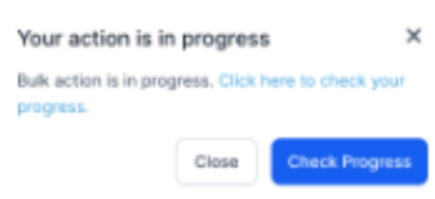
- After sending, monitor the progress of your bulk message under the bulk actions section or by clicking on “check progress.”
- You can view detailed statistics such as the number of messages sent, errors, skipped contacts, and delivery status. To view statistics, click on the Bulk Actions tab located on the top.
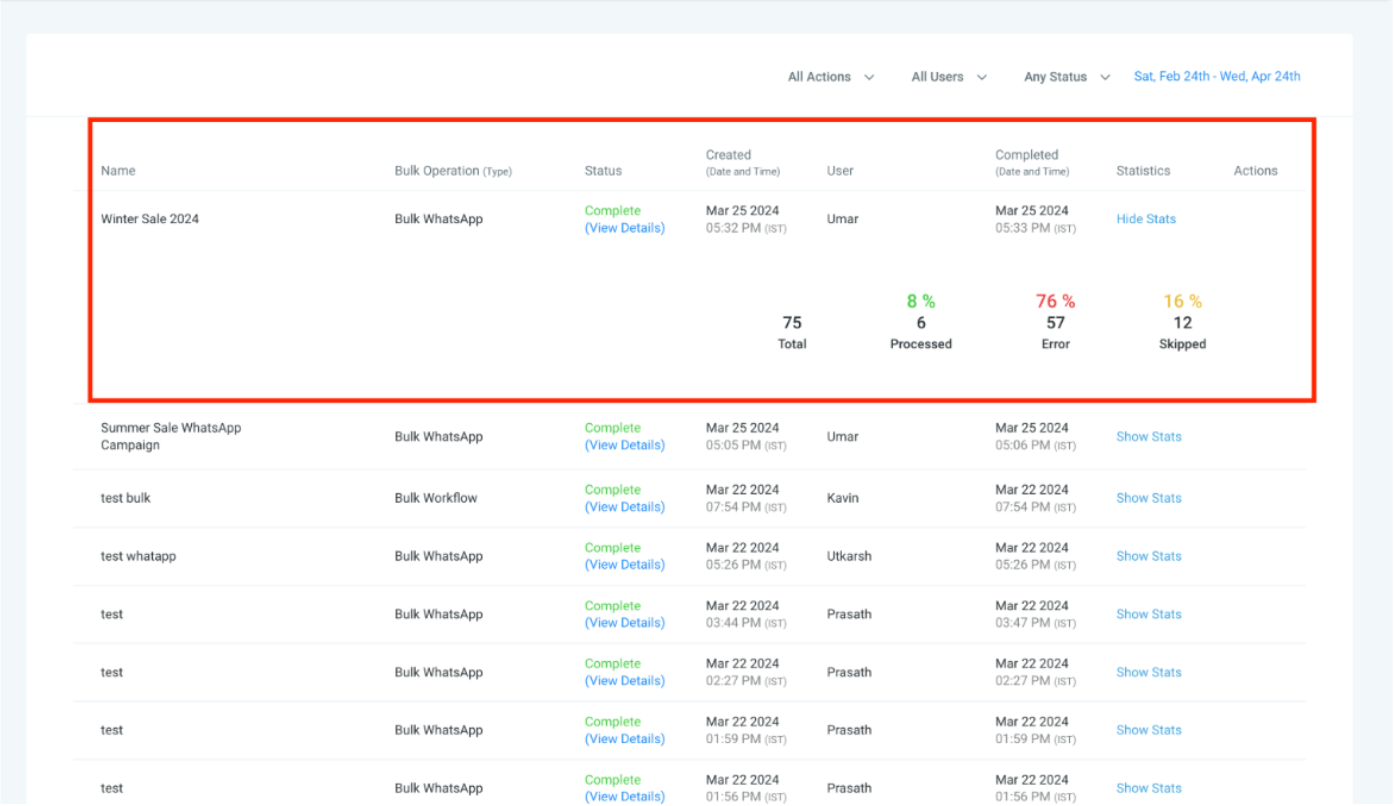
Please note that once the Meta Messaging Limit is breached, the remaining WhatsApp messages will not be sent. Make sure that you do not breach the message limit set by Meta on your WhatsApp number when triggering Bulk WhatsApp action. Ensure that the contacts selected are within the 24-hour messaging limit. Learn More
¶ Benefits:
- Efficiency: Send messages to a large number of contacts in one go.
- Timeliness: Ideal for last-minute promotions or urgent broadcasts.
- Compliance: Pre-approved templates ensure compliance with Meta’s policies.
- WhatsApp Bulk Message Fallback to SMS ensures that no contacts are missed, even if there are issues with WhatsApp delivery, providing a seamless communication experience across channels.
¶ Pro Tips:
- Template Approval: Submit templates in advance to avoid delays.
- Message Limits: Be aware of message limits and tiers. Increase your limit by meeting Meta’s messaging criteria.
- Spam Filters: Ensure your messages are well-crafted to avoid being flagged as spam.
¶ FAQs
**
**Question: Why can’t I send bulk messages?
Answer: Ensure you have selected contacts and a Meta-approved template. Also, check your message limit.
**
**Question: What should I do if my messages are flagged as spam?
Answer: Review your message content and contact Meta support for assistance in removing the spam label.
**
**Question: How can I increase my message limit?
Answer: Send a minimum of 1,000 messages within 30 days and apply for an upgrade through
Meta.
**
Question: What will happen if my Meta Messaging Limit is breached during an ongoing WhatsApp bulk action?
**Answer: If the Meta Messaging Limit is exceeded during an ongoing WhatsApp bulk action, the bulk action will generate an error for the contacts affected by the limit breach.
**
Question: What is the Meta Messaging Limit?
**Answer: Meta messaging limits define the maximum number of new business-initiated conversations you can start with customers within a 24-hour rolling window.
Question: What happens if my Tier Quota is complete?**
**Answer: Once your tier quota is reached, you won’t be able to initiate any additional business conversations until the quota resets.
**
Question: How can I check my current messaging limits?
**Answer: You can check your current messaging limits on Meta by going to WhatsApp Manager > Overview Dashboard > Insights tab.
**
**Question: What is a quality rating, and how does it affect my messaging limit?
Answer: Your quality rating measures customer reception of your messages over a 7-day period. It is influenced by factors such as user blocks, reports, and reasons for blocking. A “Low” quality rating may result in a reduced messaging limit.
**
**Question: How to maintain a High-Quality Rating?
Answer: Make sure messages follow the WhatsApp Business Policy and Commerce Policy. Send messages only to users who have explicitly opted in to receive communications from your business. Ensure messages are highly personalized and provide value to the recipient; avoid generic or open-ended introductory messages. Limit message frequency to avoid overwhelming customers and focus on delivering concise, informative content.
**
Question: What is a quality rating and how does it affect messaging limits?
****Answer: **Your quality rating measures how recipients interact with your messages (blocks, reports, etc.) over 7 days. A low rating may reduce your messaging limits.