¶ Managing Your Tasks Tab
Effective task management is essential for staying organized and ensuring productivity in any business environment. The Tasks Tab offers a comprehensive solution to create, manage, and track tasks efficiently. With features like customizable views, advanced filters, and recurring tasks, it simplifies task handling for individuals and teams alike.
Key Features and Benefits
- Smart Lists : Quickly access tasks due today or shortly with predefined filters.
- Advanced Filtering Options : Sort and find tasks by criteria such as due dates, priority, and assignees.
- Field Customization : Display only the fields you need, providing a personalized task view.
- Recurring Tasks : Automate repetitive tasks with configurable recurrence options, saving time.
- Standalone Tasks : Assign tasks independently of contacts, perfect for internal team management.
- Multi-Object Task Associations: The task system lets you link one task to multiple records like Contacts, Opportunities, Companies, and Custom Objects supporting a more efficient, collaborative workflow across teams.
- Enhanced UX : Navigate tasks easily with an intuitive interface and redesigned task creation models.
How to Use the Tasks Tab
Step 1: Accessing the Tasks Tab
1. Navigate to the Contacts section on the left and select Tasks from the menu at the top.
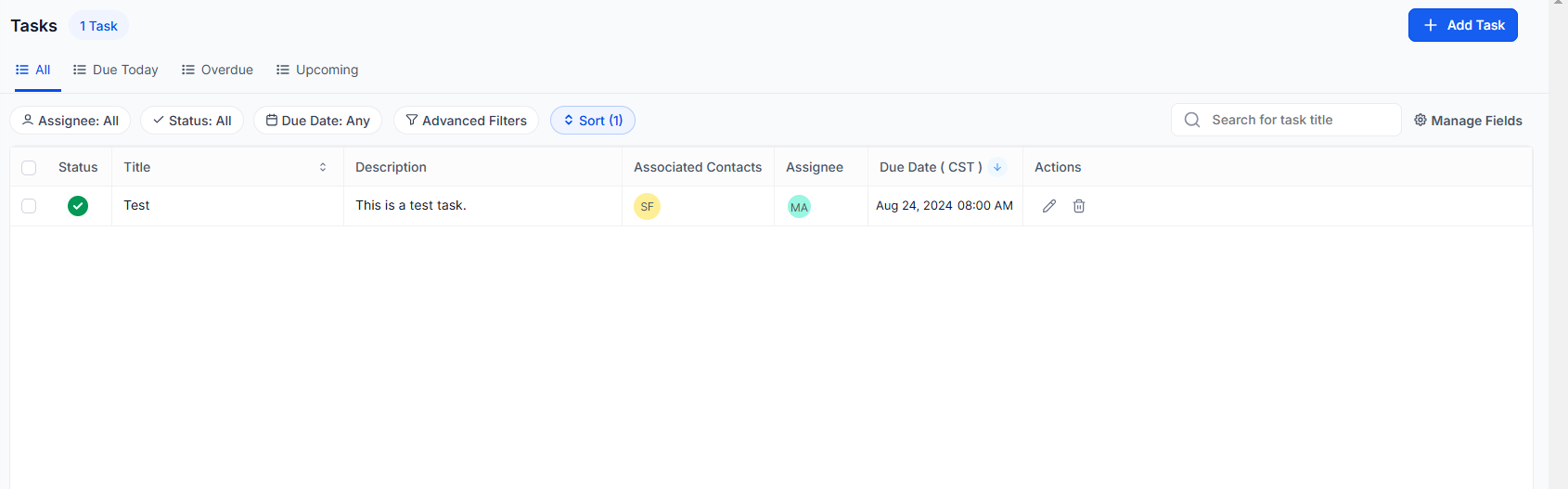
2. View the list of tasks, organized by default into smart lists like “Today” or “Upcoming.”
Step 2: Creating a Task
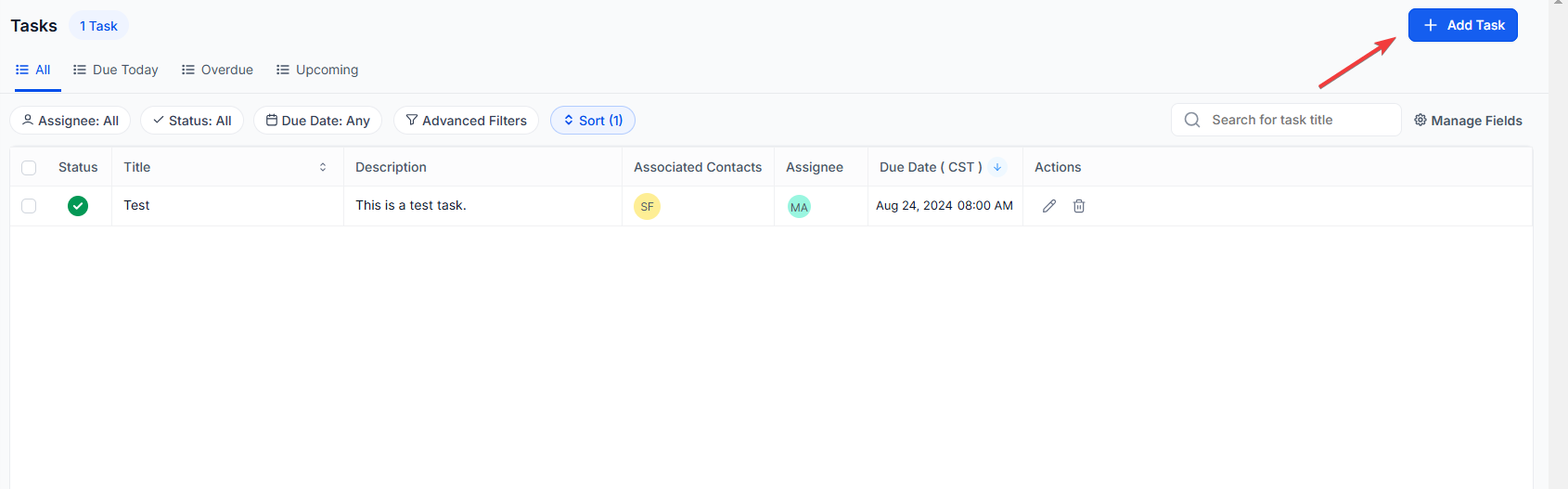
1. Click on the + New Task button in the top-right corner.
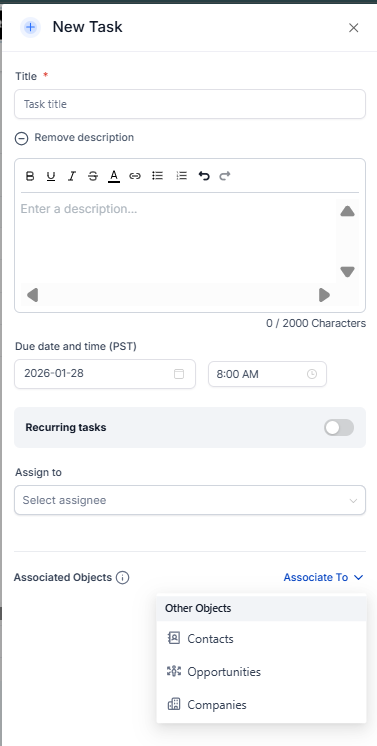
2. Fill in the task details in the pop-up, including:
- Task name.
- Assignee.
- Due date.
- Recurring Tasks.
- Priority level.
- Associated Objects
3. Save the task to add it to your list.
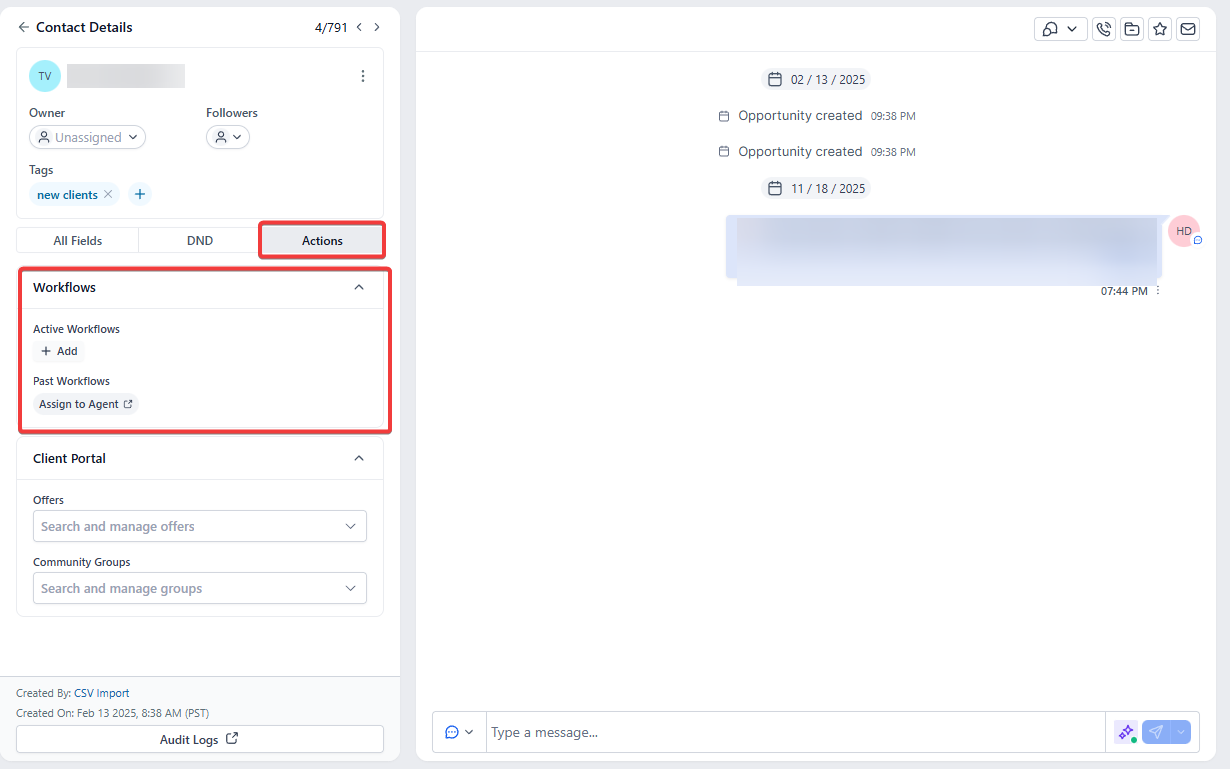
Pro Tip : Tasks can also be created automatically through workflows, reducing manual input.
Step 3: Managing Your Tasks
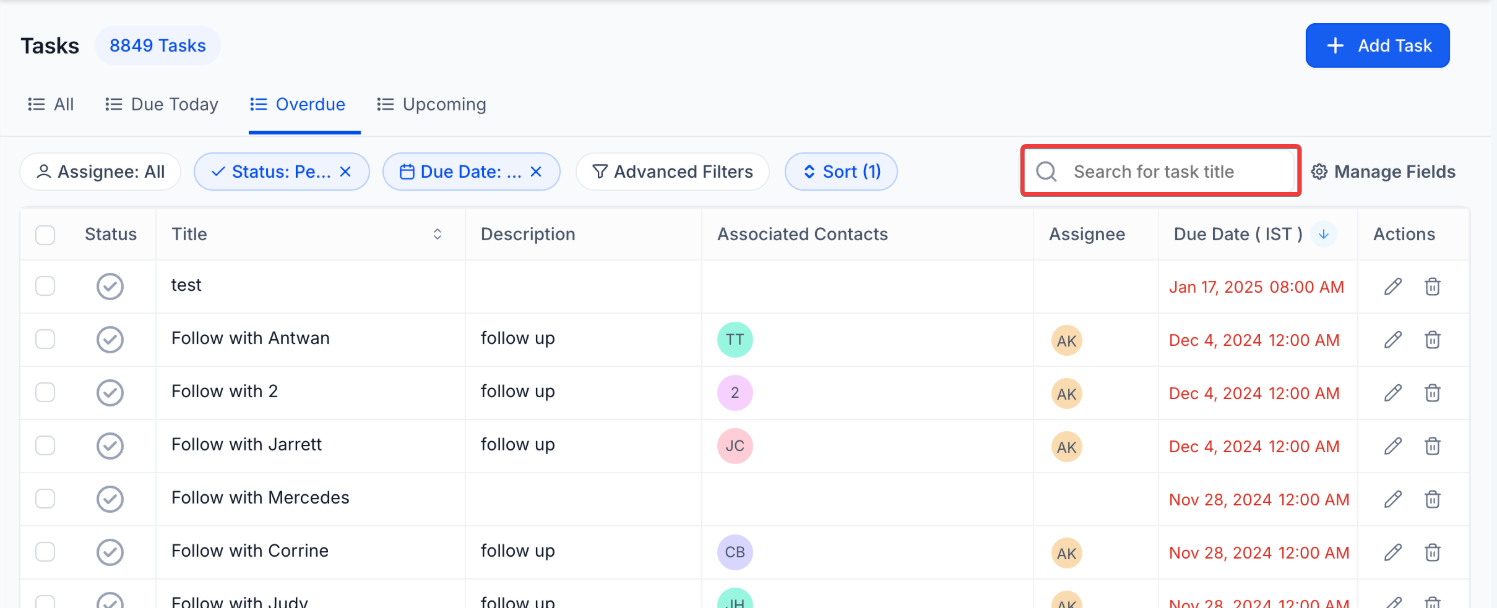
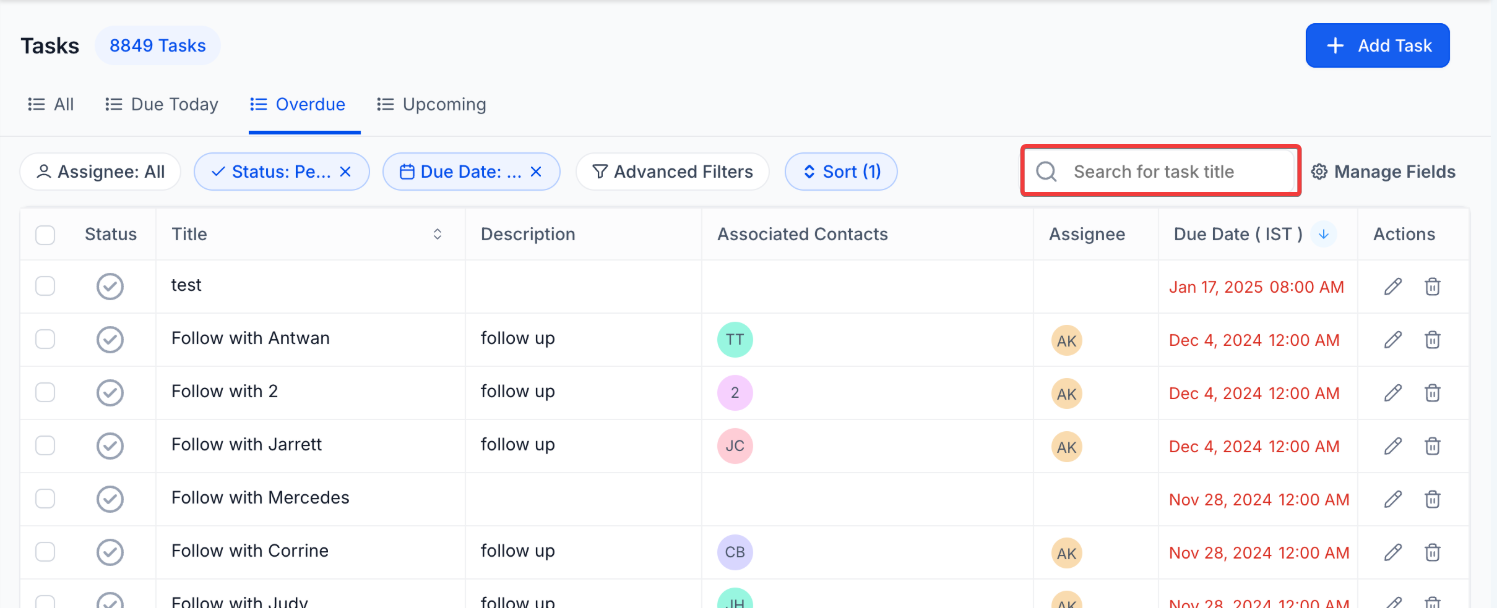
1. Search and Filter :
- Use the search bar to find tasks by name.
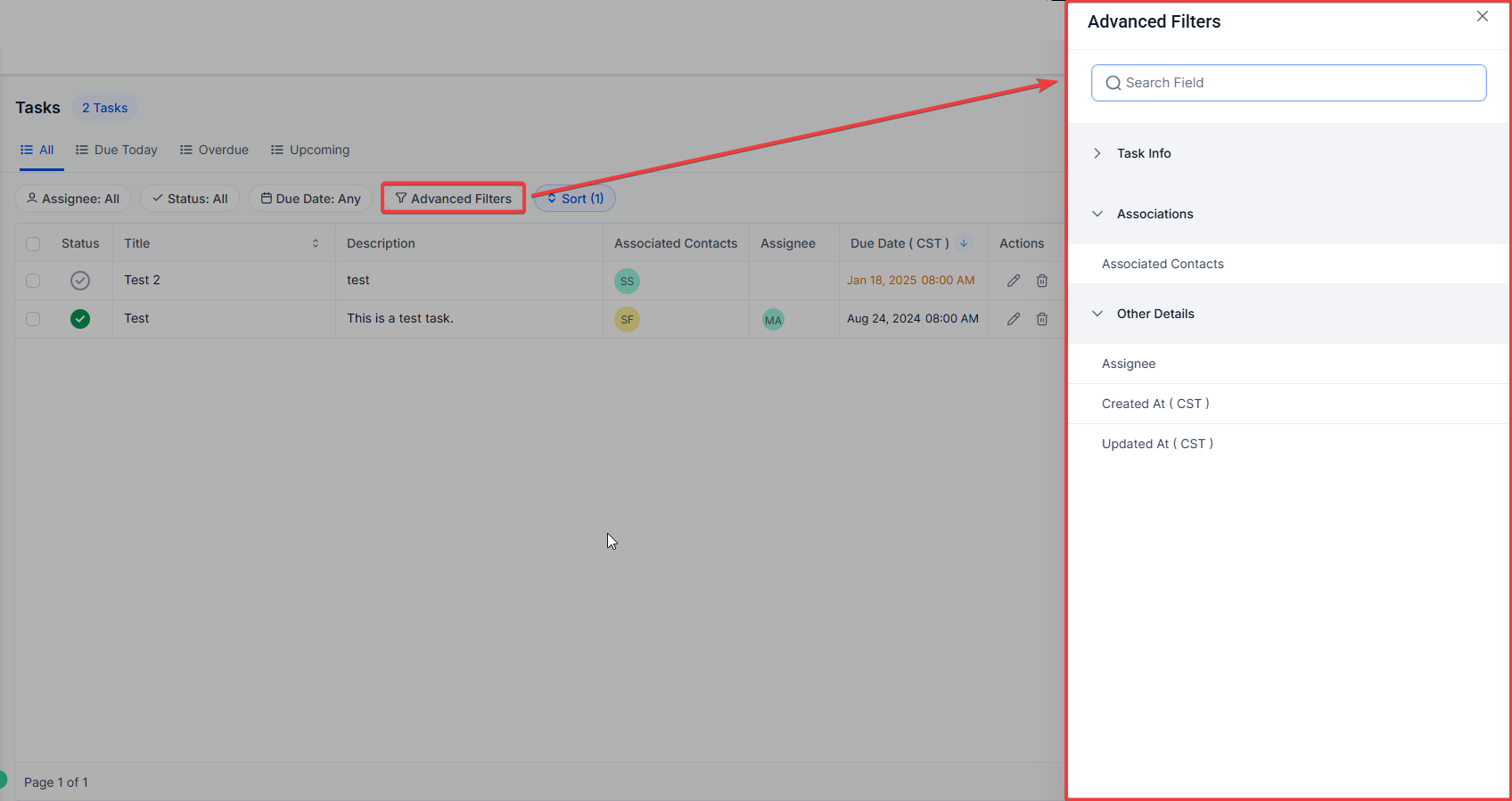
- Apply filters to narrow tasks by assignee, due date, or contact.
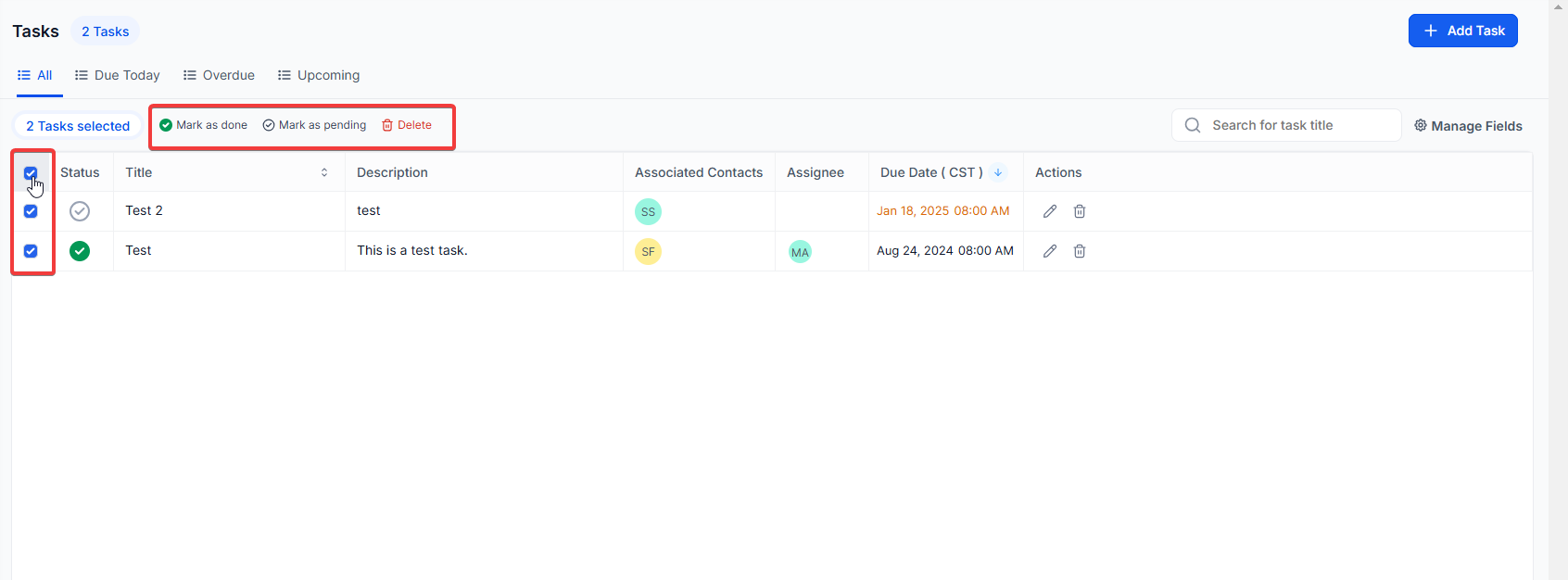
2. Bulk Actions :
- Select multiple tasks using checkboxes on the left.
- Mark tasks as complete, pending, or delete them in bulk
3. Individual Task Management :
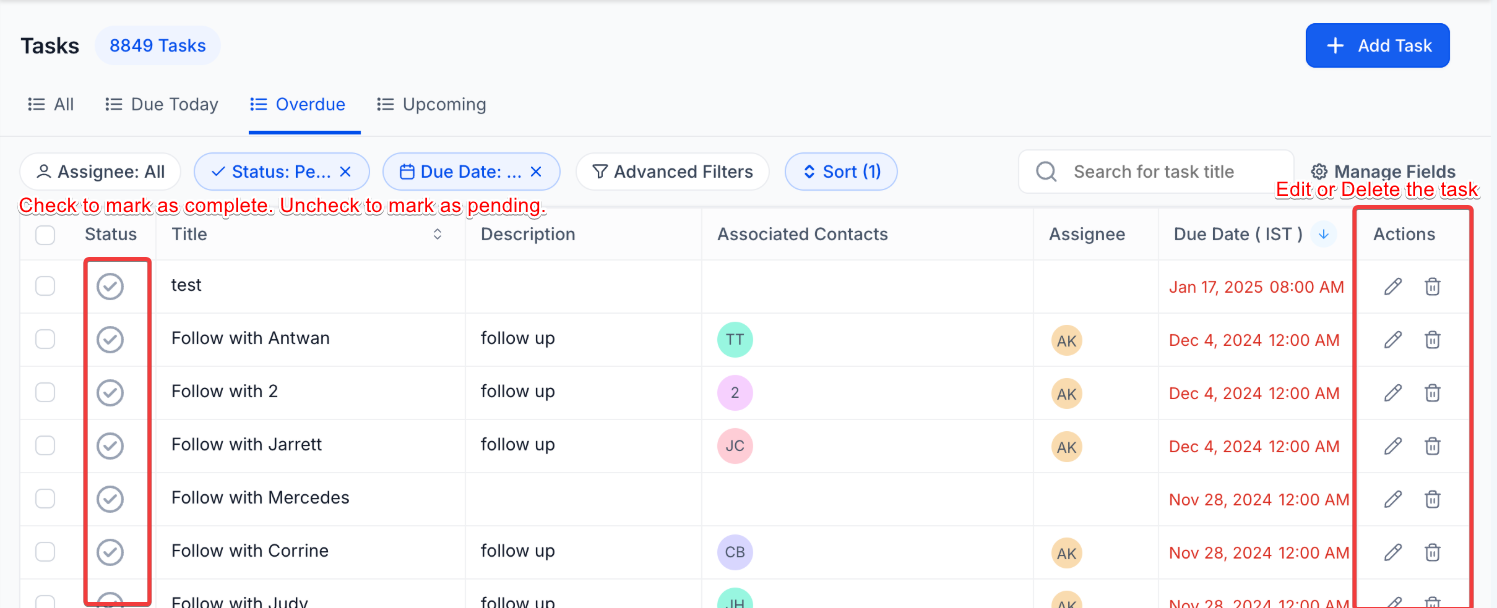
- Click the pencil icon to edit, the trash icon to delete, and check to mark a task as complete.
Step 4: Setting Up Recurring Tasks
1. Go to the Tasks Tab and create a new task.
2. Toggle on the Recurring Task option and configure:
- Frequency (daily, weekly, monthly, etc.).
- End date (never, after set occurrences, or a custom date).
- Assignee and task details.
3. Save the recurring task to automate its creation at regular intervals.
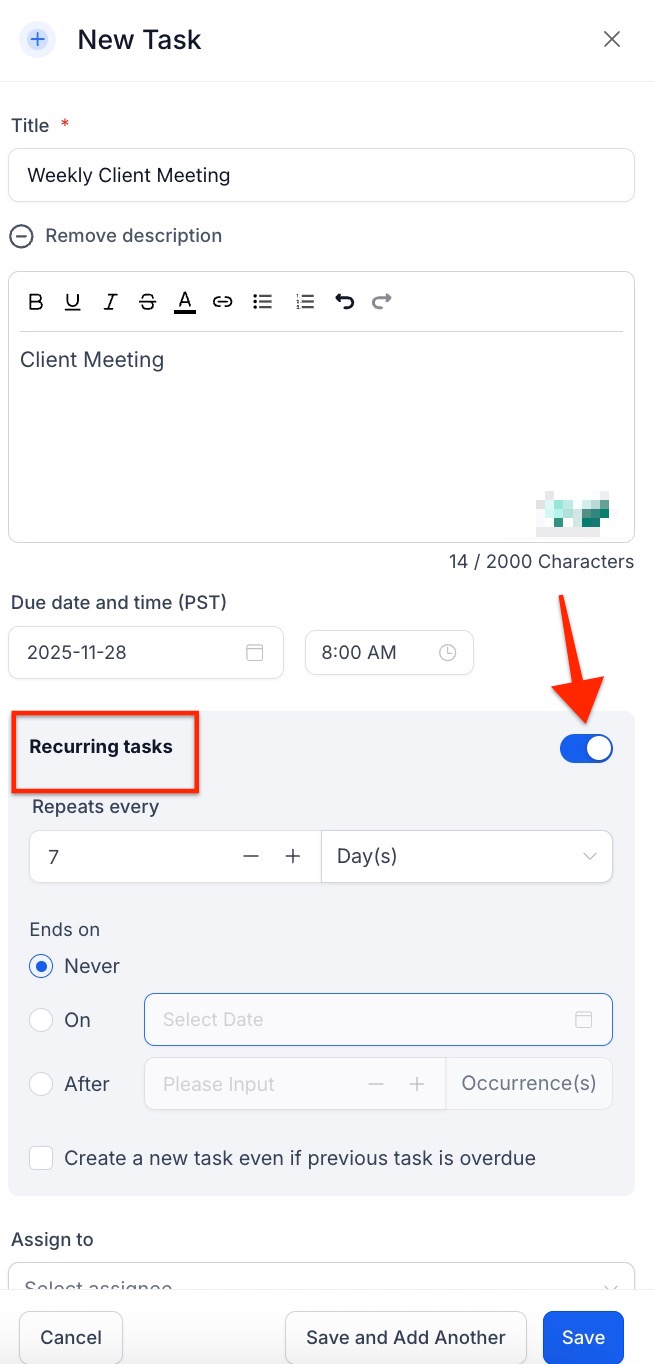
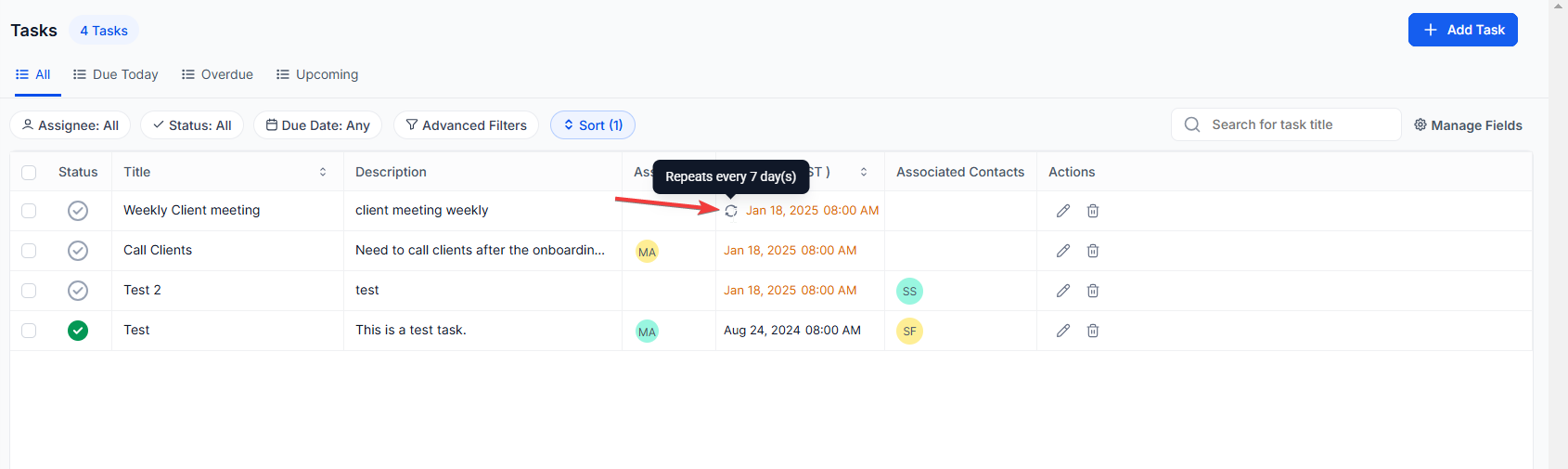
Pro Tip : Use the “Create Even if Overdue” option to ensure tasks are generated on schedule, even if previous ones remain incomplete.
Step 5: Customizing the View
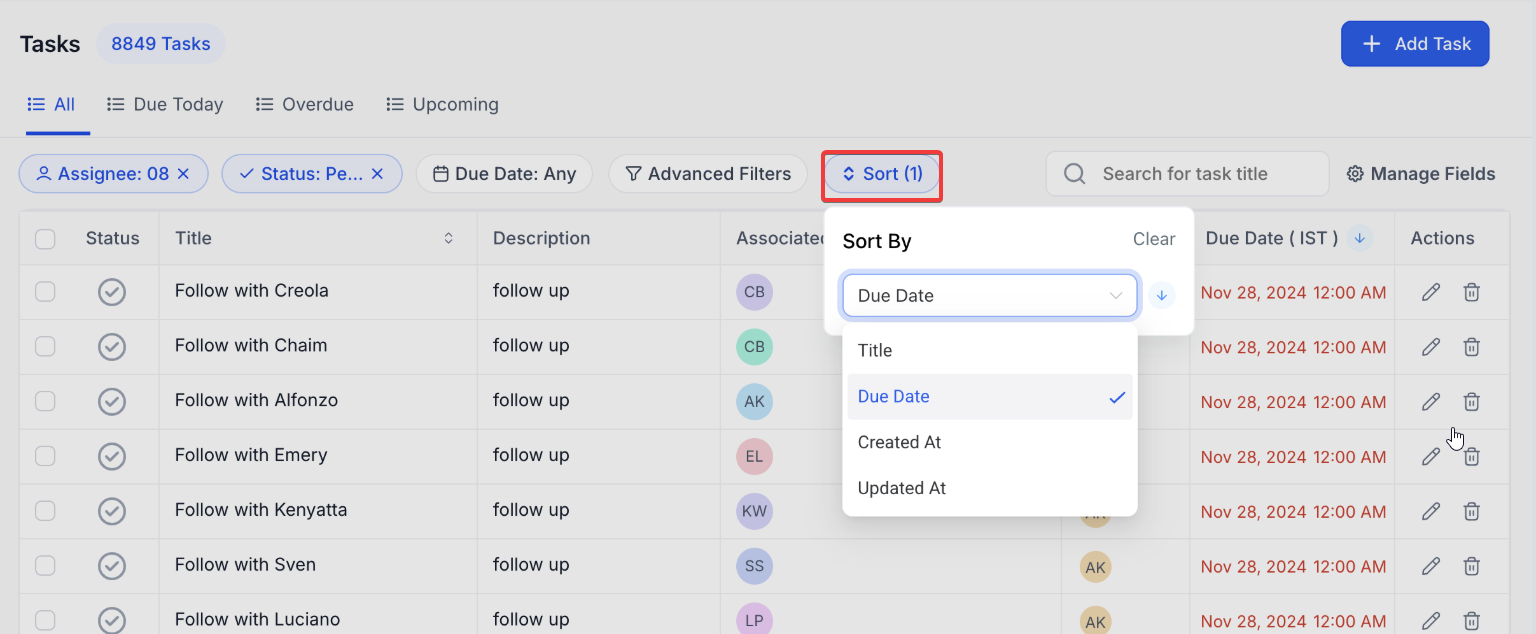
1. Adjust the displayed fields to include only what’s relevant (e.g., task name, due date, priority).
2. Sort tasks by priority, due date, or custom criteria to stay organized.
Pro tip:
You can enhance your task management process by integrating Task Manager with workflow automations. For instance, you can set tasks to be automatically created when certain triggers occur (e.g., new lead creation, customer inquiry), ensuring all tasks are tracked and completed on time. This reduces manual work and ensures consistent task management across your team.
¶ Use Cases for the Tasks tab:
1. Project Management:
- Use tasks to assign and track project-related activities, ensuring deadlines are met and responsibilities are clear.
2. Follow-Ups:
- Create tasks to follow up with contacts after meetings or communications, ensuring no leads are overlooked.
3. Team Coordination:
- Assign internal tasks to team members for administrative duties, meetings, or general operational needs.
4. Campaign Management:
- Automate task creation based on campaign triggers to streamline marketing efforts and task assignments.
FAQs
Question: Can I create tasks without linking them to a contact?**
**Answer: Yes, you can create standalone tasks for internal use by leaving the contact field blank.
Question: How do I edit a recurring task?**
**Answer: You can edit future instances or individual occurrences from the Tasks Tab. Changes apply based on your selection.
Question: Can I restore deleted recurring tasks?**
**Answer: Yes, deleted recurring tasks can be restored from the recovery options within the Tasks Tab.
Question: What are Smart Lists?**
**Answer: Smart Lists are predefined filters like “Today” or “Upcoming,” designed to quickly display tasks based on their due dates.
Question: How do I filter tasks by team member?**
**Answer: Use the dropdown filter for assignees to view tasks assigned to specific team members.
**
Question: Can I link a single task to multiple different records, like a contact and an opportunity at the same time?
**Answer: Yes. The system supports Multi-Object Task Associations, allowing you to link one task to multiple records, including Contacts, Opportunities, Companies, and Custom Objects, to support a more collaborative workflow.
Question: How can I ensure that a recurring task is still generated even if the previous one wasn’t finished on time?**
**Answer: When setting up your recurring task, you should use the “Create Even if Overdue” option. This ensures that new tasks are generated exactly on your specified schedule, regardless of whether the previous instances remain incomplete.