¶ How To Create and Use SMS And Email Templates
SMS and Email snippets are saved draft templates that you can directly add to your workflow actions or one-time communications. This is useful if you often find yourself sending the same or similar messages (and you don’t want to utilize the Email Builder), as using the templates can save you time.
¶ Step 1: How to Create an SMS or Email Template
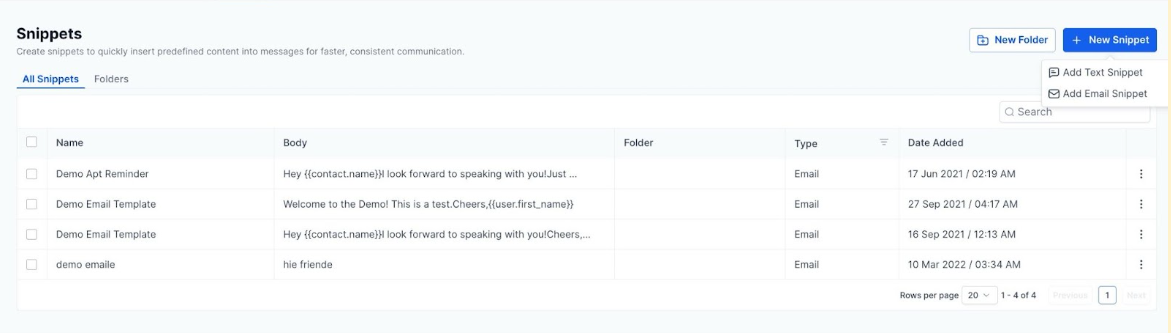
- Navigate to Marketing > Snippet.
- Select Add Snippet
- Choose an SMS or Email Snippet.
- You can customize the Snippet as you wish, and the preview will appear on the right side of the screen.
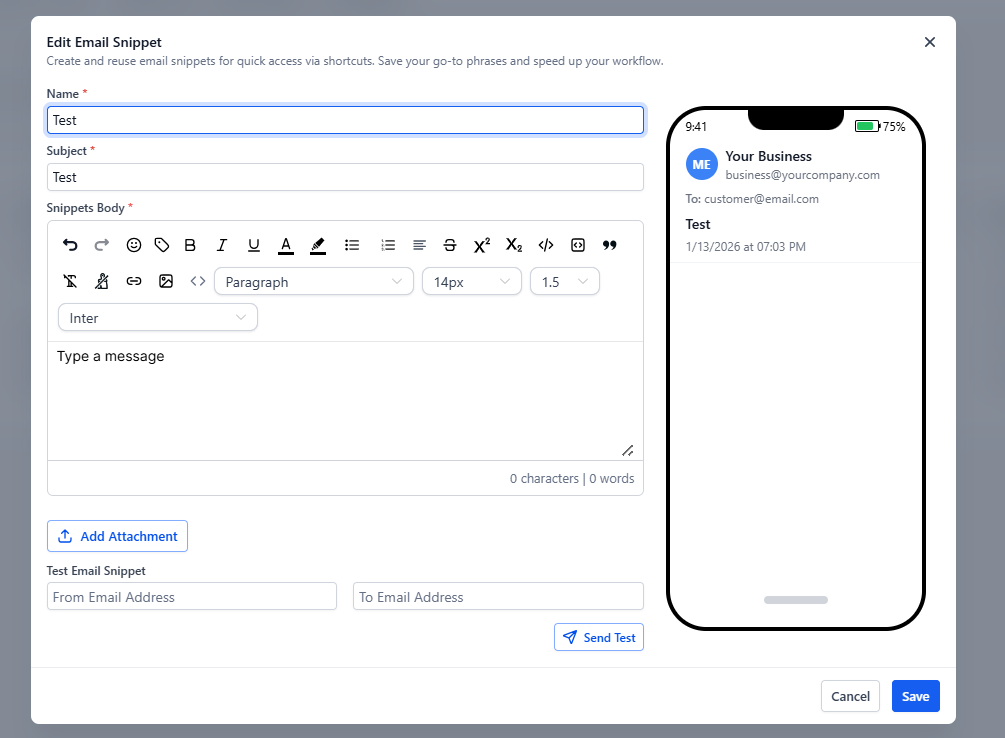 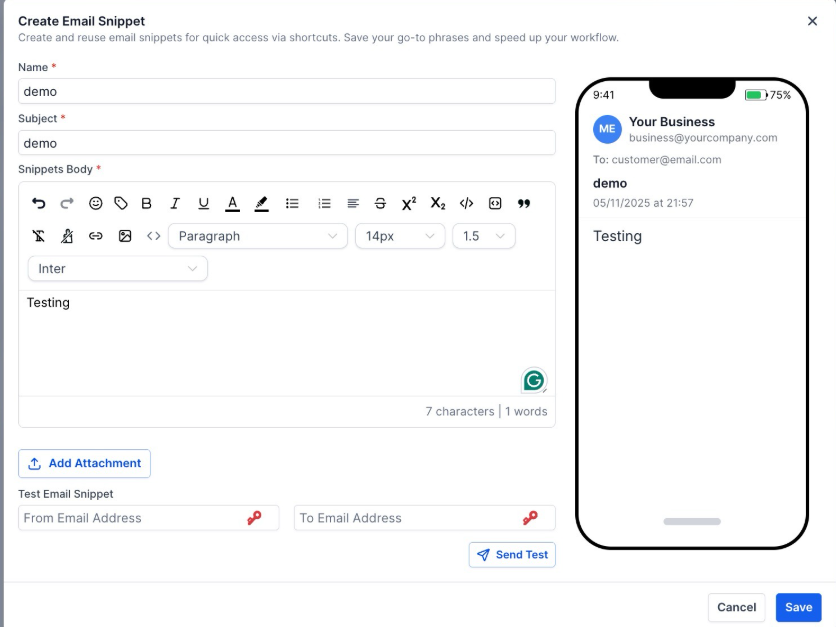

- Press “Save” to confirm your changes.
¶ Step 2: Using Your New Template
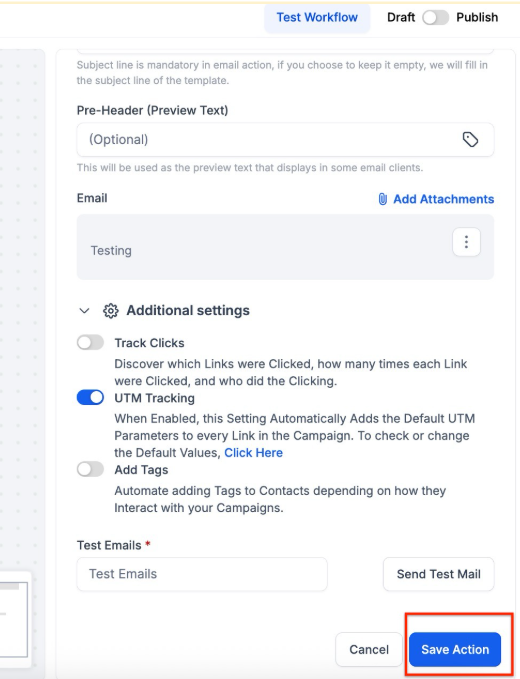
¶ To use your template in a Workflow:
- Navigate to Automation, then Workflows.
- Open the workflow in which you want to use the template.
- Create (or edit) the action that you wish to use the template in.
- Select Your Template.
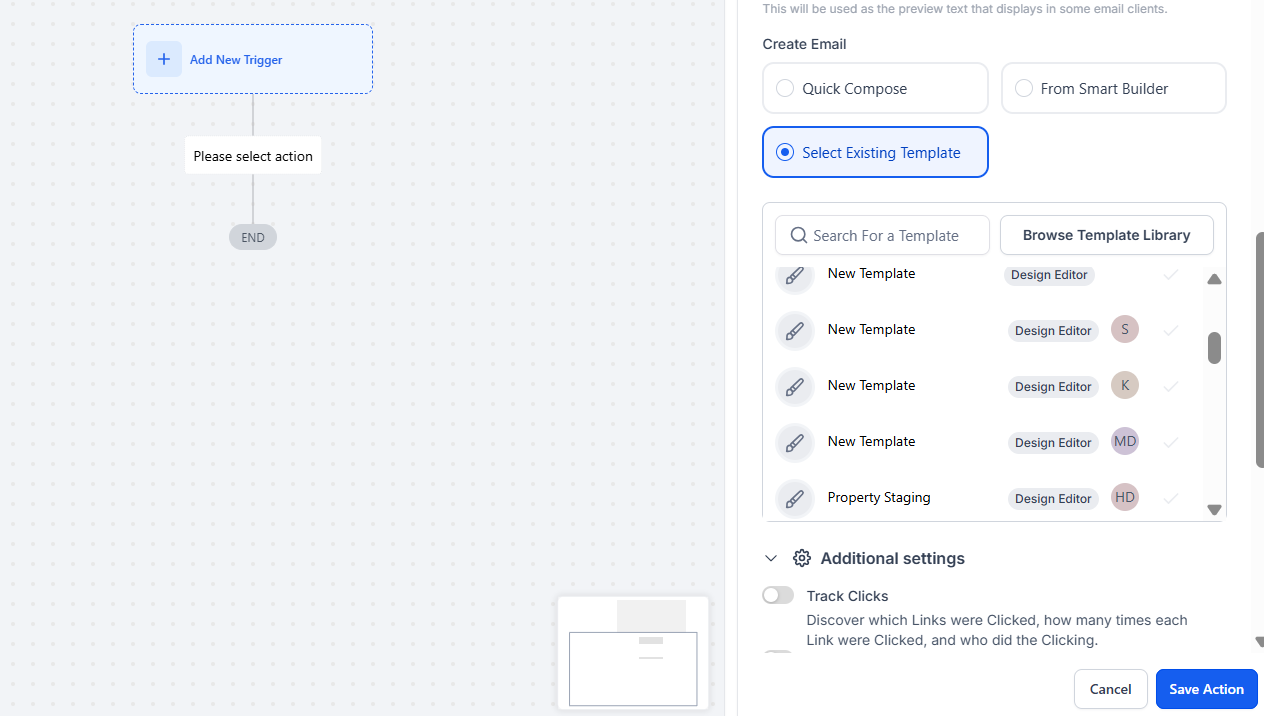
- Save action.
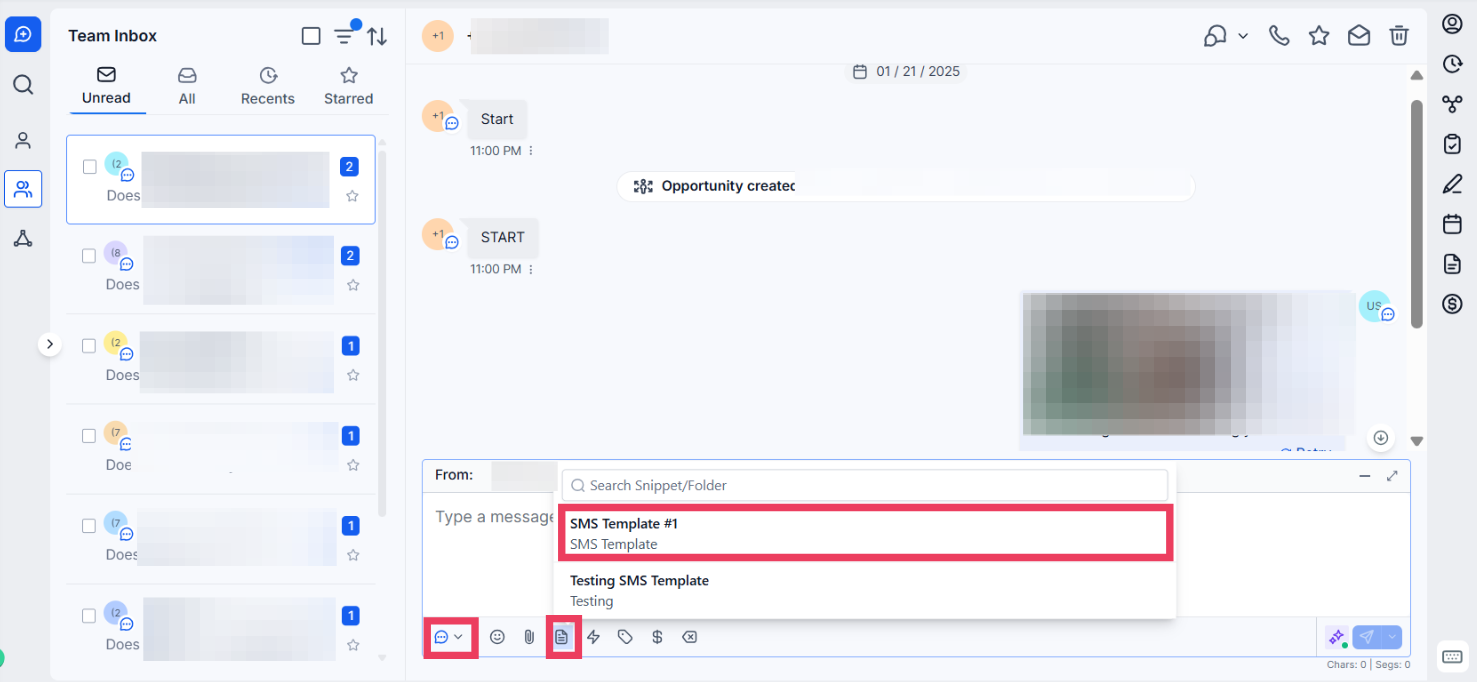
¶ To use your template in a conversation:
- Navigate to Conversations.
- Select the contact you wish to communicate with.
- Select your template and edit as necessary.
- Send.
¶ To use your template in a conversation:
- Navigate to Conversations.
- Select the contact you wish to communicate with.
- Toggle to send the message to email/SMS
- Select your template and edit as necessary.
- Send.
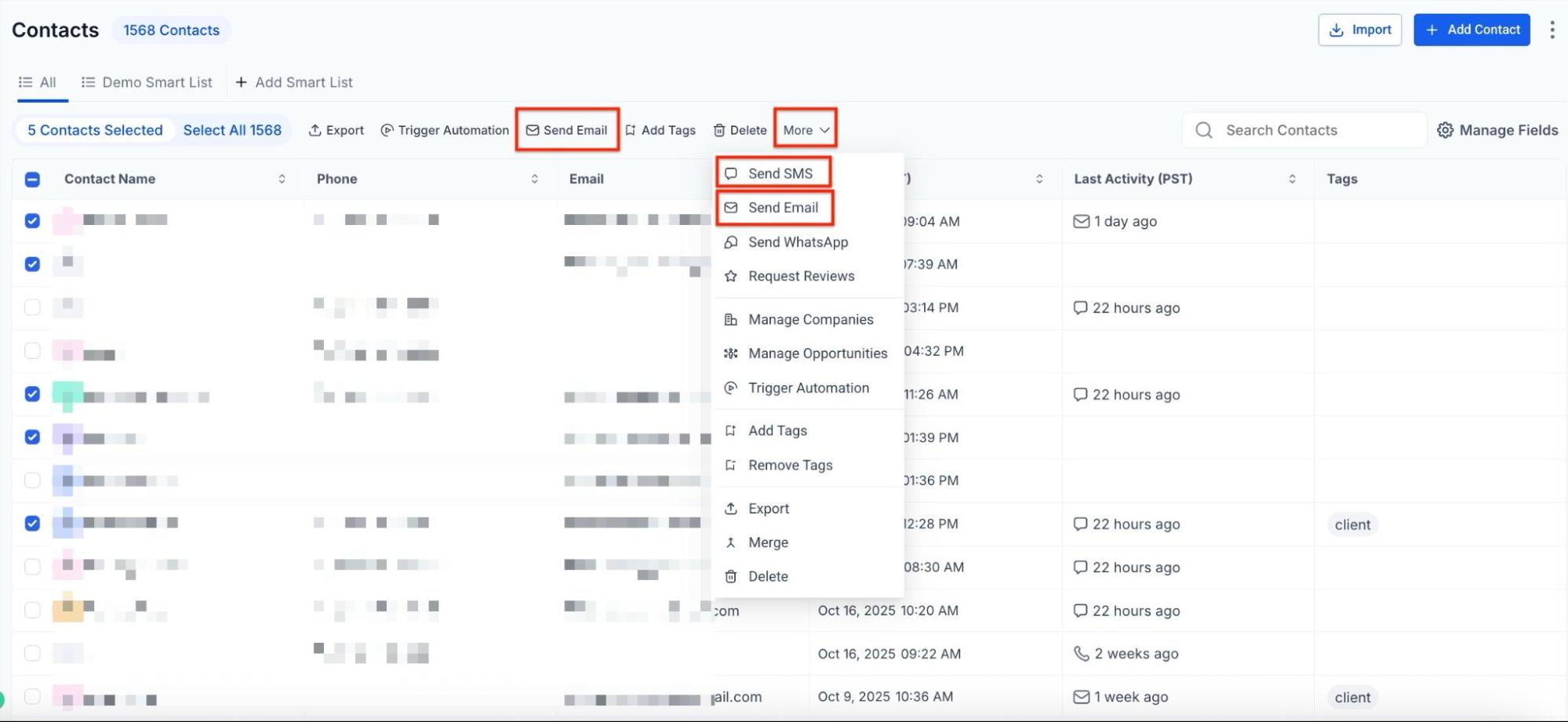
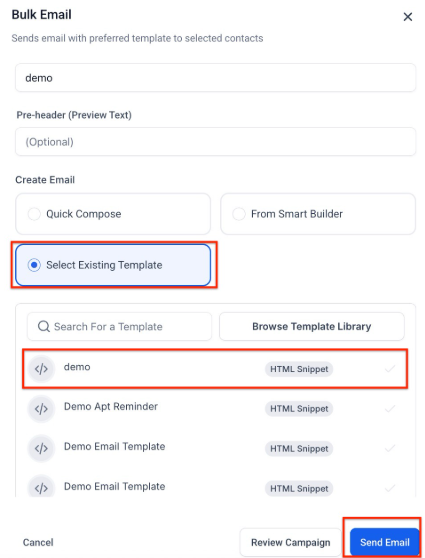
¶ To use your template in a bulk action:
- Navigate to Contacts.
- Select the contact records for which the SMS or email bulk action will apply.
- Choose the bulk action SMS or email icon.
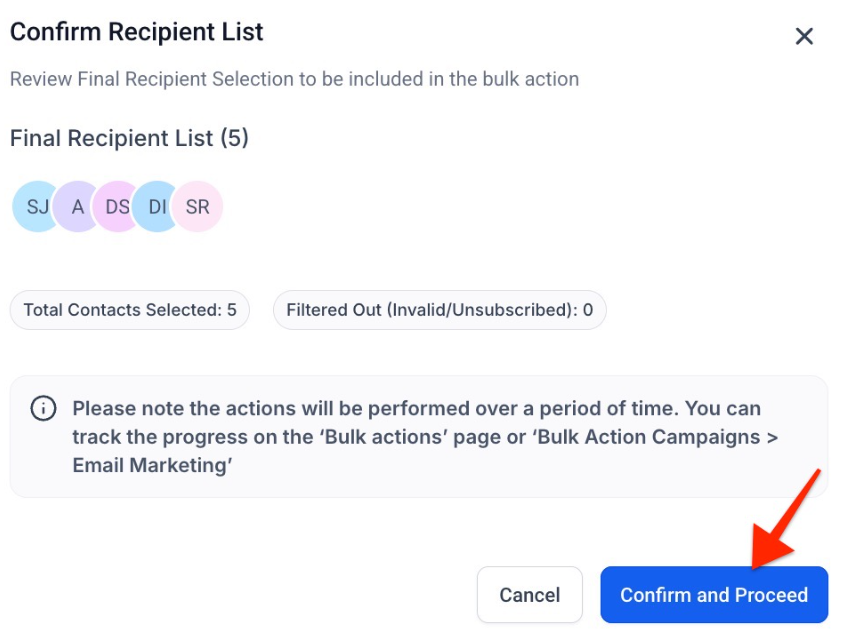
- Select your template and edit as necessary.
- Send your bulk action.
¶ FAQs
Question: How do I create an SMS or email template?****
Answer: To create an SMS or email template, go to Marketing > Snippets. Click on “Add Snippet” choose either SMS or Email, customize it as desired, preview it on the right-hand side, and then click “Save.”
Question: How can I use a template in a workflow?****
Answer: To use a template in a workflow, navigate to Automation > Workflows, open the desired workflow, create or edit the action where you want to use the template, select your template, and save the action.
Question: How do I apply a template in a conversation?****
Answer: To apply a template in a conversation, go to Conversations, select the contact you want to communicate with, choose your template, make any necessary edits, and then send the message.
Question: How can I use a template for a bulk action?****
Answer: For a bulk action, go to Contacts, select the contact records you want to target, click the bulk action SMS or email icon, choose your template, edit it if needed, and then send your bulk action.
Question: Can I organize snippets for easier access?****
Answer: Yes, some platforms allow you to categorize or search snippets to quickly find them when adding to workflows or messages.
Question: Will my Snippet update automatically in a Workflow if I edit the original template?
Answer: Yes. Since you are selecting the template within the workflow action, updating the Snippet under Marketing > Snippets will ensure that the most current version is used for all future automated messages triggered by that workflow.