¶ Contacts: Access Estimates in the Payments Tab
Creating and managing estimates efficiently is a crucial part of streamlining business operations. This guide will walk you through how to use the Payments tab to send estimates directly from the contact page. With this, you can simplify the process of creating estimates, reduce manual entry, and easily track their progress.
¶ Key Features and Benefits
- Direct Access : Send estimates directly from the contact page without navigating to multiple sections.
- Pre-Populated Contact Details : Save time by having contact information auto-filled in the estimate.
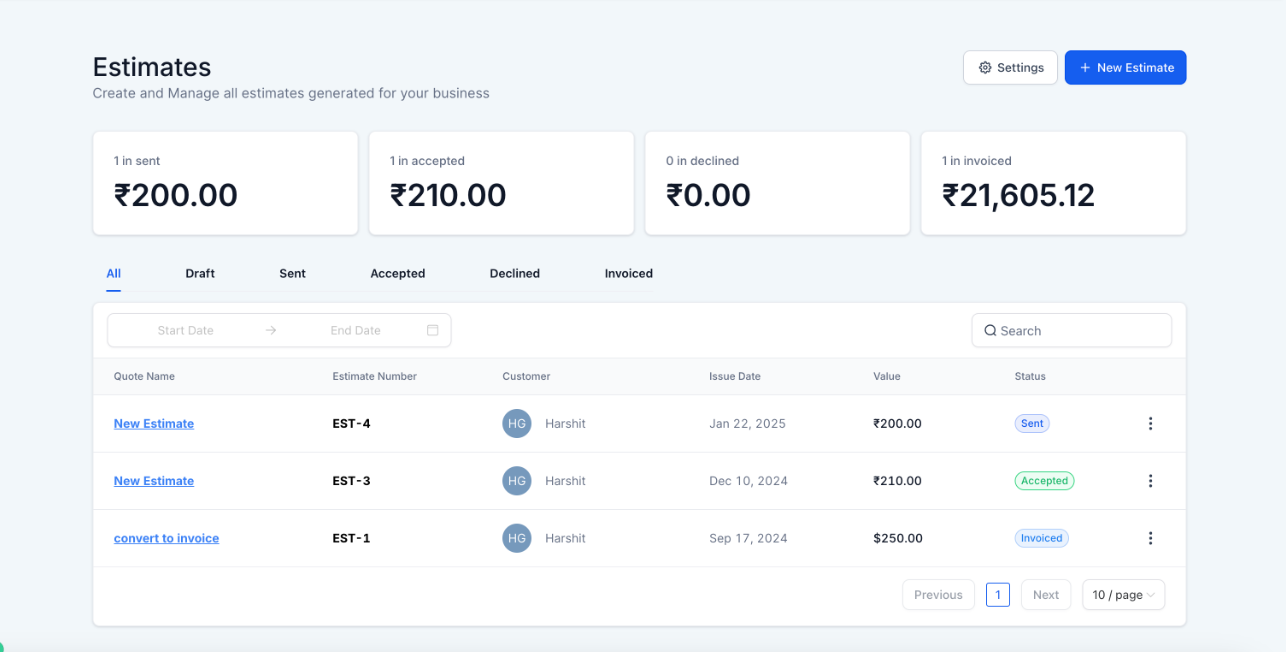
- Centralized Tracking : All sent estimates can be easily monitored and managed in the Estimates Dashboard.
- Convenience : Simplifies the workflow, making it easier for businesses to send quotes and follow up seamlessly.
¶ How to Use the Payments Tab for Estimates
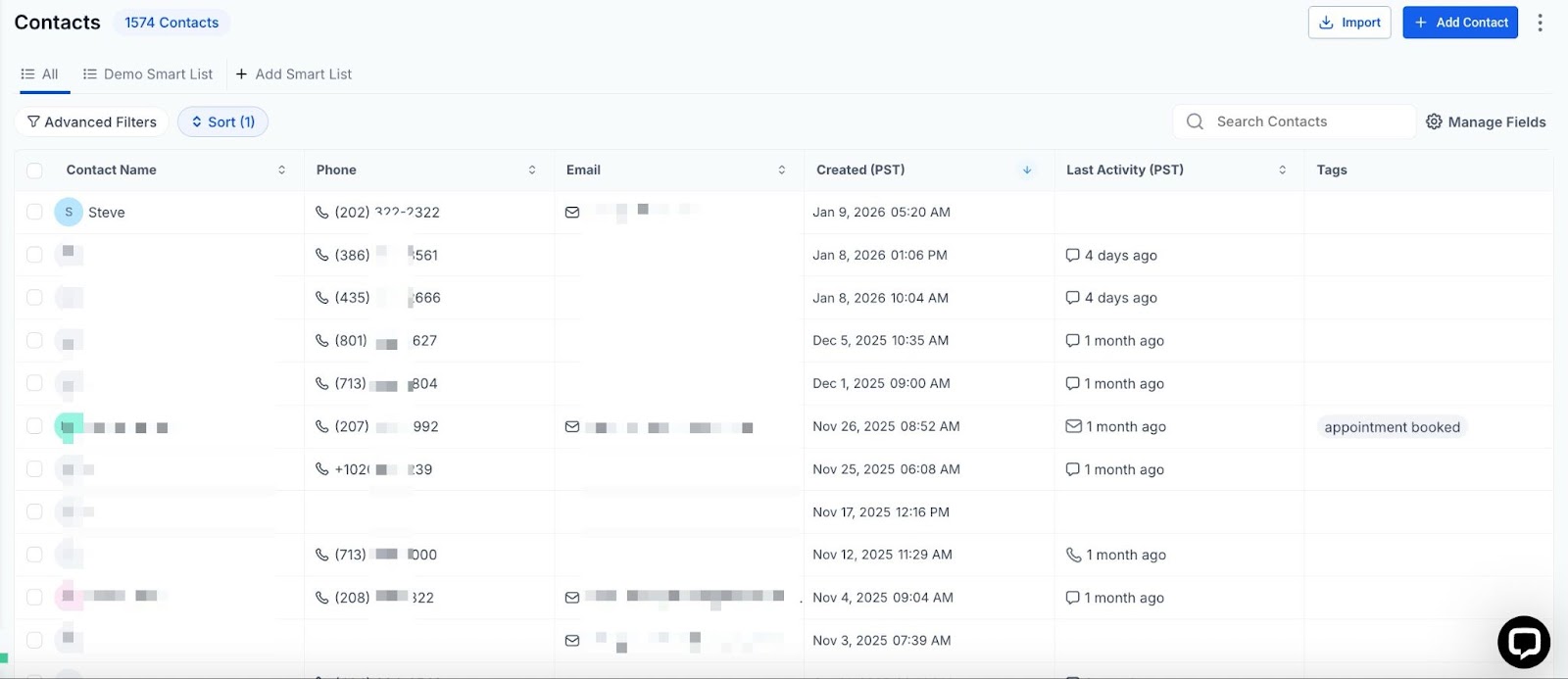
Step 1 : Access the Contact Page
- Navigate to the Contacts section and select the contact for whom you want to create an estimate.
Step 2: Open the Payments Tab
- Inside the contact profile, go to the Payments Tab to access estimate-related features.
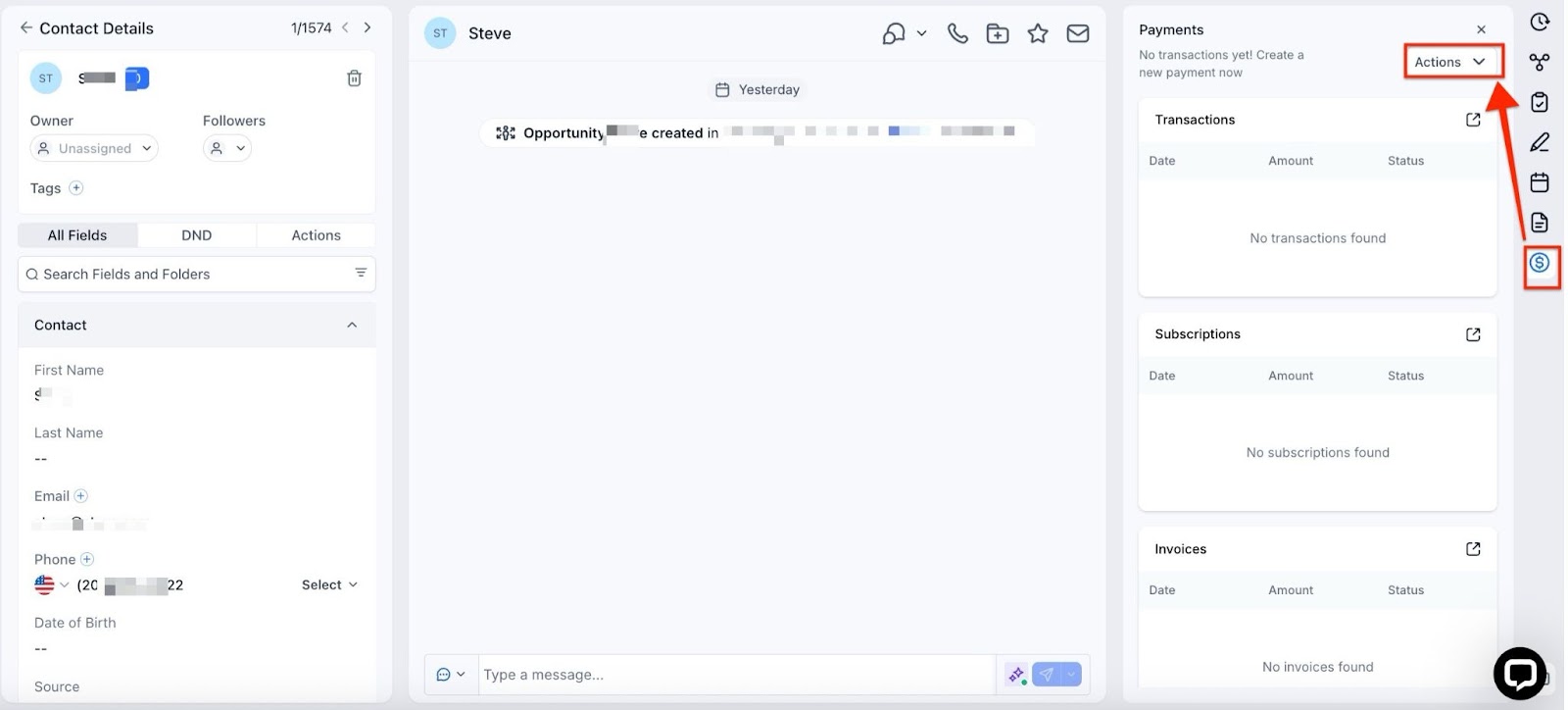
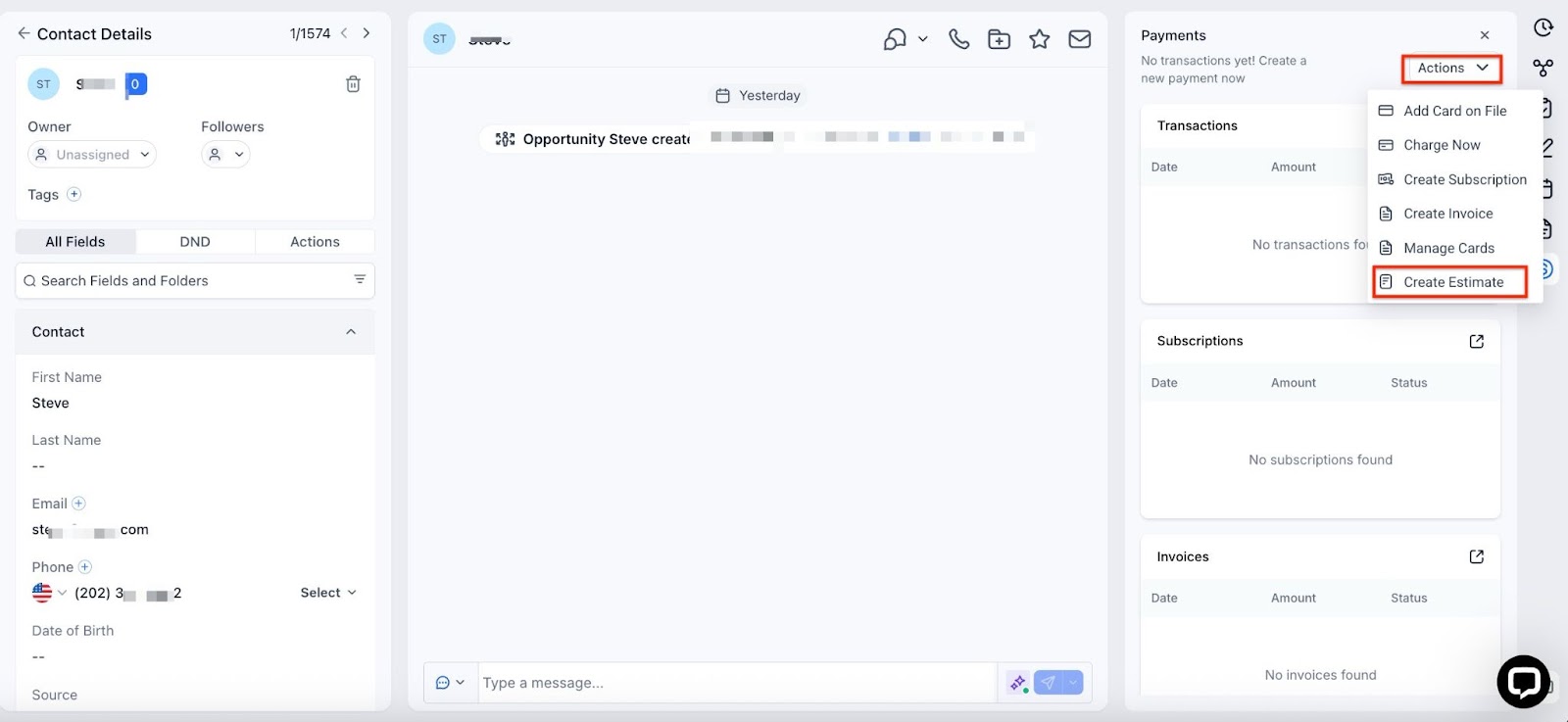
Step 3 : Create an Estimate
- Click on the Create Estimate button.
- The system will automatically populate the contact details in the estimate builder.
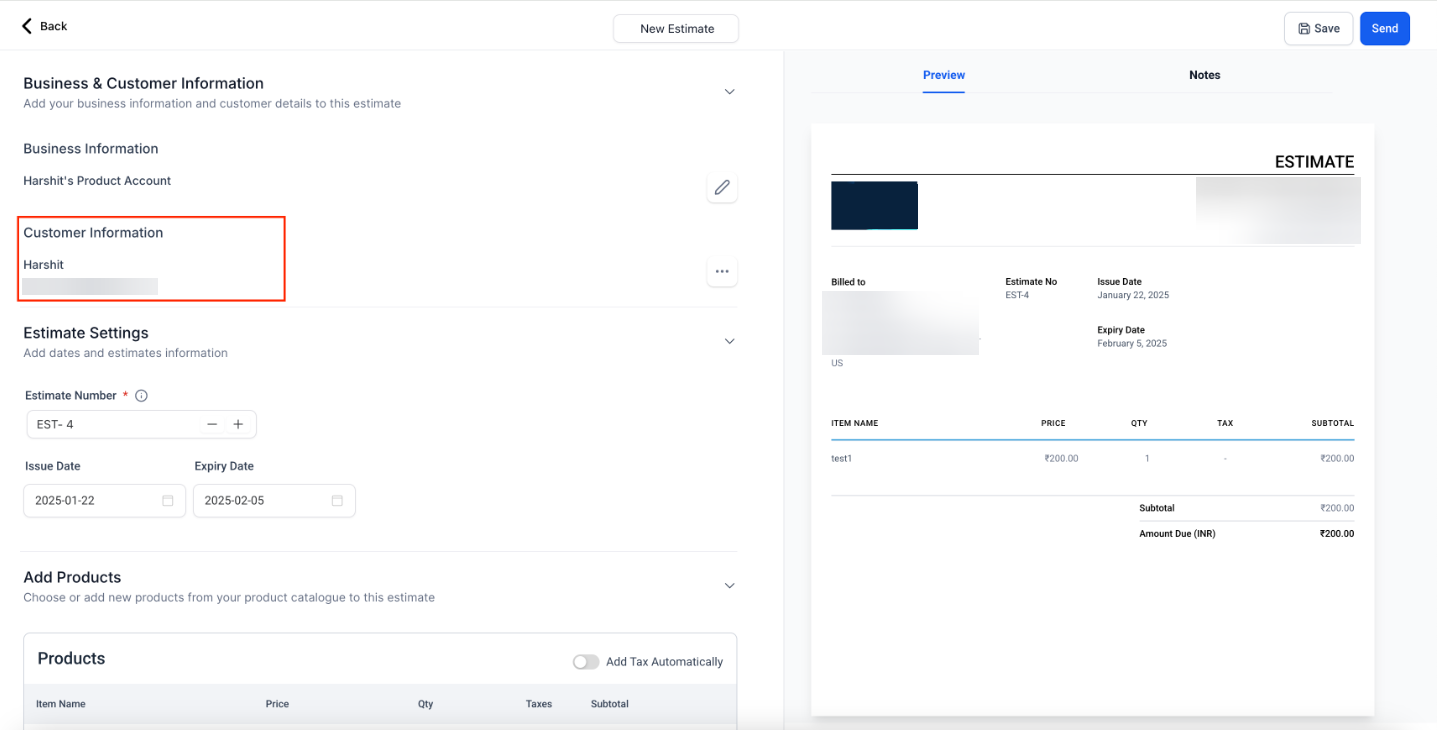
Step 4 : Add Products and Send the Estimate
- In the estimate builder, add the products or services you want to include.
- Review the details and send the estimate to the contact directly.
Step 5 : Track the Estimate
- After sending, you can view and track the status of your estimate in the Estimates Dashboard , making it easy to follow up or adjust as needed.
¶ Pro Tips
- Use Tags for Organization : Add tags to estimates for better categorization and quicker searches in the dashboard.
- Customize Templates : Ensure that your estimate template reflects your brand by including a logo, terms, and personalized messaging.
- Set Follow-Up Triggers : Use automation to remind you to follow up with contacts who have not responded to their estimate.
- Track Analytics : Monitor which estimates convert into sales to optimize your process.
¶ FAQs
Question: Can I edit an estimate after it has been sent?**
**Answer: Yes, you can edit estimates that are still in draft or pending status. Once edited, the updated version can be sent again to the contact.
Question: What happens if I send an estimate to the wrong contact?**
**Answer: You can void the incorrect estimate and create a new one for the correct contact. Make sure to double-check pre-populated details before sending.
Question: How can I track if an estimate has been viewed?**
**Answer: Check the Estimates Dashboard, where you can see the status of all sent estimates, including whether they’ve been viewed or accepted.
Question: Are there any limits to the number of estimates I can send?**
**Answer: There are no specific limits for most systems, but ensure your account settings and permissions allow for unlimited transactions.
Question: Can I include taxes or discounts in the estimate?**
**Answer: Yes, taxes and discounts can typically be applied in the estimate builder to ensure accurate pricing.
Question: Do I have to manually type in the customer’s name and email every time?
Answer: No. When you click “Create Estimate” from within a contact’s profile, the system auto-fills the contact information for you, reducing manual entry and saving time.
Question: How can I ensure my estimates look professional and stay organized within the system?**
**Answer: You can customize your estimate templates to reflect your brand by adding a logo, terms, and personalized messaging. For better organization and quicker searches in the dashboard, you should also add tags to your estimates.