¶ How To Update Cancellation and Reschedule Links For Your Calendar
Having your calendar set up properly ensures your clients can book appointments with you so you maximize your business opportunities. Sometimes, your clients need to be able to reschedule or cancel an appointment. You want to ensure it is easy to do so, to prevent no-shows. Here, we’ll share how to ensure your reschedule and cancellation links are ready to- go and easy to use when needed.
¶ Step 1: Update the custom values within the calendar.
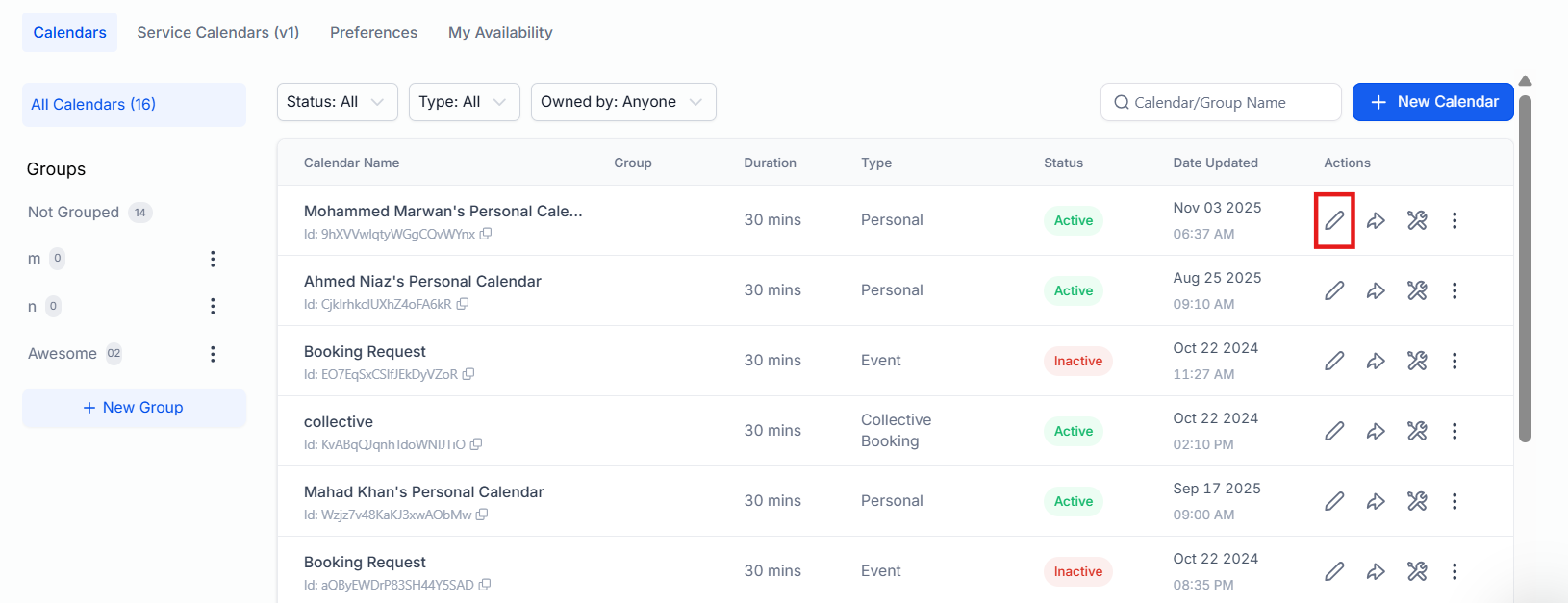
- Under Settings, navigate to Calendars.
- Choose the Calendar you wish to edit and click on the pencil icon to edit.
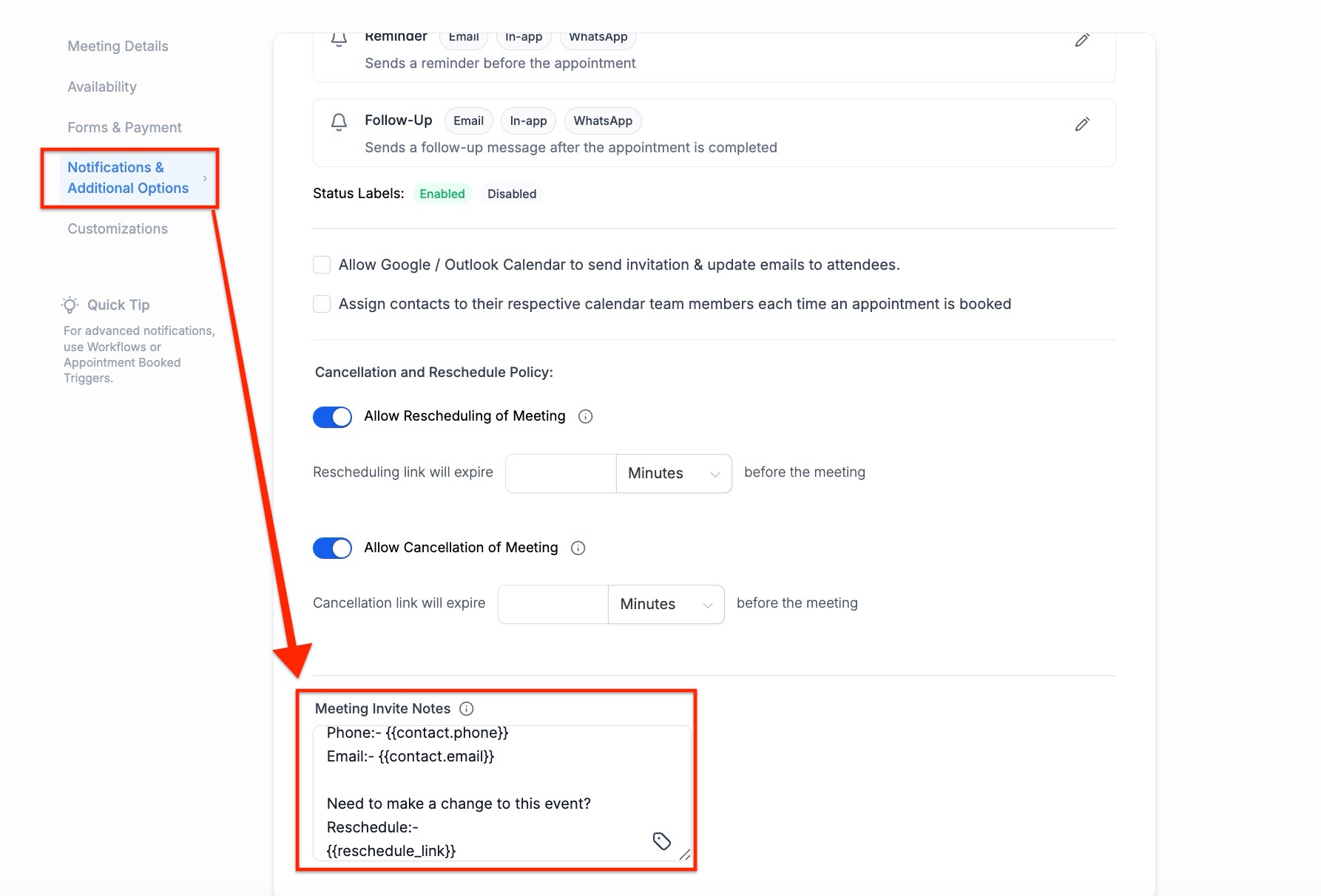
- In the popup, in the Notifications & Additional Options Tab, scroll down to “Additional Notes”, and scroll down through the notes to find the values mentioned. You can customize the message, and be sure to update the custom values to the following to activate and use them:
- Reschedule:{{appointment.reschedule_link}}
- Cancellation: {{appointment.cancellation_link}}
Please Note: To activate these links, change them from reschedule_link and cancellation_link to the values shown above
- Save to confirm your changes.
- When you move on to rescheduling and cancellation you can also set time limits on when appointments can be rescheduled or canceled, helping to minimize last-minute changes that disrupt schedules and waste valuable time.
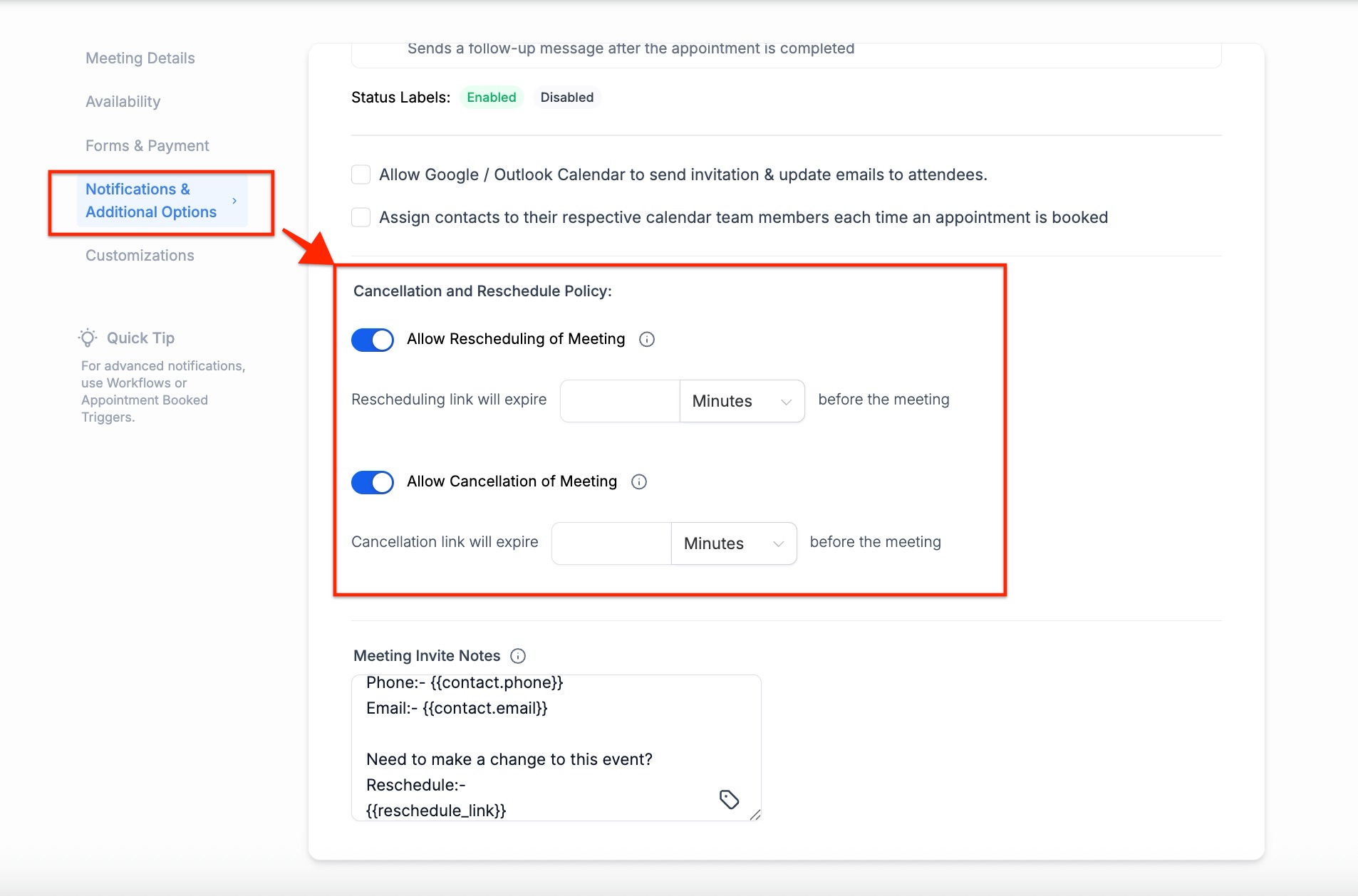
Note: It’s important to clearly communicate these policies to your customers, such as including them in the meeting details or booking confirmation messages, to ensure transparency and avoid misunderstandings.
-
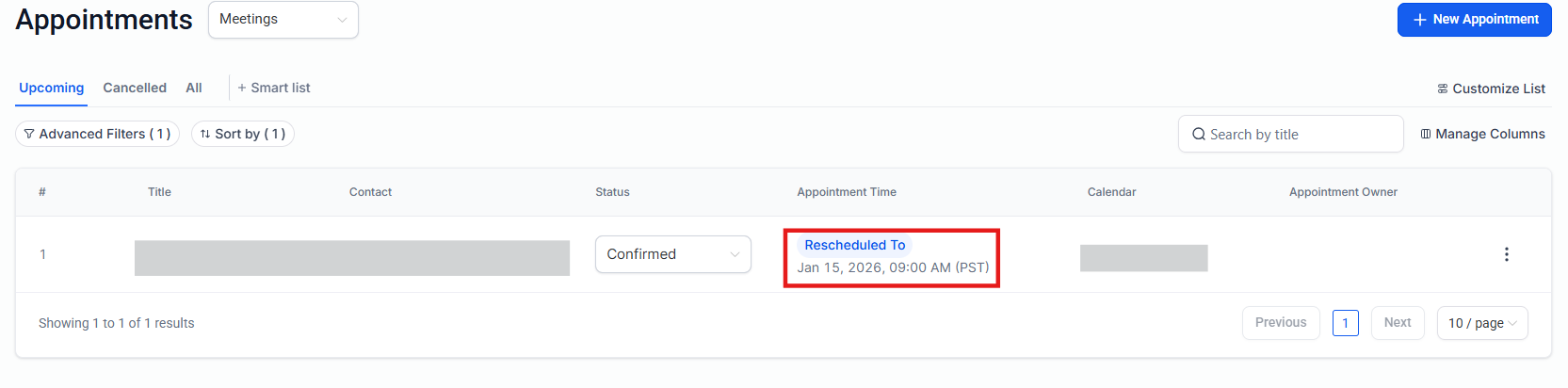
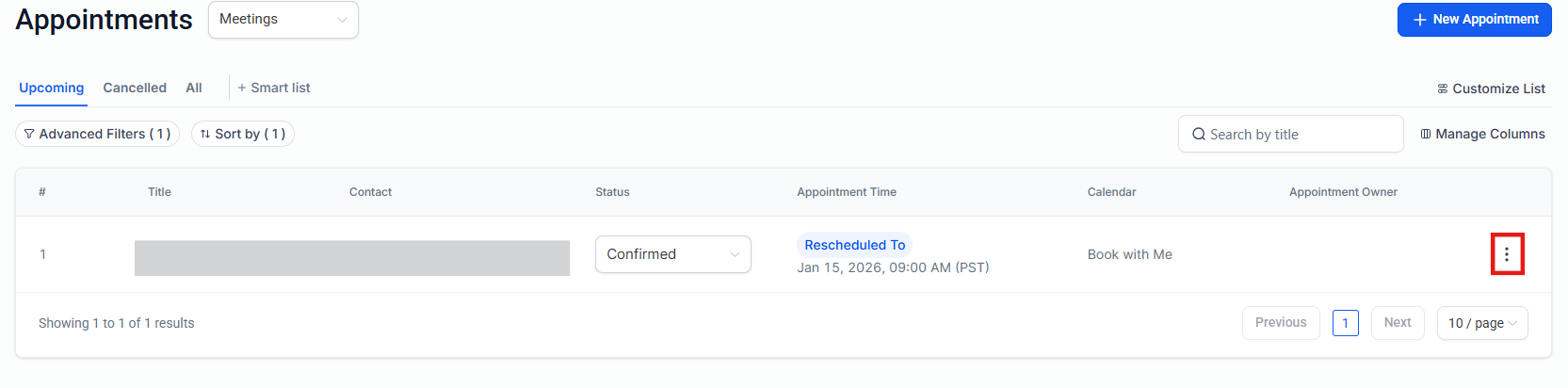
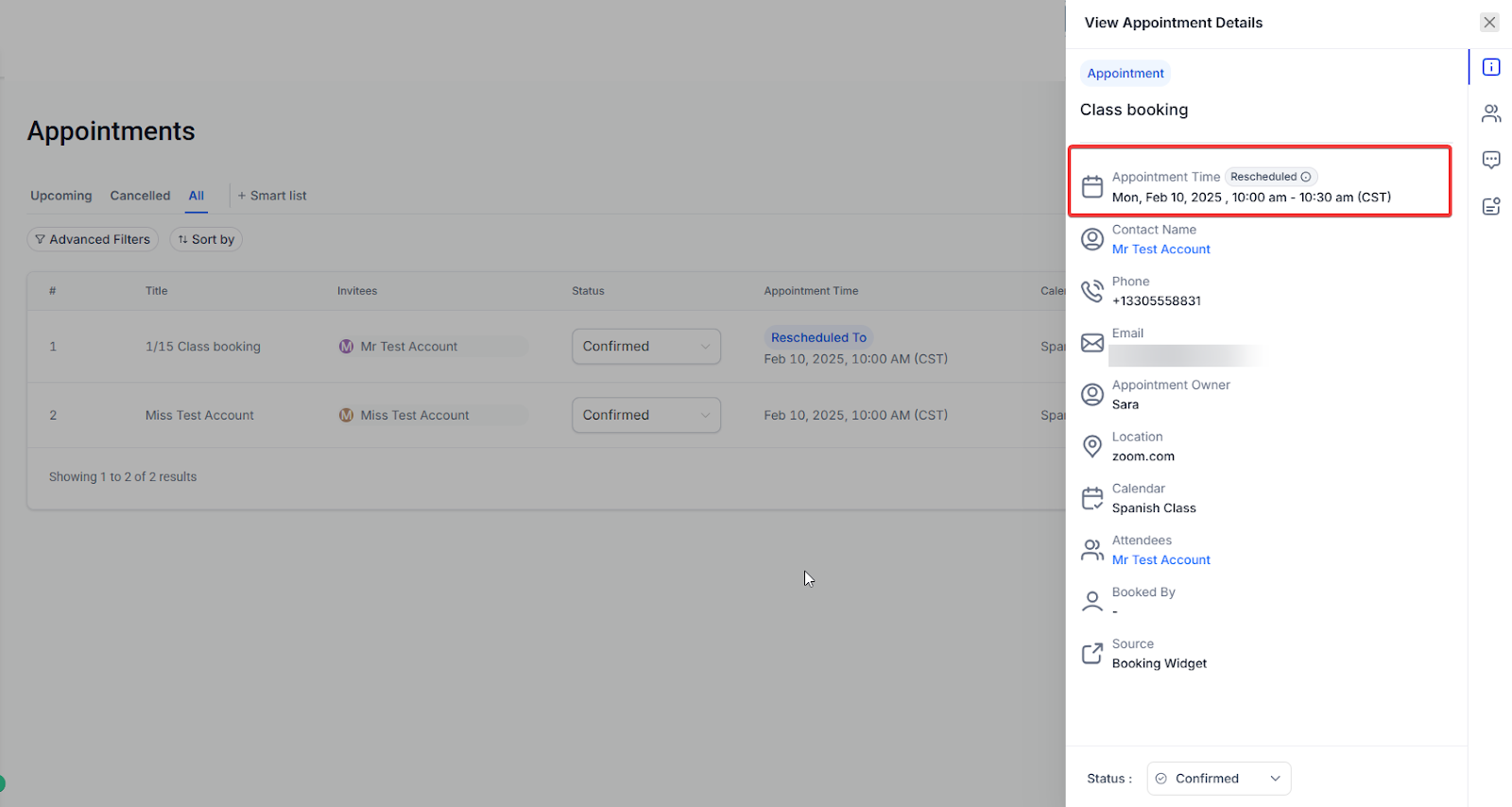
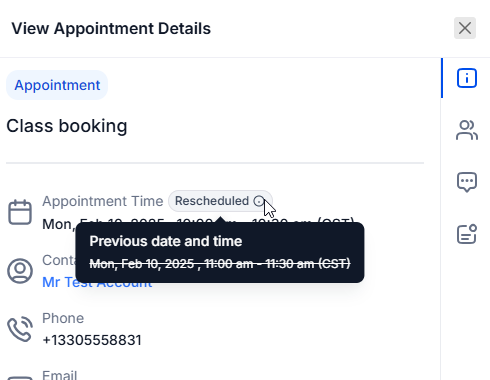
After the appointment has been rescheduled, a "Rescheduled to " tag will appear in both the appointment list view and the appointment modal. It will also display the previous date and time for easy reference. To use it, simply review your appointment list or details to see any marked rescheduled appointments.
-
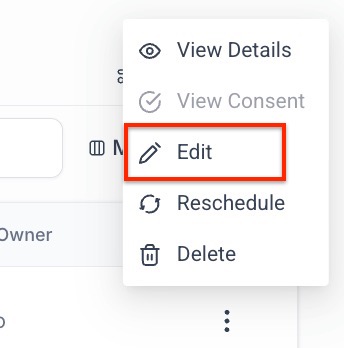
Note: To edit any appointment, you will need to click the three-dot button and edit it.
  
¶ Step 2: Using the Appointment Status Trigger and the Update Appointment Status Action.
By using these components, you can automate the way you handle your appointments. You can use the trigger to automatically initiate a workflow given a series of filters.
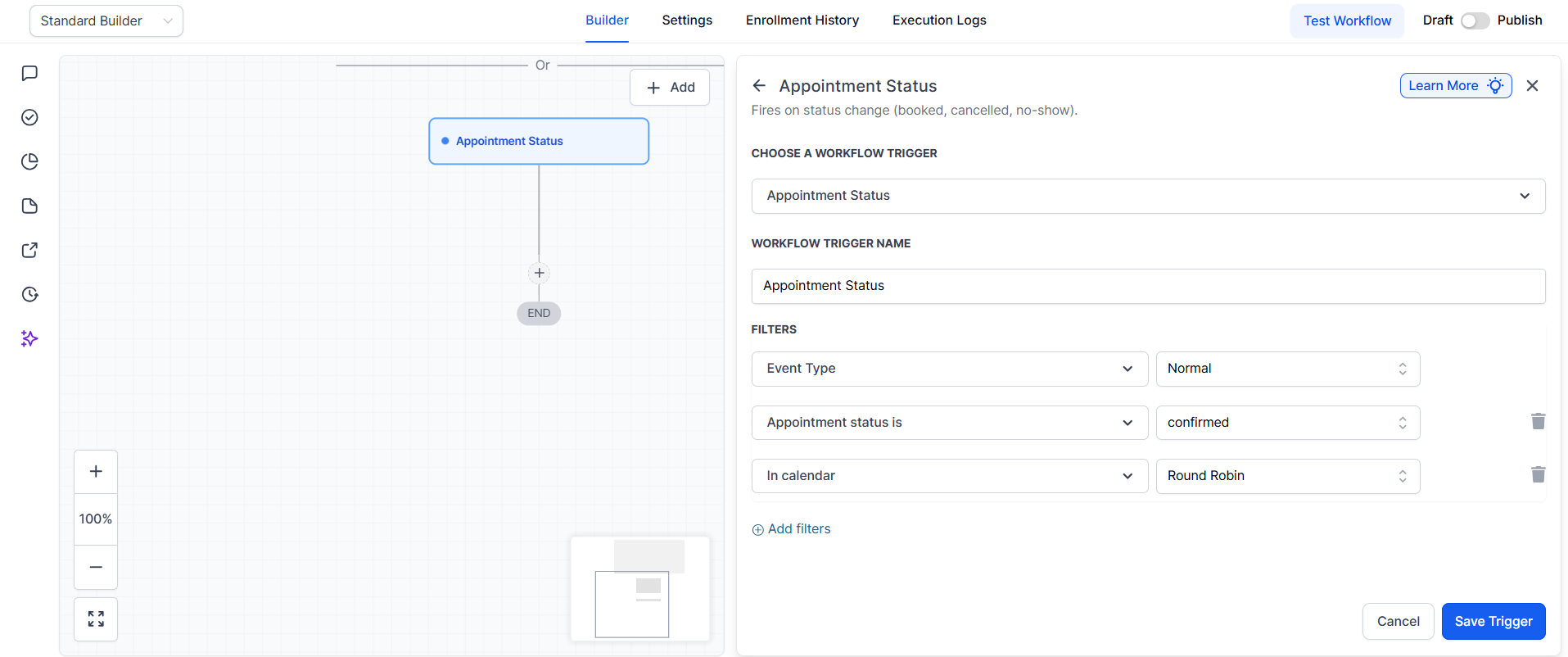
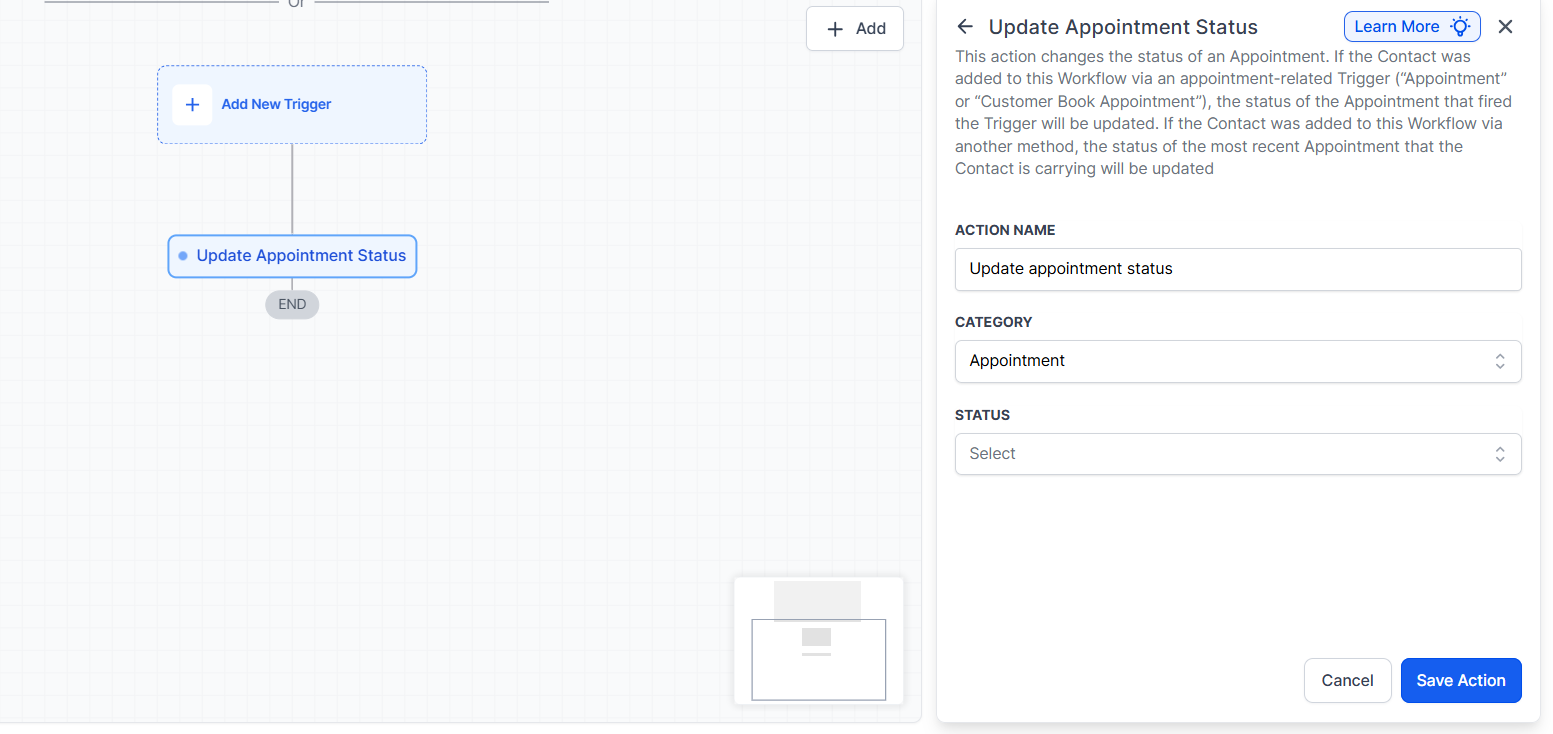
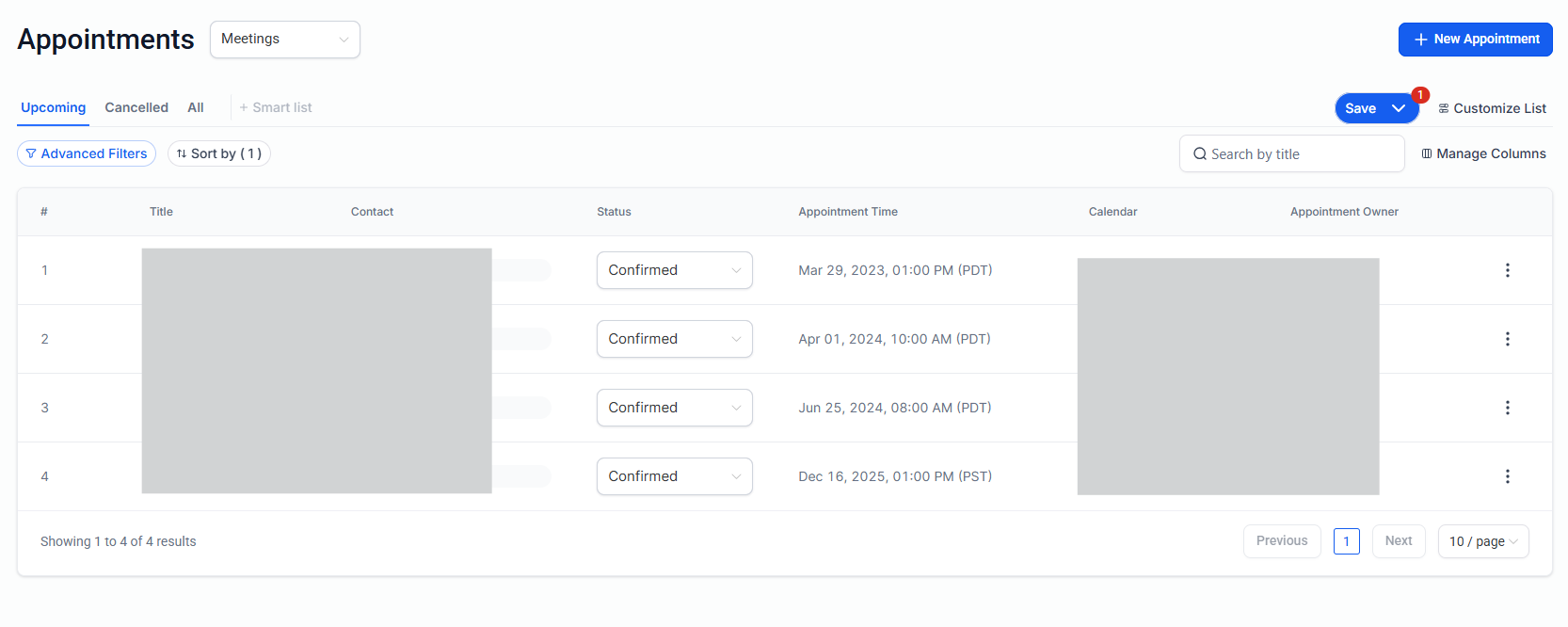
Once the appointment statuses are managed, you can see them updated accordingly under Calendars > Appointments.
¶ FAQs
Question: What if my reschedule or cancellation links aren’t working?****
Answer: Double-check that you’ve inserted the correct custom values in your calendar and campaigns. Ensure they are saved and activated.
Question: Can I customize the reason for the cancellation?****
Answer: Yes, within the cancellation link settings, you can include a text field for clients to specify their reason for cancellation.
Question: What happens if I change the time limits for cancellations?****
Answer: Any existing appointments will follow the new policy, so ensure clients are informed about any changes to avoid confusion.
Question: How can I ensure clients are aware of the cancellation and reschedule policies?****
Answer: Include these policies in confirmation emails and messages to clients, and consider mentioning them during appointment bookings.
Question: Will this workflow affect system performance if many users log in at once?****
Answer: The workflow is designed to handle multiple login events efficiently. However, avoid creating loops or excessive actions to ensure optimal performance.