¶ Smart Lists for Appointment List View
The Appointment List View is a comprehensive tool that allows you to view, manage, and organize all appointments across multiple calendars. This feature includes advanced filters, customizable columns, and Smart Lists, enabling you to streamline your scheduling and stay on top of appointments.
¶ Key Features and Benefits
- Centralized Scheduling : Access and manage all appointments in one place.
- Smart Lists : Create custom lists based on specific filters for quick access.
- Customizable Views : Adjust columns, add advanced filters, and sort appointments to fit your needs.
- Quick Tabs for Navigation: Easily switch between Upcoming, Cancelled, and All Appointments tabs for rapid access.
¶ 1. Understanding Default Lists and Columns
The Appointment List View provides three default lists to help organize your appointments:
- Upcoming : Shows all future and currently ongoing appointments.
- Cancelled : Displays canceled appointments, no-shows, or invalid entries.
- All : Lists every appointment made with the business.

¶ Default Columns
The appointment list includes essential fields to track appointment details:
- Index : Sequential numbering for easy referencing.
- Title : The name of the appointment.
- Contact : The primary contact attending the appointment.
- Invitee : The primary contact attending the appointment.
- Status : Tracks appointment stages, such as:
- New, Confirmed, Showed, No-show, Cancelled, Invalid.
- Appointment Time : Scheduled date and time.
- Calendar : The calendar in which the appointment was created.
- Appointment Owner : Assigned user or team member.
- Rescheduled Tag : Marks rescheduled appointments for easy identification.
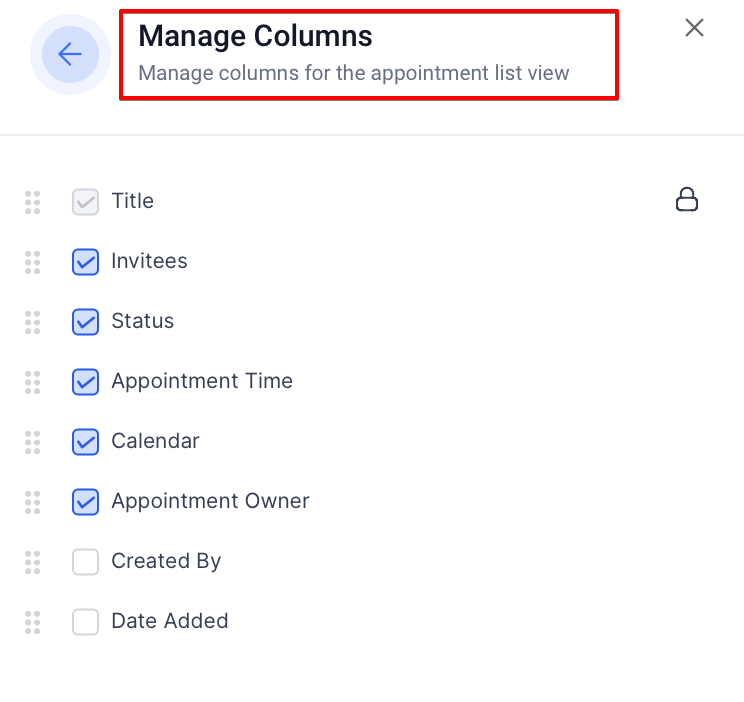
- Customizable Columns: Add fields like “Created By” and “Date Added” for enhanced tracking.

¶ 2. Using Advanced Filters
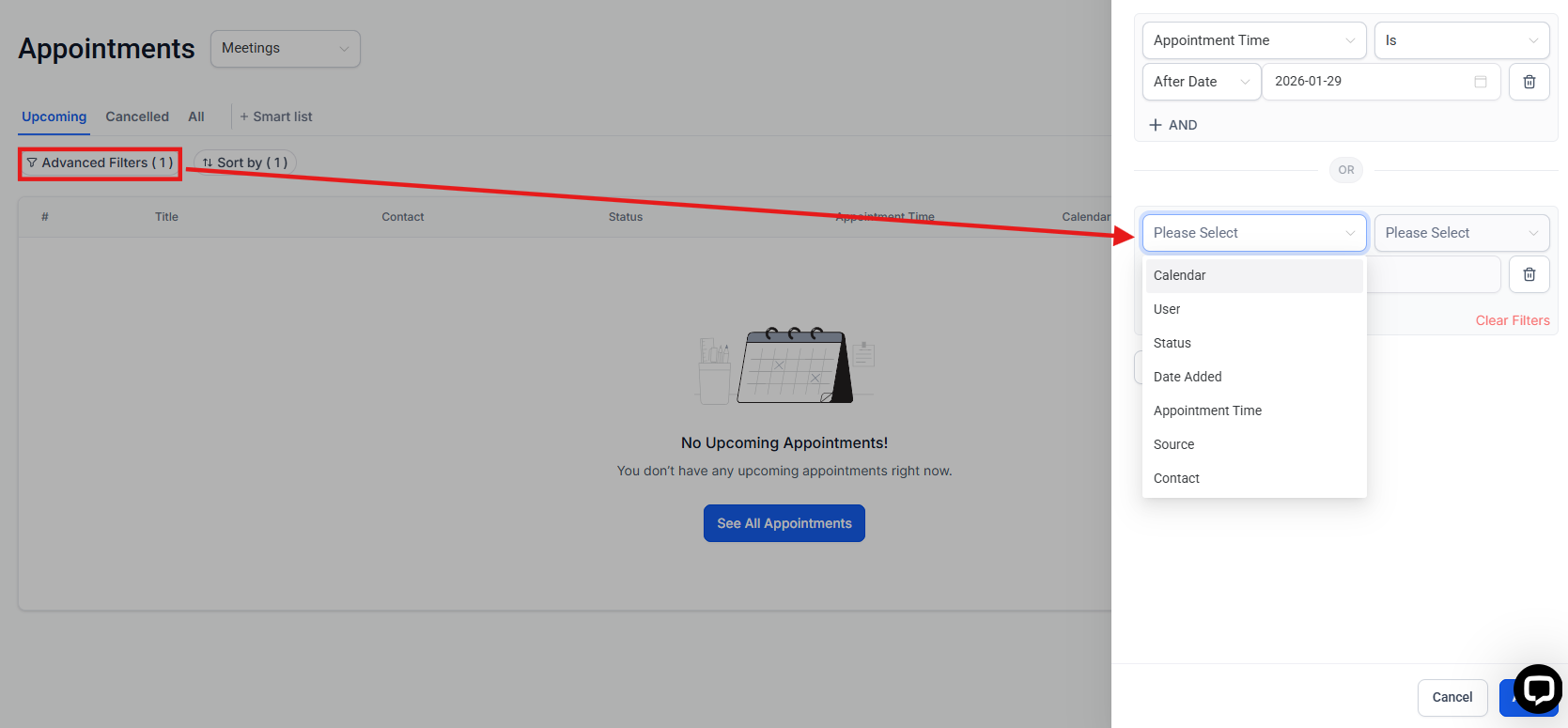
The Advanced Filters feature allows you to refine appointments based on specific criteria:
- Calendar : Filter by calendar to view appointments across different departments or teams.
- Users : Display appointments assigned to specific users, perfect for managing individual team schedules.
- Status : Track appointments by their status, such as New, Confirmed, or Cancelled.
- Date Added : Filter by the date an appointment was created for recent bookings.
- Start Date / Appointment Time : Use this to sort by scheduled start date, helping you track upcoming or past appointments.
- Created By : Locate appointments based on who created them.
- Is Rescheduled : Filter to view appointments that have been rescheduled.
¶ Combining Filters with AND/OR Logic
You can use AND and OR conditions to refine your filtering options further, allowing a highly tailored view based on complex criteria such as combining calendar type with “Date Added in the last 7 days.”
¶ 3. Creating and Managing Smart Lists
Smart Lists enable you to save your filter and sorting preferences, creating a custom view for specific appointment types.
¶ Steps to Create a Smart List
- Navigate to the Appointment List View :
- Go to **Calendars > **Appointment List View
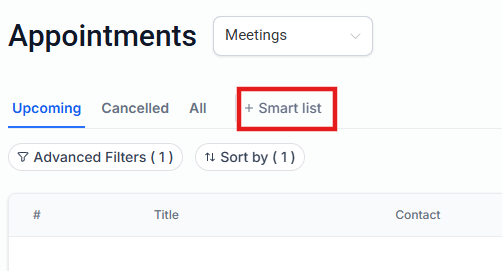
- Click + Smart List.
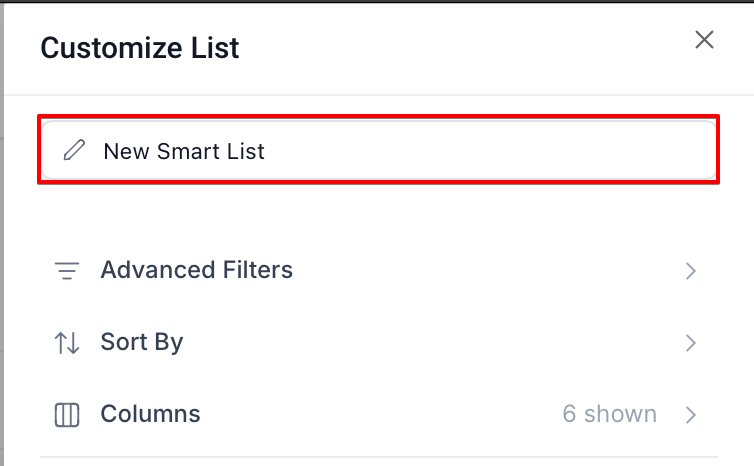
- Name Your Smart List :
- Provide a descriptive name for easy identification.
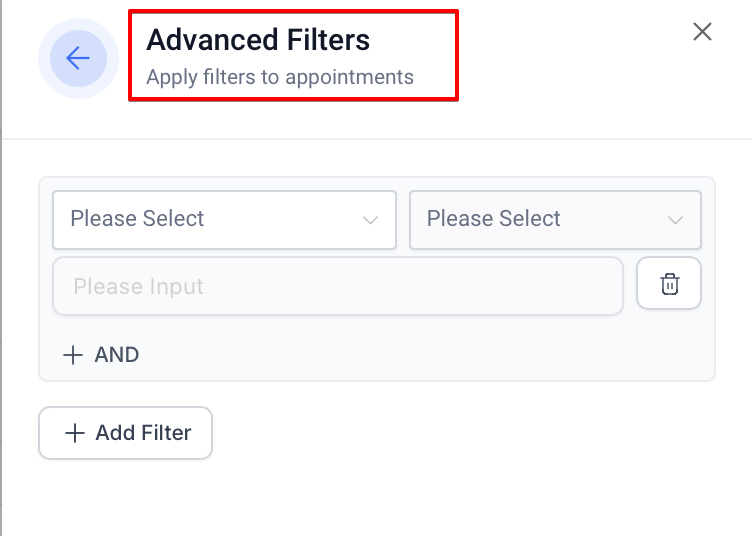
- Add Filters :
- Apply filters based on your specific requirements.
- Manage Columns :
- Customize which columns you want displayed in the Smart List.
- Apply Sorting :
- Organize appointments according to your preferred sorting method.
.jpg)
- Editable Smart Lists: If adjustments are needed, make changes to filters or sorting, then save the updates either in the same Smart List or as a new one.
- Save as New :
- Click on Save as New to finalize your Smart List.

Once saved, the new Smart List appears as a tab next to the default tabs, applying your filters each time you click it.
¶ 4. Editing and Deleting Smart Lists
To edit or delete a Smart List:
- Editing a Smart List :
- Select the Smart List tab you want to edit.
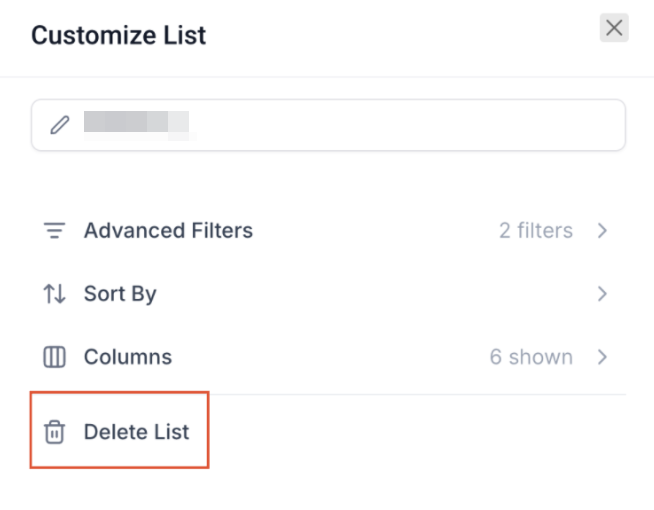
- Click on Customize List on the right side.
- Adjust the filters, columns, or sorting as needed.
- Save changes by clicking Save.

- Deleting a Smart List :
- Open the Smart List you wish to delete.
- Click on Customize List , then select Delete List.
- Confirm the deletion to remove the Smart List permanently.
- Before deleting, ensure the selected Smart List is active in the view to avoid unintended changes.
¶ FAQ’s
Question: What are the default views in the Appointment List View?****
Answer: The Appointment List View includes three default lists: Upcoming, Cancelled, and All appointments, providing a structured way to track different appointment statuses.
Question: Can I filter appointments by the calendar or user?****
Answer: Yes, you can filter appointments by calendar, user, and other criteria using Advanced Filters.
Question: How do I customize the columns in the appointment list?****
Answer: Go to the Appointment List View, select Manage Columns , and choose which columns you’d like to display. You can also rearrange them for convenience.
Question: What is the purpose of the Rescheduled Tag?****
Answer: The Rescheduled Tag helps identify appointments that have been rescheduled, allowing you to track changes quickly.
Question: How do I save filters in a Smart List?****
Answer: Create a Smart List by clicking on + Smart List , applying your filters, managing columns, and then saving it with a descriptive name.
Question: Can I adjust an existing Smart List?****
Answer: Yes, you can edit a Smart List by selecting it, applying changes, and saving the updates to the same list or as a new one.
Question: Is it possible to delete a Smart List?****
Answer: Yes, open the Smart List, click on “Customize List,” and select “Delete List.” Confirm the action to remove the list permanently.
Question: Can I track rescheduled appointments separately?****
Answer: Yes, by using the Is Rescheduled filter or by enabling the Rescheduled Tag column, you can easily monitor rescheduled bookings.
Question: What does the “Invalid” status mean?**
Answer:** An Invalid status usually occurs if there was a technical issue with the booking, such as a contact using a fake email format or a payment failing during a “paid appointment” booking process.