¶ Personal Calendar for 1:1 Bookings
The Personal Booking Calendar offers an efficient way to handle one-on-one meetings without the complexities associated with multi-user setups. Ideal for users who wish to have a dedicated booking calendar for individual appointments, this feature enables seamless scheduling, helping to reduce confusion over calendar types and prevent unnecessary support queries. In this article, we will explore the Personal Calendar’s essential features, outline its benefits, and provide step-by-step instructions on how to set up and use it.
¶ Key Features and Benefits
- Streamlined Scheduling for 1:1 Meetings**
**The Personal Booking Calendar is simple and explicitly designed for one-on-one appointments. It ensures that bookings are focused on a single user, eliminating the need for more complex multi-user configurations. - Easy Setup and Management**
**Creating a personal booking calendar takes just a few minutes, and users can easily configure it to fit their needs. This makes it an ideal solution for those looking to quickly set up a calendar without dealing with the intricacies of a team-based scheduling tool. - Versatile and Fully Functional**
**The Personal Calendar shares features of a multi-user calendar, such as Round Robin, but is designed for individual use. It includes time slots, booking options, automated reminders, and integrations, making it a robust tool for solo professionals or anyone needing a dedicated booking calendar. - Avoids Common Confusion with Event Calendars**
**Unlike event calendars typically meant for physical events, the Personal Booking Calendar supports integrations with virtual meeting platforms like Zoom and Google Meet, making it suitable for remote and virtual appointments.
¶ How to Use the Personal Booking Calendar
Step 1: Access Calendar Settings**
**Go to the main menu, select Calendar, and then “Calendar Settings.” Here, you will find options for creating and managing different types of calendars.
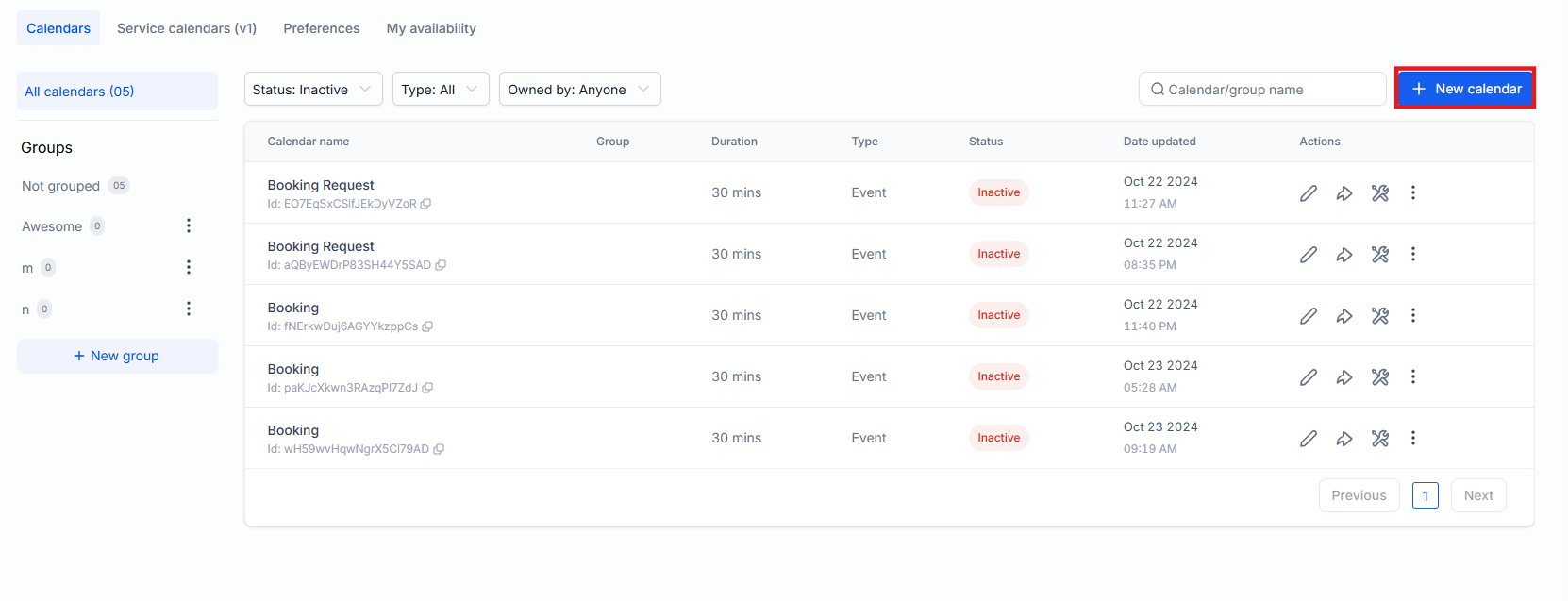
Step 2: Create a New Calendar**
**Click on the “+ New Calendar” button. You will see different options for calendar types.
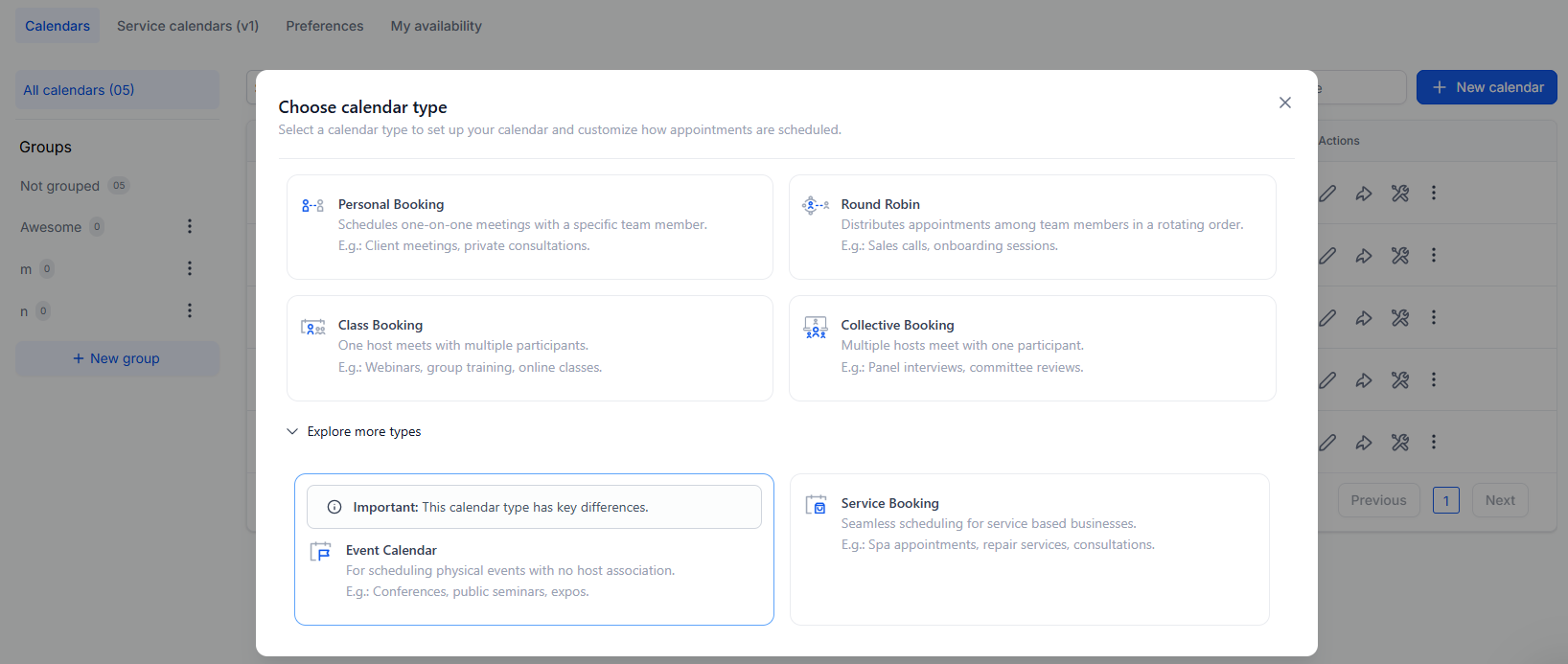
Step 3: Choose Personal Booking**
**Select the “Personal Booking” option. This type is intended for one-on-one scheduling and automatically sets you as the default team member.
Step 4: Configure Your Calendar Preferences**
**After selecting “Personal Booking,” you will be prompted to configure various settings:
- Availability: Set your available time slots, days, and booking rules.
- Meeting Duration: Choose how long each appointment will last.
- Buffer Time: Specify any buffer time required before or after appointments.
- Integrations: Connect virtual meeting platforms like Zoom or Google Meet for seamless online scheduling.

Step 5: Save and Share Your Calendar Link**
**Once configured, save your settings. You will receive a unique booking link that contacts can share to schedule one-on-one appointments directly on your calendar.

¶ Important Calendar Features to make use of:
¶ 1- Booking Widget to Open First Available Date:
Located within the Availability Tab

Bookers can see and select the earliest available slot immediately, eliminating the need for manual searching. This is beneficial for businesses looking to accept early bookings for future events, such as special holidays or seasonal offers.
- To use this feature, configure Date-Specific Hours without setting Weekly Working Hours. Ensure no recurring weekly hours are configured for this feature to function correctly.

¶ 2- Look Busy
Located within the Availability Tab
-
The “Look Busy” feature is designed to create urgency by hiding a percentage of your available booking slots, making you appear more in demand. The hidden slots are randomized across different days of the week, making your availability appear more realistic and varied.
-
By limiting visible time slots, potential clients may feel a greater need to book quickly, which can lead to increased bookings.
-
This feature applies to:
-
Event calendars
-
Round-robin calendars
-
Collective calendars
-
Service calendars
-
Personal calendars


Please Note: The “Look Busy” feature is not applicable for class bookings and service menus.
¶ 3- Notification Management
Enjoy full control over the email and in-app notifications related to appointments. This allows users more control over notification content and recipients, with six types of notifications available, including Appointment Booked, Cancellation, and Follow-Up.

¶ Notification Types:
- In-App Notifications: Notifications can be sent through the web app and mobile app, offering flexibility for businesses to choose between sending to the assigned user or any specific user.

-
Notifications can be set up for each calendar on an individual level.
-
For Event Calendars, the account admin is the default recipient for in-app notifications, while for other calendar types, the assigned user is the default recipient.
-
Email Notifications: Enable Email Notifications by toggling them on, and customize the content for different recipients.

- You can select an existing email template or create a new one with a custom subject line and message body. Set the timing for Reminder and Follow-Up emails, and send a test email if necessary.


- Click Save to confirm your changes.
¶ 4- Rescheduling and Cancellations:
- Set specific time frames after which the cancellation or reschedule links are disabled, requiring bookers to contact the business directly for any changes.
- Specify the time range after which the links should be disabled. (Note: Leaving this value blank means the link will never expire and bookers can access it anytime.)
Note: It’s important to clearly communicate these policies to your customers, such as including them in the meeting details or booking confirmation messages, to ensure transparency and avoid misunderstandings.

- After the appointment has been rescheduled, a “Rescheduled” tag will appear in both the appointment list view and appointment modal. It will also display the previous date and time for easy reference. To use, simply review your appointment list or details to see any marked rescheduled appointments.


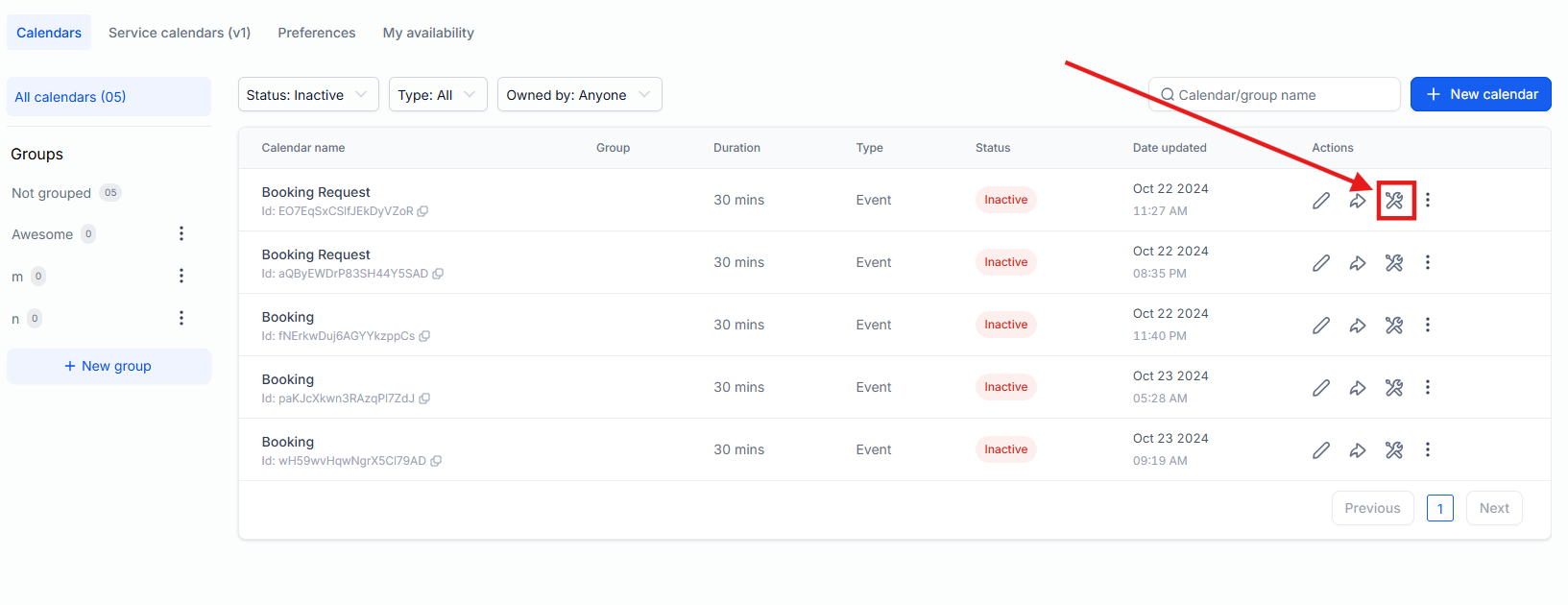
¶ 5- Troubleshooting Tool for calendars
This tool provides users with detailed insights into unavailable time slots, helping to quickly identify and resolve issues that may be affecting calendar bookings. By showing the reasons behind unavailable slots, the tool enhances scheduling efficiency for businesses and administrators, making it easier to manage calendars without guesswork.
Benefit: This feature improves booking visibility and helps users make necessary adjustments to avoid missed opportunities.
To use it , simply go to Calendar Settings, choose your calendar, and choose the “Troubleshoot Calendar” option to view available and unavailable slotsalong with explanations.

** Language Support for the Booking Widget**
The Booking Widget supports multiple languages, including:
- French (Canada)
- French (France)
- Swedish
- Finnish
- Norwegian
Users can select these languages in their calendar settings> preferences, ensuring consistency with platform-wide settings. This feature enhances the user experience by offering a localized and accessible service to a broader audience.
How this helps:
- Improved User Experience : Bookers interact in their preferred language.
- Better Localization : Ensures a consistent experience across the platform.
- Wider Reach : Helps businesses cater to a diverse global audience.


¶ Note
By default, the user who creates the calendar is automatically added as a team member. However, this can be adjusted if necessary. Unlike the Round Robin calendar, which supports multiple team members and allows the distribution of bookings, the Personal Booking Calendar is designed for a single team member, focusing on individual appointments.
¶ FAQs
Question: What is the Personal Booking Calendar used for?****
Answer: The Personal Booking Calendar is designed specifically for one-on-one appointments, offering an efficient way to handle individual bookings without the complexity of multi-user setups.
Question: Can I integrate virtual meeting platforms like Zoom with the Personal Booking Calendar?****
Answer: Yes, you can integrate virtual meeting platforms such as Zoom and Google Meet when setting up your Personal Booking Calendar, allowing seamless online scheduling.
Question: How do I customize email and in-app notifications for appointments?****
Answer: You can customize both email and in-app notifications by going to the Calendar Settings, selecting the calendar, and enabling or editing notification content. Notifications can be sent for appointment confirmations, cancellations, reminders, and more.
Question: Can I use the “Look Busy” feature with the Personal Booking Calendar?****
Answer: Yes, the “Look Busy” feature is available for the Personal Booking Calendar. It hides a portion of available slots to create urgency and encourage faster bookings.
Question: How do I troubleshoot unavailable calendar slots?****
Answer: To troubleshoot unavailable slots, go to Calendar Settings, select your calendar, and use the “Troubleshoot Calendar” option. This tool will show the reasons behind unavailable time slots.
Question: Can I adjust team members for the Personal Booking Calendar?****
Answer: By default, the user who creates the Personal Booking Calendar is the team member. However, you can adjust the assigned team member if necessary. The Personal Calendar is limited to one team member, unlike Round Robin calendars, which support multiple users.
Question: How is the Personal Booking Calendar different from a Round Robin or Event Calendar?****
Answer: The Personal Booking Calendar is designed for individual appointments with a single user, while Round Robin calendars distribute appointments among multiple users, and Event Calendars are intended for group or in-person events. This keeps scheduling simple and personal.
Question: Does the Personal Calendar sync with my phone’s calendar?****
Answer: Yes, provided you have integrated your Google or Outlook account. Once synced, any “Busy” event on your personal phone calendar will automatically block out that time on your booking widget, ensuring you never get double-booked.