¶ How to Override Calendar Availability
How to Override Calendar Availability
You can schedule an appointment manually when you’re not typically available. For example, your average scheduling availability is Monday through Friday, 8 am-4 pm, but you want to make an exception for someone and book an appointment at 5:00 pm on a Thursday for them. Follow the steps below to schedule an appointment outside your default availability manually.
NOTE****: In the Teams Calendars, this is only an option if you’re an assigned user within the specific calendar.
¶ Step 1: Accessing the Calendar
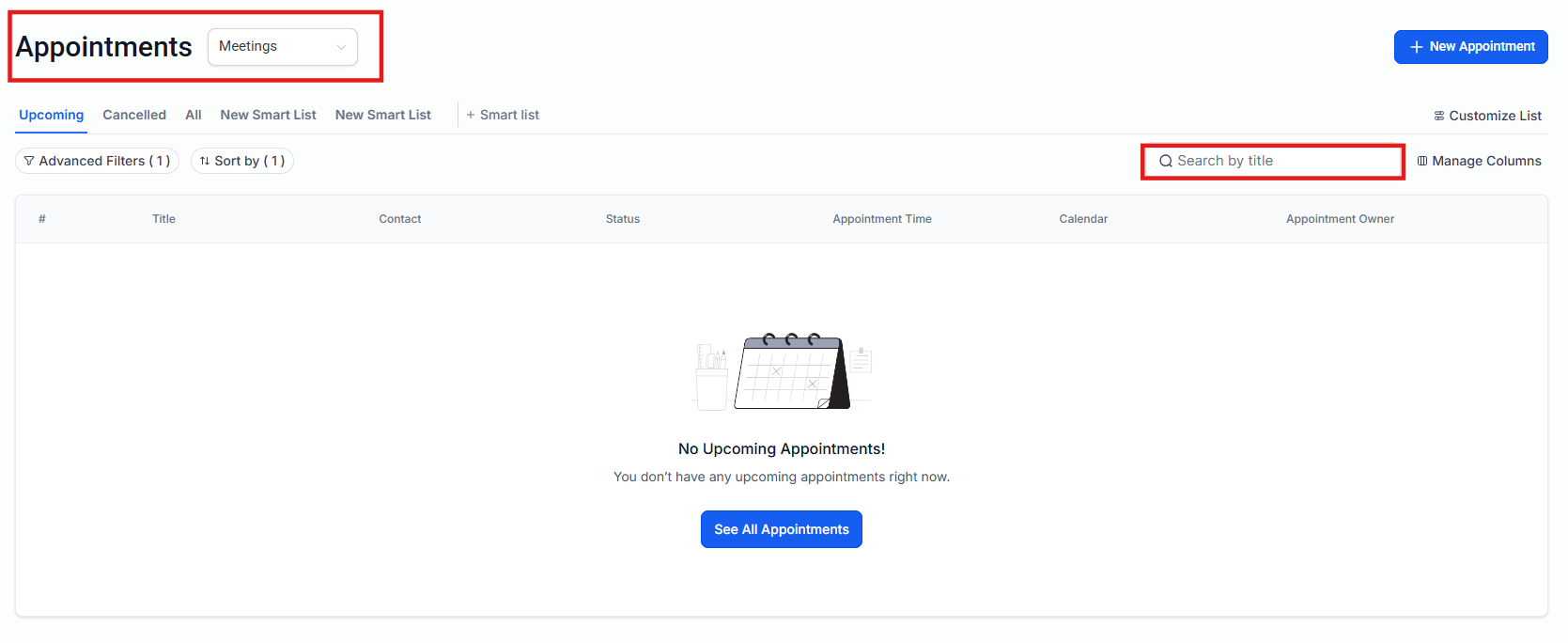
- Navigate to your Calendar section.
- Choose the calendar this appointment is for, using the dropdown menu.
¶ Step 2: Creating the Appointment.
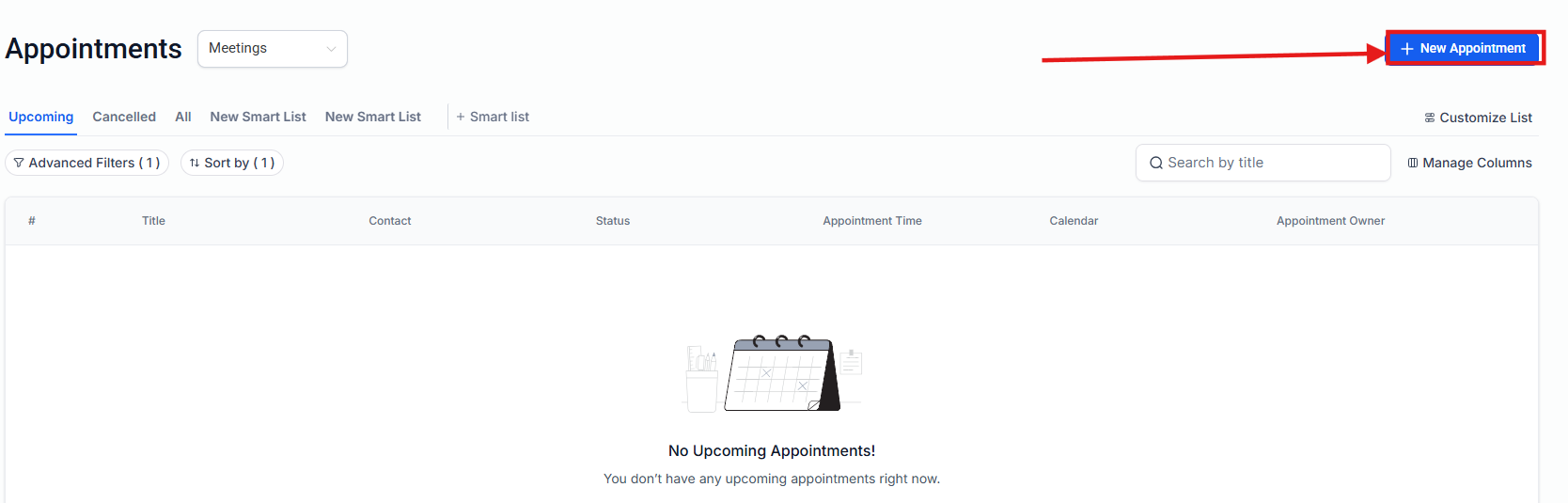
- Click on “New Appointment” on right corner.
-
Select the Contact you wish to create the appointment for.
-
Fill out the appointment details and click “Save Appointment” to add the appointment to your calendar.


- Your appointment will now appear in your calendar at the date/time you chose.
- You may click into the appointment to edit or delete it anytime.

¶ Use Cases 👍
1. Accommodating Special Requests:
- You have a client or contact who needs an appointment outside your normal working hours. For instance, if your standard availability is Monday-Friday, 8:00 am to 4:00 pm, but a client can only meet at 5:00 pm on a Thursday, you can manually schedule this appointment to meet their needs.
2. Handling Urgent or Last-Minute Appointments:
- Sometimes, urgent situations arise where you need to meet with a client outside your typical availability. Manually scheduling an appointment allows you to quickly add this to your calendar, even if it falls outside your regular hours.
¶ FAQ
Question: Can I schedule an appointment outside my regular availability?
Answer: Yes, you can manually schedule an appointment at a time outside your default availability. For example, if your normal hours are Monday through Friday from 8:00 a.m. to 4:00 p.m., you can still book an appointment for a specific contact at 5:00 p.m. on a Thursday.
Question: How do I access the calendar to schedule an appointment?
Answer: Navigate to your Calendar section. Use the dropdown menu to select the calendar you want to schedule the appointment in.
**Question: Will manually scheduled appointments override my default availability?****
Answer: Yes, manual appointments bypass your default availability settings, allowing you to schedule meetings at any time that fits your needs.
Question: Can I edit or delete manually scheduled appointments?
Answer: Yes. Click into the manually scheduled appointment in your calendar to edit the details or delete it at any time.
Question: Can I prevent other team members from scheduling outside availability?
Answer: Availability overrides depend on user permissions and calendar assignments. Users who are not assigned to the calendar cannot schedule outside availability.
Question: Does scheduling an appointment manually notify the assigned team member?
Answer: Yes, if you have “User Notifications” enabled in the calendar settings, the assigned user will receive an email or push notification letting them know an appointment has been added to their schedule, even if it’s after hours.