¶ Neo Calendar Template Overview
Neo Calendar Template Overview
In today’s fast-paced digital world, an effective group management system is crucial for teams and organizations. The Neo Calendar Template has been released to provide an enhanced group management experience that is visually appealing and user-friendly.
¶ Key Features of the Neo Calendar Template
Staff Selection
The Neo Calendar Template provides an enhanced staff selection experience. This means that if a calendar has enabled staff selection in its settings, users will experience a more streamlined, visually appealing staff selection interface.
Sophisticated Design
One of the most outstanding aspects of Neo is its sleek and sophisticated design. It offers a modern aesthetic that elevates your group’s visual appeal while also enhancing functionality.
Calendar-Specific Images
The template allows you to upload calendar-specific cover images, providing a personalized touch and making each calendar within your group unique.
Streamlined Flow
Information and navigation flow are optimized in the Neo template, allowing users to access the content they need quickly and effortlessly.
¶ Setting Up the Neo Calendar Template
¶ Accessing Calendar Settings
- Navigate to your calendar settings area.
¶ Group Creation
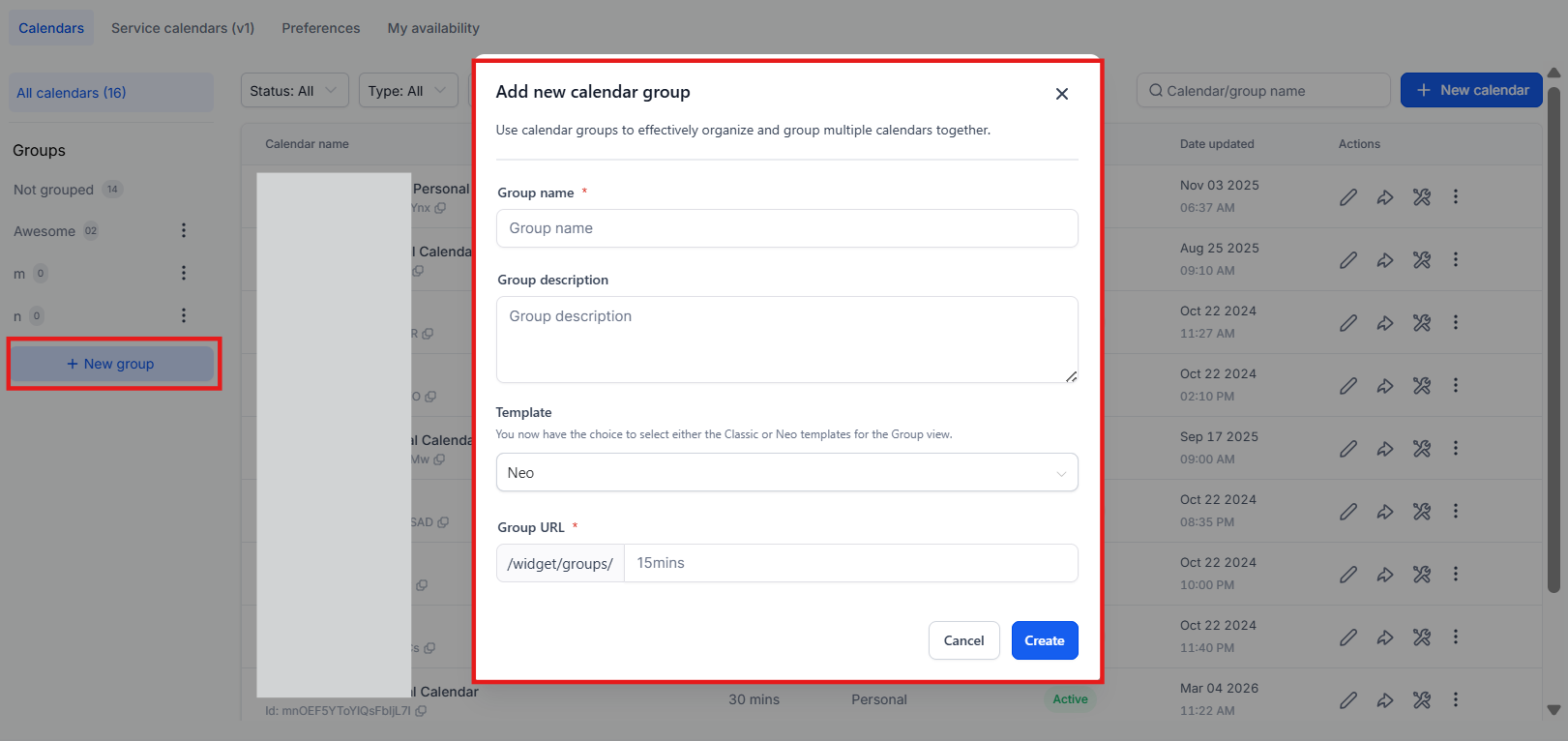
- Within “Calendar Settings,” find the “Groups” option and select it.
- Click the “Create Group” button.
- You’ll find a new field labeled “Template.” “Neo” will be pre-selected.
- Fill out other group details such as name, description, and URL.
- Click “Create” to finalize the group creation process.
¶ Customization
Staff Selection
- The staff selection feature can be enabled from the calendar settings. Once enabled, the Neo Template will provide a visually enhanced staff selection experience.
Using Templates
- Go to “Calendars” > “Calendar Settings” in the top navigation menu to access your Calendar Settings.
- Select the “Groups” tab.
- Click the “Create Group” button.
- In the group creation pop-up, you will find the “Template” field, with “Neo” as the default selection. You can change this to “Classic” if desired. However, Neo is recommended as it allows for much more customization and features.
How would the Neo template appear for Group view
- List of Calendars with and without Calendar cover image:The Neo Template allows groups to display calendars with or without cover images, enhancing the visual representation of each calendar according to your preferences.

- Staff Selection on Group View

¶ Uploading Calendar Cover Image
- Navigate to “Calendar Settings.”
- Click on “Edit Calendar” for existing calendars or proceed to “Advanced Settings” for new ones.
- Find the “Customization” tab.
- Look for the option to upload a calendar cover image and initiate the upload process.

How Neo Appears for Group View
In the Neo Template, group views are more visually appealing with a clean and modern design. Calendars within groups can have their unique cover images, and staff selection interfaces are optimized for a better user experience.

Recommendation for Neo Template
- Adding a calendar cover image is recommended, especially when using the Neo Template. A cover image enhances the visual appeal and professionalism of your calendar.
Please Note
It is highly recommended to upload a calendar cover image when using the Neo Template. This enhances the visual appeal and aligns well with the template’s modern design ethos.
¶ FAQs
¶ Question: What is the Neo Calendar Template?
Answer: It’s a modern template designed to offer a visually appealing and efficient group management experience.
¶ Question: How to access the Neo Calendar Template?
Answer: Navigate to your Calendar Settings and select “Templates” from the dropdown menu.
¶ Question: Can I switch between “Classic” and “Neo”?
Answer: Yes, you can switch between the templates even after a group has been created.
**Question:How do I create a group using the Neo Group View Template?
**Answer: To create a group with the Neo Template, access Calendar Settings, select Groups, click on “Create Group,” choose the “Neo” template, fill in the group details, and click "Create.
¶ Question: Why is it recommended to add a calendar cover image when using the Neo Template?
Answer: Adding a calendar cover image enhances the visual appeal and professionalism of your calendar, making it more engaging for users. This visual enhancement aligns well with the Neo Template’s modern and polished design.
**Question:How do you add the Group Calendar to a page or send it as a link?
**Answer: To add the Group Calendar to a page or send it as a link, go to Calendar Settings and click on “Groups.” Locate the Group Calendar you want and click on the 3 dots corresponding to the Action dropdown. You can choose the “Scheduling link” to send to your clients or the “Embed code” to integrate the calendar into your page.
**Question:Can I view calendars without cover images?
**Answer: Yes. The Neo Template supports both styles of calendars with and without cover images, offering flexibility based on your preferences.
**Question:Can I customize the layout of the Neo Template?
**Answer: Yes, the Neo Template allows you to customize various aspects of the calendar layout, including group views and cover images, to better align with your brand or user preferences.
Question: How can I enable the enhanced staff selection interface in the Neo Template? Answer: The staff selection feature can be enabled directly within the calendar settings. Once this setting is turned on, the Neo Template automatically provides the streamlined and visually enhanced selection interface for users.
Question: Can I hide specific calendars from the Group View while using the Neo Template?
Answer: Yes. In your Calendar Settings, you can set specific calendars to “Private” or “Unlinked.” These will not appear in the Neo Group View, allowing you to use the Neo layout for your public-facing services while keeping internal or VIP calendars accessible only via direct link.