¶ How to integrate Calendly Event Importer
You can connect your Calendly account directly to your system to import events seamlessly. This integration allows you to take advantage of the full range of tools and features offered, such as contact management, conversations, automation, and marketing. With each new Calendly event imported, you can take immediate action and fully leverage the platform’s capabilities.
¶ Prerequisites for Integration:
- To integrate Calendly, you need access to a Calendly account and at least one calendar you’re a part of. Only events created on calendars you’re part of will be fetched.
¶ Limitations:
- Each user can link only one Calendly account per subaccount, and a single Calendly account cannot be connected by multiple users across different subaccounts. For example, if User A has already linked their Calendly account to Subaccount A, no other user can connect the same Calendly account to Subaccount B. However, User A can still link their Calendly account to Subaccount B if needed.
- This integration is compatible only with the Standard, Teams, and Enterprise plans. It does not support the free plan.
Please note: If you’re using Calendly on a trial basis, the integration will work during the trial period. However, if you do not upgrade to a Standard plan or higher after the trial ends, the integration will stop working, as the free plan is not supported.
¶ How to Use?
¶ Connect Your Calendly Account
To connect your Calendly account, follow these steps:
1. Access Calendar Settings
- Navigate to ‘Calendars’ and open ‘Calendar Settings.’
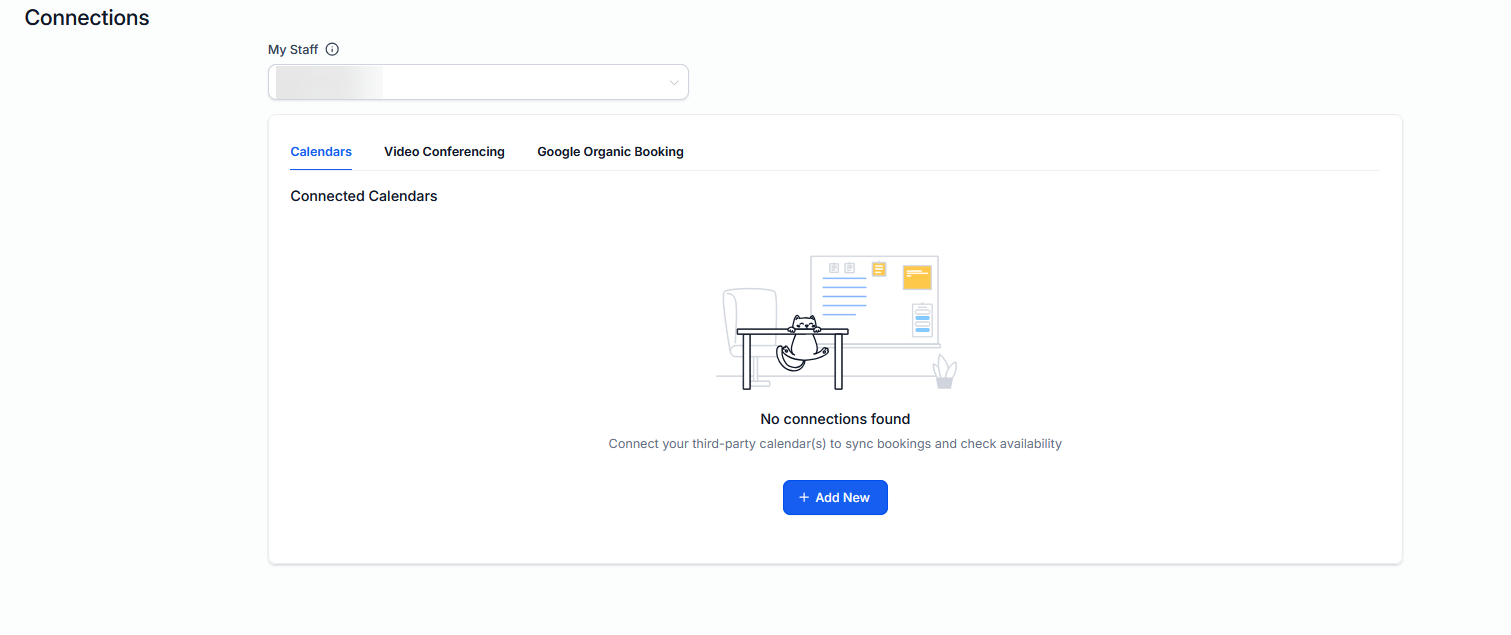
- Go to the ‘Connections’ section.
2. Add New Connection
- Click on ‘Add New.’
- Choose ‘Calendly’ from the list and click ‘Connect.’

3. Authenticate Your Account
- Sign in to your Calendly account.
- Grant the necessary permissions to complete the authentication process.

4. Select Calendars to Import Events
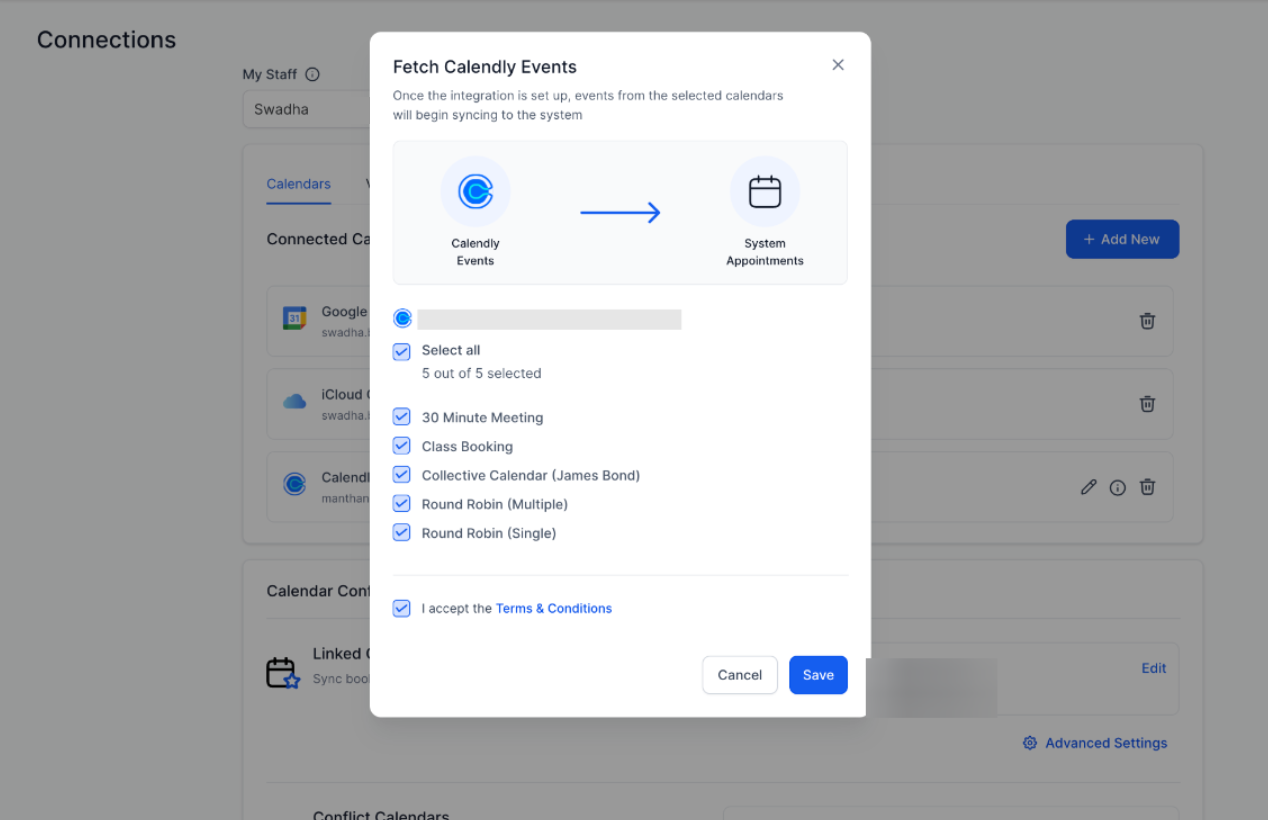
- Once connected, choose the specific Calendly calendars from which you want to import events.

5. Give Consent
- Check the consent box to allow the import of your events.
- Click ‘Save’ to finalize the setup.
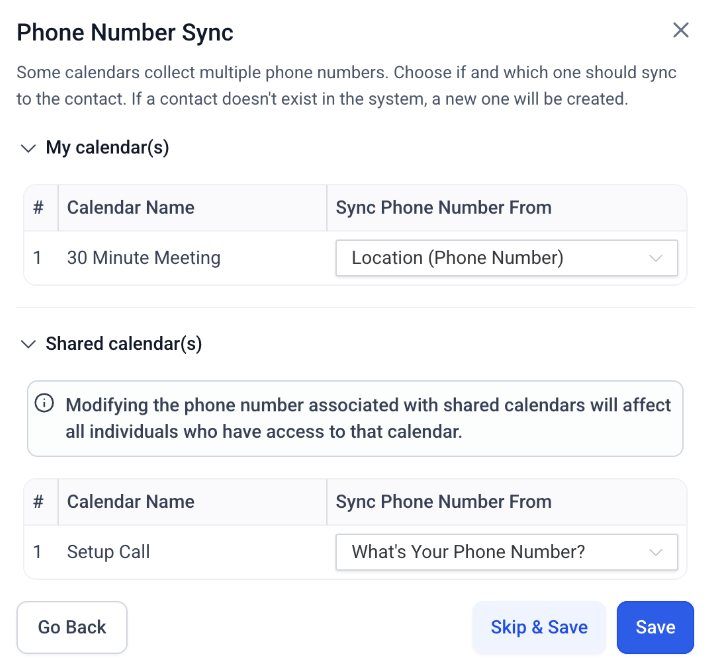
Phone Number Sync for Calendly Appointments**
**
When you link your scheduling account, a small window (called a mapping modal) will appear if the system finds phone numbers in more than one place. You can then choose to save the number from themeeting location or from a specific question on your booking form. Simply pick your preferred source and save your settings.
Your Calendly integration is now ready to use. Only events created in the selected calendars after the integration was set up will be imported into your system.

¶ How Does the Calendly Integration Work?
The Calendly integration operates differently from other calendar integrations.
¶ Calendly Event Sync:
- Event Syncing :
- Events from Calendly sync to our system as long as the integration is active and you’ve selected a calendar.
- If you remove a calendar from the integration, events from that calendar will stop syncing.
- Reconnecting a calendar syncs upcoming events and past events created after the reconnection within 180 days.
Important Note:
- Workflows will only trigger for future events.
- No workflows will be triggered for past events synced during the initial connection.
Handling Calendar Changes:
- You can modify the selected Calendly calendars by deselecting them. If a calendar is deselected, the system will ask if you want to delete all synced events from that calendar. If you later reconnect the calendar, only new events created after the reconnection will be synced.
¶ Syncing Process:
- One-Way Sync :
- The integration only pulls events from Calendly to our system; it does not push events from our system to Calendly.
- Events synced from Calendly cannot be edited in our system. Changes must be made in Calendly to reflect accurately.
¶ Contact Creation:
- Appointment Handling :
- Events from Calendly are treated as appointments, not just blocked time slots.
- If an event includes guests, a contact will be automatically created for each guest, allowing you to run automations on them.
¶ Appointment Ownership:
- Personal Calendars :
- The person who integrated their Calendly account will be considered the owner of the appointments that sync into the system.
- Shared Calendars :
- In shared calendars with multiple team members, the appointment owner will be randomly selected from those who have connected their accounts.
- For shared events, all team members need to agree to delete the events for them to disappear from the system. If even one team member opts not to delete the event, it will remain visible in the appointment list.
¶ Contact Assignment:
- Updating Assigned Users :
- The contact’s assigned user will be updated to match the owner of their most recent appointment, ensuring the correct team member is associated with each contact.
¶ How to Edit Your Selections?
- Navigate to Settings and move to Calendar Settings, then Connections.
- Locate Calendly.
- Click on the Edit icon.

- Modify the calendars you wish to sync with the system by adding new ones to begin syncing events or removing existing ones to stop their events from syncing.

- Save your preferences.
¶ Deletion of Calendly Events When a Calendar is Deselected or Account Disconnected
When you deselect a calendar, you’ll be given the option to delete all the events that were synced from that calendar to the system. If you choose to delete, these events will be permanently removed and cannot be recovered. Should you reselect the calendar later, only events created after the calendar is reconnected will sync to the system.
Important Note** * For shared calendars, like those used in collective or round-robin setups with multiple hosts, events will only be deleted from the system once all team members who have integrated their Calendly accounts have chosen to permanently delete the appointments. Since the events are shared, if even one team member opts not to delete them, the events will remain visible in the appointment list view.

If you remove the Calendly integration entirely, you’ll have the option to delete all synced events from all calendars in the system. If you choose to delete, these events will be permanently removed and cannot be recovered. Should you reconnect your Calendly account and select the same calendars, only new events created after the calendars were reconnected will sync to the system.
Note: For shared calendars, as mentioned earlier, an event will only be fully deleted once all team members agree to remove it.

¶ FAQs
Question: How far back can I access past events?**
****Answer: **Past events created within the last 180 days from the time of connecting your Calendly account will be imported.
Question: Can I edit Calendly events directly from the system?**
**Answer: No, you cannot edit Calendly events from the system. Any changes to an event must be made directly in your Calendly account, and those changes will be reflected in the system after syncing.
Question: What happens if I disconnect a calendar or the entire Calendly integration?**
**Answer: When you disconnect a calendar or the Calendly integration, you have the option to delete all events synced from that calendar or Calendly account. These events will be permanently removed and cannot be recovered.
Question: What if multiple team members are using the same shared calendar?**
**Answer: For shared calendars, events will remain in the system until all team members who have integrated their Calendly accounts agree to delete them. If even one team member opts not to delete the events, they will remain visible in the appointment list.
Question: How are appointments handled for guests in a Calendly event?**
**Answer: Each guest in a Calendly event will automatically be created as a contact in the system, allowing automations to be triggered for them, similar to how appointments are handled for primary attendees.
Question: What are the prerequisites for using the Calendly integration?**
**Answer: To use the integration, you need a Calendly account with a paid plan (Standard, Teams, or Enterprise). Only calendars you are part of will sync with the system. The free plan will not work unless you’re on a trial.
Question: Can I reconnect a calendar after removing it?**
**Answer: Yes, you can reconnect a calendar at any time, but only new events created after reconnection will sync. Previously synced events will not be imported again.
Question: What happens if multiple team members share a calendar?**
**Answer: For shared calendars, the system randomly selects an appointment owner from the integrated accounts. If one team member decides not to delete shared events, the events will remain visible to all users.
Question: Can I delete synced events if I deselect a calendar?**
**Answer: Yes, when you deselect a calendar, the system gives you the option to delete all synced events from that calendar. If deleted, these events cannot be recovered.
Question: Does the integration support two-way syncing?**
**Answer: No, the integration is one-way. It pulls events from Calendly to the system, but events created or modified in the system will not be synced back to Calendly.
Question: What happens if I delete a Calendly event from my Calendly account?**
**Answer: If an event is deleted in Calendly, it will automatically be removed from your system during the next sync cycle. However, if the integration is disconnected, event updates and deletions will no longer sync until it is reconnected.
Question: What happens if a Calendly event is deleted from Calendly?**
**Answer: If an event is deleted in Calendly, it will automatically be removed from the system during the next sync. If the integration is disconnected, deletions will not sync until reconnected.
Question: Why aren’t my old Calendly meetings triggering my automated “Thank You” emails?
Answer: To prevent accidental spamming of past clients, the system is designed so that Workflows only trigger for future events. While past events (up to 180 days) are imported for record-keeping and contact creation, they will not activate any automation sequences.
Question: Does the contact’s “Assigned User” in the system change based on Calendly meetings?
Answer: Yes. The system automatically updates the contact’s assigned user to match the owner of their most recent Calendly appointment to ensure the correct team member is associated with them.