¶ Google Meet Calendar Integration
In this article, we will go through the necessary steps to set up your Google Meet integration and ensure that the Google Meet Location reaches your clients!
Prerequisites
- Check if the writer’s access is required:
1- The writer’s access to the calendar is necessary to add events created in the system to your Google Calendar.
Note: Also, check our article “What To Do If You Get the Google Calendar Writer Access Error ” if you cannot get writer’s access.
2- Read-only access will suffice if you simply want to fetch all your events from your Google Calendar into the system.
¶ Step 1: Connect your Google Calendar
With Google Descope, you can connect your Google Calendar directly through the Calendar Connections tab, eliminating the need to integrate your Google account in the integrations section. Once connected, Google Meet is automatically enabled. To generate Google Meet links for each appointment, ensure that a Google Calendar is set as the linked calendar. If no Google Calendar is linked, Google Meet links will not be generated.
How to Use?
You can integrate your calendar from two locations:
- Settings > My Profile > Calendar Settings
- Calendars > Calendar Settings > Connections Tab
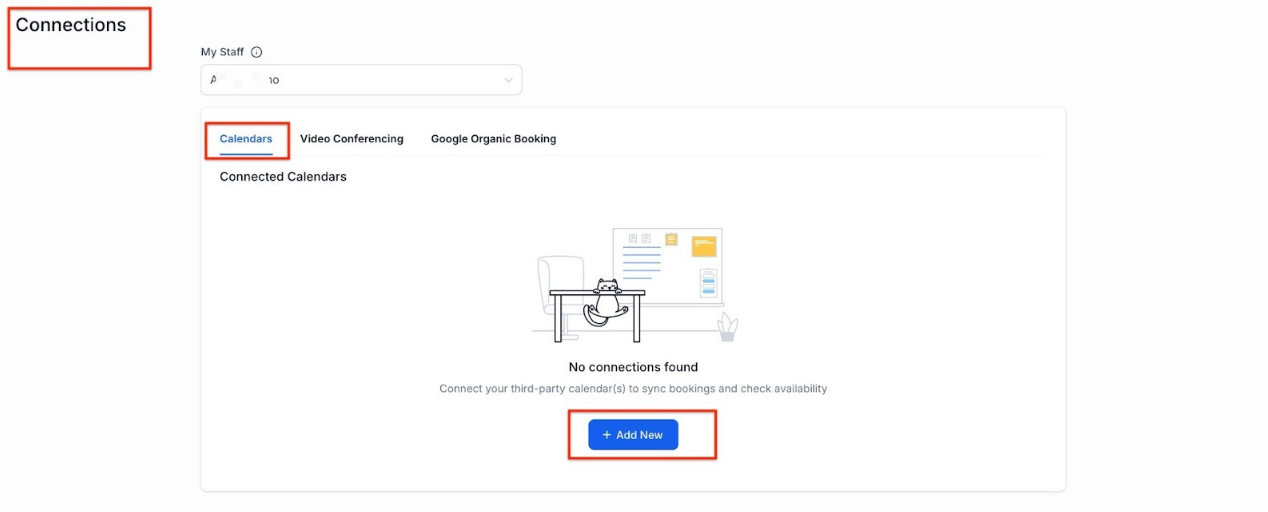
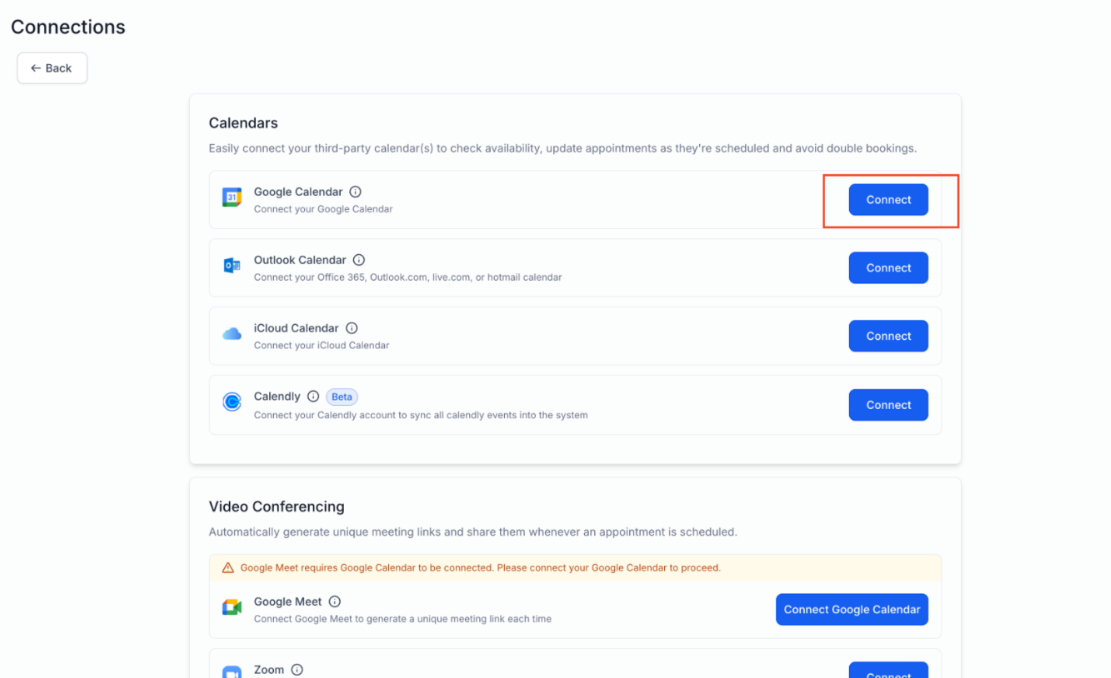
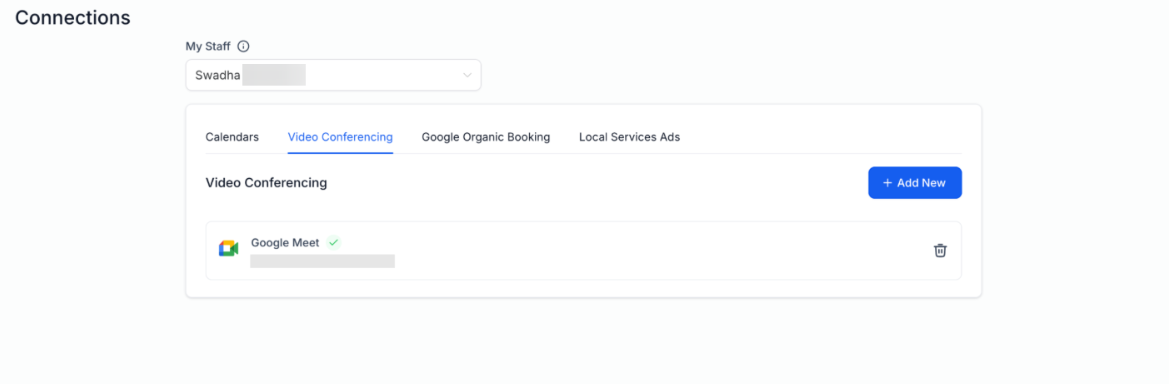
¶ **Step 2: Sync in User Calendar Configuration: **
Syncing the Calendar with the User:
- Go to Settings > My Staff, and find and select the user to whom you want this calendar linked. It could be you or any of your team members.
- Click on the pencil icon to open the edit window, and scroll down to find Calendar Configuration.
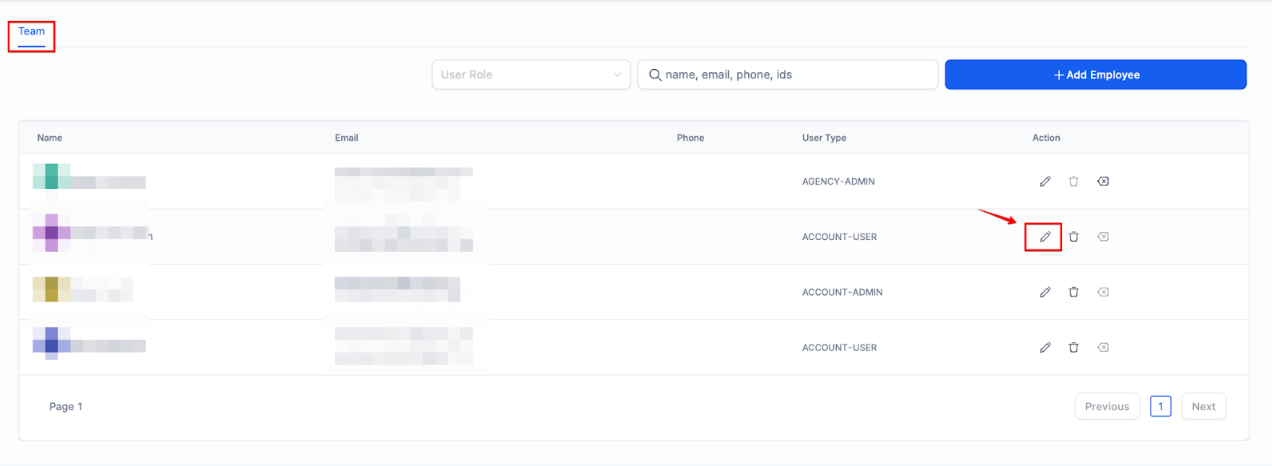
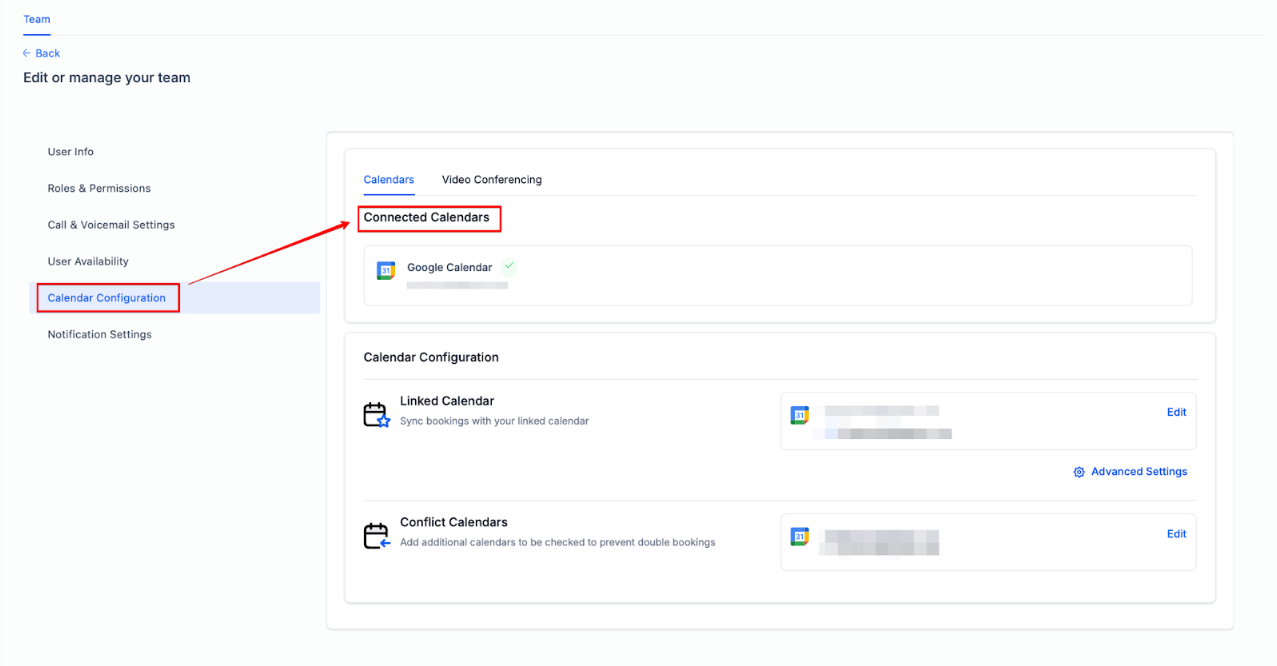
- Select and Sync Calendar: Choose the calendar you will use (e.g., your Gmail calendar). Ensure it is properly synced. Verify that the calendar settings allow contact creation and automation triggers.
- Choose Google Meet: Also, go to User Availability and select Google Meet as the Meeting Location.
Syncing the Calendar with yourself
If you take the appointment, you may also change the meeting location in Settings > My Profile , scroll down to User Availability, and select Google Meet.

- Save Your Settings: Confirm and save your calendar settings. This step ensures your calendar is linked and ready for Google Meet Integration.
¶ Step 3: Setting up Google Calendar in Calendar Settings:
Once your Google account is successfully connected, you need to complete your calendar configuration by selecting your linked calendar and conflict calendar.
Head to Calendars > Calendar Settings > Connections.
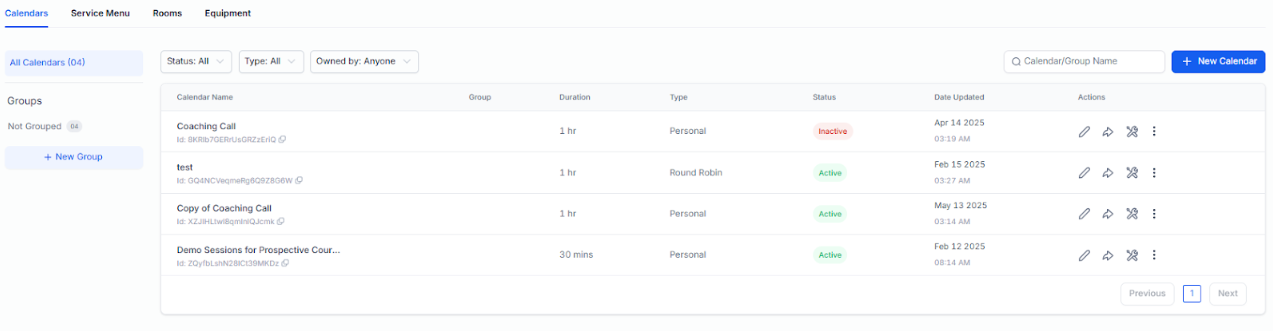
Calendar Configurations:
Calendar configuration involves two settings: Linked Calendar & Conflict Calendar. Make sure to select a particular team member.
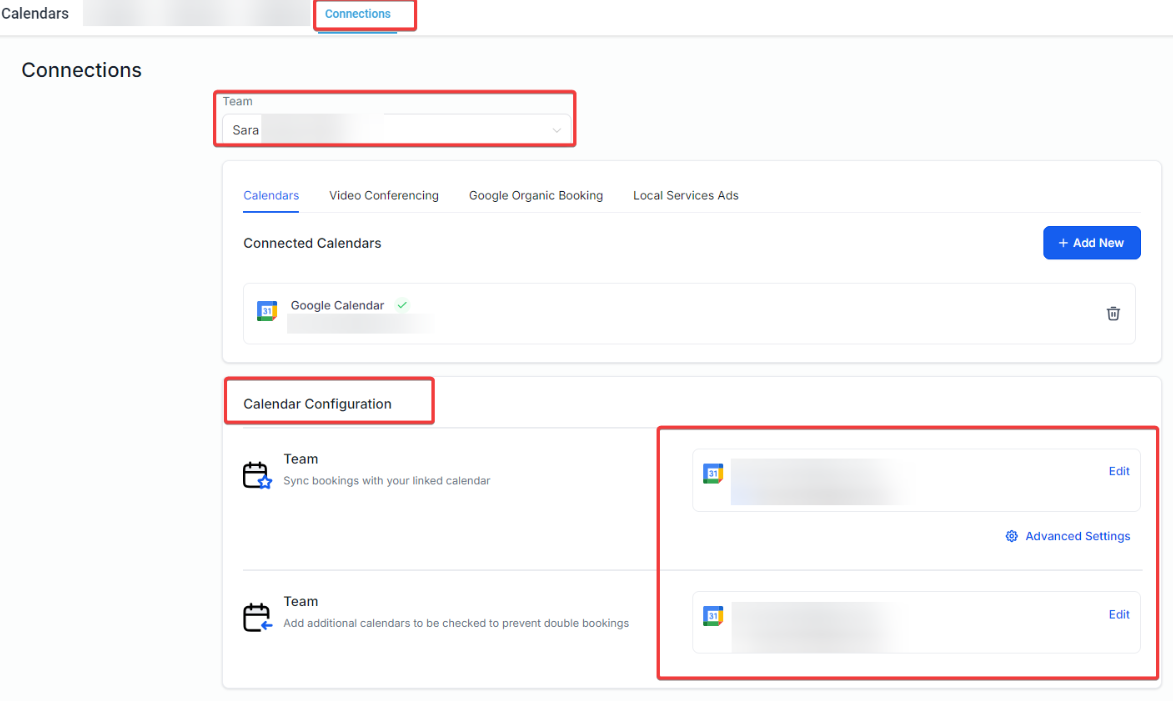
Linked Calendar:
All new events created in the system will be added to your linked calendar. For example, any new event created in the system will sync to your linked calendar, allowing you to view it directly on this third-party calendar (e.g., Google).
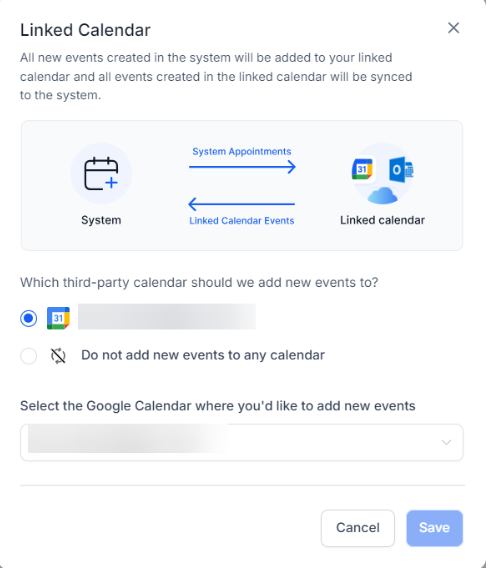
**Note: **
- Writer’s access is required for the user to select a calendar as a linked calendar.
- By default, the linked calendar is added to the conflict calendar. This means any event created on the third-party linked calendar will be fetched in the system and pushed to the third-party linked calendar.
- You can set your Sync Preferences from the Advanced Settings.
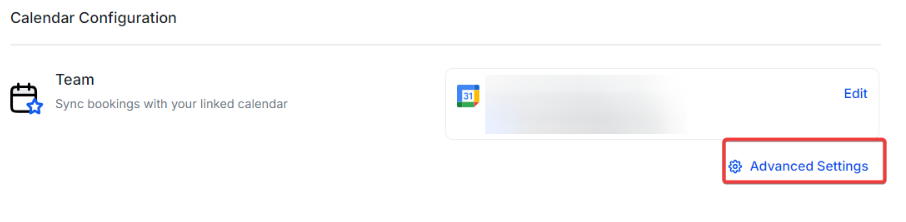
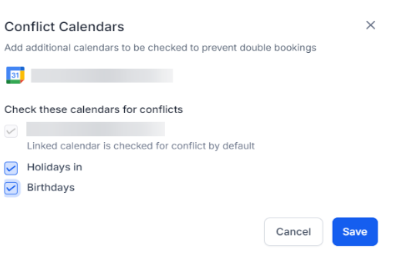
Conflict Calendar:
Events from third-party calendars added as conflict calendars are synced to the system, blocking your availability for the event’s duration.
The availability is blocked only if the event is marked as ‘BUSY’ in the third-party calendar. For events marked as ‘FREE’, the events are fetched in the system, but the availability remains open.
This ensures accurate availability and avoids double bookings. To prevent double bookings, you can add multiple calendars to be checked.
¶ Step 4: Create a Calendar within LeadMagicX and connect it to Google Meet
Note: This option is currently unavailable for Class Booking and Simple/Event Calendars.
- Navigate to Calendar > Calendar Settings, within Calendars > Create or edit the Calendar.
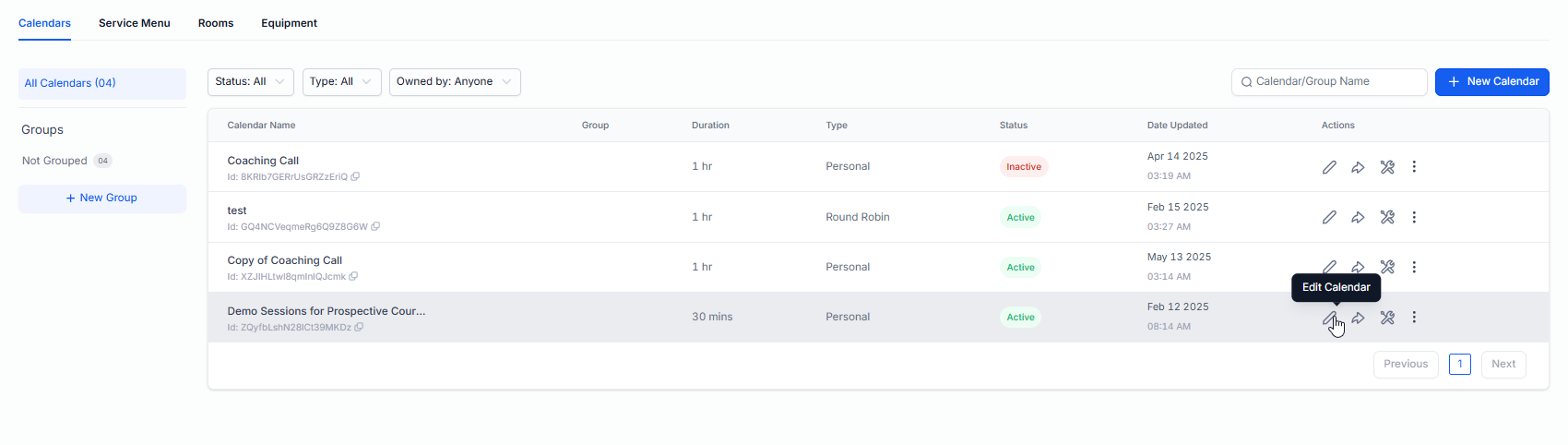
- In Staff & Location, select the team member and choose Google Meet as the meeting location.
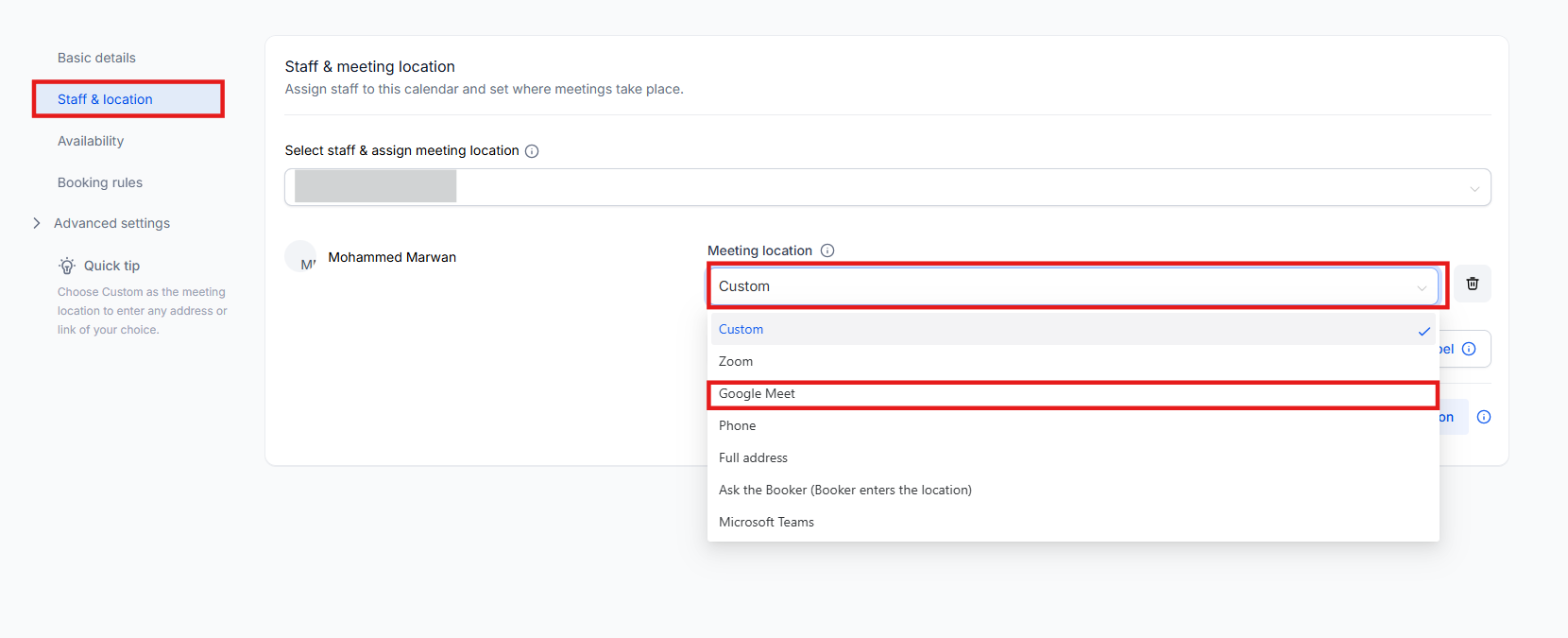
- Save the changes.
¶ Test the Integration
Let’s go ahead and test whether Google Meet has been properly integrated. For this example, we will add the calendar to our Funnel inSites >Funnels.
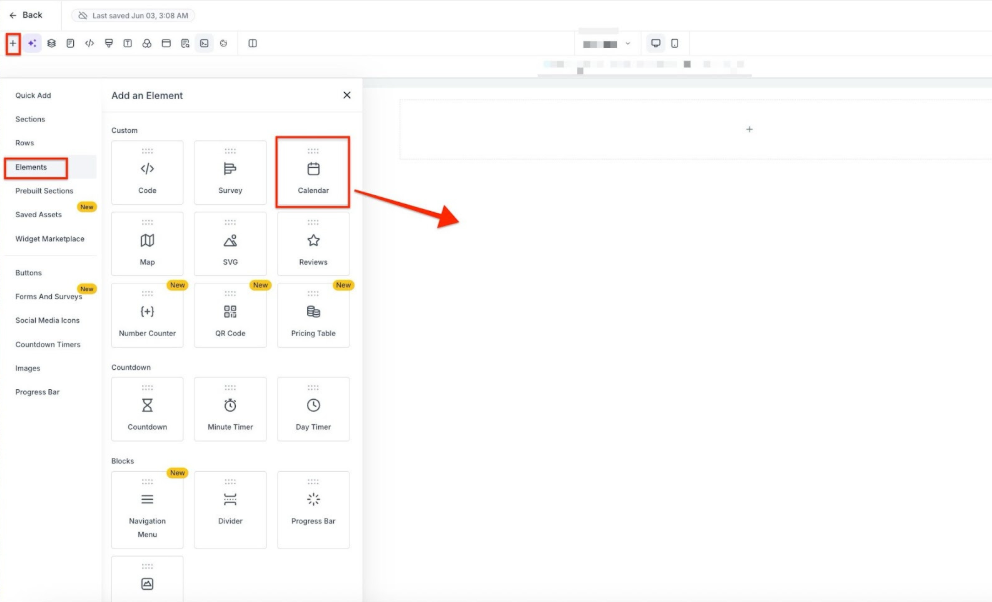
1- Add a Calendar Element: If needed, add a calendar element to your scheduling page using a drag-and-drop interface.
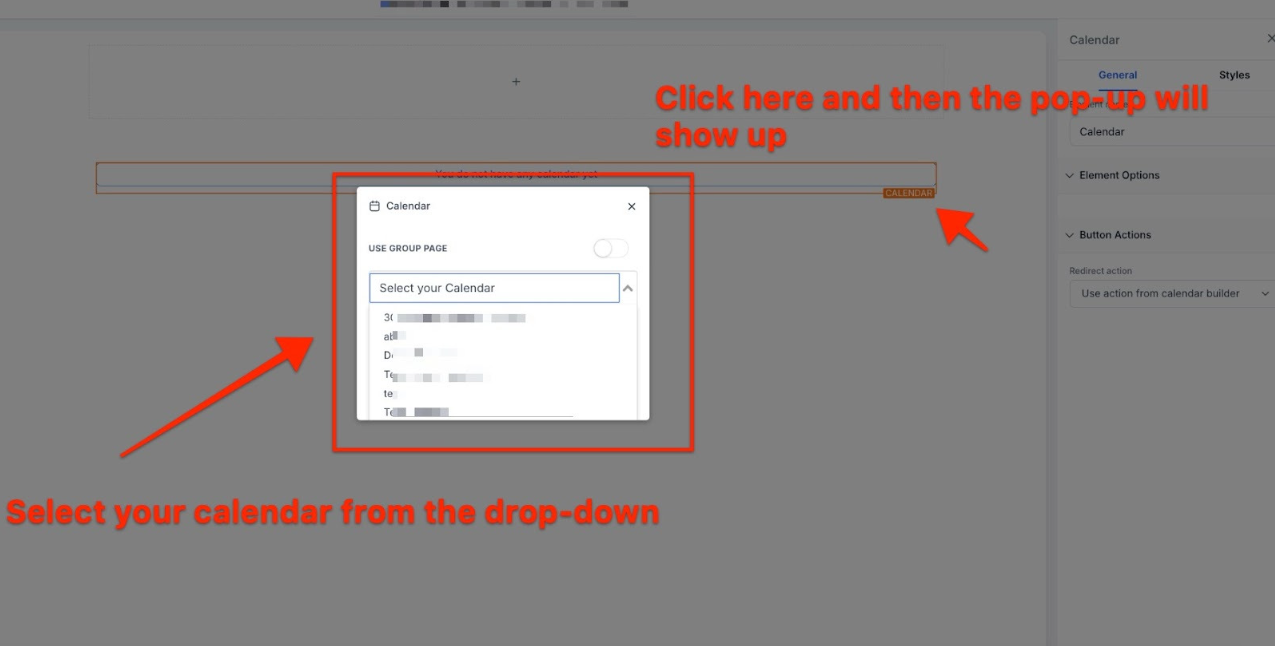
2- Choose the Calendar: After adding the calendar element, select the required calendar from the pop-up. After you are done editing, remember to save the changes.
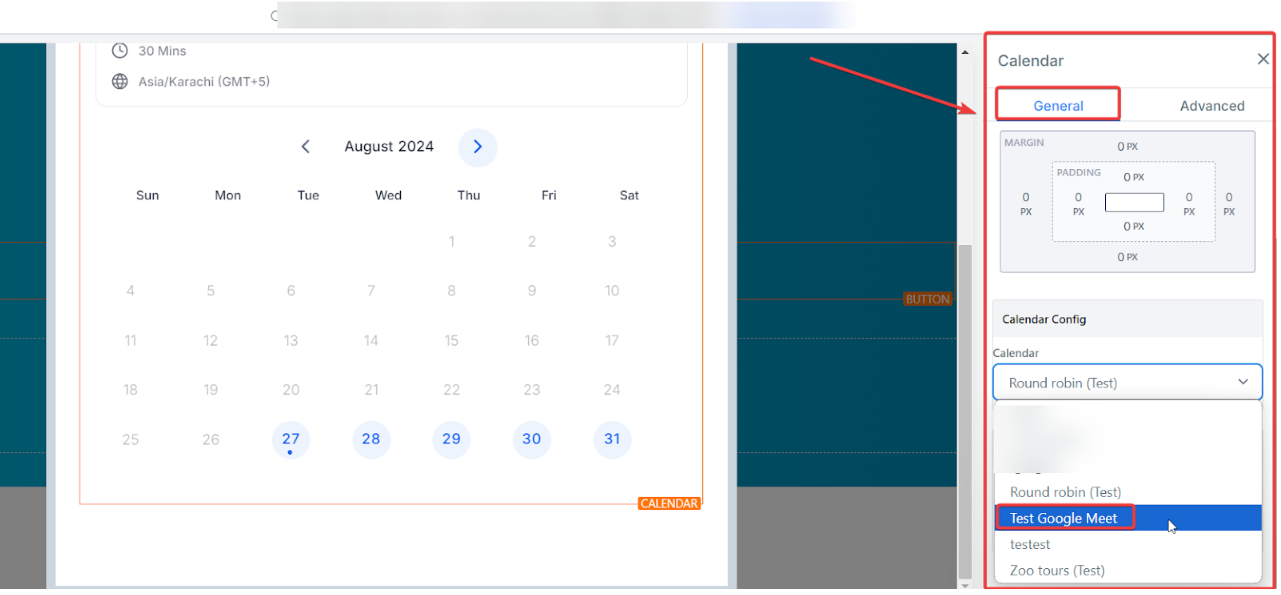
3- Choose the Calendar: After adding the calendar element, select the required calendar from the menu on the right side. After you are done editing, remember to save the changes.

- Click the Eye icon on the top right to preview and test your calendar.
- Fill in the details in the specified window and click the “Schedule Meeting ” button to test it.
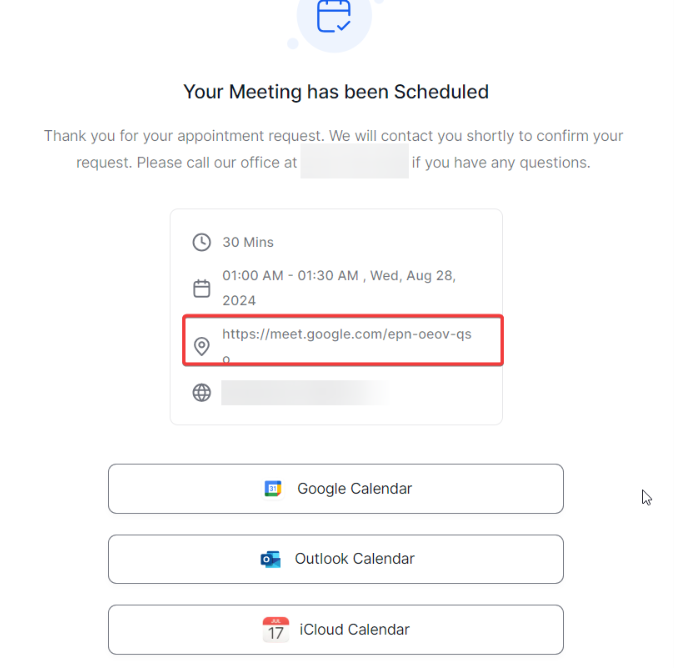
- This should be what your client sees when they have scheduled the meeting with you.
¶ Pro Tips
- Check Calendar Permissions Regularly: Ensure your calendar permissions (writer or read-only) are up-to-date to prevent issues with syncing and scheduling. Regularly review access settings to maintain smooth integration.
- Customize Notifications: Set up custom notifications to stay informed about upcoming meetings. This helps you manage your schedule efficiently and ensures you never miss a meeting.
- Regularly Test Integration: Periodically test the integration to ensure it functions correctly. This helps you catch any issues early and maintain seamless scheduling.
- Use Sync Preferences: Utilize advanced sync preferences to manage how events are handled between the system and Google Calendar. This can help avoid conflicts and ensure accurate availability.
¶ ****
¶ FAQs
Question: How do I connect my Google Calendar?**
**Answer: To connect your Google Calendar, navigate to either “Settings > My Profile > Calendar Settings” or “Calendars > Calendar Settings > Connections Tab.” Once connected, Google Meet will be automatically enabled, and Google Meet links will be generated for your appointments, as long as a Google Calendar is linked.
Question: What happens if I don’t link a Google Calendar?**
**Answer: If no Google Calendar is linked, Google Meet links will not be generated for your appointments. Make sure to link a Google Calendar to enable automatic Google Meet link creation for your events.
Question: What if I encounter the Google Calendar Writer Access Error?**
**Answer: If you receive a Google Calendar Writer Access Error, ensure that you have the correct permissions to add events. Refer to the article “What To Do If You Get the Google Calendar Writer Access Error” for detailed troubleshooting steps.
Question: How do I select Google Meet as the meeting location?**
**Answer: Go to Settings > My Staff, select the user, and find Calendar Configuration. Choose Google Meet under User Availability. For personal settings, navigate to Settings > My Profile and select Google Meet in User Availability. For calendar, navigate to calendar settings > Edit the calendar > Under Meeting details, scroll down > Select the meeting location to Google Meets
Question: Can I use Google Meet with all calendar types?**
**Answer: Google Meet integration is available with most calendar types but not with Cass Booking and Simple/Event Calendars. Ensure you are using a supported calendar type for Google Meet integration.
Question: How do I handle conflicts between my calendars?**
**Answer: Use the Conflict Calendar settings to manage overlapping events. Events marked as ‘BUSY’ in the third-party calendar will block your availability, while ‘FREE’ events will not affect your availability. You can add multiple calendars to avoid double bookings.
**Question:My Google Meet is greyed out. How can I fix it?
**Answer: If you’re Google Meet is greyed out and you are unable to select it as a meeting location, navigate to Settings > My profile > scroll down to Calendar settings and make sure you have a calendar selected under Linked Calendar.
**Question:**Can I connect multiple calendars?
Answer: Yes. You can assign one Linked Calendar for link generation and sync, and add multiple Conflict Calendars to protect your availability.
Question: Does every calendar event block my availability in the system?
Answer: Not necessarily. Availability is only blocked if the event is marked as ‘BUSY’ in your third-party calendar. If an event is marked as ‘FREE’, the system will still fetch the event details, but your availability will remain open for clients to book.
Question: Why did my client receive a “Meeting Link” but I don’t see it on my Google Calendar?
Answer: This usually happens if the Writer Access was revoked or expired. If the system cannot “write” to your Google Calendar, it may generate a link for the client, but it won’t be able to post the event to your personal calendar. Re-authenticate your connection in the Connections tab to fix this.