¶ How to Copy or Duplicate a Calendar
When creating a new calendar, you can copy and duplicate an existing calendar if you want to duplicate all or most of the settings. This will allow you to save time setting up multiple calendars with the same or similar settings.
- Navigate to Settings > Calendars.
- Choose the one you’d like to duplicate, and click the 3-dot dropdown menu.
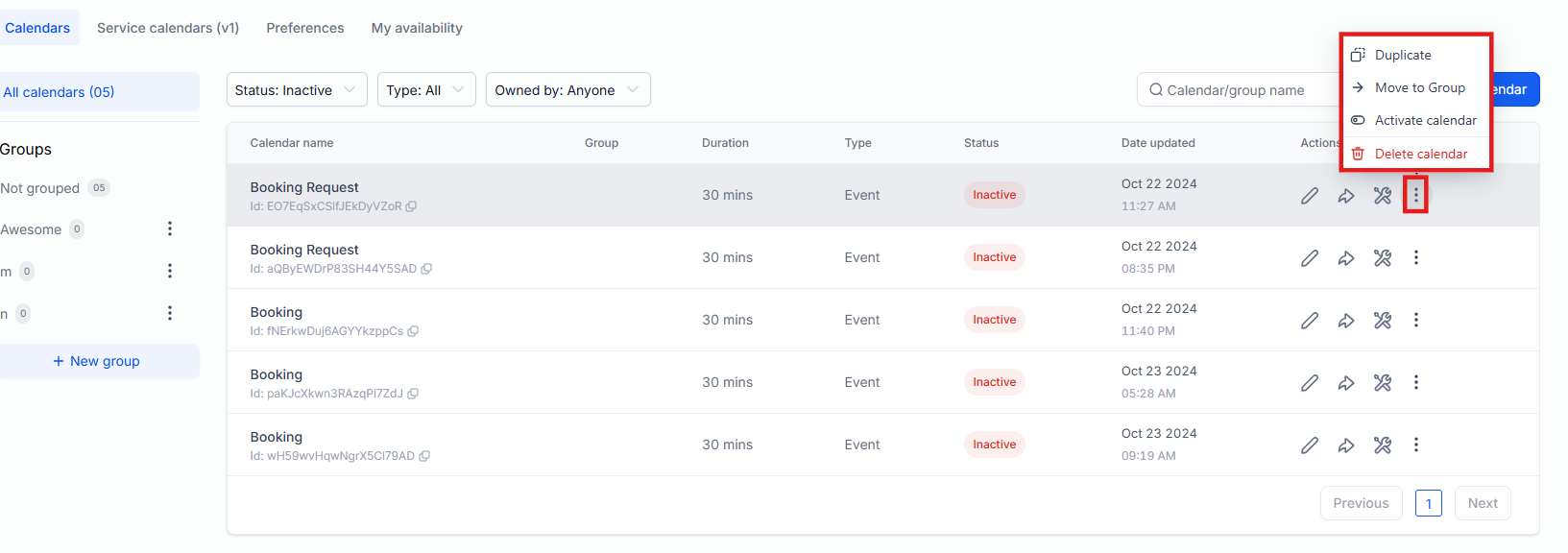
- Click “Duplicate”.
- The pop-up window will ask for confirmation to duplicate the calendar with the same settings.

- Make any additional changes or updates, and click save.

- Automatically copy notification templates and their settings (like email/in-app reminders) when duplicating a calendar. This ensures a more consistent setup, eliminates missed notifications, and streamlines the scheduling process.

- Now the Calendar will be added to LeadMagicX.
¶ FAQ’s
Question: How do I duplicate an existing calendar?**
**Answer: To duplicate a calendar, navigate to Settings > Calendars. Select the calendar you want to copy, click the 3-dot dropdown menu, and choose “Duplicate.” Confirm the duplication in the pop-up window.
Question: Can I make changes to the duplicated calendar?**
**Answer: Yes, after duplicating the calendar, you can make any additional changes or updates as needed before saving.
Question: Where will the duplicated calendar be added?**
**Answer: The duplicated calendar will be added to LeadMagicX, and you can manage it alongside your other calendars.
Question: What is included when duplicating a calendar?**
**Answer: When duplicating a calendar, all notification templates and their associated settings (like “Reminder” toggles), along with all calendar settings, are copied over, ensuring no missed notifications.
Question: Are notification templates included when duplicating a calendar?**
**Answer: Yes, when duplicating a calendar, all notification templates and their settings (such as email/in-app reminders) are automatically copied over to the new calendar. This ensures consistent notifications and eliminates the risk of missed reminders.
Question: Are reminders and notifications duplicated automatically?**
**Answer: Yes, all notification templates and settings are automatically copied to the new calendar to prevent missed reminders.
Question: Is there a limit to how many times I can duplicate a calendar?
Answer: There is no technical limit. You can duplicate a single “Master” calendar as many times as you need.