¶ How to Configure Email and In-App Notifications for Appointments
Effective communication is crucial for managing appointments, and customizable email notifications help streamline this process. This guide will show you how to set up and manage email notifications for various appointment scenarios, including bookings, cancellations, reschedules, reminders, and follow-ups.
¶ Why Customize Appointment Notifications?
Customizable notifications allow you to:
- Enhance communication with contacts, guests, and team members.
- Ensure timely updates and reminders.
- Tailor emails to align with your branding and communication style.
¶ Available Notification Options
You can configure six types of notifications:
- Appointment Booked (Unconfirmed Status): Sent when an appointment is booked with unconfirmed status.
- Appointment Booked (Confirmed Status): Sent when a booking is confirmed or updated to confirmed.
- Cancellation Email: Sent when an appointment is canceled, marked as a no-show, or invalid.
- Reschedule Email: Sent when the date or time is changed.
- Reminder Email: Sent before the appointment, based on your timing preferences.
- Follow-Up Email: Sent after the appointment, based on your timing preferences.
¶ How to Set Up Appointment Notifications
¶ Step 1: Navigate to the Notifications Tab
- Go to Calendar Settings.
- Click on the pencil icon toeditt the calendar you want to configure.

- Click on the Notifications tab.

¶ Step 2: Customize Notification Settings
- Choose Receiver Types:
- Contacts
- Guests
- Users
- Additional Email Addresses
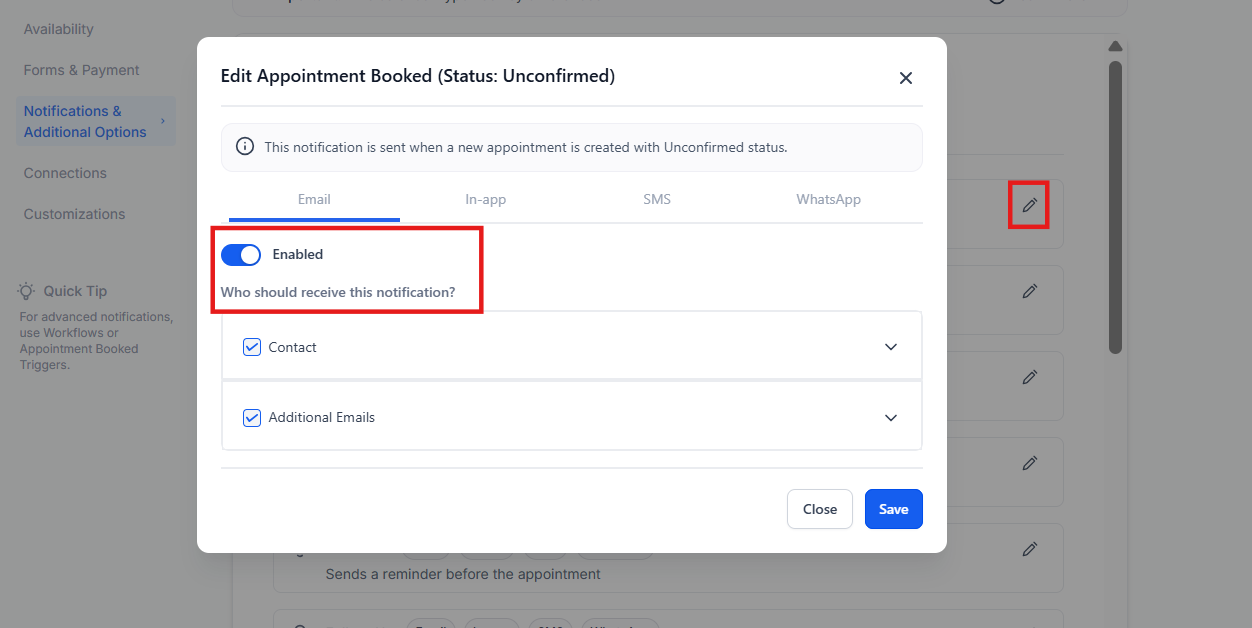
- Customize Notification Content:
- Modify subject lines and body text for tailored messaging.
- Use existing templates or create new ones.
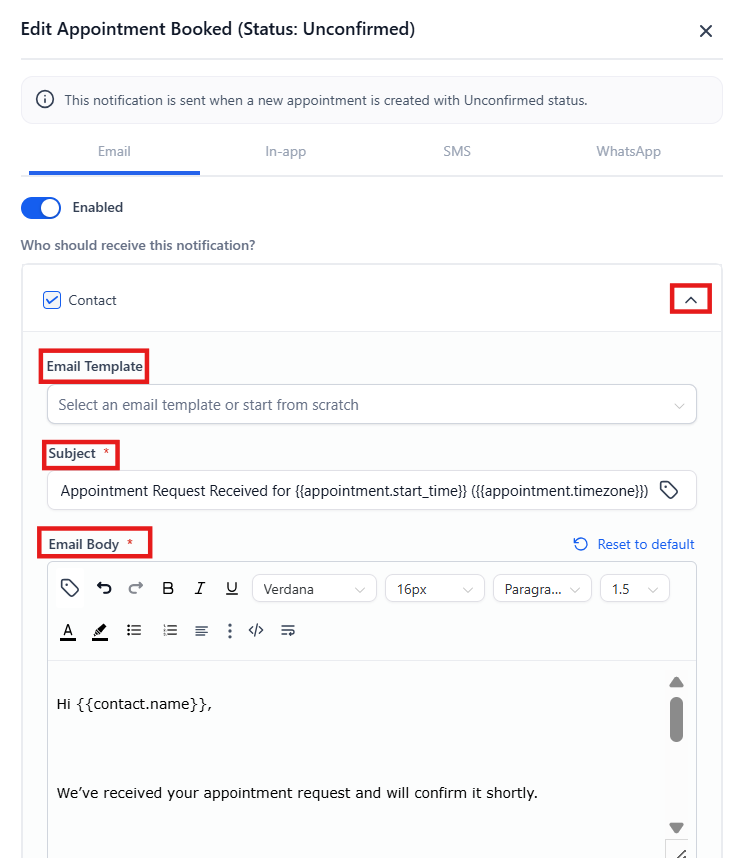
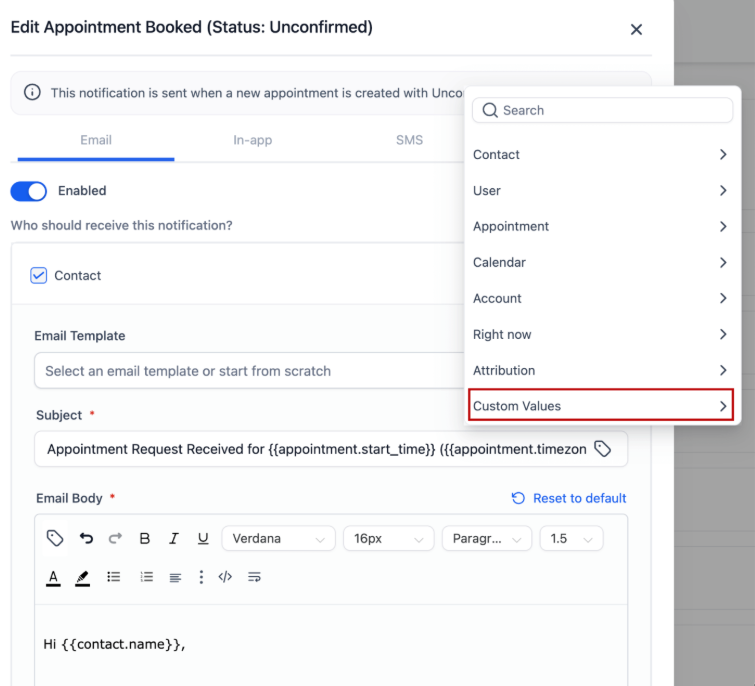
- **Custom values in calendar: **
By using custom fields and values, you can ensure that appointment titles, locations, and messages always display the most accurate data for your business. To use this, simply go to your Calendar Settings > Edit the calendar that you want to me changes to > go to Notifications & Additional Options > Edit the email notification that has email enabled > expand where it says ‘Contact,’ click on a text box (email body or subject), open the “Custom Values” menu, and pick the value you want to insert. You can use your custom values to personalize messages and power up your lead info.
- Disable Notifications (Optional):
- If a specific receiver type doesn’t need notifications, toggle it off.

¶ Email Notifications
- Select the notification type you want to customize (e.g., Reminder Email).
- Switch to the Email tab and enable the toggle.
- Customize the subject and body text:
- Use templates or create new ones in the email builder.
- Add placeholders for personalized content.
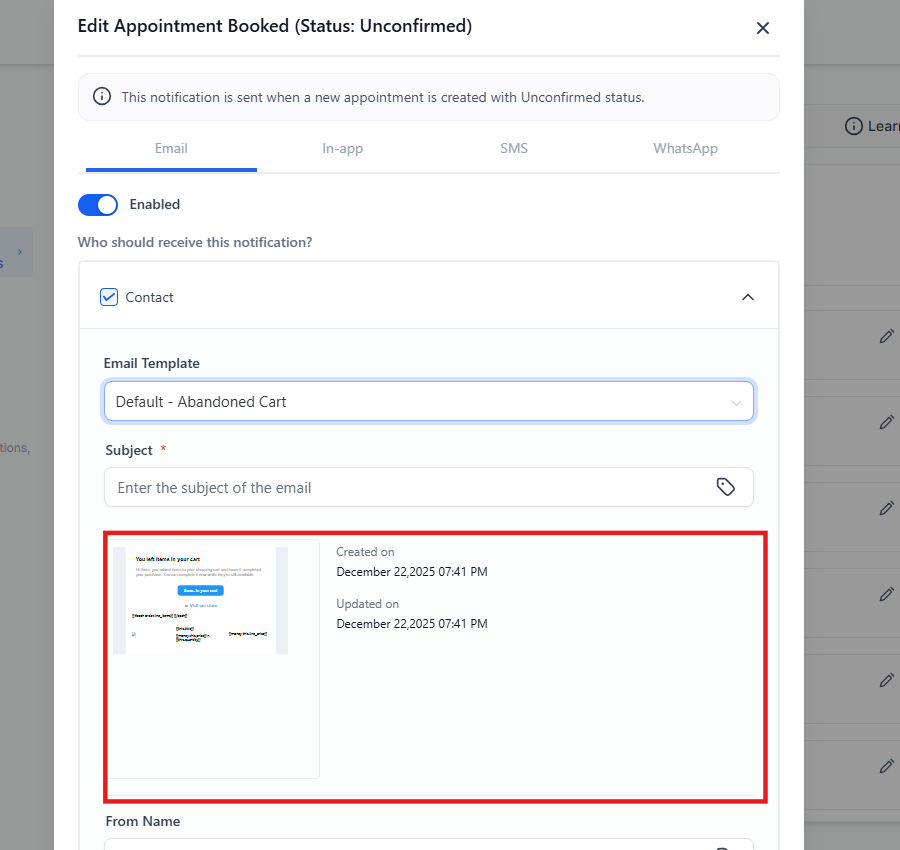
- Configure timing for reminders or follow-ups:
- Set how far in advance reminders should be sent.
- Specify the interval after appointments for follow-ups.

- Send a test email to ensure it meets expectations.
- Save your changes.
¶ Calendar Email Notifications and Appointment Smartlists
Key Benefits:
- Gain greater control over email notifications with customizable “From” names, email addresses, and subjects, along with support for custom values for a personalized touch.


- Improved appointment filters, including contact- and source-based options, align data visibility with user roles and timezone settings, ensuring seamless appointment tracking.


How to Use:**
**To customize email notifications, specify desired values for the “From” fields and subject in your calendar settings. Use the custom value selector for personalization. For smartlists, apply new filters or manage error handling through the filter drawer for clarity and alignment.
Special Requirements/Limitations:
- Ensure appropriate user permissions for assigned data visibility.
- Filters depend on the availability of linked data (e.g., contacts or calendars).
¶ In-App Notifications
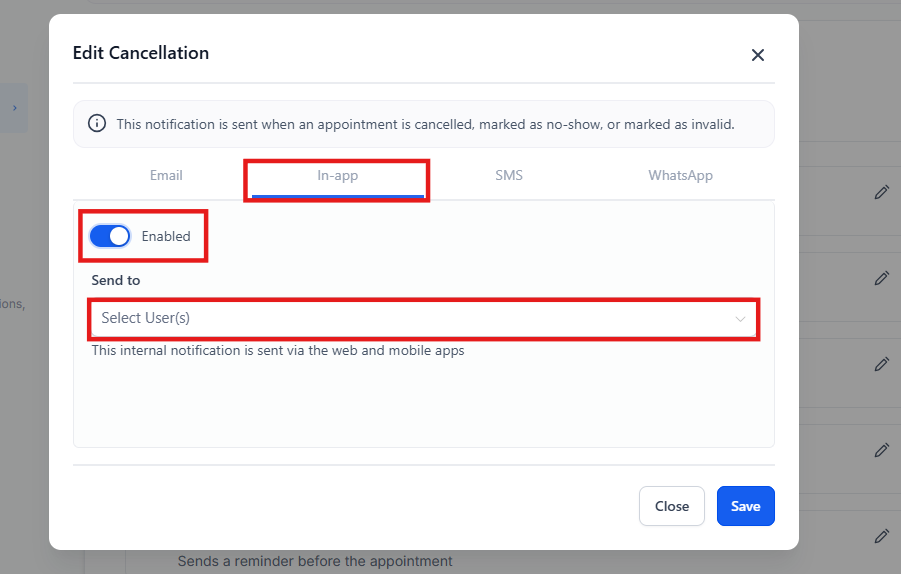
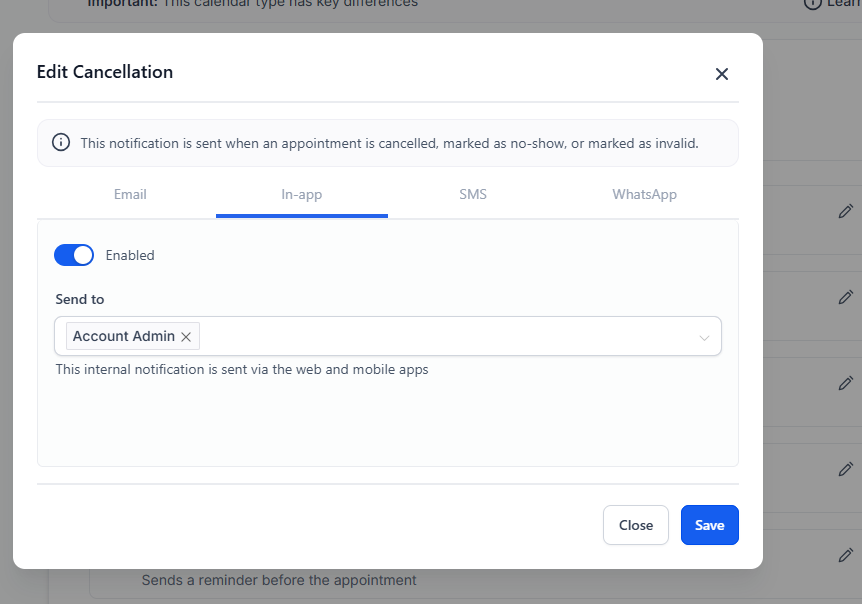
- Go to the In-App tab for the notification type you wish to configure.
- Select the users who should receive the notifications.
- Enable the toggle to activate notifications.
- Configure triggers for reminders and follow-ups:
- For reminders, specify the lead time before appointments.
- For follow-ups, set the interval after appointments.
¶ Important Notes
- Custom Forms for Guests: If a custom form is linked, ensure separate confirmation emails are not duplicating notifications.
- Email Templates: Add subject lines for successful email delivery.
- Default Settings: Admins or assigned users receive notifications based on calendar types.
¶ Use Case Examples
¶ Example 1: Reminder Email
A service provider wants to send a reminder email 24 hours before every appointment. They:
- Open the Reminder Email settings.
- Set the timing to 24 hours in advance.
- Customize the email to include appointment details and rescheduling options.
¶ Example 2: Follow-Up Email
A consultant sends follow-up emails 48 hours after appointments to collect feedback. They:
- Open the Follow-Up Email settings.
- Set the timing to 48 hours after appointments.
- Customize the email with a feedback link and thank-you note.
¶ FAQs
Question: Can I notify multiple email addresses for the same appointment?****
Answer: Yes, you can add additional recipients in the email notification settings.
Question: Can I turn off notifications for specific types?****
Answer: Yes, notifications can be disabled by toggling them off in the settings.
Question: How do I test my notifications?****
Answer: Use the test email feature in the notification settings to preview your emails.
Question: Can reminders and follow-ups have multiple triggers?****
Answer: Yes, you can set multiple timing options for both reminder and follow-up notifications.
Question: What happens if I don’t customize notifications?****
Answer: Default templates will be used, and notifications will follow the system’s basic settings.
Question: Can I use custom values for all email notifications?****
Answer: Yes, custom values can be applied to “From” names, email addresses, and subjects for tailored notifications.
Question: What happens if linked data is deleted in smartlists?****
Answer: Errors will be clearly displayed, and affected filters will be marked with explanations for easy troubleshooting.
Question: Do time-based filters work across time zones?****
Answer: Yes, time-based filters now respect user-specific timezones for accurate appointment tracking.
Question: Will notifications duplicate if a custom form is linked?****
Answer: Make sure custom forms are configured correctly; otherwise, confirmation emails may duplicate.
Question: How can I ensure my notifications are personalized to each recipient?**
Answer:** You can personalize notifications by using the custom value selector in the “From” fields and subject lines. This allows you to tailor the email content for each recipient, ensuring a more personalized experience.