Collective booking enables attendees to arrange meetings with multiple team members at once. This type of calendar allows multiple users to share a common calendar. When someone wants to schedule an appointment with team members, they can see available time slots based on the combined availability of all the team members in the collective booking calendar.
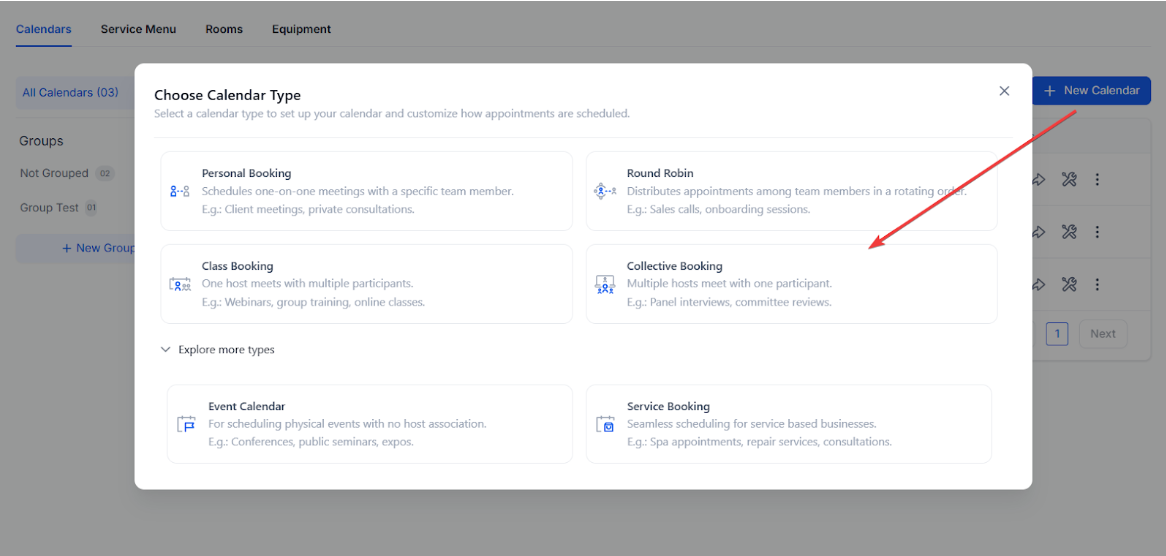
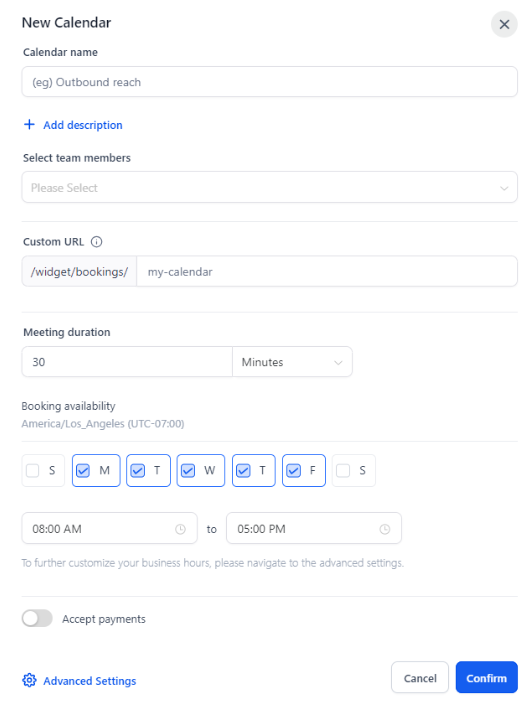
Note: To customize the Calendar Settings you can either click on “Advanced settings" or once the calendar creation is done, you can click on Edit Calendar which would take you to the advanced settings
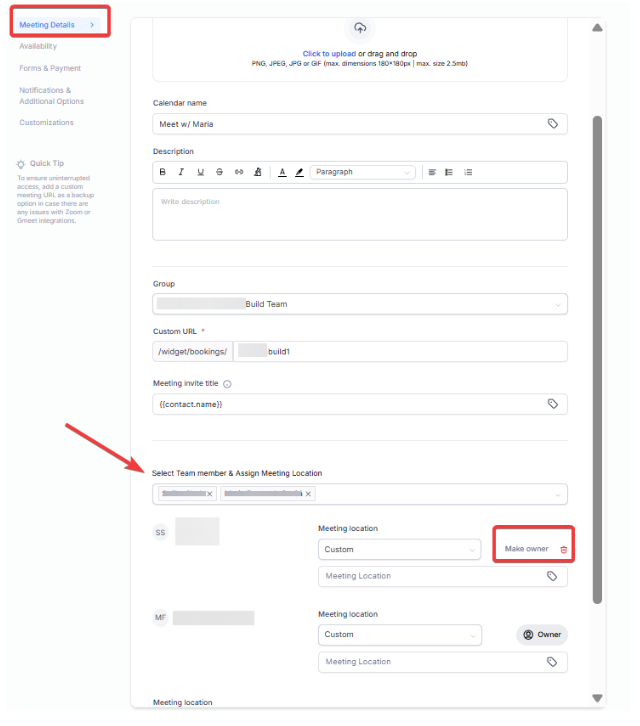
A primary owner in Collective booking would be that team member who would be the lead for the appointment. The primary owner would also be the Appointment owner, and if the contact assignment is enabled then the contact would get assigned to the primary owner.
By default the first team member added to the collective booking would be made the primary owner and the primary owner in the Collective booking cannot be deleted.
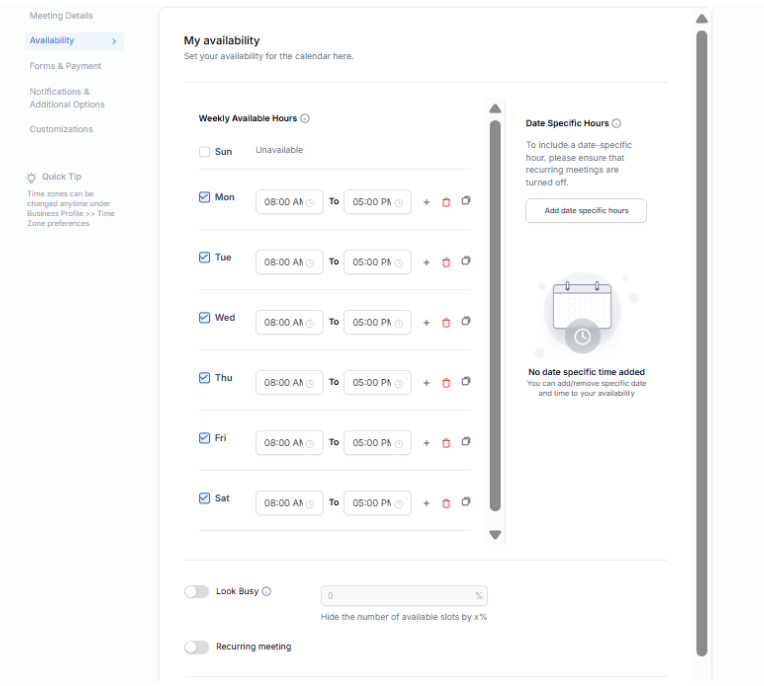
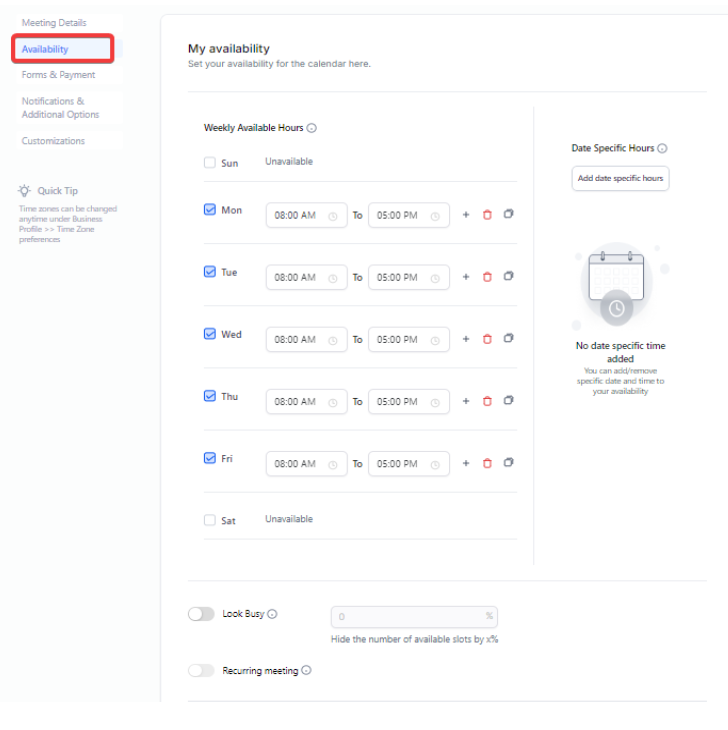
Weekly Working Hours: Set your regular, weekly working hours. This is useful for setting up your default schedule that repeats week after week.
Date Specific Hours: Adjust your schedule for specific dates. Override your regular weekly hours.
Booking Widget to Open First Available Date: Bookers can see and select the earliest available slot immediately, eliminating the need for manual searching. This is beneficial for businesses looking to accept early bookings for future events, such as special holidays or seasonal offers.
To use this feature, configure Date-Specific Hours without setting Weekly Working Hours. Ensure no recurring weekly hours are configured for this feature to function correctly.
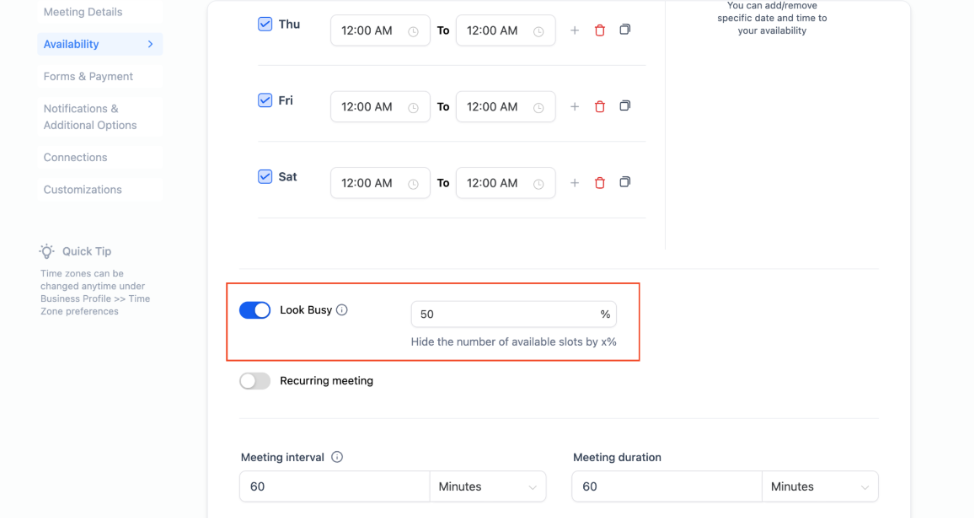
How to use: To use this feature, simply navigate to your calendar settings, enable “Look Busy,” and set the percentage of slots to hide.
 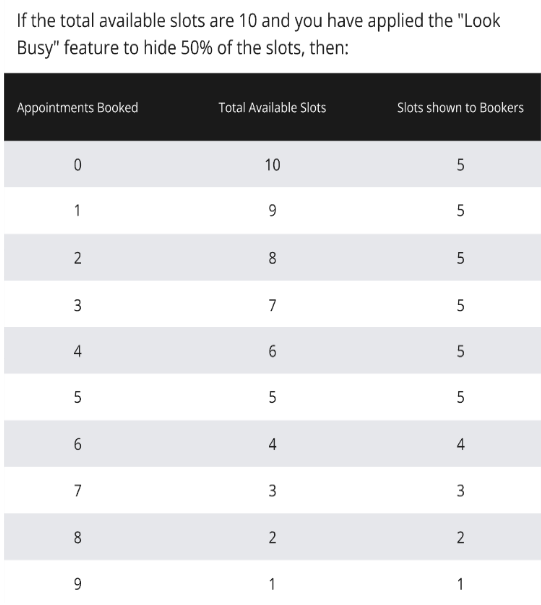
This feature applies to:
PLEASE NOTE: The “Look Busy” feature is not applicable for class bookings and service menus.
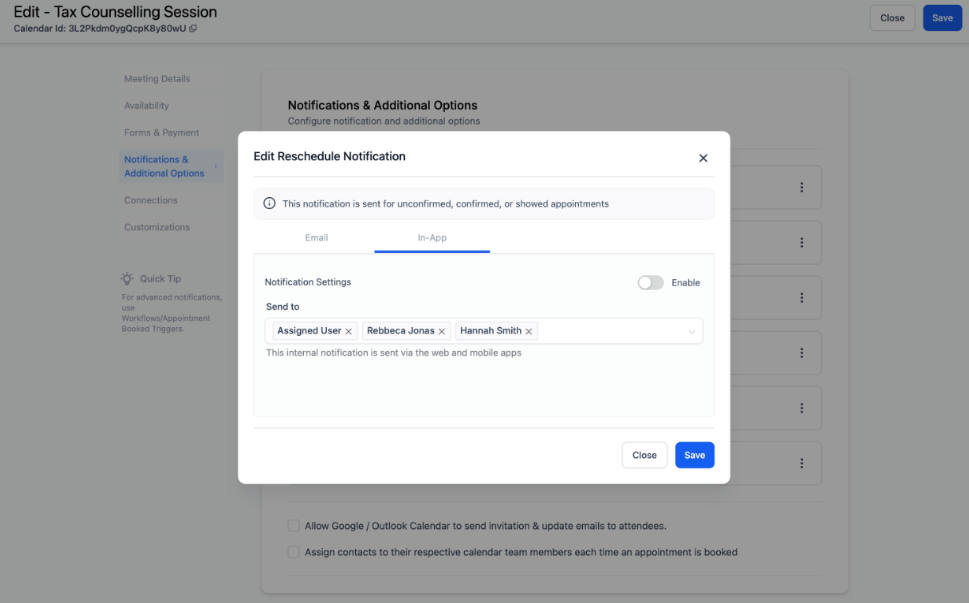
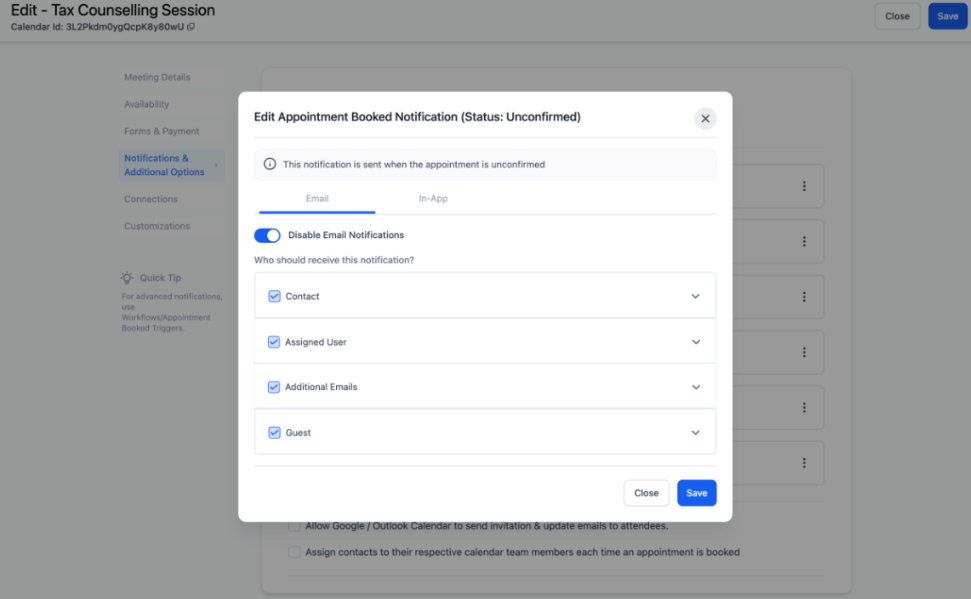
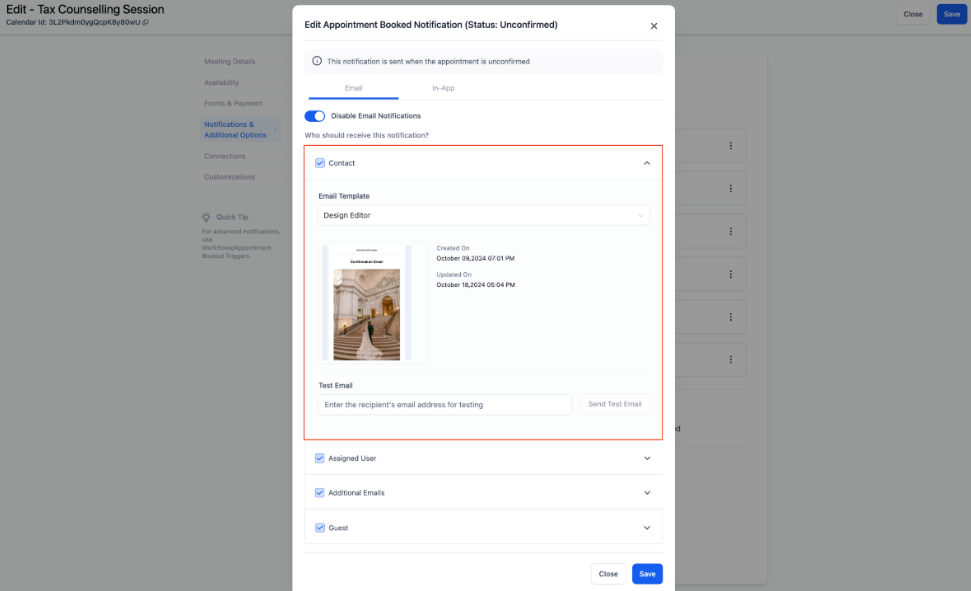
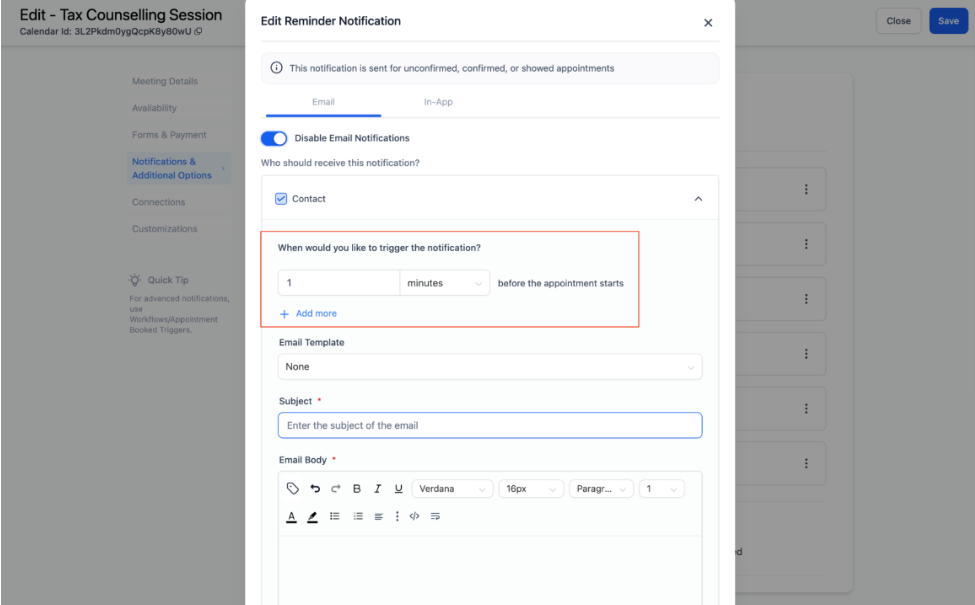
All the team members would be notified once a contact books an appointment. Users can fully customize their email and in-app notifications related to appointments. This allows users more control over notification content and recipients, with six types of notifications available, including Appointment Booked, Cancellation, and Follow-Up.
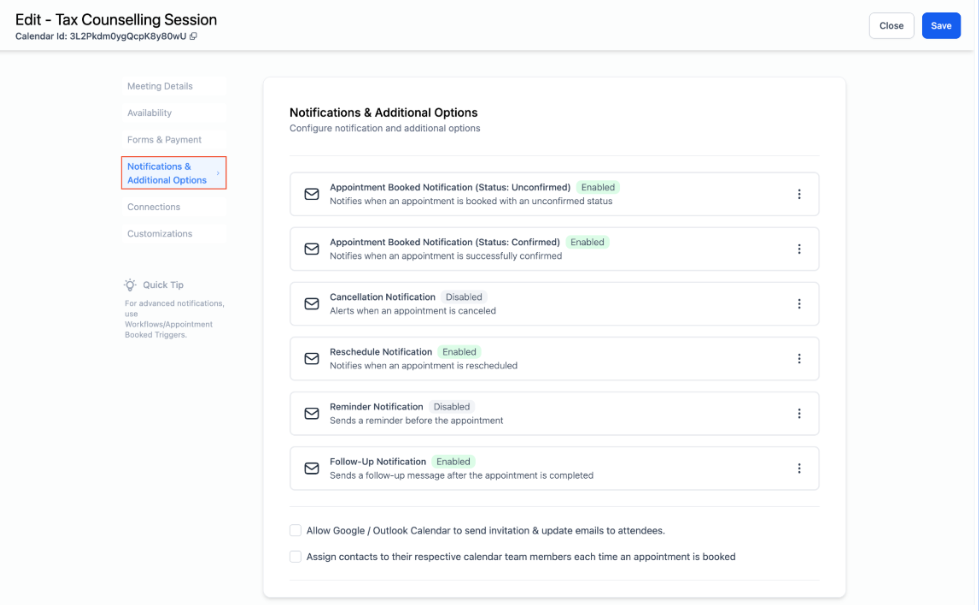
Notifications
Email Notifications:
**Cancellation & Reschedule Policy **
Users can set specific time frames for cancellation and reschedule options on the booking widget, enhancing appointment management. Businesses can define how far in advance bookers can cancel or reschedule appointments, ensuring better control over scheduling and reducing last-minute changes. This helps maintain a well-organized schedule by limiting changes within a defined period.
How to Use:
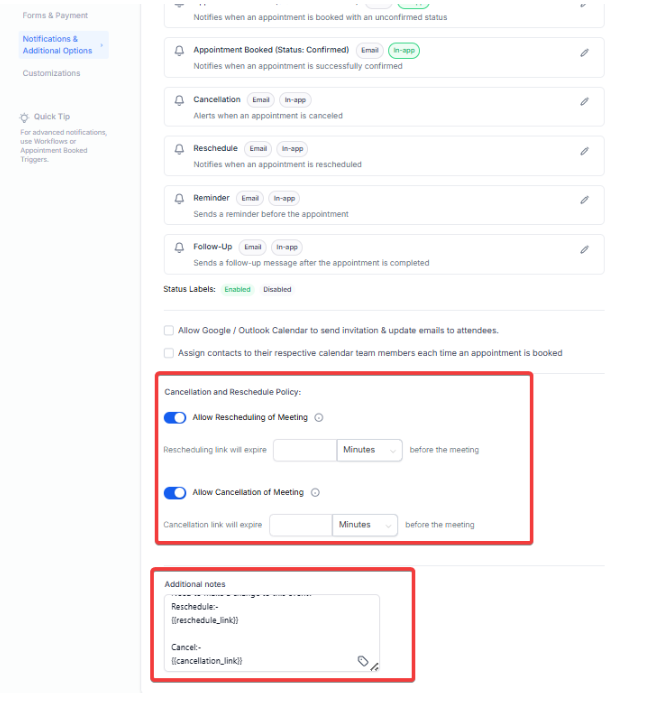 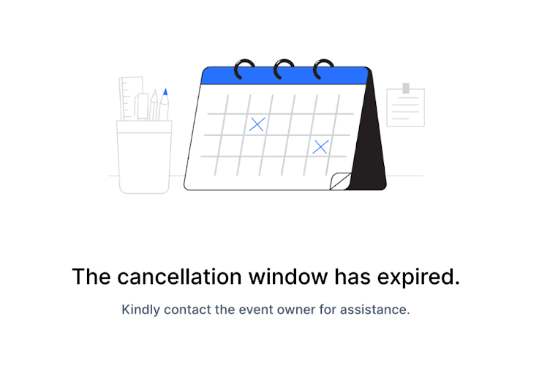
When enabled, the cancellation and rescheduling links will be added to the additional notes section and included in the calendar invite, expiring as configured to prevent changes outside the specified window.
Payments would continue to work for Collective Booking if they are enabled for the Calendar, where the user would have to make the payment first, and once the payment is confirmed only then the appointment would be booked.
Payment System
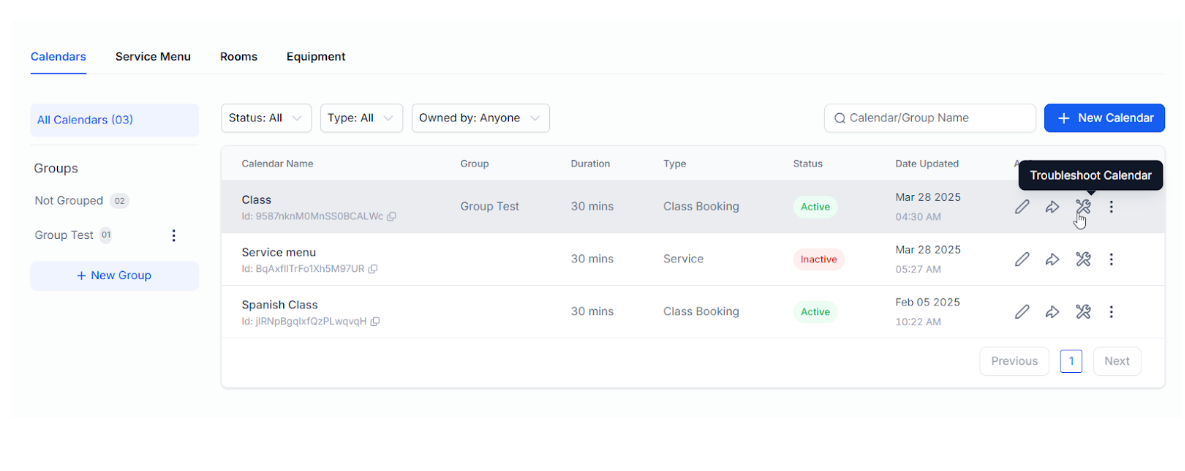
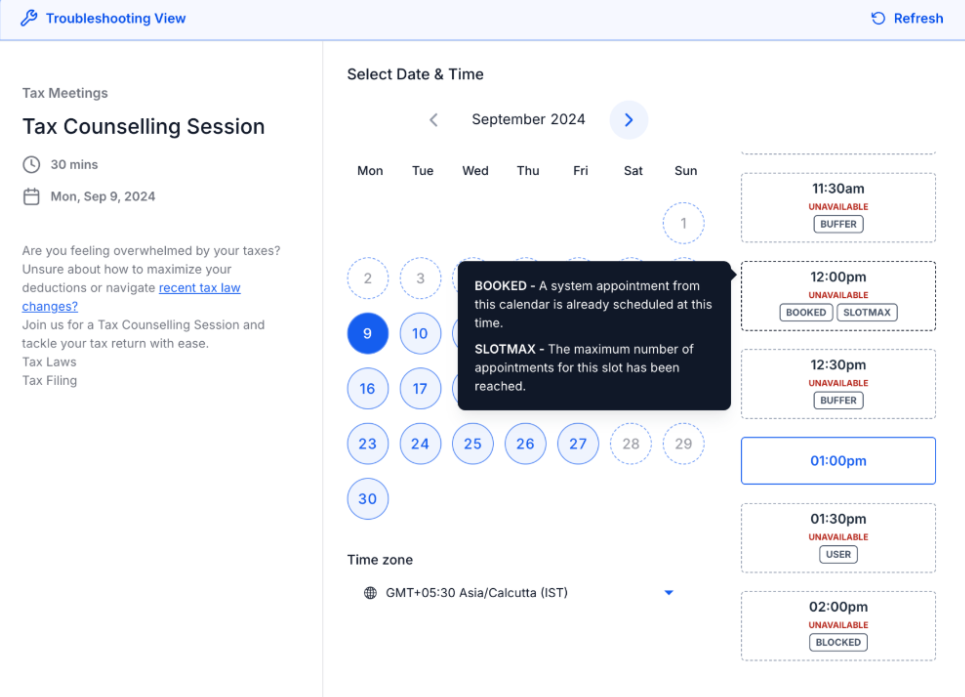
This tool provides users with detailed insights into unavailable time slots, helping to quickly identify and resolve issues that may be affecting calendar bookings. By showing the reasons behind unavailable slots, the tool enhances scheduling efficiency for businesses and administrators, making it easier to manage calendars without guesswork.
To use , simply go to Calendar Settings, select your calendar, and choose the “Troubleshoot Calendar” option to view available and unavailable slotsalong with explanations.
Question: How many team members can I add to a single collective booking calendar?**
**Answer: You can add up to 100 team members in a collective calendar. However, keep in mind that the more team members you add, the fewer the chances of finding available slots that fit everyone’s schedules.
Question: Would payments work in Collective Booking?**
**Answer: Yes, payments would work for Collective Booking. If enabled, the user must complete the payment first, and once confirmed, the appointment will be booked.
Question: Can I use Collective Booking for virtual appointments?**
**Answer: Yes, Collective Booking can be used for both virtual and physical appointments. Ensure to add the correct details in the Meeting location field, such as a virtual meeting link for online appointments.
Question: Can I remove a team member from an existing collective booking calendar?**
**Answer: Yes, you can remove any team member from the collective booking calendar except for the Primary Owner. If the team member you want to remove is the Primary Owner, you must change the ownership first before removing that team member.
Question: I have changed the primary owner of the collective booking calendar, but for the existing appointment, I still see the old primary owner. Why?**
**Answer: The details of the booked appointment reflect the Calendar settings that were in place when the appointment was booked. Any appointment booked after the changes would start reflecting the new settings, including the new Primary Owner.
Question: Is there a way I can change the Primary Owner for an already-created appointment?**
**Answer: No, there is no way for users to change the details of an already booked collective appointment, including the Primary Owner. Changes will only apply to new appointments.
Question: Can I edit or reschedule a booked collective appointment?**
**Answer: Yes, you can edit or reschedule a booked collective appointment. However, you cannot change the team members involved once the appointment has been booked.
Question: How many team members can I add to a single collective booking calendar?**
**Answer: You can add up to 100 team members in a collective calendar. Keep in mind that with more team members, the chances of finding mutually available slots decrease.
Question: Would payments work in Collective booking?**
**Answer: Yes, payments work for Collective Booking. If enabled, users must complete the payment first, and only after the payment is confirmed will the appointment be booked.
Question: Can I use Collective Booking for virtual appointments?**
**Answer: Yes, Collective Booking can be used for both virtual and physical appointments. Be sure to enter the appropriate details in the Meeting location field, whether it’s a virtual link or a physical address.
Question: Can I remove a team member from an existing collective booking calendar?**
**Answer: Yes, you can remove any team member from the collective booking calendar except for the Primary Owner. If the Primary Owner needs to be removed, change the ownership to another user first.
Question: I have changed the Primary Owner of the collective booking calendar, but for the existing appointment, I still see the old Primary Owner, why?**
**Answer: The details of the booked appointment will reflect the settings of the calendar at the time the appointment was made. Appointments booked after the owner change will reflect the new Primary Owner.
Question: Is there a way I can change the Primary Owner for an already-created appointment?**
**Answer: No, there is no way to change the Primary Owner for an appointment that has already been booked.
Question: Can I edit/reschedule a booked collective appointment?**
**Answer: Yes, you can edit or reschedule the details of a booked collective appointment, but you cannot change the team members involved once the appointment has been booked.
Question: Can I customize the content of email and in-app notifications for appointments?**
**Answer: Yes, you can fully customize both email and in-app notifications, allowing you to control the content and choose specific recipients. You can create custom messages for notifications such as Appointment Booked, Cancellation, and Follow-Up.
Question: Who receives the default notifications for different calendar types?**
**Answer: For Event Calendars, the default recipient for in-app notifications is the account admin. For other calendar types, the assigned user is the default recipient for notifications.
Question: Why are some time slots unavailable on my calendar?**
**Answer: The Troubleshooting Tool provides a detailed explanation for unavailable time slots, helping users understand why certain times cannot be booked. By using the tool, you can identify specific issues such as conflicting appointments, user availability, or calendar settings that may be blocking these slots. To view the reasons, navigate to Calendar Settings, select your calendar, and use the “Troubleshoot Calendar” option.
Question: What payment systems are supported?**
**Answer: Payments work like in other calendar types: attendees must complete the transaction before the appointment is finalized.
Question: Can attendees cancel or reschedule appointments?**
**Answer: Yes, if enabled. You can define how far in advance attendees are allowed to cancel or reschedule. Links will automatically expire based on the time window you configure.
Question: Will every team member receive a notification when a meeting is booked?
Answer: Yes. By default, all team members included in the collective calendar are notified of new bookings. You can further customize these alerts in the “Notifications” tab to ensure the right people receive the specific details they need.
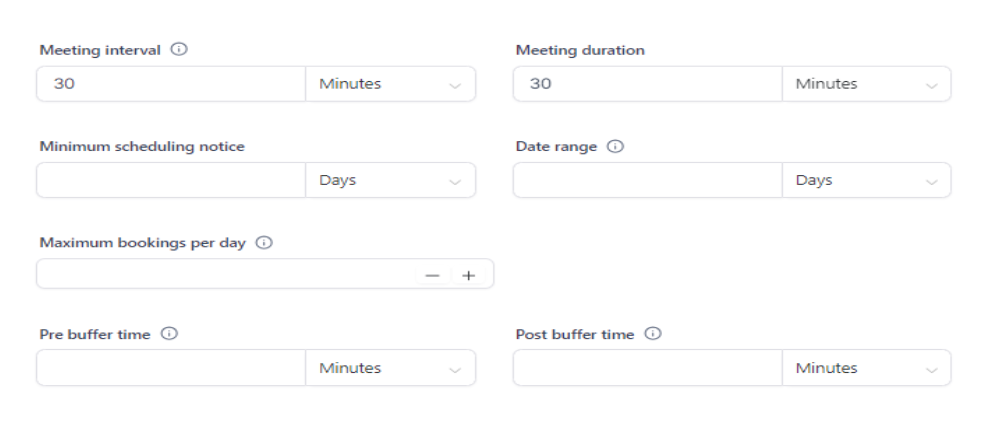
Question: If I have a “Buffer Time” set, is it applied to all team members?**
**Answer: Yes. The system ensures that the pre and post-buffer times are applied to everyone’s schedule simultaneously. This prevents back-to-back meetings that would leave one team member without a break.