¶ How to Use the Calendar Troubleshooting Tool
How to Use the Calendar Troubleshooting Tool
The Calendar Troubleshooting tool simplifies the process of identifying and resolving issues in your calendar setup. This is particularly useful for testing and refining calendar configurations before going live, ensuring a smooth experience for both users and clients.
¶ What is the Calendar Troubleshooting Tool?
The Calendar Troubleshooting tool allows you to:
- View calendar slots and identify unavailable slots.
- Understand why certain time slots are blocked.
- Test logic and availability without extensive trial and error.
Important Notes:
- The tool first reviews your calendar’s availability and meeting intervals to generate all possible slots. It then displays which of these slots are available and which are not.
- For example, if your calendar availability is set from 10 AM to 12 PM and 6 PM to 8 PM with 60-minute intervals, only the 10 AM, 11 AM, 6 PM, and 7 PM slots will be shown, with their availability indicated accordingly. If your calendar is unavailable on Saturdays, no slots will be displayed for that day.
¶ How to Access the Calendar Troubleshooting Tool
1. Navigate to the Calendar Settings in LeadMagicX
2. Locate the calendar you wish to troubleshoot.
3. Select the Troubleshoot Calendar option.
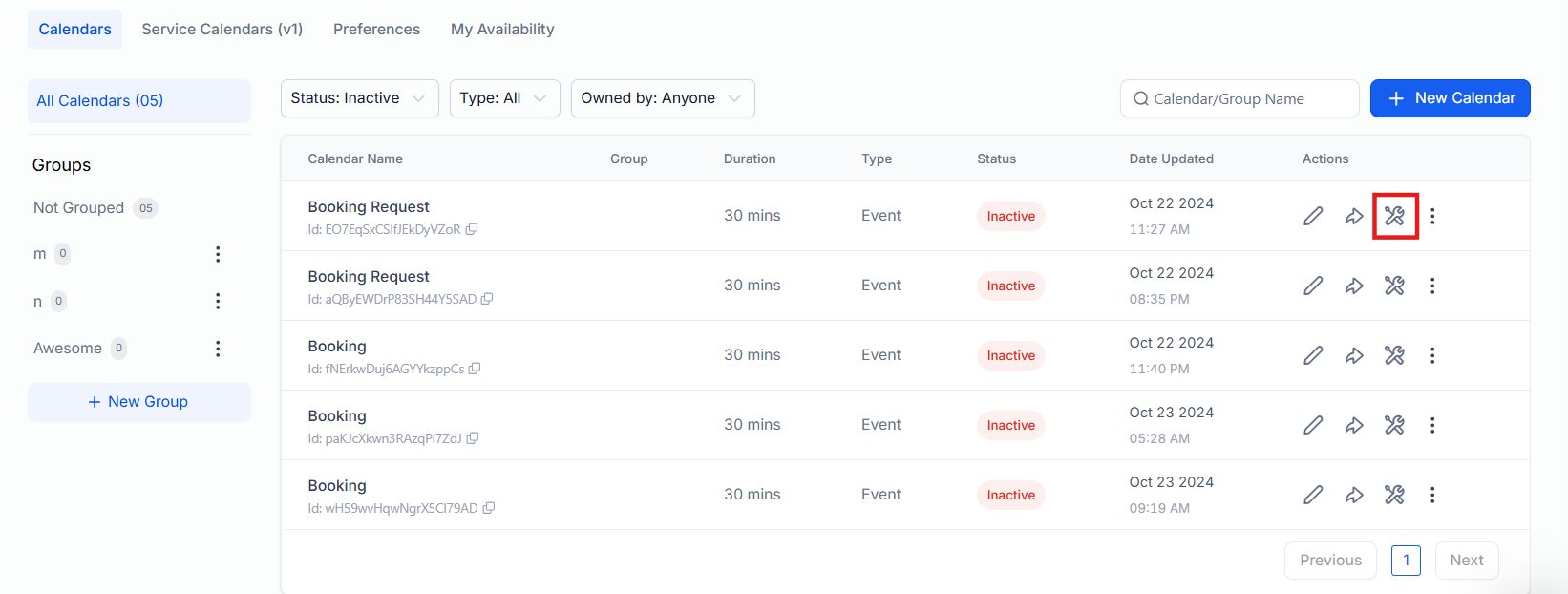
The troubleshooting view will open, displaying all available and unavailable slots in the calendar.
¶ Features of the Calendar Troubleshooting Tool
¶ 1. Viewing Slot Availability
The troubleshooting tool displays all time slots in the calendar. Hover over any unavailable slot to see the exact reason it is blocked. Common reasons include:
- Minimum Scheduling Notice Requirement: The time slot does not meet the required notice period.
- User Availability: A user associated with the calendar is unavailable during that slot.
- Blocked by Another Event: The slot is already booked or overlaps with another appointment.
- Outside Set Availability: The time slot falls outside the defined working hours.

¶ 2. Testing Collective and Round Robin Calendars
For Collective Booking Calendars and Round Robin Calendars , the tool provides detailed insights:
- Hovering over unavailable slots reveals how many users are unavailable.
- For collective bookings, all users must be available for a slot to show as available.
Example:
- If two out of three users are unavailable, the slot will be marked as unavailable.
- If one user becomes available, the slot’s availability adjusts dynamically.

¶ 3. Real-Time Adjustments
You can make changes to calendar settings in real-time. After updating the settings, click the Refresh button in the troubleshooting view to see the changes immediately reflected.
List of Codes & Descriptions
Below are the codes explaining why a slot may not be available for booking:
- USER : No user is available due to being blocked by another event or falling outside their set availability.
- COLLECTIVE : One or more users are unavailable for the collective appointment.
- CONFLICT : A third-party event is blocking the slot.
- BOOKED : A system appointment is already scheduled at this time.
- BLOCKED : The time has been blocked off for this duration.
- NOTICE : The slot cannot be displayed due to the minimum scheduling notice requirement.
- TOOFAR : The slot is outside the allowed date range.
- DAYLIMIT : The maximum number of appointments for the day has been reached.
- SLOTMAX : The maximum number of appointments for this slot has been reached.
- BUFFER : A pre/post buffer time is applied, blocking this slot.
- DURATION : The appointment duration exceeds the available time.
- PAST : The slot is in the past.
- LOOKBUSY : The slot is hidden due to the ‘Look Busy’ setting.
- NO SEATS : The maximum number of available seats has been reached.
- RESOURCE : A required resource (e.g., room or equipment) is not available.
¶ Benefits of the Calendar Troubleshooting Tool
- Time-Saving: Quickly diagnose and resolve calendar issues without extensive manual testing.
- Improved Accuracy: Ensure availability settings align with your expectations before going live.
- Enhanced Collaboration: Simplify testing for calendars involving multiple users, such as collective or round-robin bookings.
- On-the-Go Adjustments: Make tweaks to calendar logic in real time without disrupting the workflow.
¶ FAQs
Question: What is the purpose of the Calendar Troubleshooting tool?****
Answer: The Calendar Troubleshooting tool helps identify and resolve issues with your calendar setup. It shows all available and unavailable slots, along with the reasons for unavailability, making it easier to refine your calendar configurations before going live.
Question: How do I access the Calendar Troubleshooting tool?****
Answer: To access the tool:
- Go to Calendar Settings in LeadMagicX.
- Choose the calendar you want to troubleshoot.
- Select the Troubleshoot Calendar option.
Question: Can I see why a time slot is unavailable?****
Answer: Yes, you can hover over any unavailable slot to view the reason. Common reasons include:
- Minimum scheduling notice not met.
- The slot is blocked by another event.
- User unavailability.
- The slot falls outside defined working hours.
Question: Does this tool work for all types of calendars?****
Answer: Yes, the troubleshooting tool works for all calendar types, including:
- Individual Booking Calendars
- Collective Booking Calendars
- Round Robin Calendars
Question: How does the tool help with Collective or Round Robin Calendars?****
Answer: For Collective Calendars, the tool indicates how many users are unavailable for a specific slot. All users must be available for a collective booking slot to appear as available. For Round Robin Calendars, it highlights user-specific availability issues, helping you fine-tune settings.
Question: Can I adjust calendar settings while troubleshooting?****
Answer: Yes, you can make changes to the calendar settings in real time. After making adjustments, click the Refresh button in the troubleshooting view to see the updated availability immediately.
Question: Can I use this tool to test appointment logic?****
Answer: Absolutely. The tool is ideal for testing calendar logic, such as availability rules, booking requirements, and scheduling notice periods, ensuring everything functions as expected before going live.
Question: How can I test buffer times or appointment durations?
Answer: You can modify these settings under the calendar configuration and then refresh the troubleshooting view. The tool will clearly indicate if a slot becomes unavailable due to buffer overlaps or duration limits.
Question: How can I test collective or round robin calendar availability with multiple users?
Answer: You can use the tool to view the availability of collective or round robin calendars. By hovering over unavailable slots, you will see how many users are unavailable. For collective calendars, all users must be available for a slot to show as available, while for round robin calendars, individual user availability is tracked.
Question: Why does the tool show no slots at all for certain days?
Answer: The tool only displays slots that match your Meeting Interval. If your interval is set to 60 minutes but your availability is only a 45-minute window (e.g., 1:00 PM to 1:45 PM), no 60-minute slot can fit, so nothing will be displayed. Ensure your “Working Hours” blocks are divisible by your “Meeting Interval.”